Accept direct bank transfer
Let customers pay straight into your bank account at checkout — Crate shows your account details on the order so you can confirm payment and fulfil.
Direct bank transfer is the simplest way to get paid: the customer transfers the order total straight into your bank account, you confirm it landed, and you fulfil. No gateway fees, no waiting on settlements.
Crate handles the awkward part — showing the buyer where and how much to pay. Once you turn it on, every order that chooses this method displays your account number, account name, bank and a payment reference, so the customer has everything they need.
Before you start
Add your bank account under Settings → Payments → Bank account first. Crate resolves the account name from your number so customers always see a verified, correct destination. Without it, there's nowhere for buyers to pay — so the Direct bank transfer page will prompt you to add one before the preview fills in.
Tip: Direct bank transfer pairs well with Paystack. Offer both and let the customer pick — card now, or transfer if they prefer. You confirm transfers yourself, then mark the order paid.
After a customer pays
Bank transfers don't confirm themselves, so check the payment landed, then open the order and mark it paid. That moves it into your fulfilment flow exactly like a card order. Until you confirm, the order sits as pending so you never ship against a payment that never arrived.
-
1
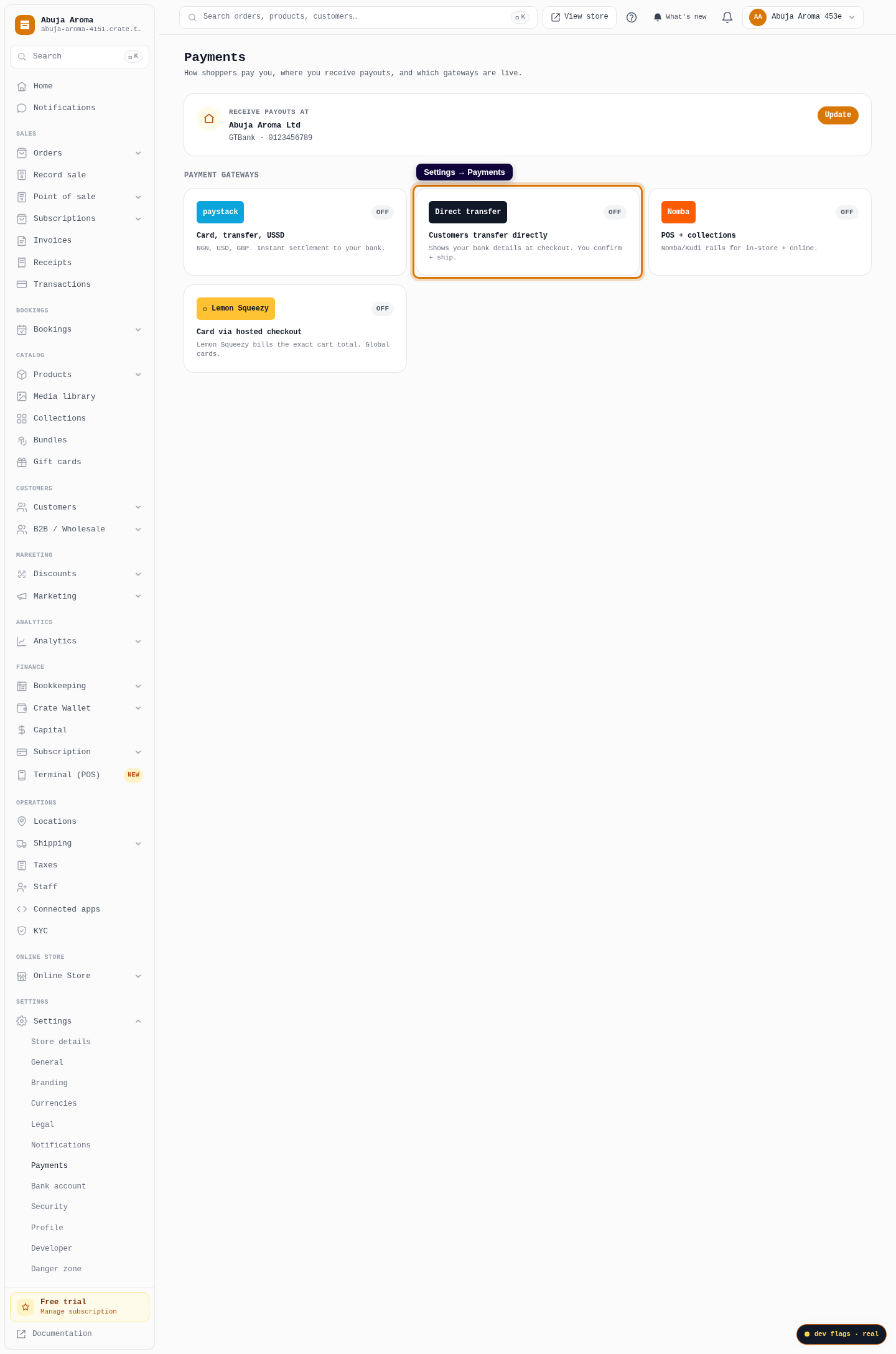
Open Payments
From your Crate dashboard, go to Settings → Payments. This is the home for every way you collect money.
Web 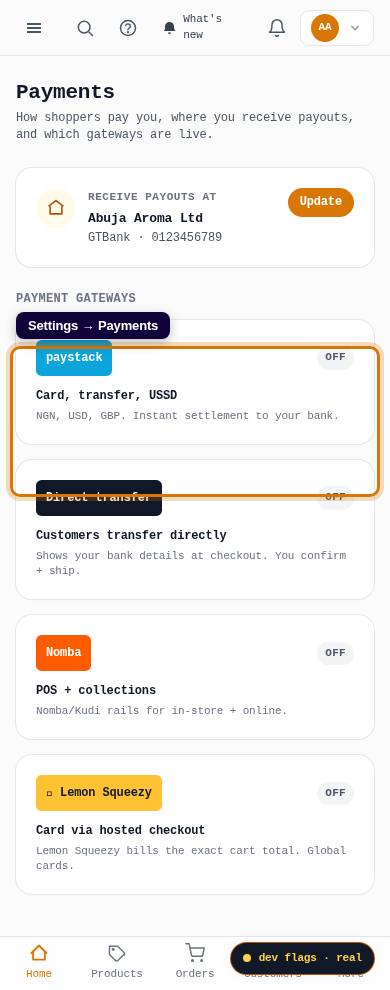
Mobile -
2
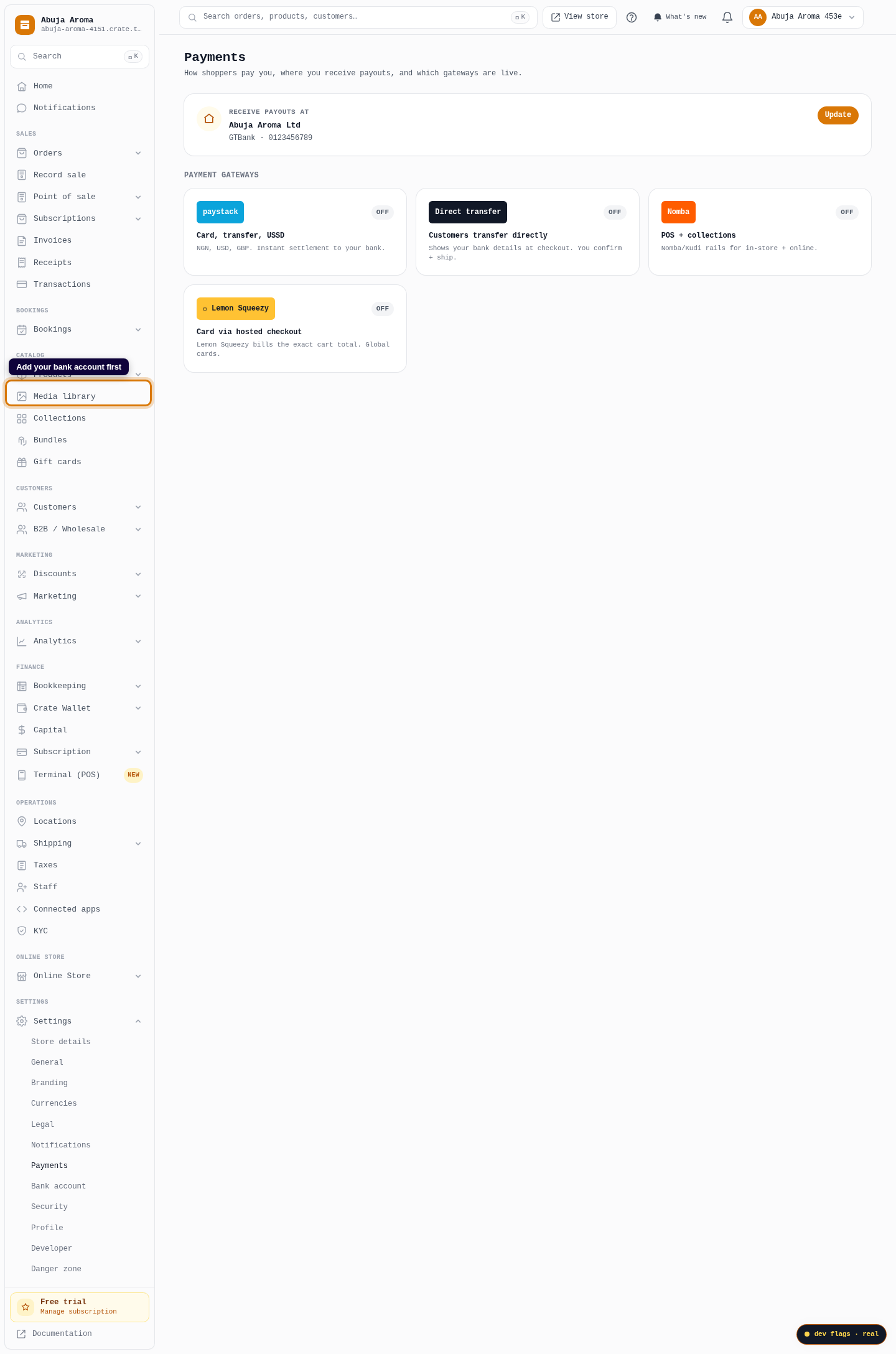
Add your bank account first
Direct bank transfer shows customers where to pay, so Crate needs your bank details on file. If you haven't added them, open Bank account and save your account number — Crate verifies it and pulls the account name automatically.
Web -
3
Open Direct bank transfer
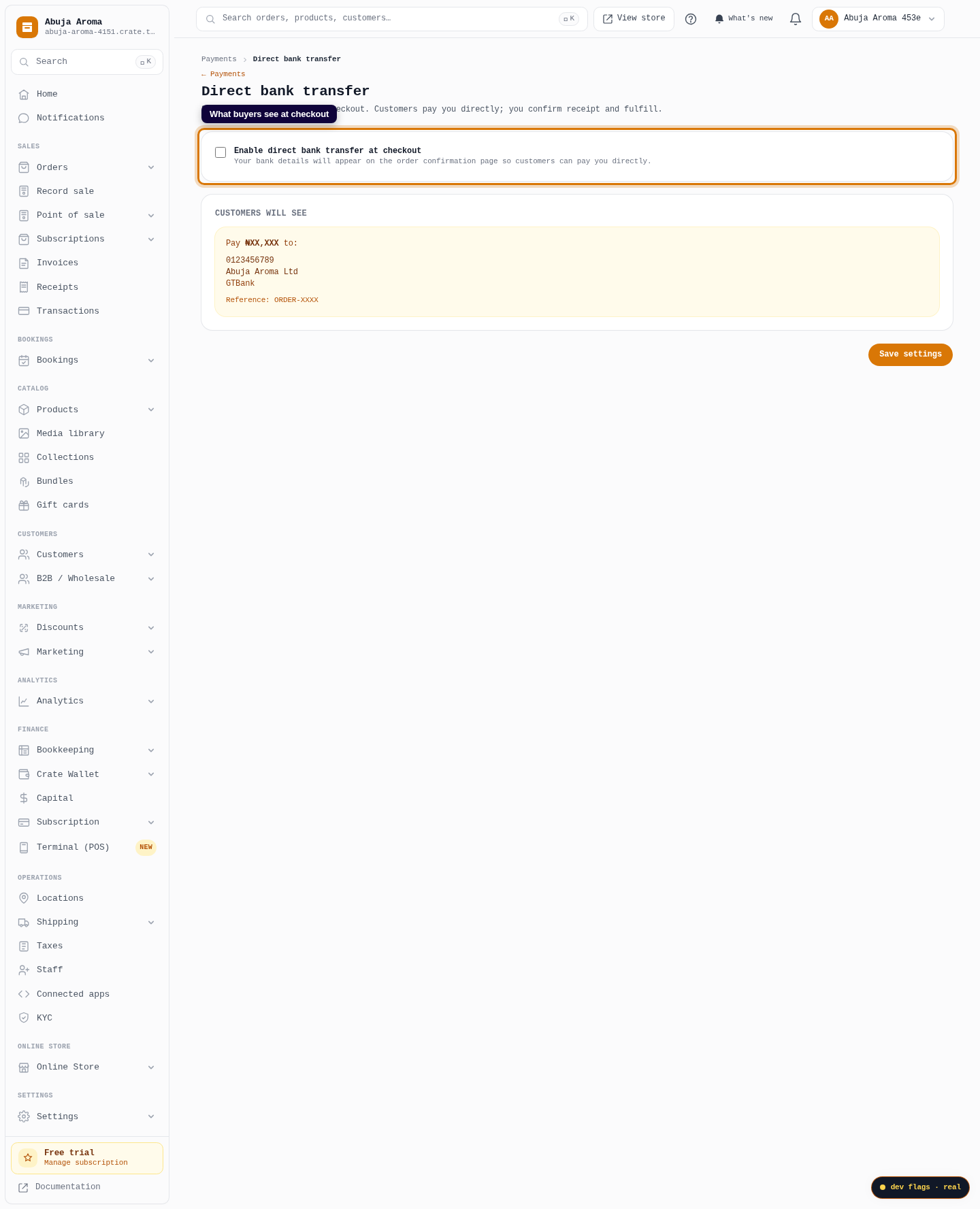
Back on the Payments page, open Direct bank transfer. You'll see a preview of exactly what buyers see at checkout.
Web -
4
Turn it on
Tick Enable direct bank transfer at checkout. This switches the option on across your storefront.
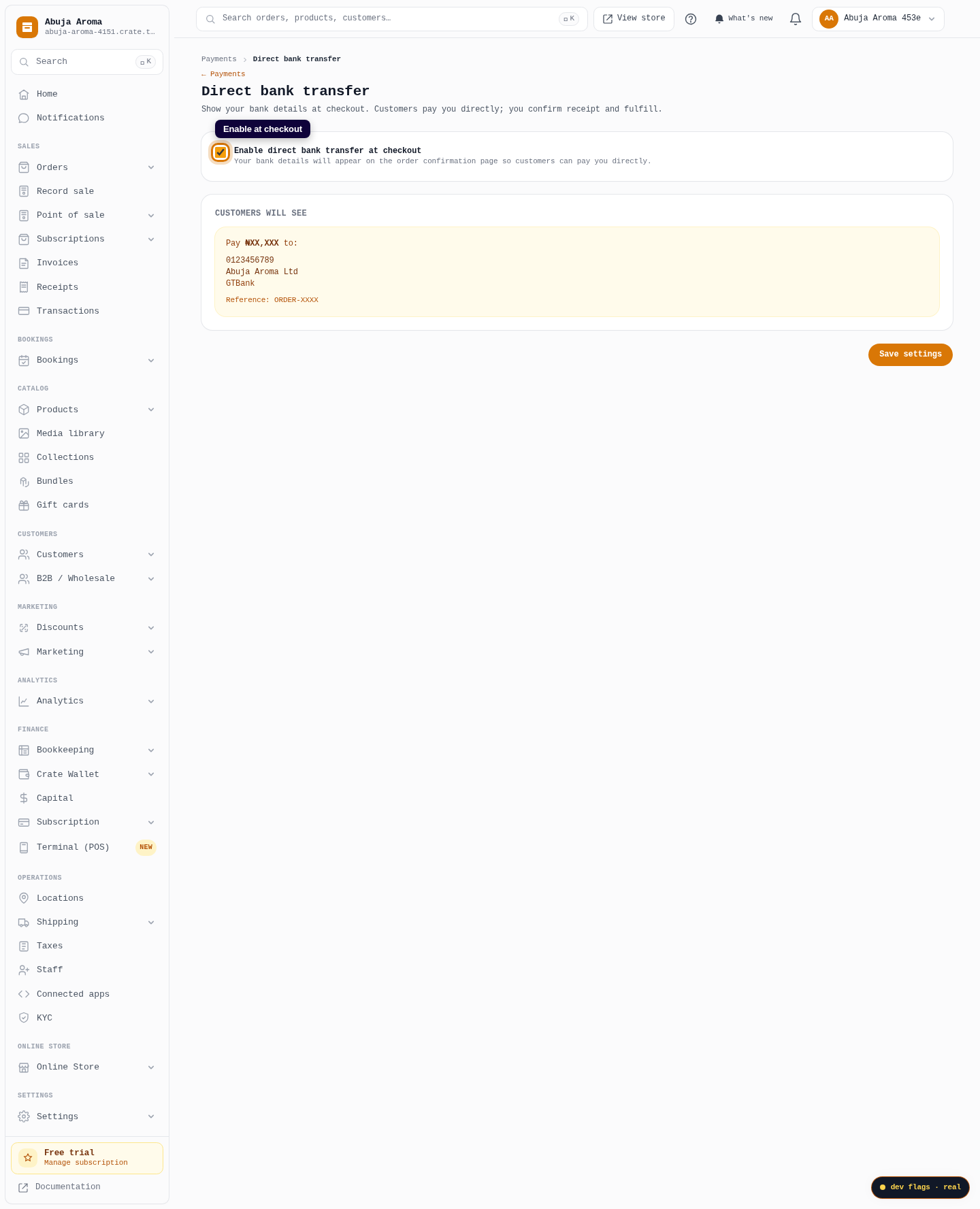
Web 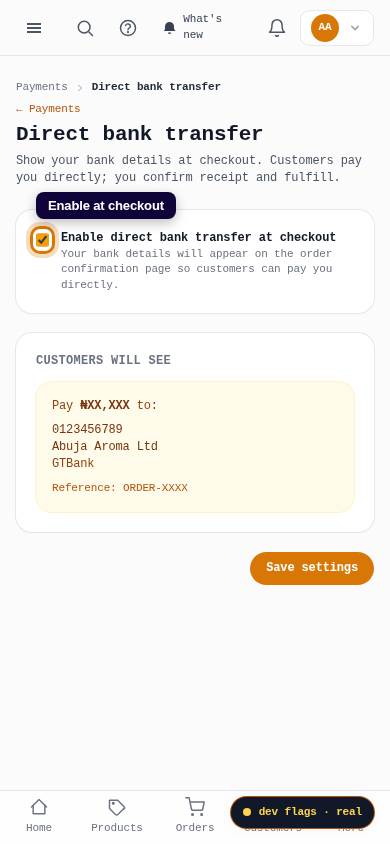
Mobile -
5
Save
Click Save settings. Customers can now choose to pay you directly, and your account details appear on their order confirmation with the amount and a reference.
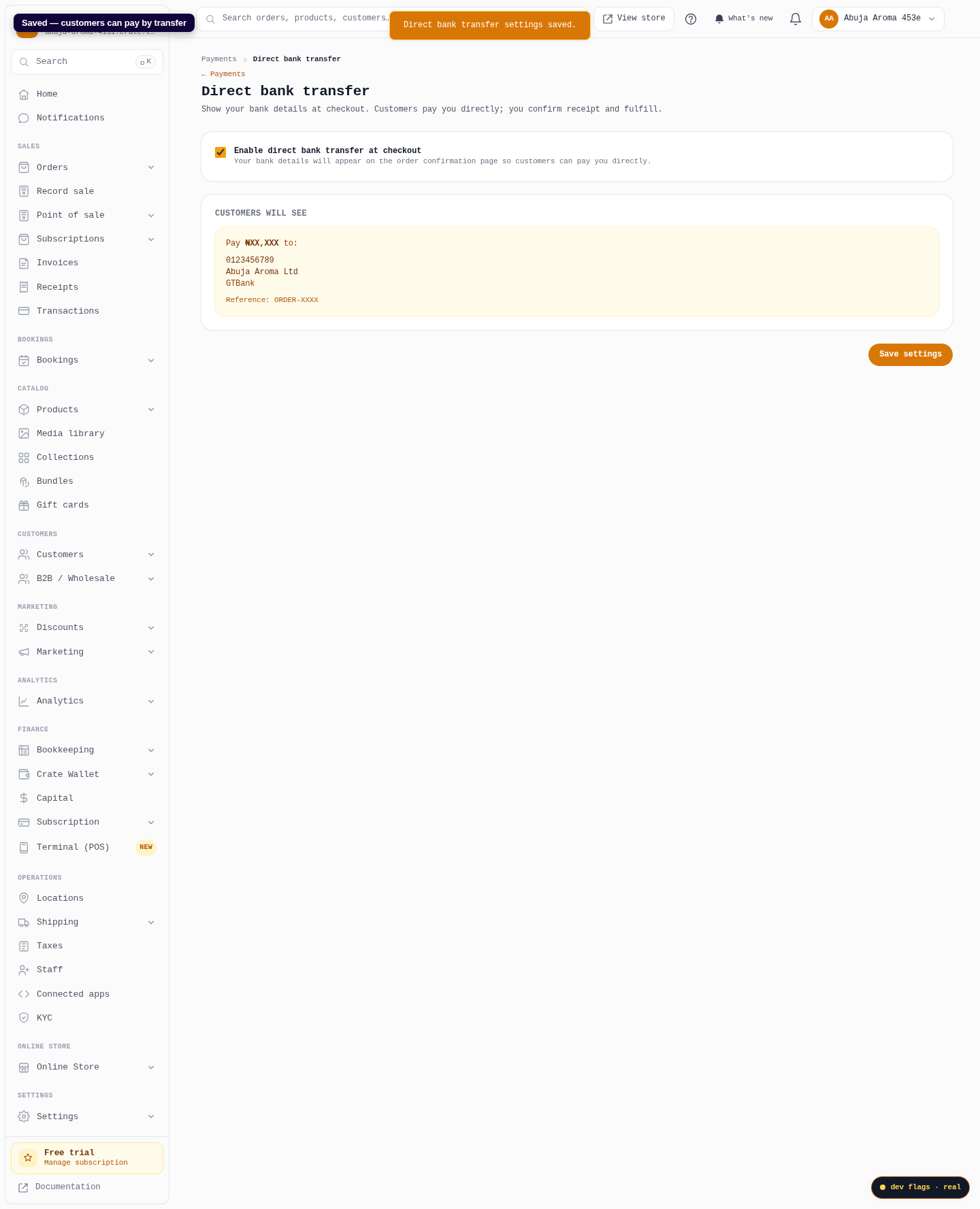
Web