Create an SMS campaign
Reach customers straight on their phones with a bulk SMS. Crate counts your characters, shows who has a phone number on file, and prices the send at one credit per message — so a flash sale text goes out in under a minute.
SMS lands where your customers already are — their lock screen. It's perfect for time-sensitive nudges: a flash sale, a restock, a "doors open at 9am" reminder. Crate's composer keeps texts tight and the cost transparent, one credit per message.
Before you start
SMS campaigns reach customers who have a phone number on file — either saved on their profile or captured from a past order's billing address. Recipients without a number are automatically skipped, and Crate tells you how many.
Each SMS costs 1 messaging credit per recipient. Watch your balance on the Credits card, and top up from Messaging credits whenever you need to.
Tip: Keep it under 160 characters. The composer counts down as you type. Going over splits the message into multiple segments, which costs more and can arrive out of order on some carriers.
Personalise with merge tags
{{first_name}} drops in each customer's first name and {{store_name}} drops in your shop's name. Crate fills them in per recipient, so a single text greets everyone personally.
What happens after you send
Crate resolves your audience and queues one text per recipient with a usable phone number. The confirmation shows how many were queued and breaks out anyone skipped — either no phone number on file, or opted out of marketing. Opted-out customers are never texted.
-
1
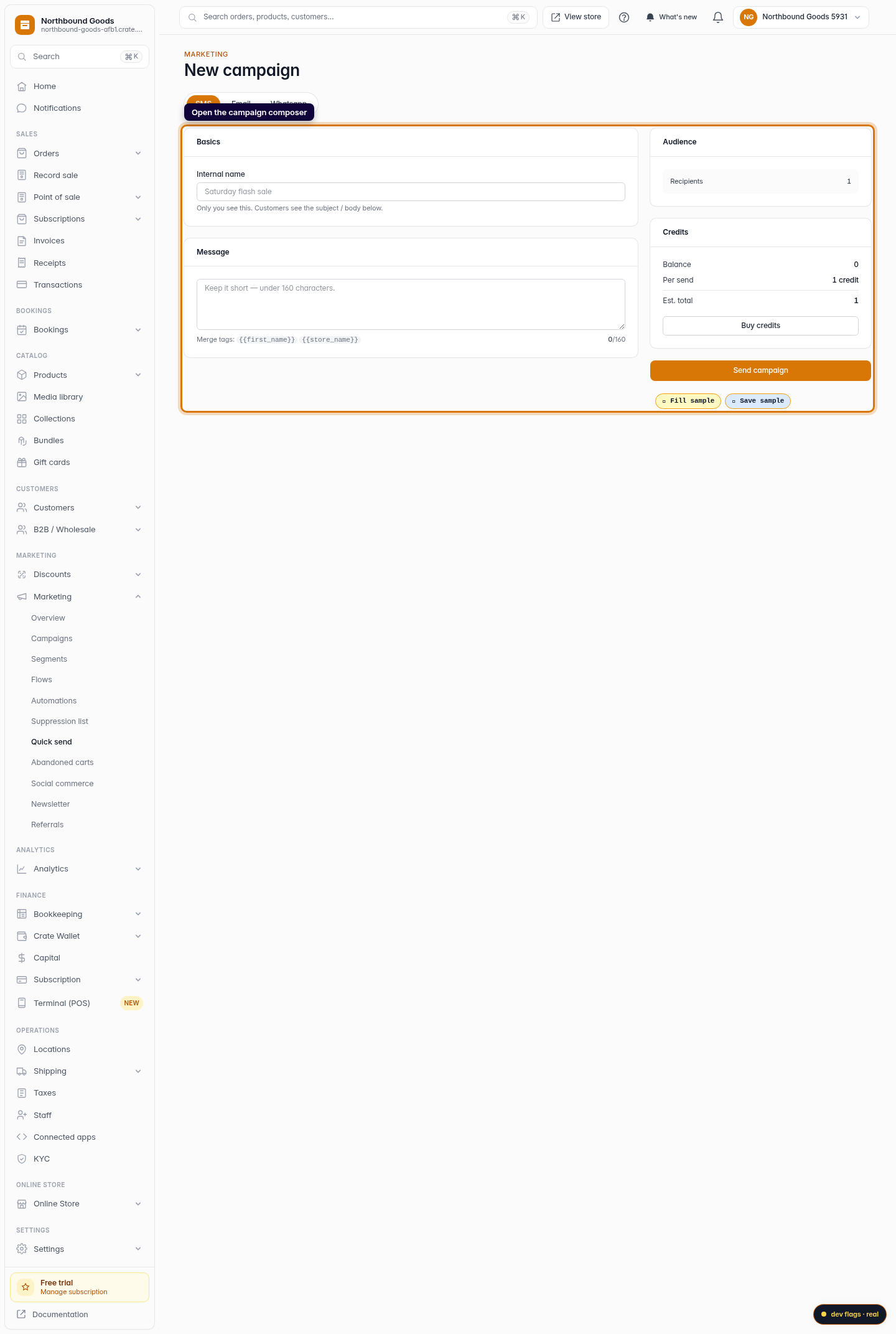
Open the campaign composer
From the dashboard, go to Marketing → Quick send to open the campaign composer. The composer opens on the SMS channel by default.
Web -
2
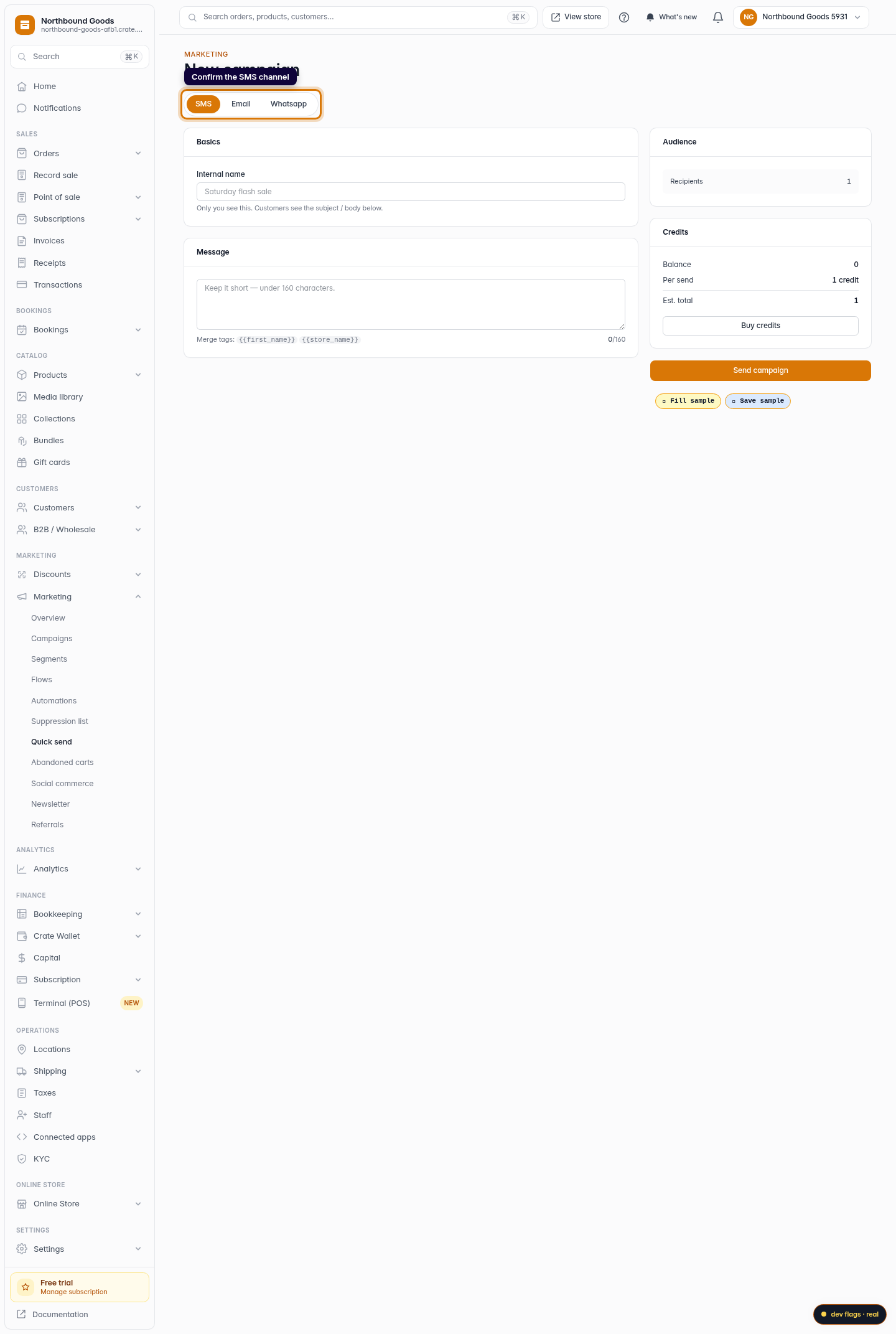
Confirm the SMS channel
Make sure SMS is selected in the channel switch at the top. SMS is the default, but if you've been writing an email, click SMS to switch back — the form trims down to just a message body, since texts have no subject line.
Web -
3
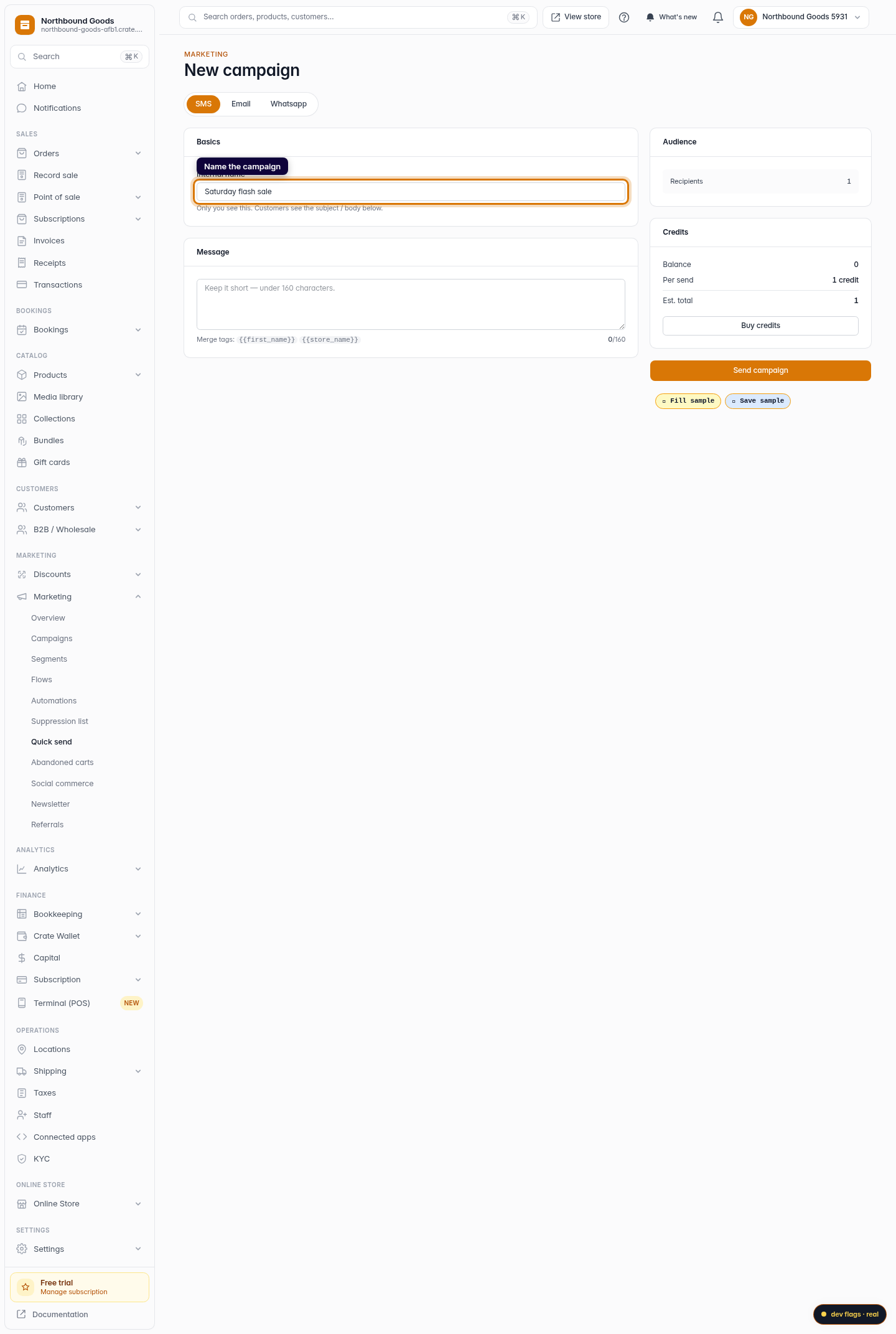
Name the campaign
Give the campaign an internal name like Saturday flash sale. It's private — only you see it — and it keeps your sends easy to find later.
Web -
4
Write the message
Type your text in the message box. Crate shows a live character count out of 160 as you type — staying under 160 keeps it to a single SMS segment, which is one credit. Use
{{first_name}}to greet each customer by name.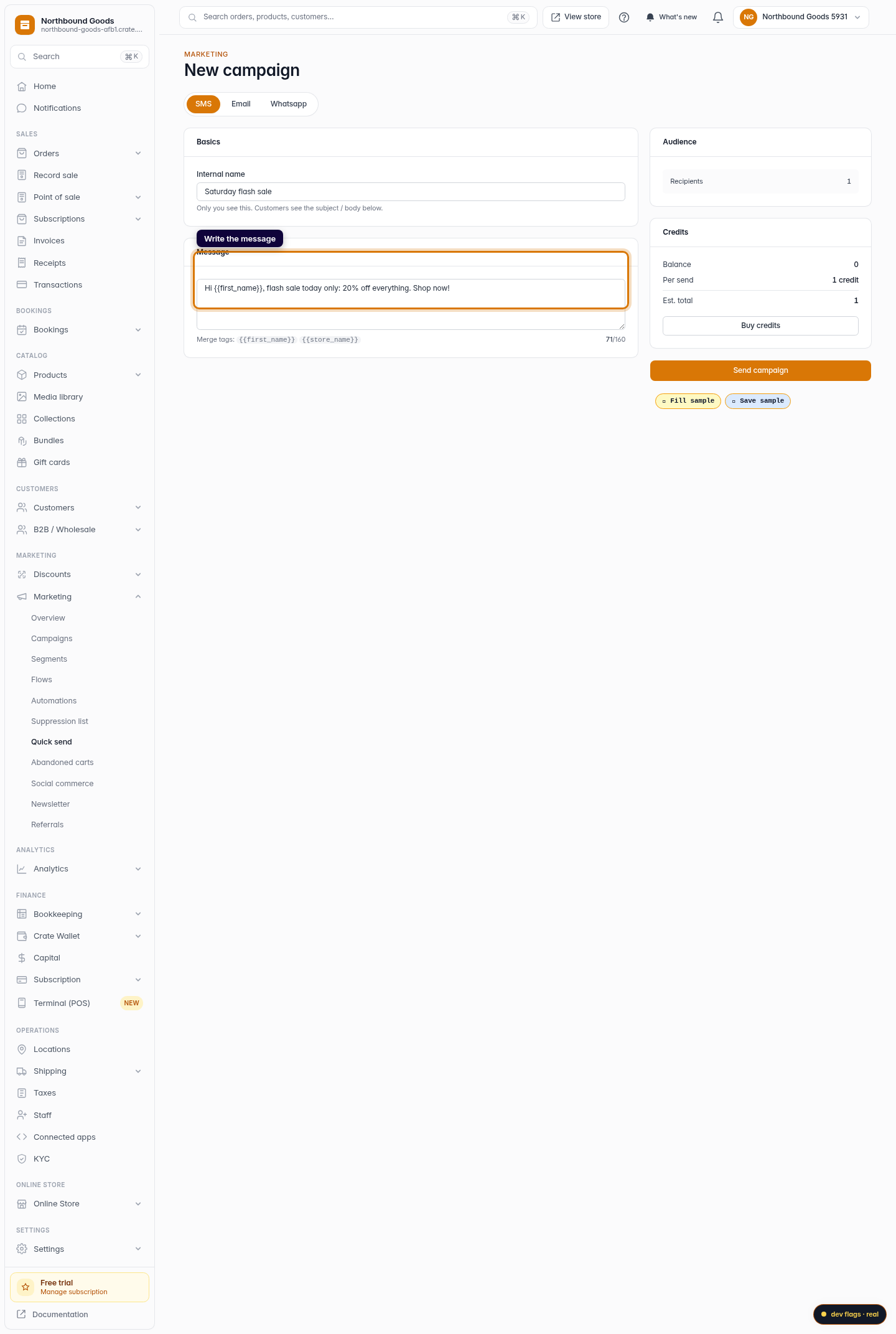
Web -
5
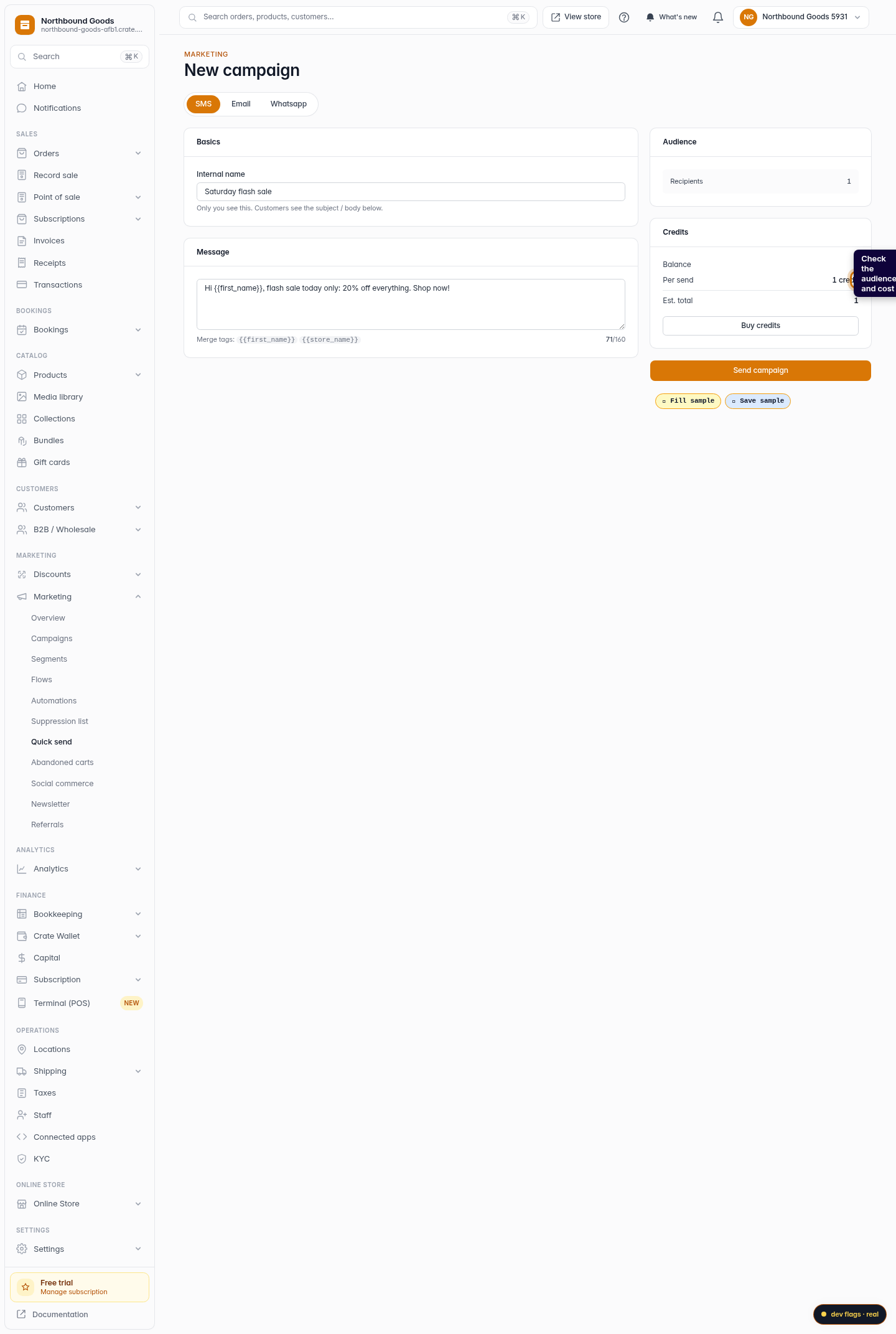
Check the audience and cost
The Audience card shows how many recipients will get the text, and the Credits card prices it — SMS is 1 credit per recipient. The estimated total updates with your audience size so you always see the cost before sending.
Web -
6
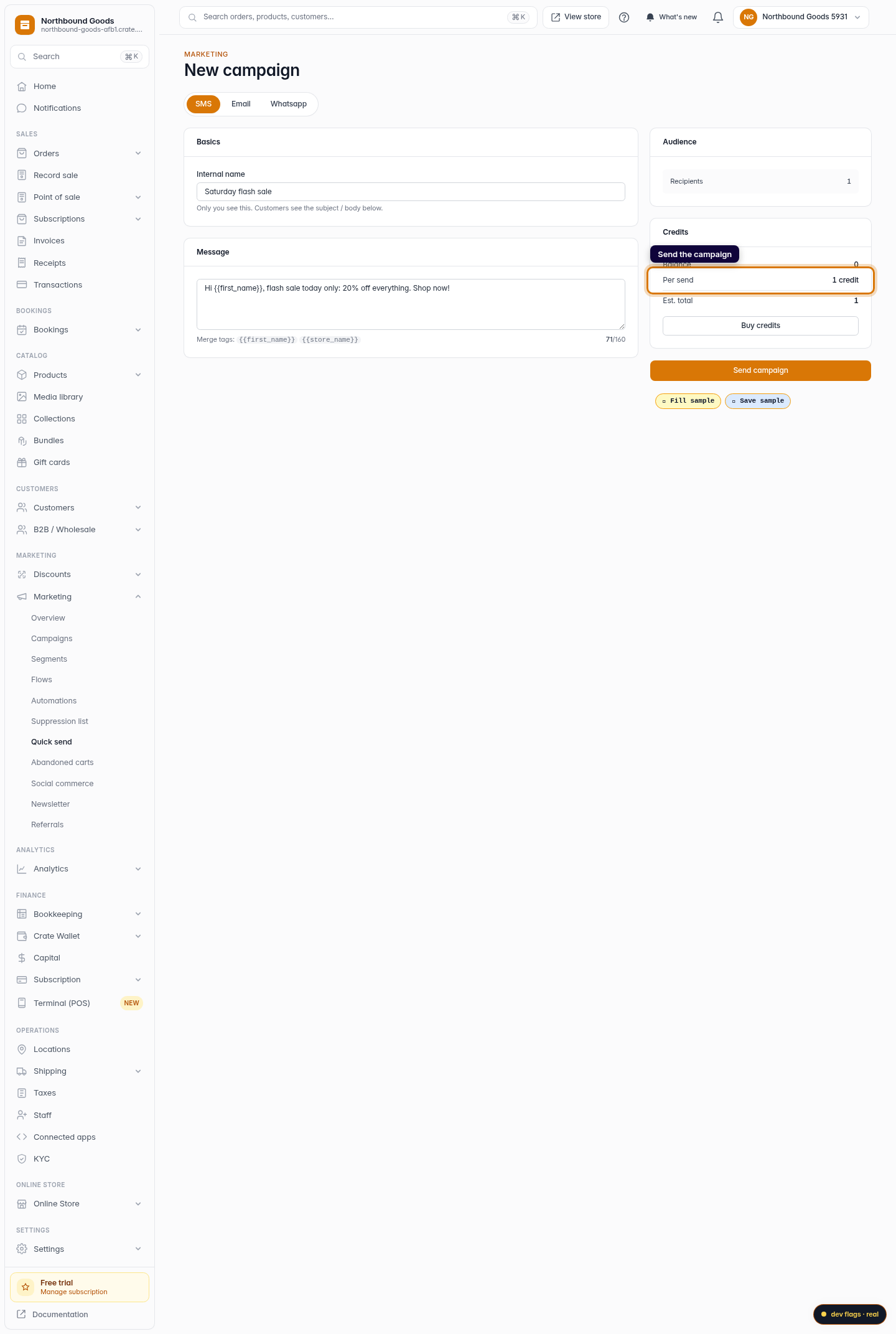
Send the campaign
Click Send campaign. Crate queues the SMS for every recipient with a phone number on file and confirms how many went out, flagging anyone skipped because they had no number or had opted out.
Web