Turn on the welcome email
Greet every new customer automatically. Switch on the Welcome series playbook once and Crate emails a warm welcome to each new customer on its own — no manual sending, ever.
A welcome email is often the first direct message a customer gets from you, so it's worth getting right — and worth automating, so it never gets forgotten. Crate's Welcome series playbook handles it: switch it on once and every new customer is greeted automatically.
Where it lives
The welcome email is one of Crate's quick playbooks, under Marketing → Automations. Playbooks are pre-built automations you don't have to design — Crate already knows the trigger (a new customer) and the action (send a welcome email). Your job is just to flip the switch.
Tip: Want something more tailored — a welcome with a discount code, or a different message per customer group? Build a custom automation instead, where you choose the trigger, the action, and the audience yourself.
Turning it on and off
The Turn on / Turn off button toggles the playbook instantly — there's no separate save step. Disabling it stops the automation at the engine level, so no further welcome emails go out until you switch it back on. You can do this as often as you like without losing any setup.
Seeing it work
Once the playbook has fired at least once, Crate shows a run count and the last run time right on the playbook row. That's your at-a-glance proof that new customers are being welcomed — no manual sending, no spreadsheet, no missed first impressions.
-
1
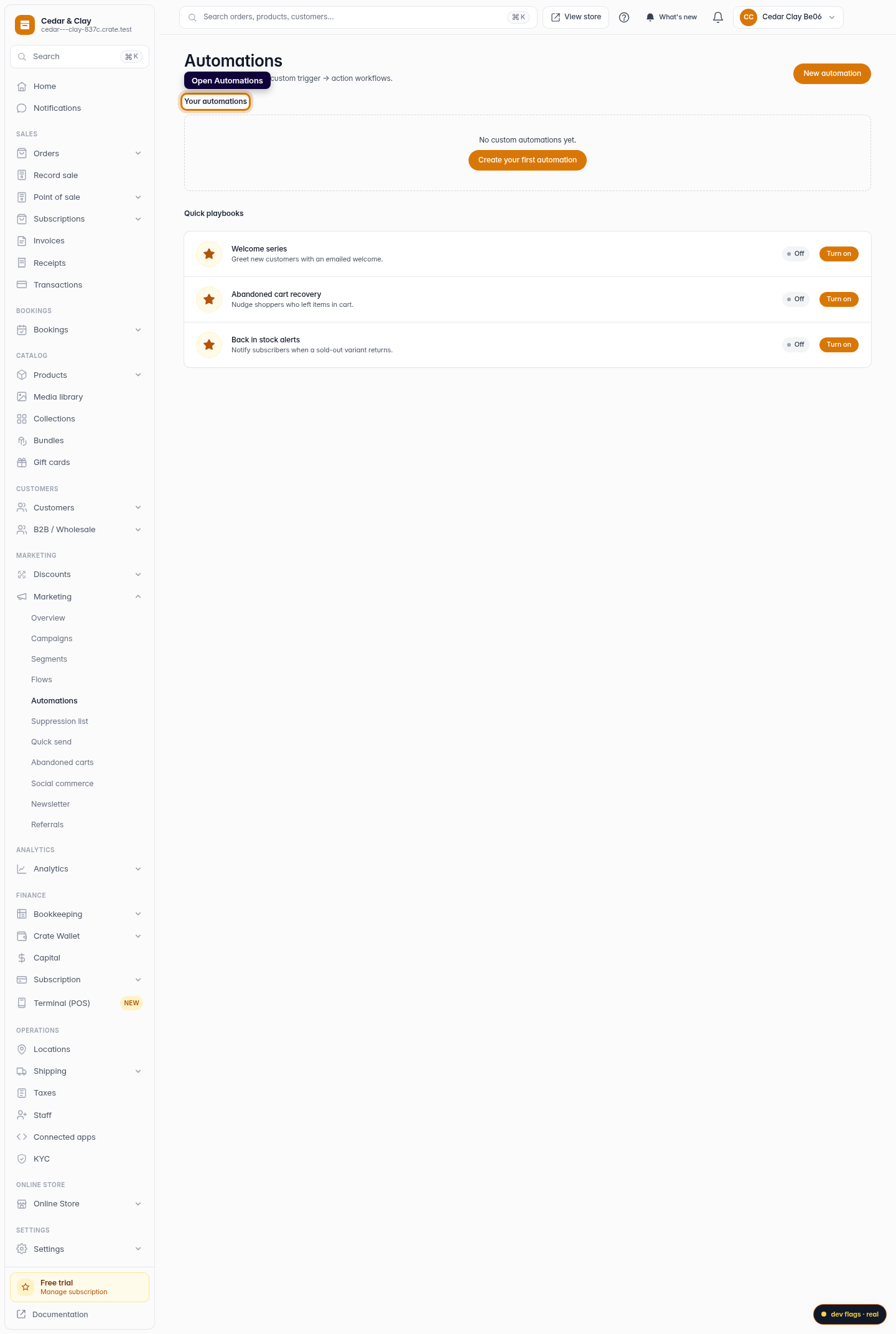
Open Automations
From the dashboard, go to Marketing → Automations. This is where Crate's pre-built playbooks live — ready-made automations you switch on with a single toggle.
Web -
2
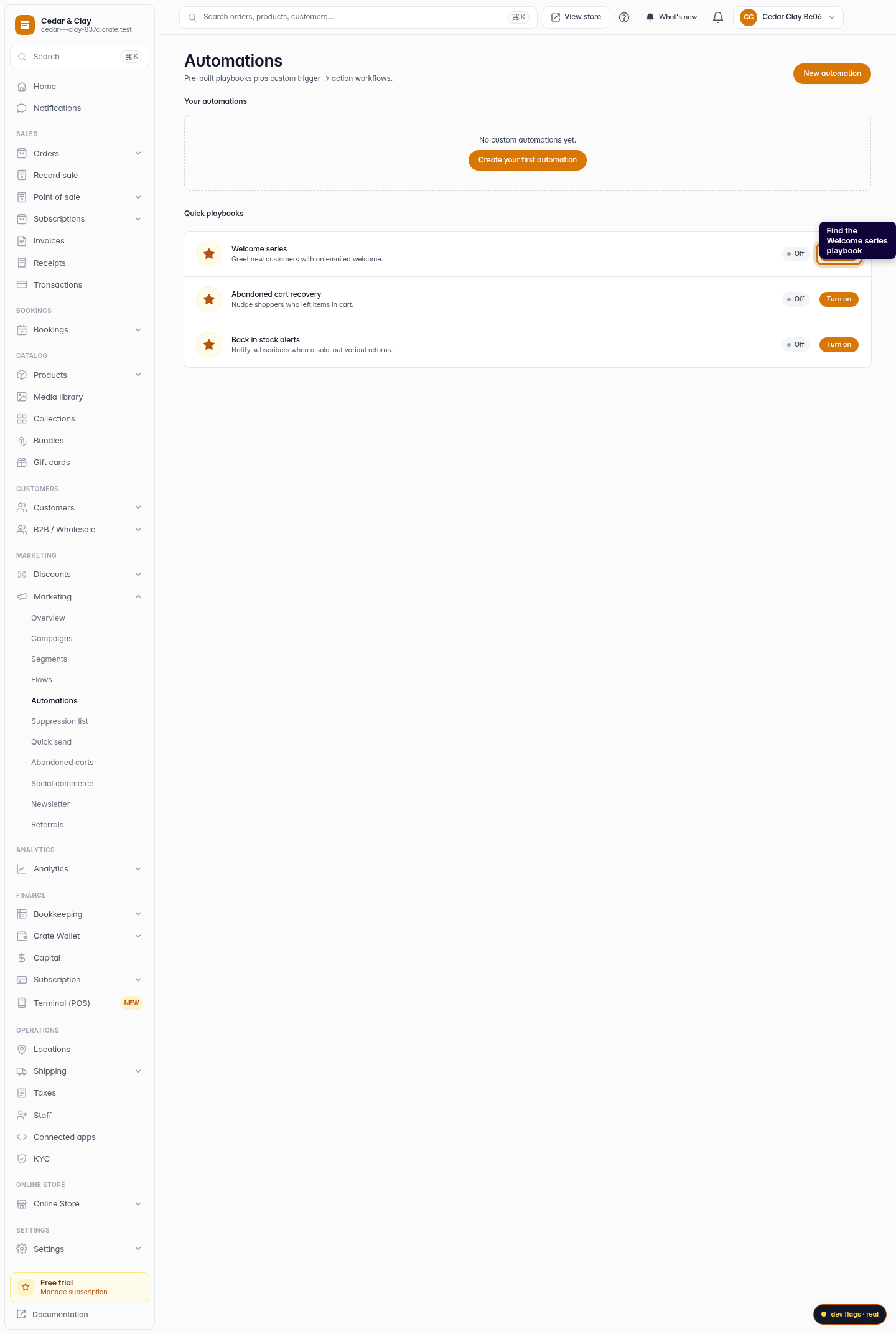
Find the Welcome series playbook
Scroll to Quick playbooks. The first one, Welcome series, greets every new customer with an emailed welcome. It shows as Off until you enable it.
Web -
3
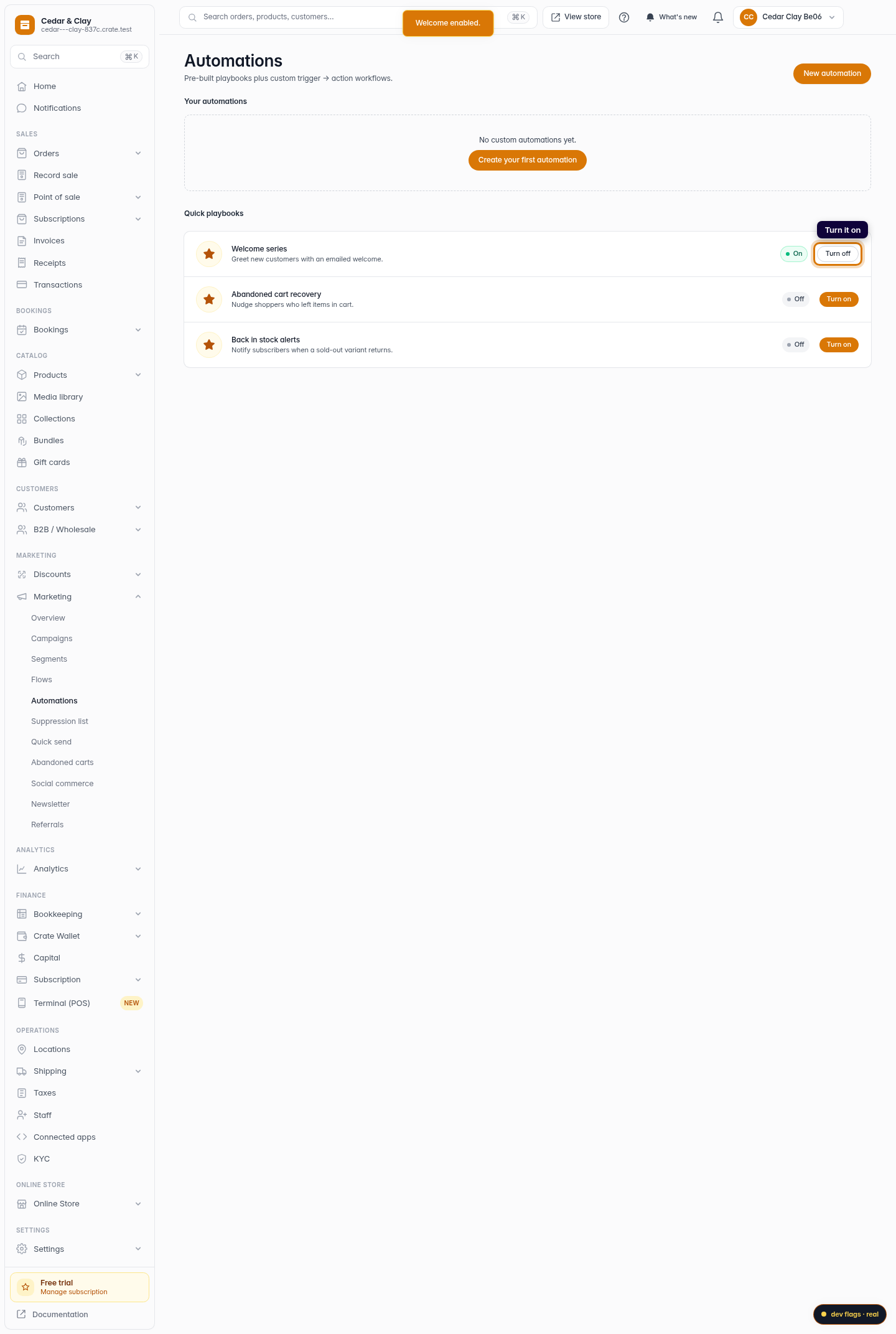
Turn it on
Click Turn on next to Welcome series. Crate confirms with Welcome enabled and the playbook flips to On — from now on, every new customer is welcomed automatically.
Web -
4
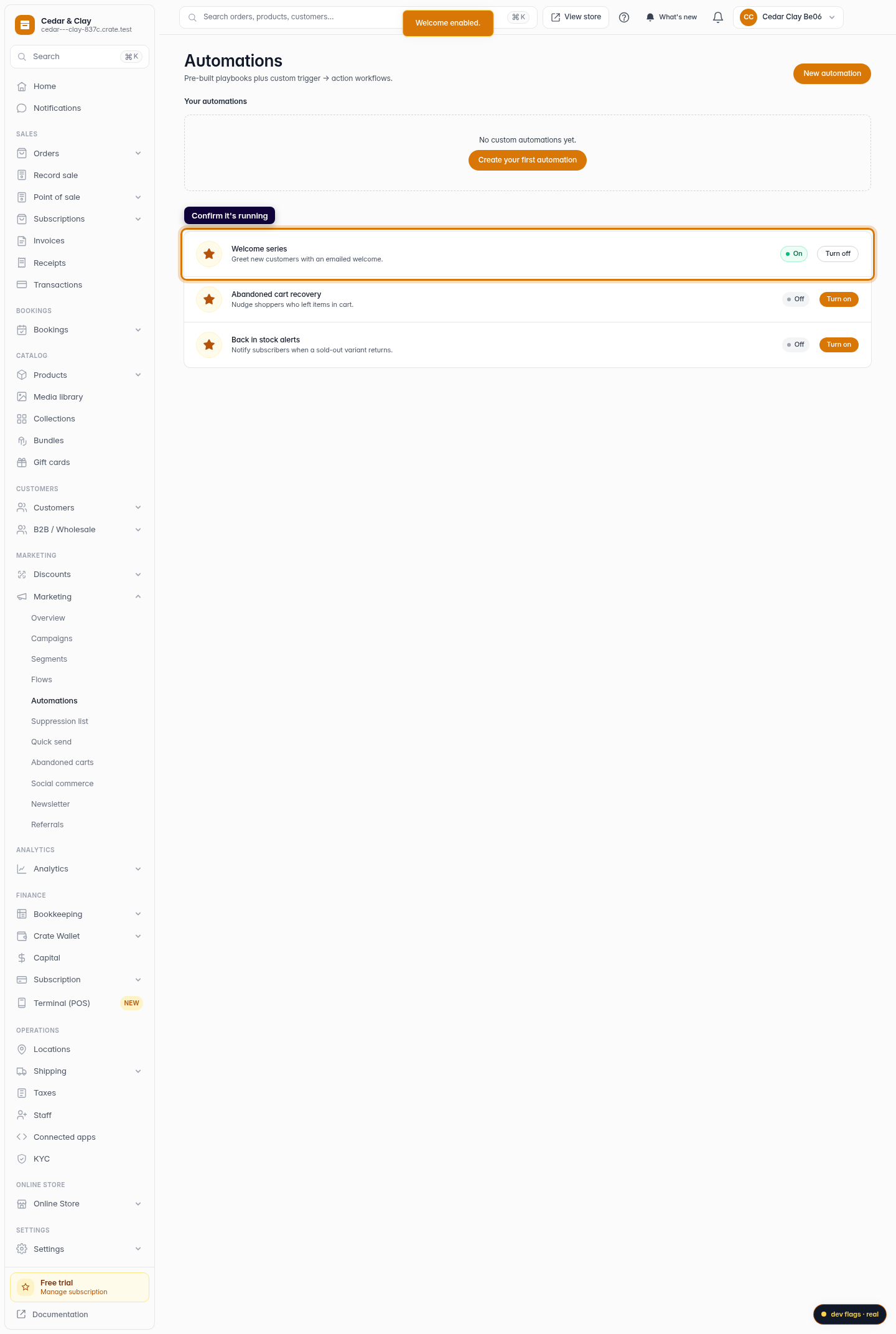
Confirm it's running
The playbook now shows an On badge. Once it starts firing, Crate displays a run count and the time of the last send, so you can see the welcome working without lifting a finger.
Web