Delete or edit a shipping option
Change a price, rename a zone, or remove a shipping option entirely — your changes apply to new checkouts straight away.
Your shipping costs change over time — couriers raise their rates, you open a new delivery area, or you retire one that's no longer worth it. Crate lets you edit or delete any shipping option in seconds, and the change takes effect on the very next checkout.
Editing a shipping option
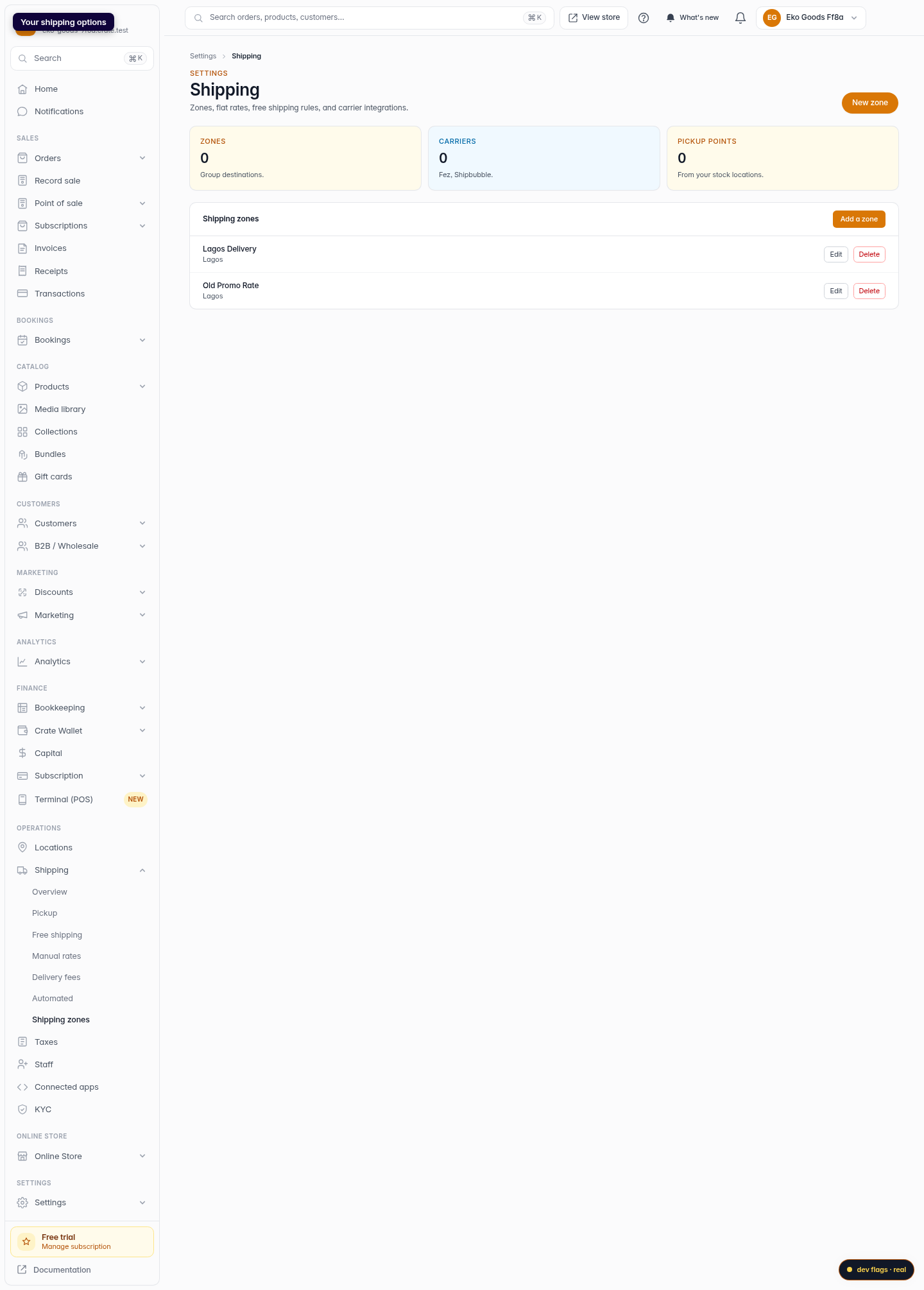
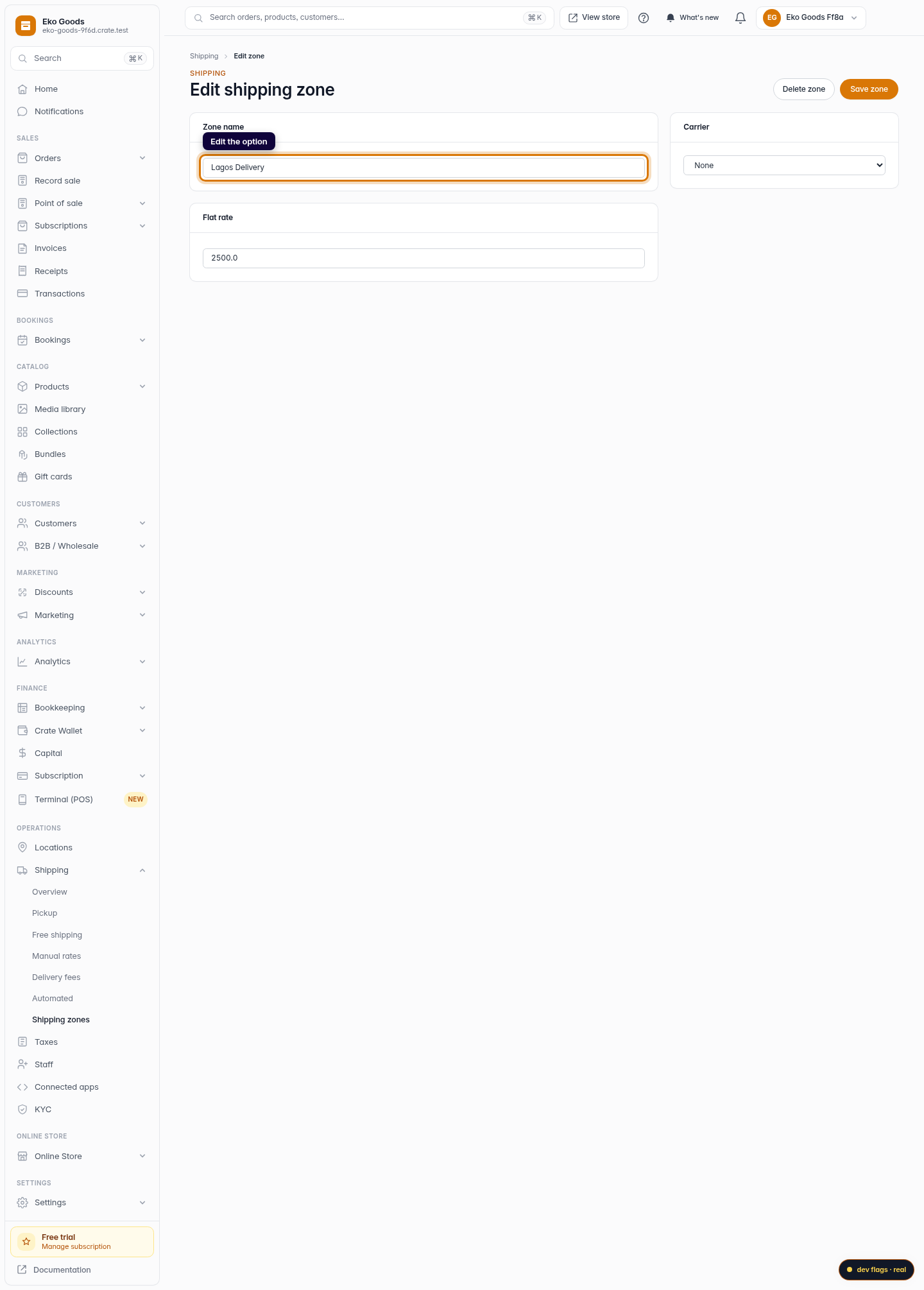
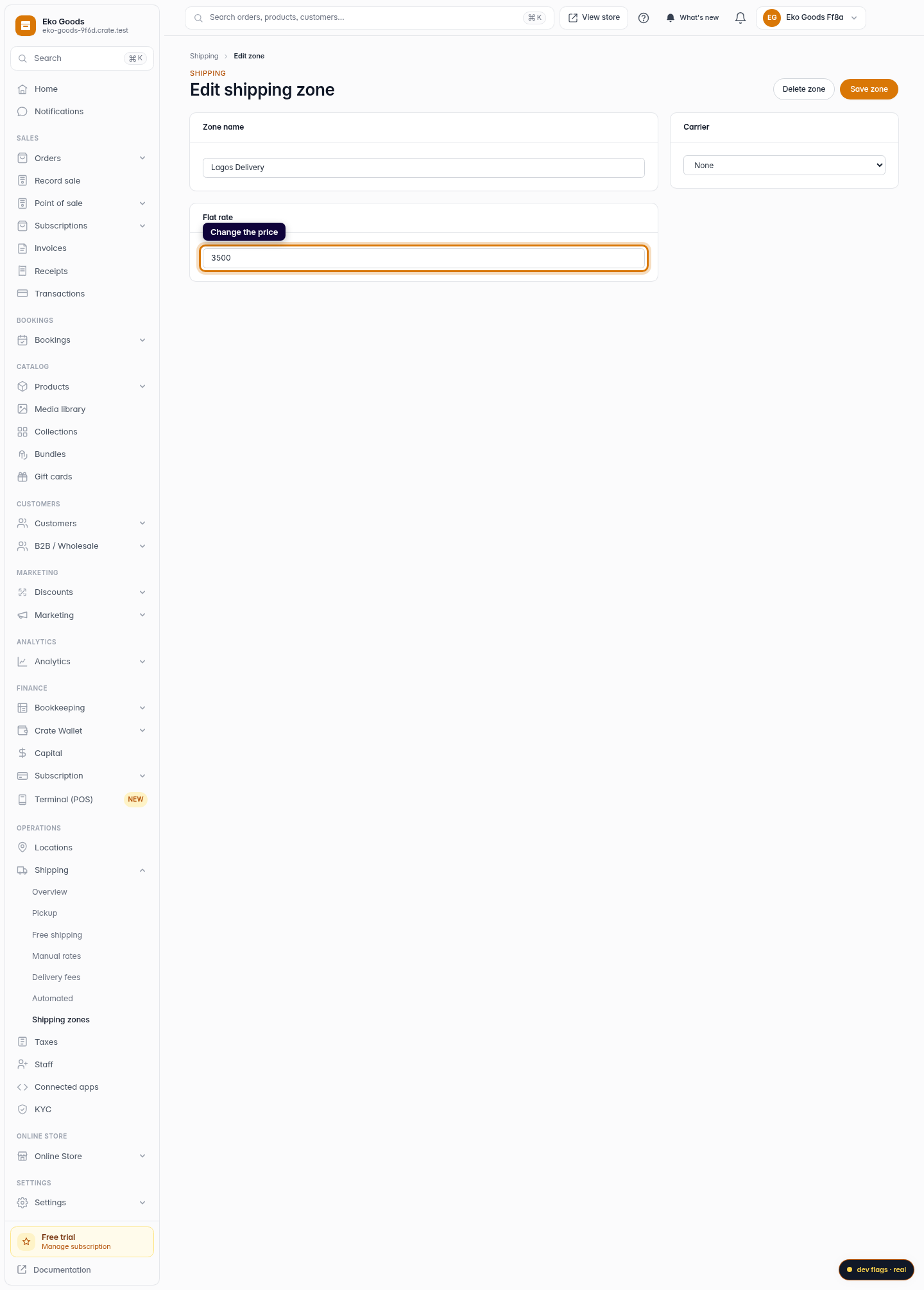
Open Shipping, find the zone, and click Edit. You can rename it or change its flat rate, then Save zone. Editing only affects future orders — any order that already used the old price keeps that price on its record, so your books stay accurate.
Raising a fee mid-season? Edit the zone rather than deleting and re-creating it — that keeps the zone's history intact and avoids a gap where buyers in that area can't check out.
Deleting a shipping option
To remove a zone entirely, click Delete beside it and confirm. Buyers in that area will fall back to your next-best matching rate at checkout.
If the zone has already been used on an order, Crate won't hard-delete it — it hides the zone from new buyers instead, so your past orders keep their shipping records. You'll see a note telling you it was hidden rather than removed. Zones that have never been used are deleted outright.
-
1
Open Shipping
Go to Shipping in your Crate dashboard. Every shipping option you've created is listed here.
Web 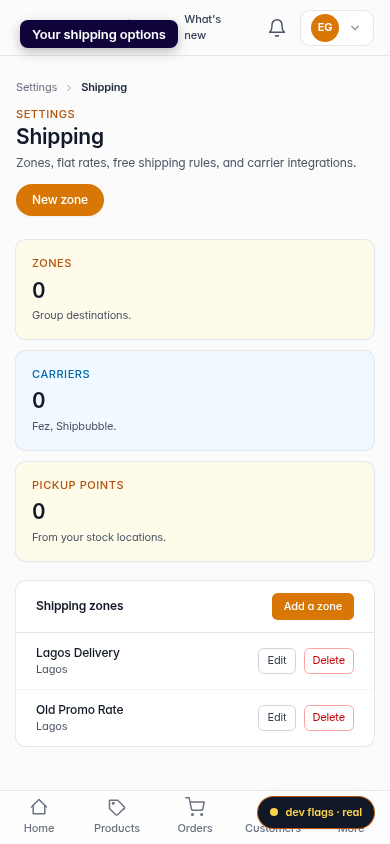
Mobile -
2
Edit an option
Find the option you want to change and click Edit beside it.
Web -
3
Change the price or name
Update the zone's name or its flat rate. For example, raise the delivery fee to 3500 as your courier costs rise.
Web 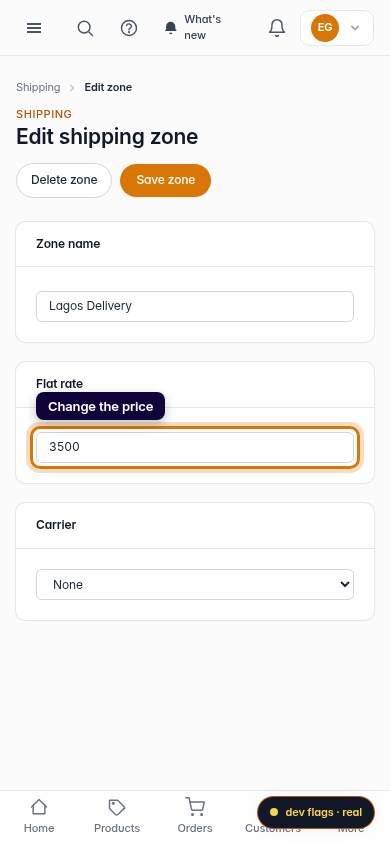
Mobile -
4
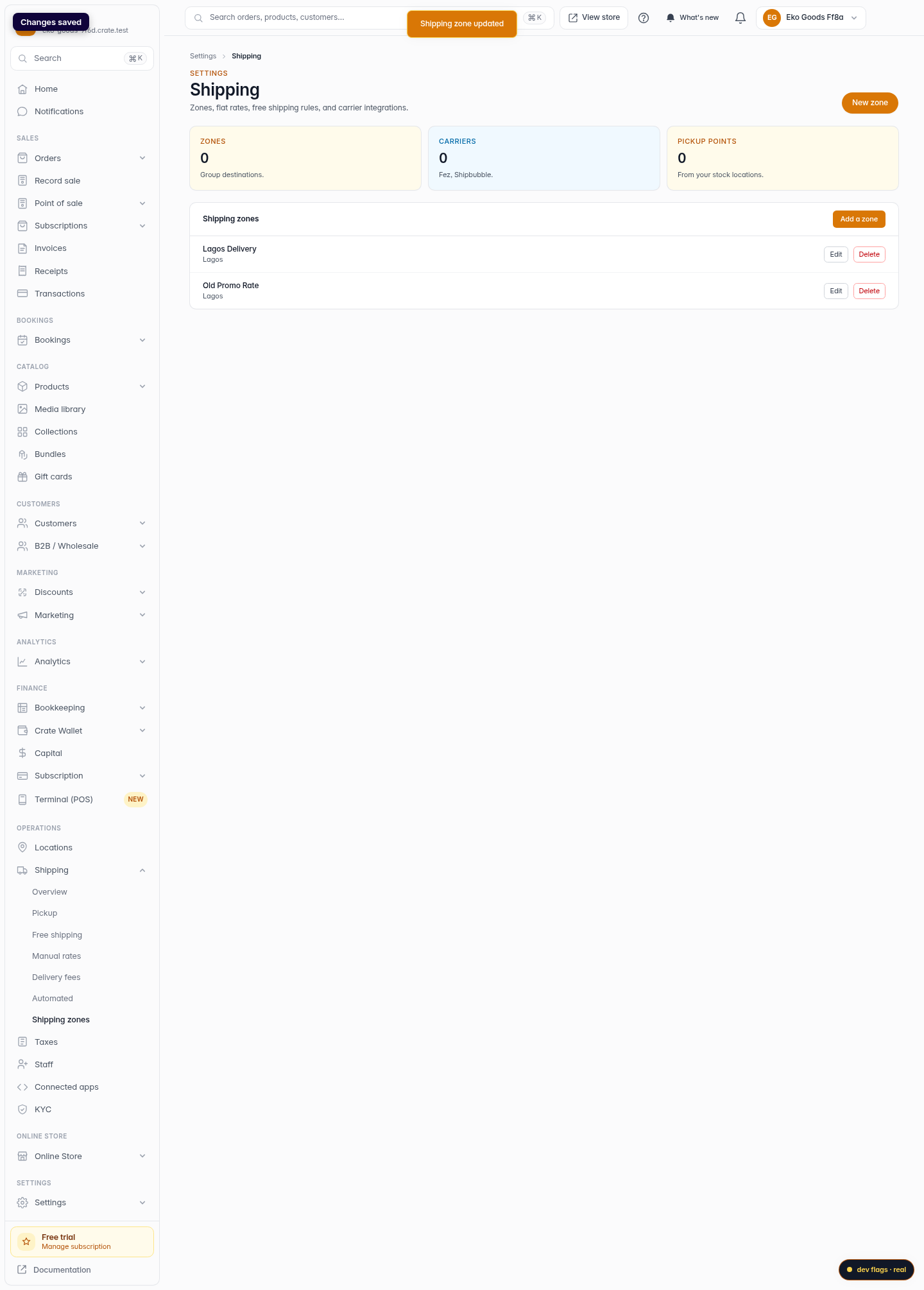
Save your changes
Click Save zone. The new price applies to every checkout from now on — existing orders keep the price they were charged.
Web -
5
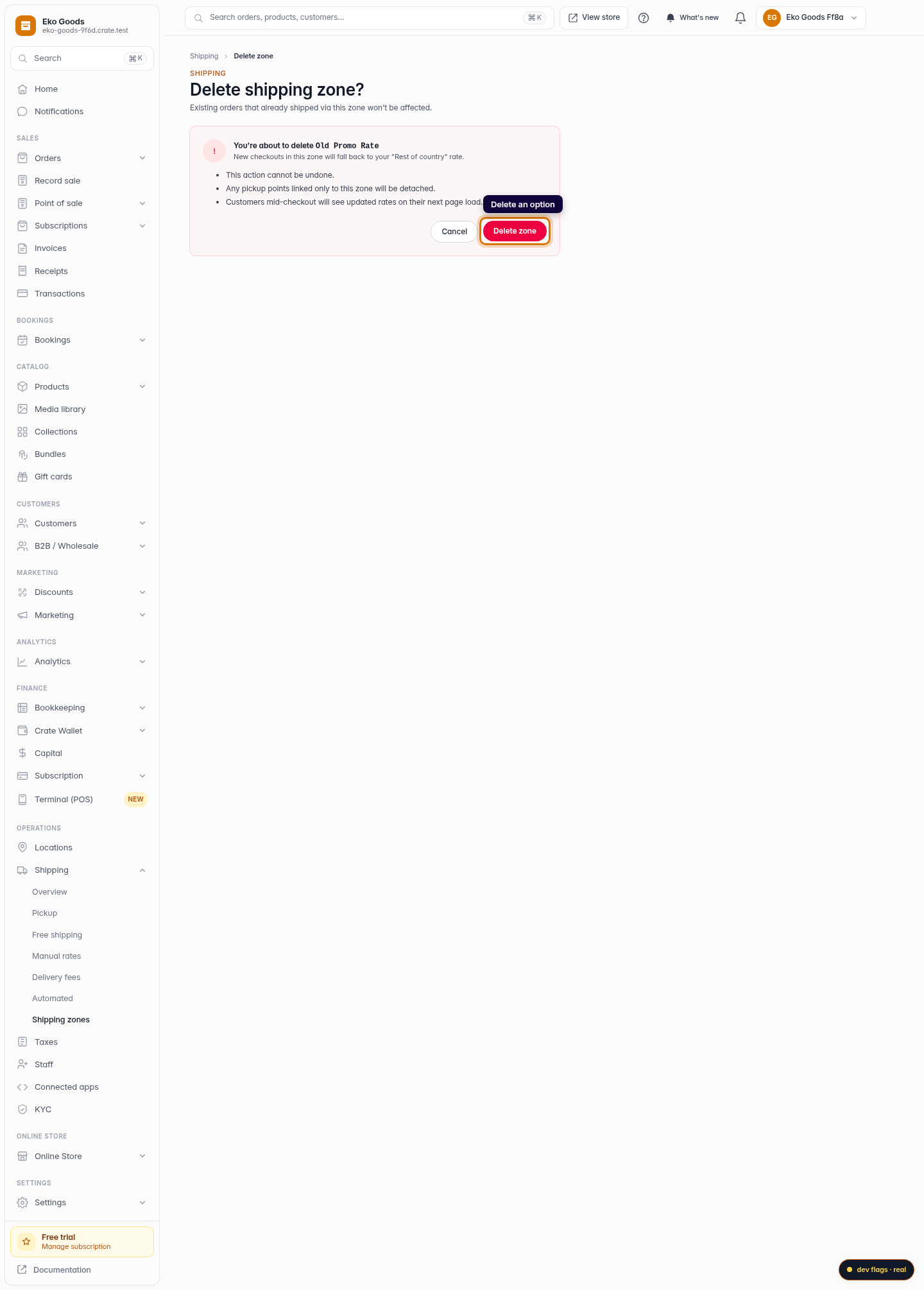
Delete an option
To remove an option instead, click Delete beside it on the Shipping page and confirm.
Web 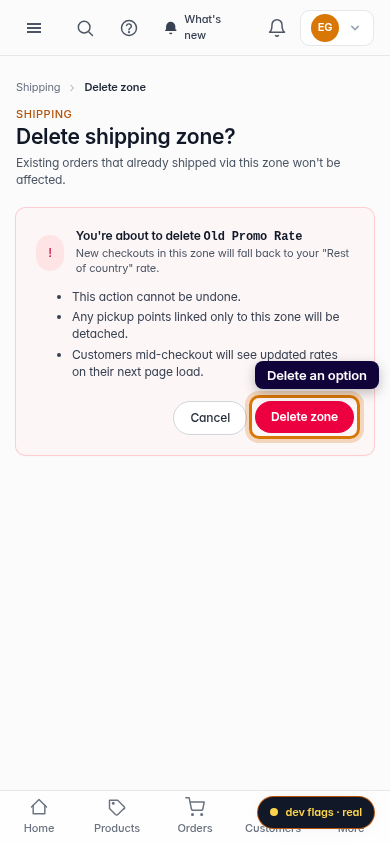
Mobile