Adding a customer
Save a buyer to Crate so you can reach them on WhatsApp, email and SMS — and watch their orders, spend and tags build into a full profile over time.
A customer record is how Crate turns a one-off sale into a relationship. The moment someone buys at checkout, Crate saves them for you automatically — but when an order starts in your DMs or over WhatsApp, you'll want to add the buyer yourself so you can message them later and keep their history in one place.
Why add a customer
Once a buyer is in Crate you can reach them three ways without leaving the dashboard: WhatsApp and call shortcuts sit on every customer row, and their email opens them up to your broadcasts. Their orders, lifetime spend and last-order date then build up on their profile automatically, so you always know who your best buyers are.
What you need
Only a first name is required. Everything else — phone, email, Instagram handle, shipping address, notes — is optional, but a phone number is worth adding every time: it's what powers the WhatsApp and call buttons that make Crate's customer list so quick to work from.
Tip: If the same person has bought from you twice under two records, open either profile and use Merge to combine their orders, store credit and tags into one — no history is lost.
After you save
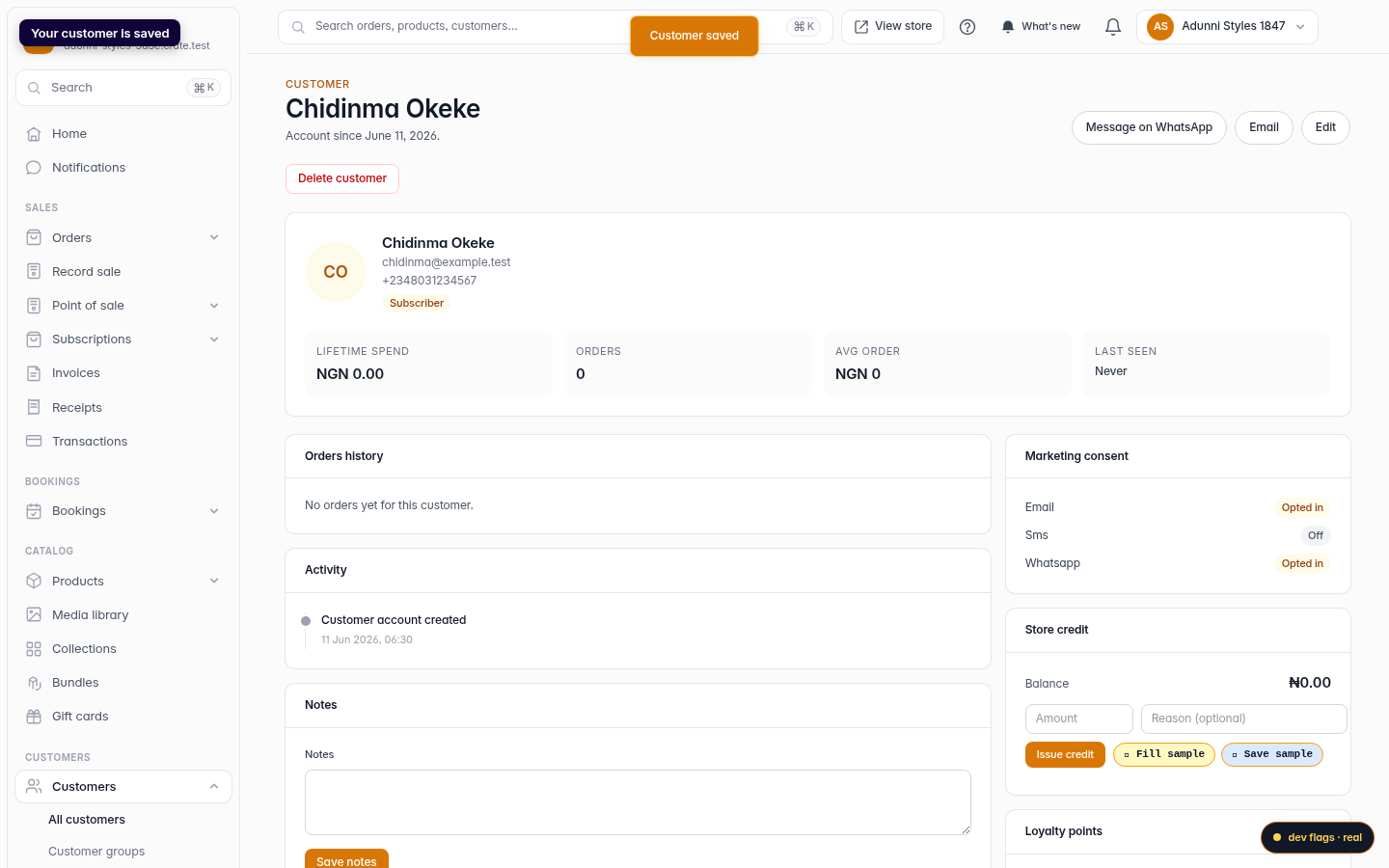
Crate drops you on the new customer's profile. From here you can record a note (only your team sees it), add a tag like VIP or wholesale, add them to a customer group for targeted campaigns, or issue store credit. Their order history fills in on its own as they buy.
-
1
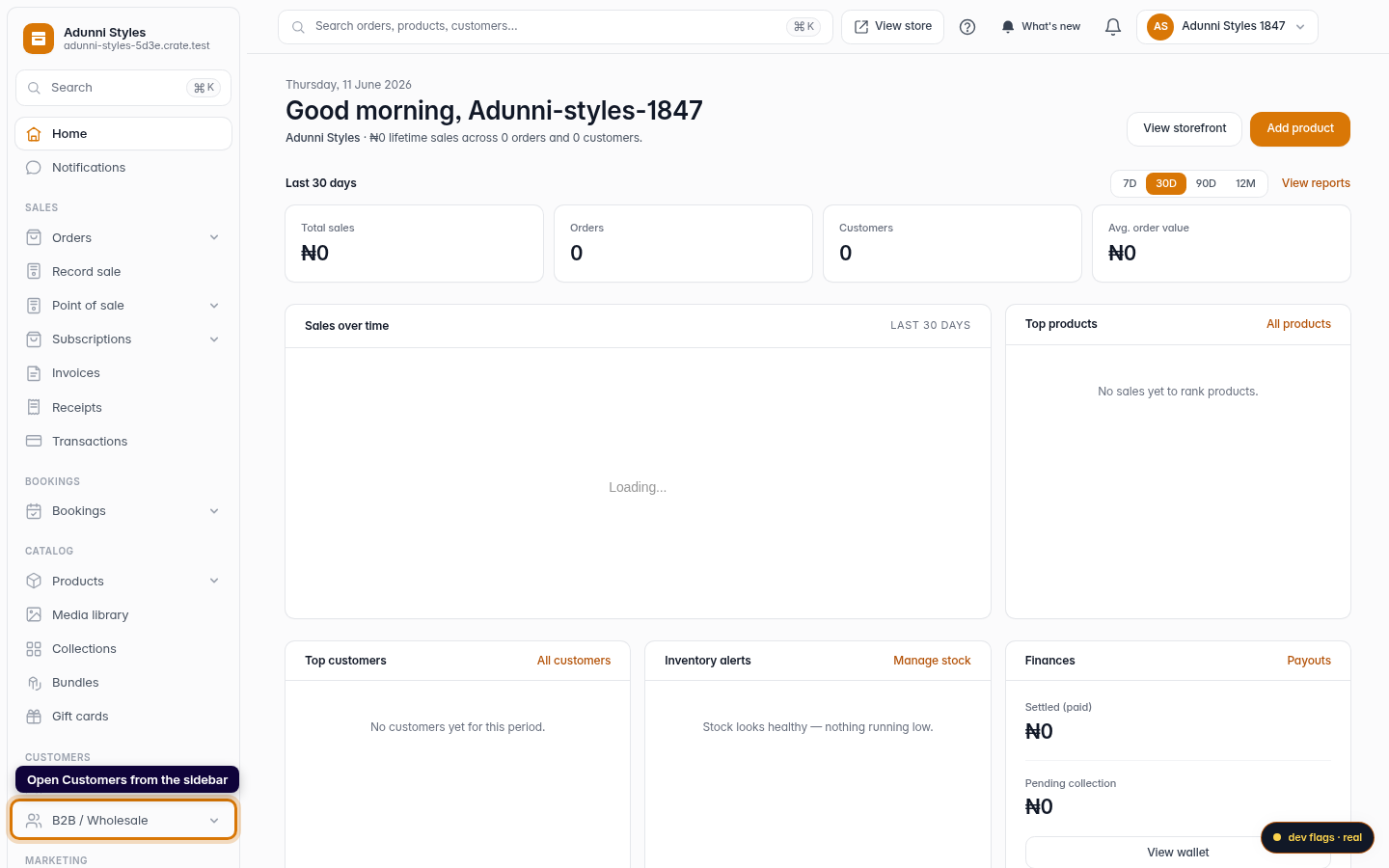
Open Customers
From your Crate dashboard, open Customers in the left sidebar. This is your address book — everyone who has bought from you, subscribed to your list, or you've saved by hand.
Web 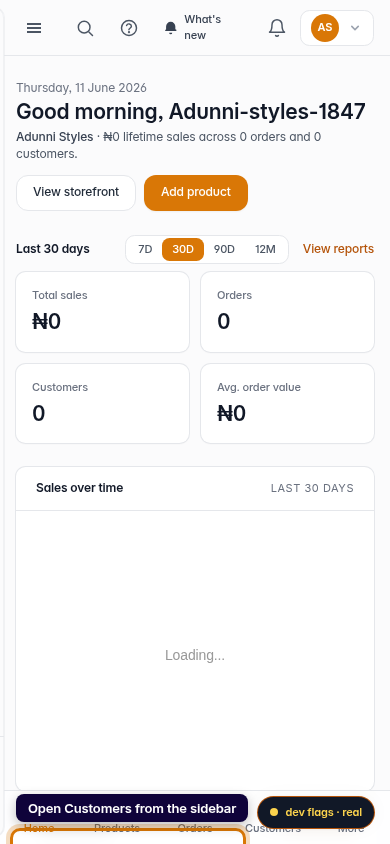
Mobile -
2
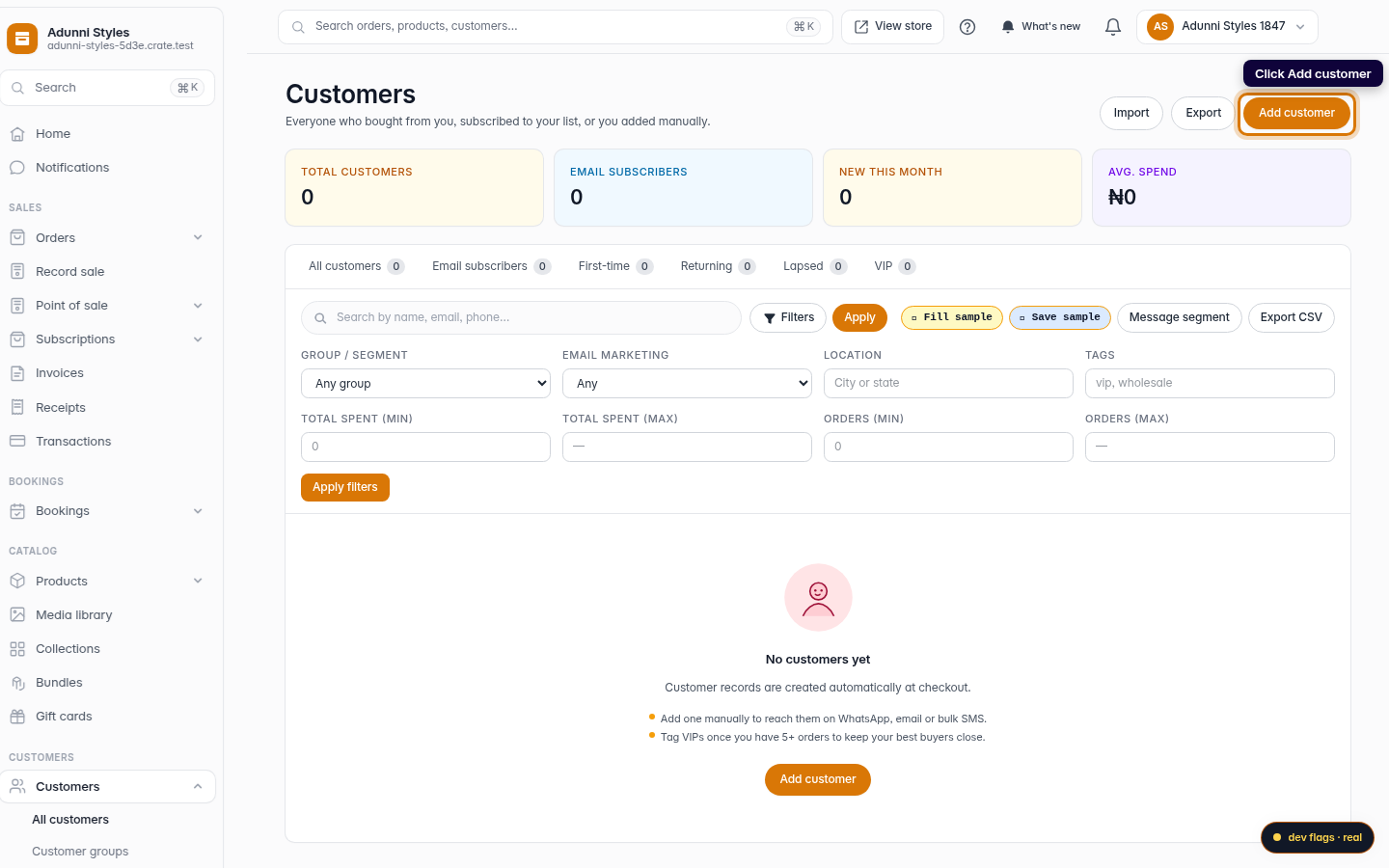
Start a new customer
Click Add customer in the top-right corner of the Customers page.
Web -
3
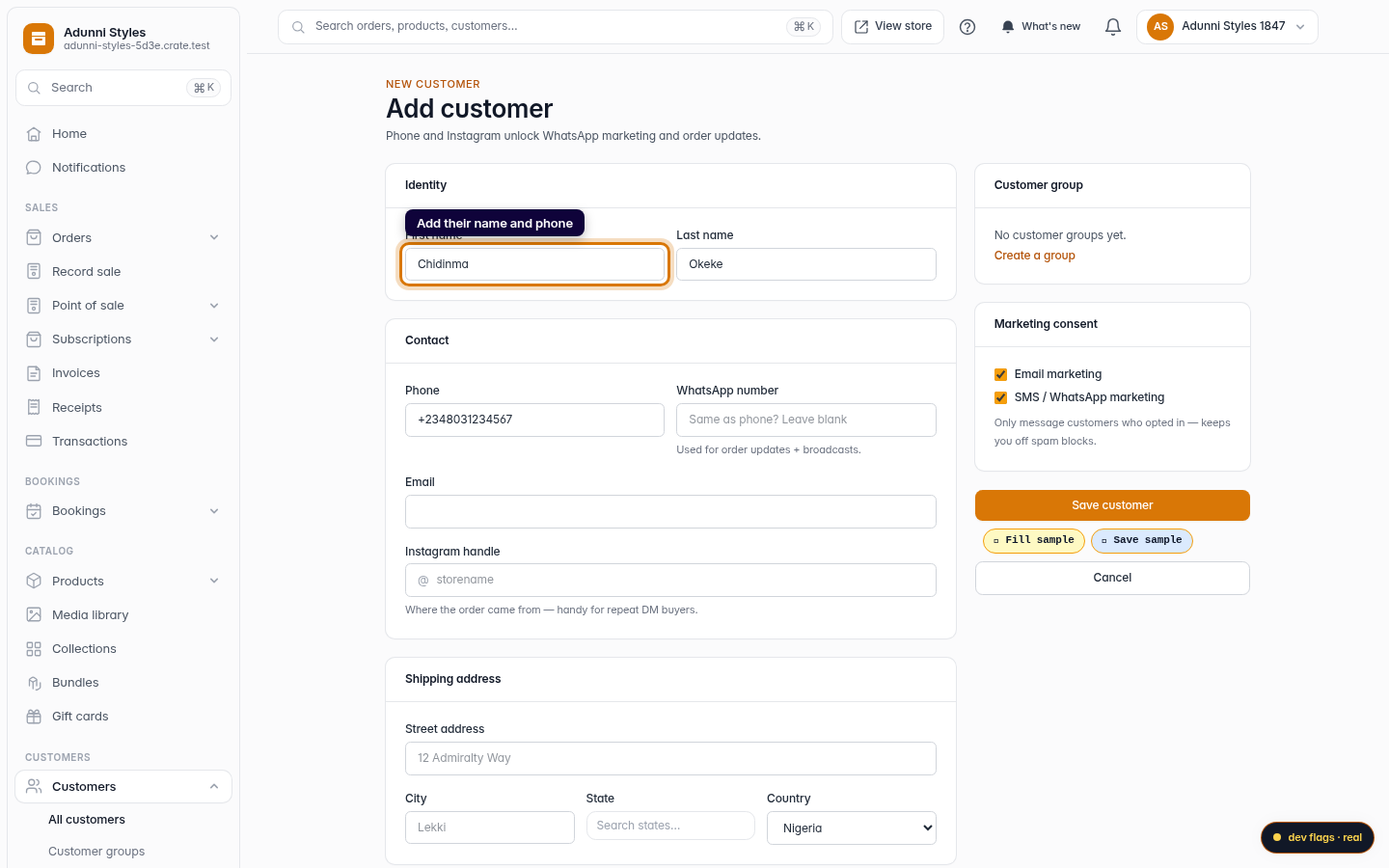
Add their name and phone
Give the customer a first name and a phone number. The phone number is what unlocks the call and WhatsApp shortcuts on every customer row — for most Crate sellers it's the single most useful field, since that's where the conversation already lives.
Web 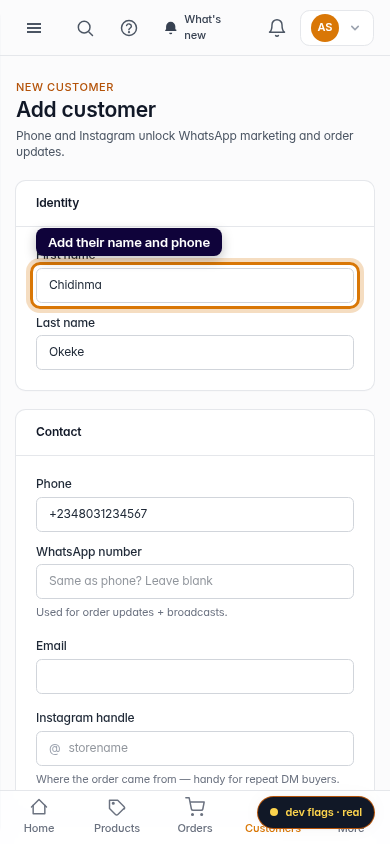
Mobile -
4
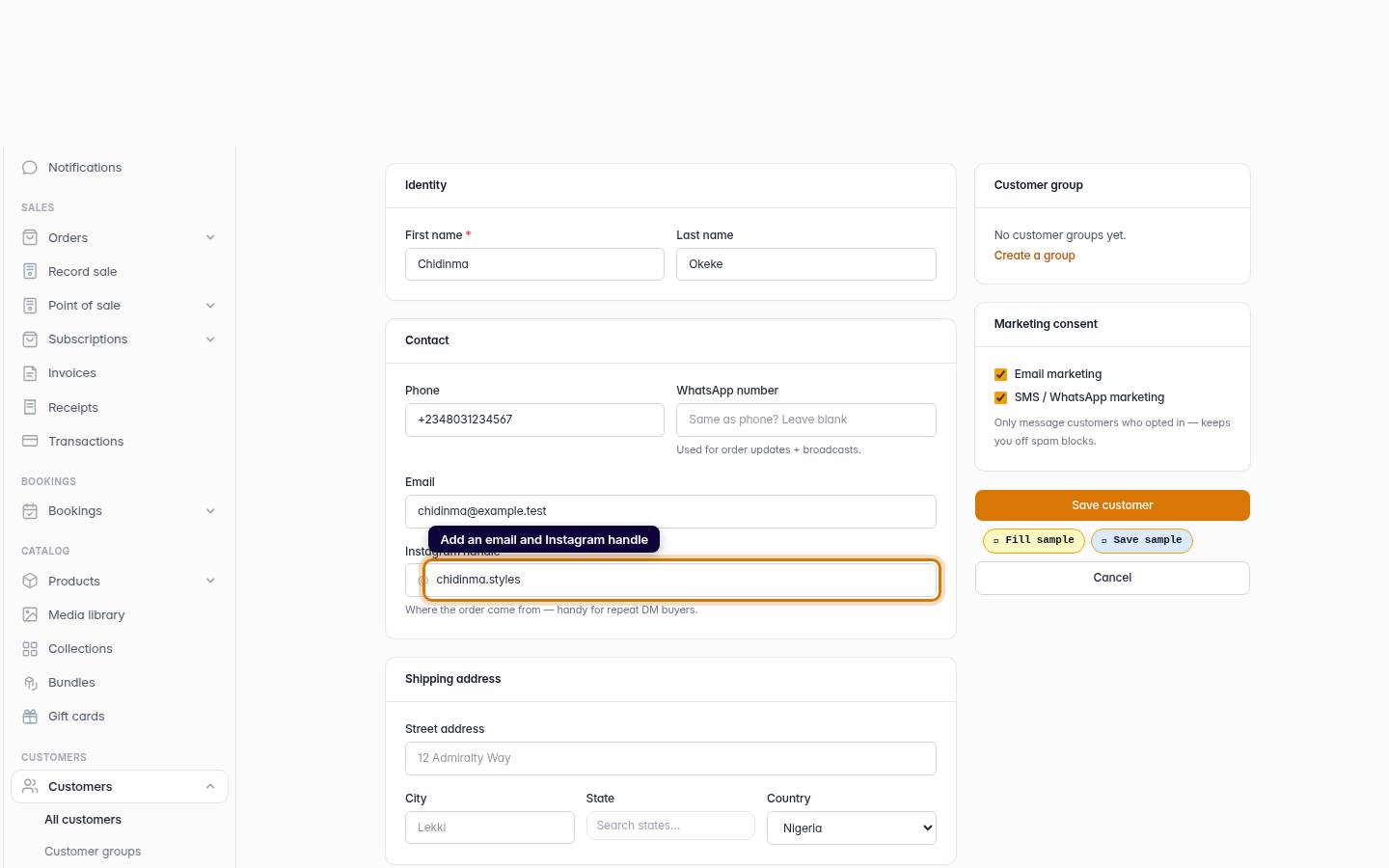
Add an email and Instagram handle
Add an email if you have one — it lets you send receipts and email broadcasts — and the Instagram handle the order came from. Tracking where a buyer found you makes repeat DM sales much easier to follow up.
Web -
5
Save the customer
Click Save customer. Crate creates the profile and takes you straight to it, ready for their first order, a note, or a tag.
Web 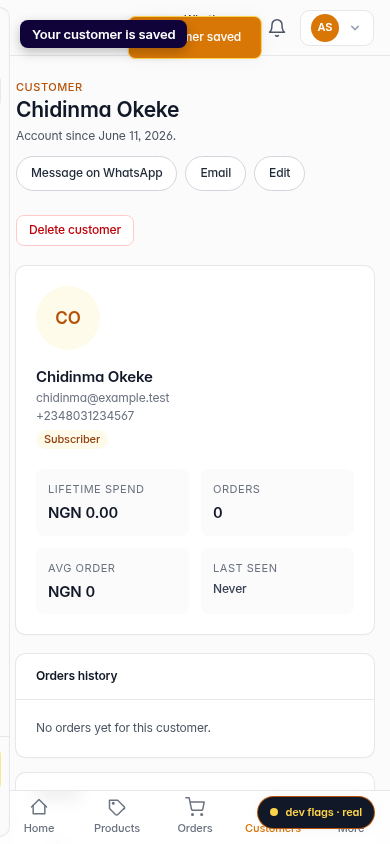
Mobile