Comparing plans in your dashboard
Open the Plans page, switch between quarterly, biannual and annual pricing, and open a plan's details to see everything it includes before you subscribe.
When it's time to choose or change your plan, everything happens on one page: Subscription → Plans. This guide walks through reading it so you subscribe with confidence.
Switch the billing period first
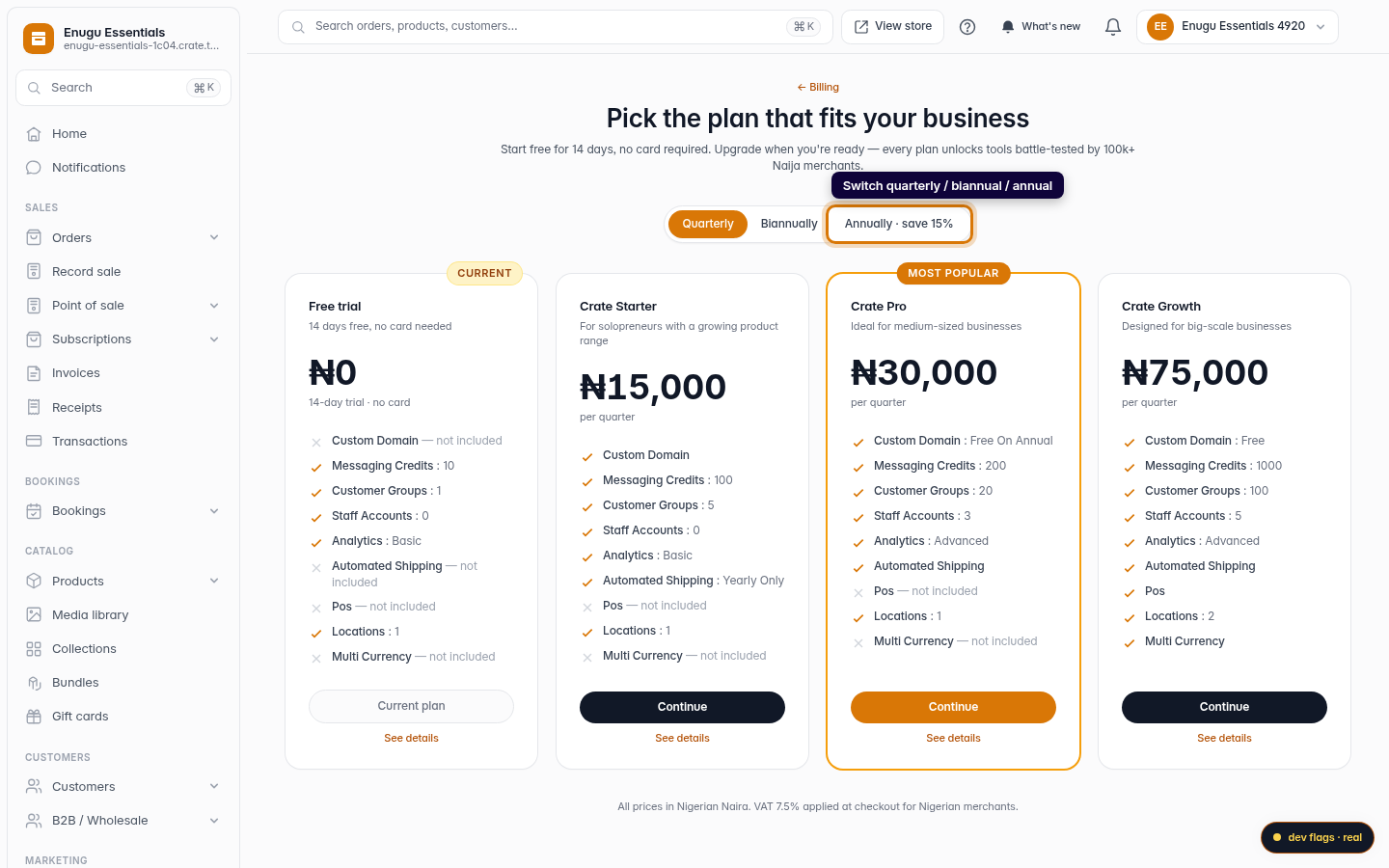
At the top of the page is a period toggle — Quarterly, Biannually, Annually. Pick the commitment you're comfortable with and every plan's price re-prices on the spot. The longer the period, the lower the effective monthly cost, with annual giving the largest saving. (Nigerian merchants see VAT applied at checkout.)
Read the cards
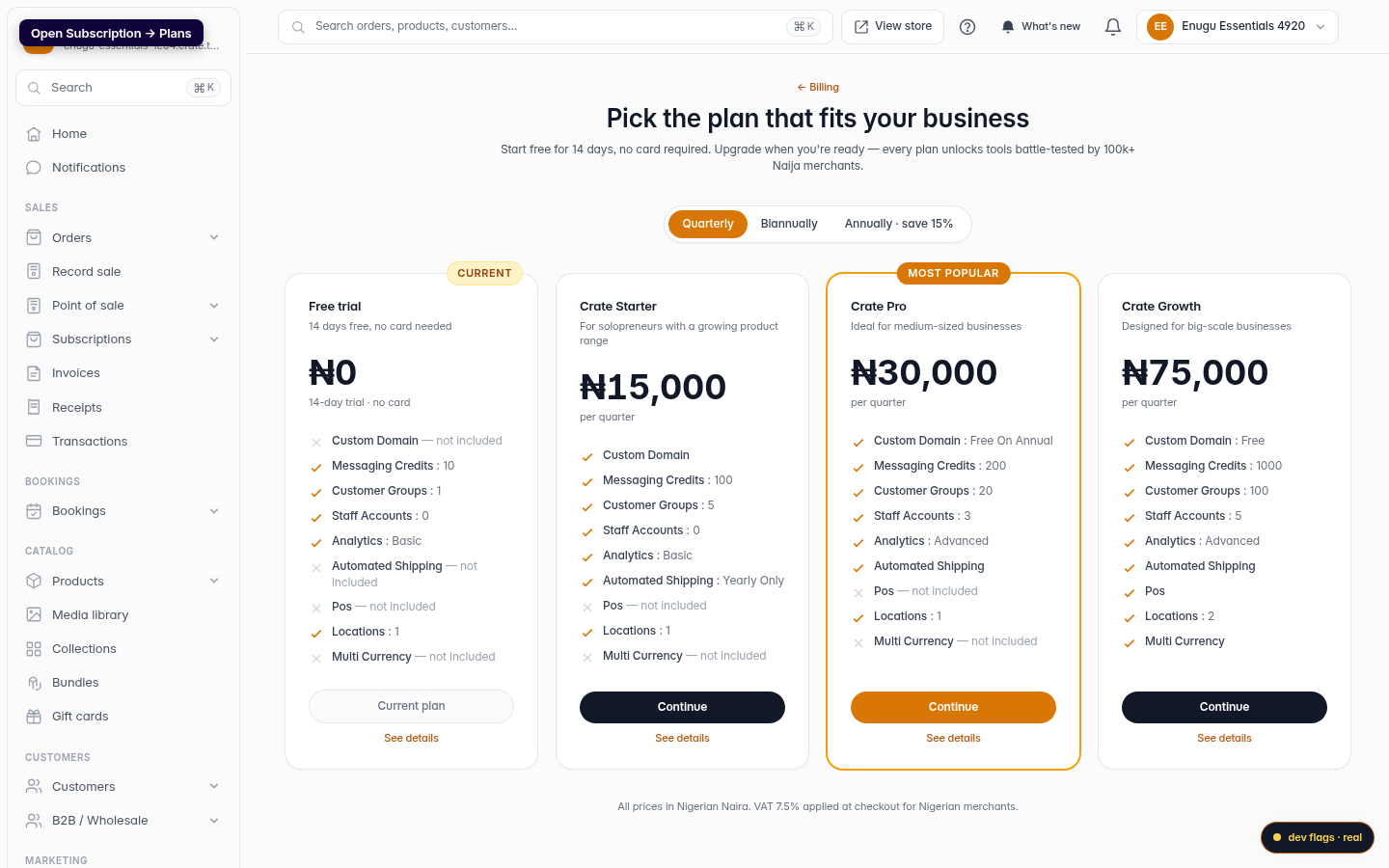
Each plan is a card showing its price for the selected period and a checklist of what's included — a tick for features you get, a cross for ones you don't. Two badges help you orient quickly:
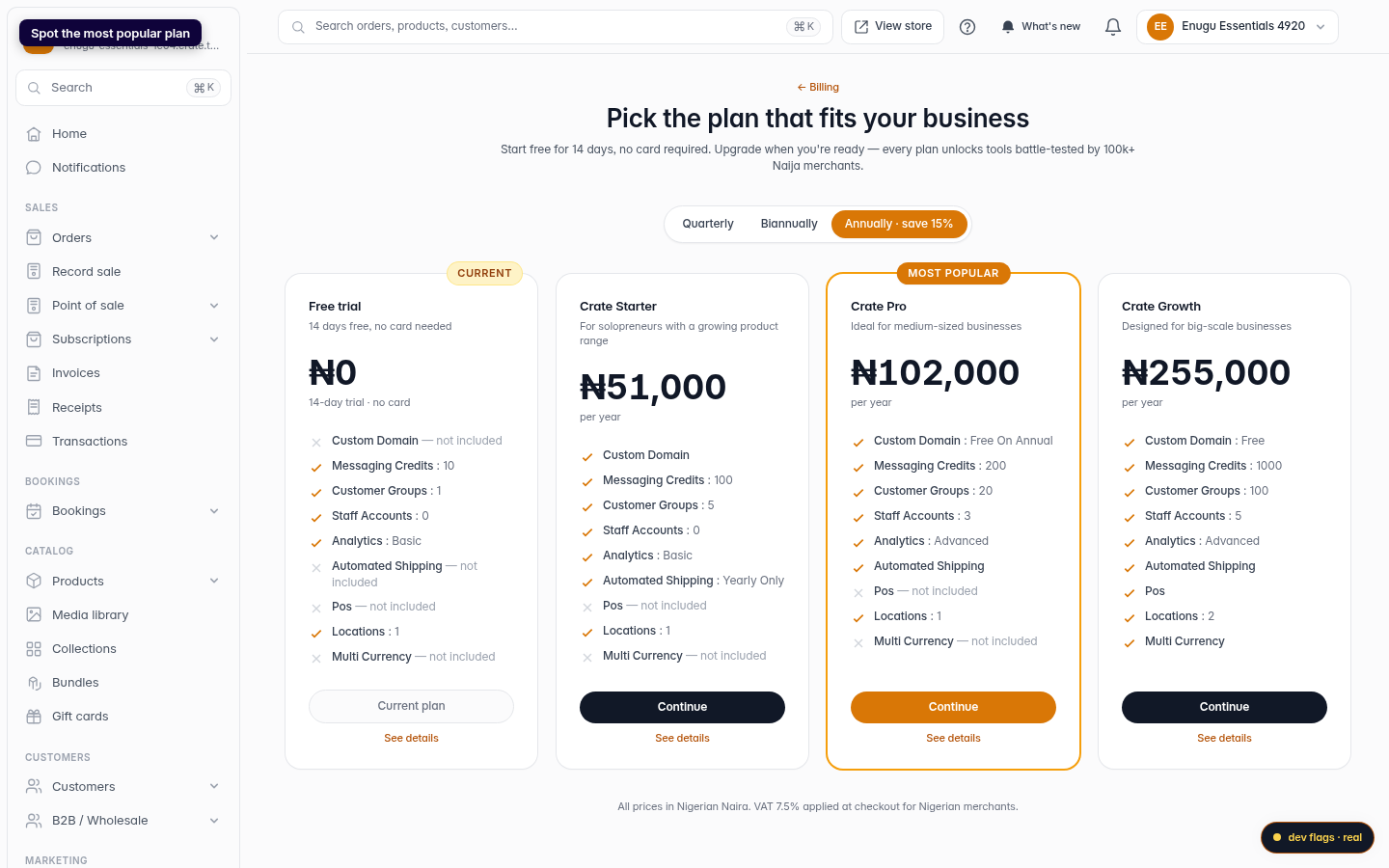
- Most popular marks the plan most merchants pick (Pro).
- Current marks the plan you're already on.
See the full details
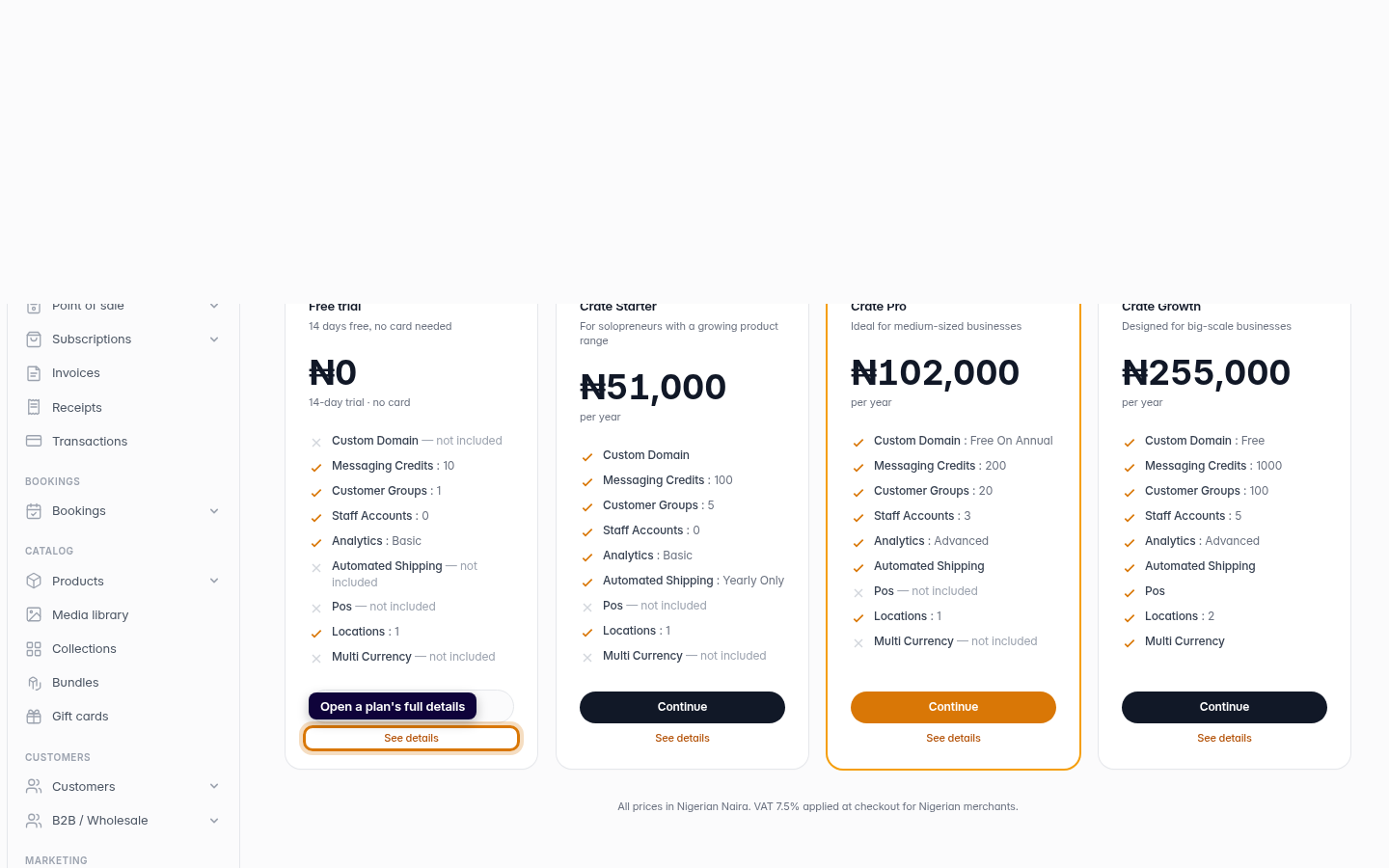
Want the complete breakdown before deciding? Click See details on any card to open that plan's dedicated page. When you've made your choice, hit Continue to go to secure checkout and activate the plan — your new features unlock the moment payment clears.
Want the plain-English summary of what each plan includes? See Crate subscription plans.
-
1
Open Plans
From Subscription → Plans in the dashboard, open the plan comparison page. Every plan is laid out as a card with its price and features.
Web -
2
Switch the billing period
Use the Quarterly / Biannually / Annually toggle at the top. Each card's price updates instantly so you can see exactly what you'd pay for the commitment you want. Annually carries the biggest saving.
Web -
3
Spot the most popular plan
The plan marked Most popular is the one most Crate merchants choose. Your current plan is tagged Current so you always know where you stand.
Web -
4
Open a plan's details
Not sure a plan has what you need? Click See details on any card to open its full breakdown before you commit. When you're ready, Continue takes you to secure checkout.
Web