Manage your team
The Staff & permissions page is mission control for your team — see who has access, how many seats your plan includes, what each role unlocks, and edit or remove a teammate at any time.
As your business grows, you'll want help running it. Crate lets you invite teammates — a manager, a cashier, a fulfilment hand, a marketer — each with their own login and exactly the access they need. The Staff & permissions page is where you manage all of them in one place.
Seats and your plan
Each teammate takes a seat, and your subscription plan decides how many seats you get. The summary cards at the top show how many you've used against your limit, so you always know how much room you have. Need more seats? Upgrade your plan and the cap rises automatically.
Roles and permissions
Every teammate is assigned a role, and the role decides what they can see and do. Roles keep things simple — a cashier can record orders and look up customers but never touch payouts; a marketer runs campaigns and discounts but only reads orders. When the built-in roles aren't a perfect fit, pick Custom and tick exactly which areas a teammate can reach.
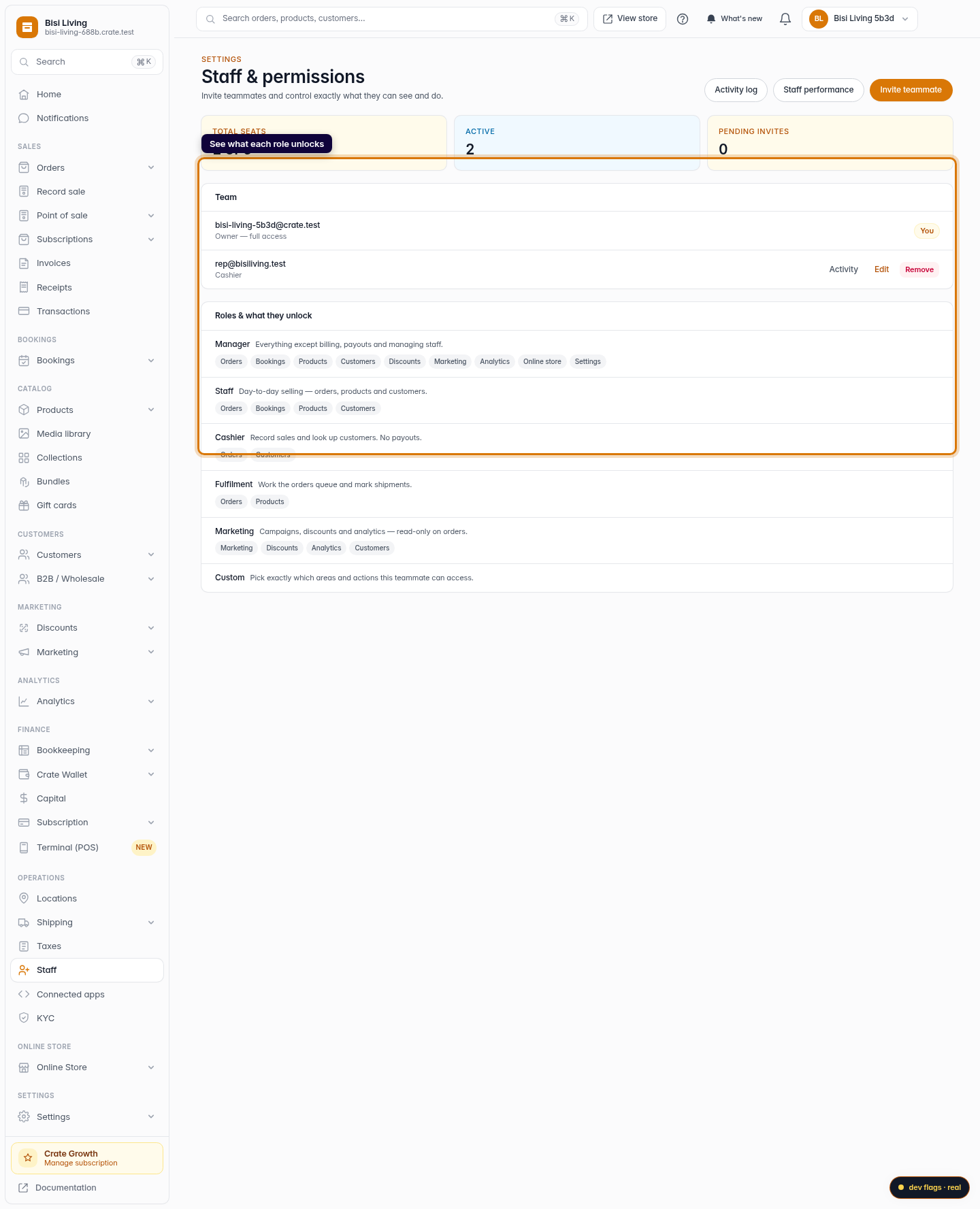
The Roles & what they unlock panel lists each role and the capabilities it grants, so you can choose deliberately rather than guess.
Tip: The store owner always has full access and can't be edited or removed from this page — that account is the ultimate key to the store.
Editing or removing a teammate
People change roles and people leave. From the Team list, Edit updates a teammate's role or fine-grained permissions, and Remove revokes their access immediately. If you've sent an invitation that hasn't been accepted yet, you'll see it under the team with a Revoke action to cancel it. To bring someone new on board, see Invite a teammate.
-
1
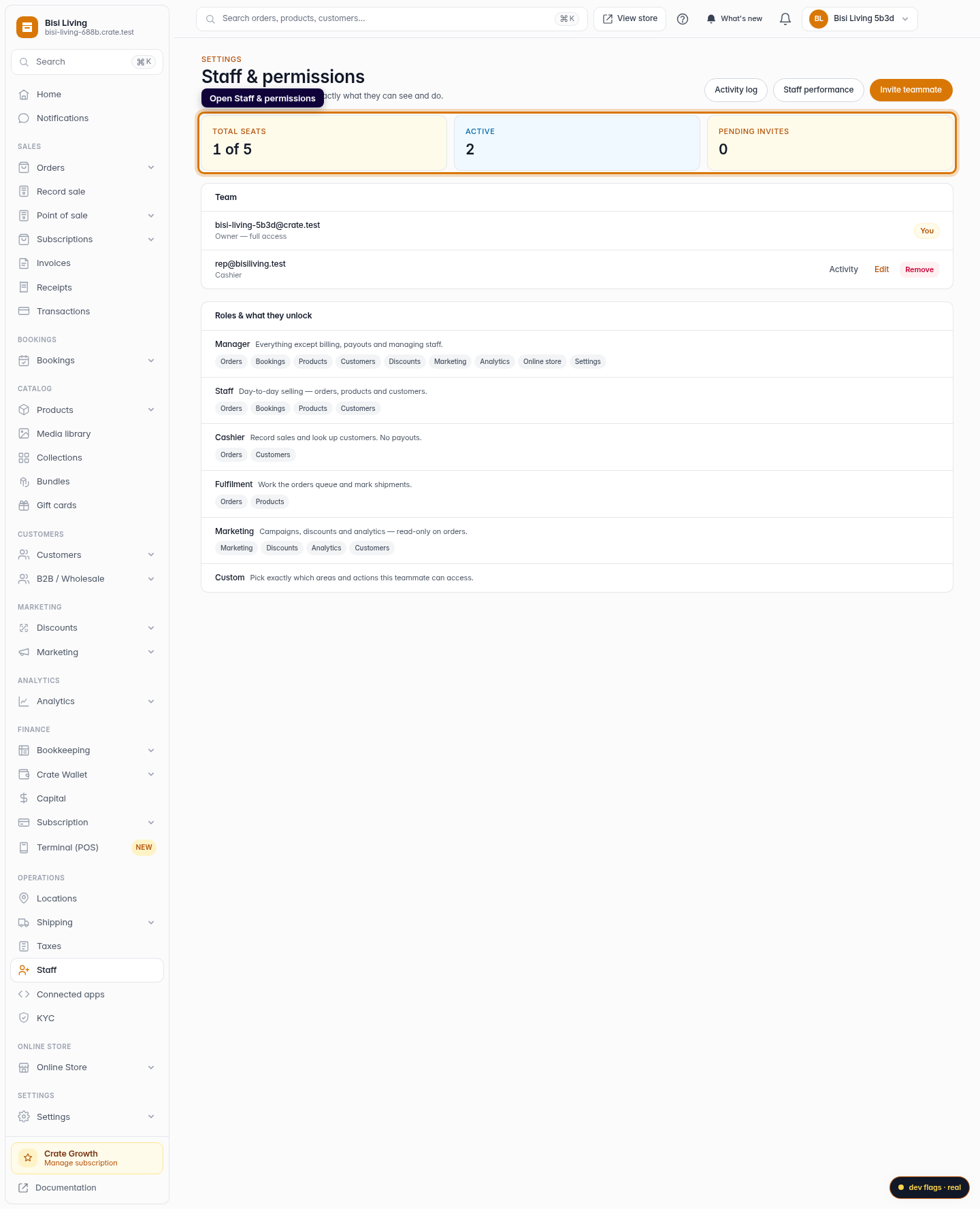
Open Staff & permissions
From the dashboard, open Staff & permissions. The page header sits under Settings, and a row of summary cards shows your seats at a glance.
Web 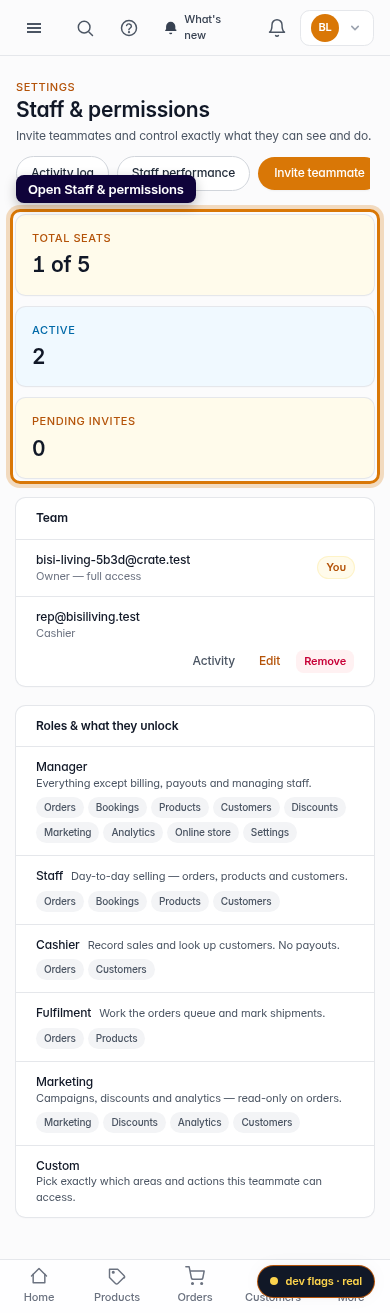
Mobile -
2
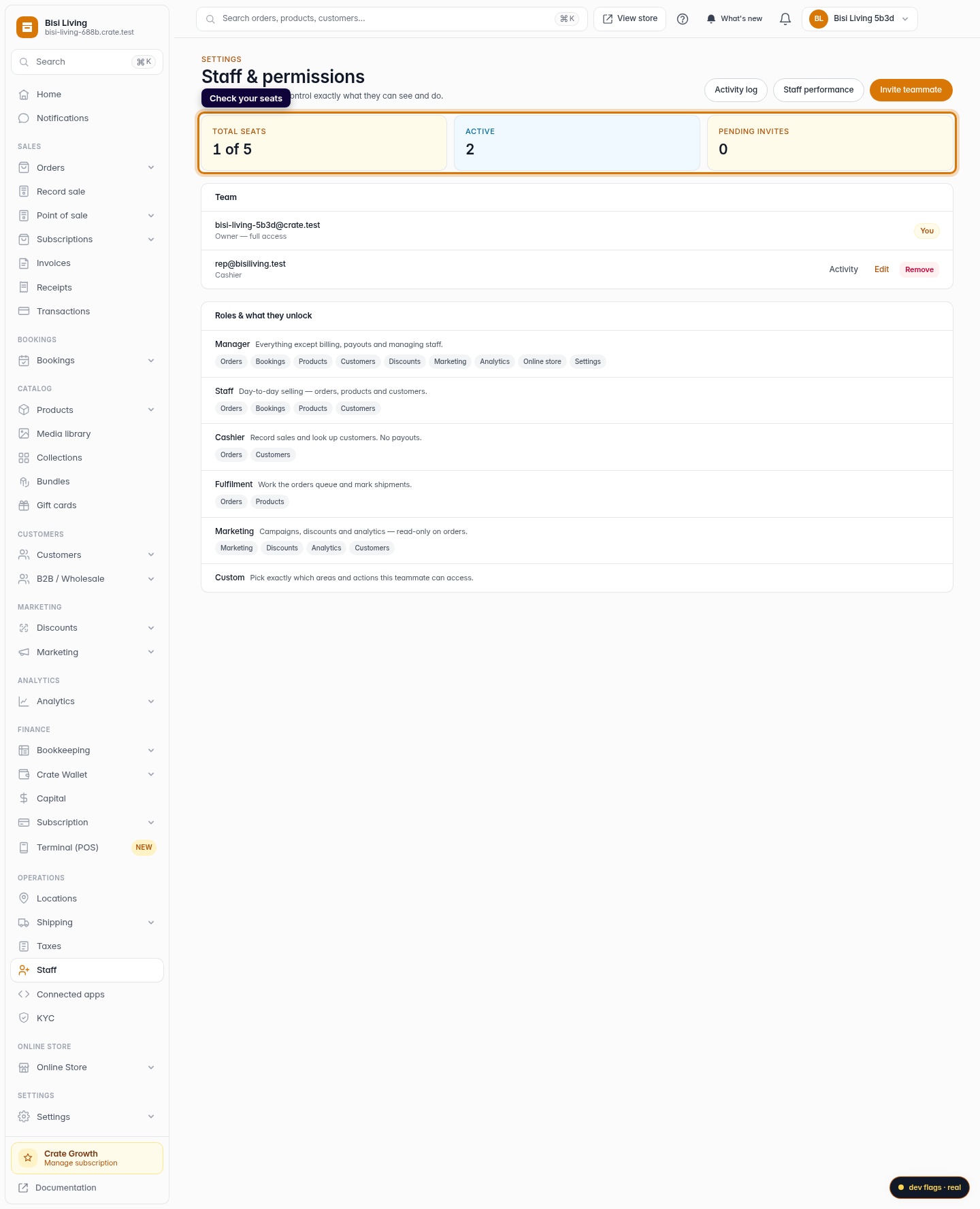
Check your seats
The summary cards show Total seats used against your plan's limit, who's Active, and any Pending invites. Your plan decides how many teammates you can add.
Web -
3
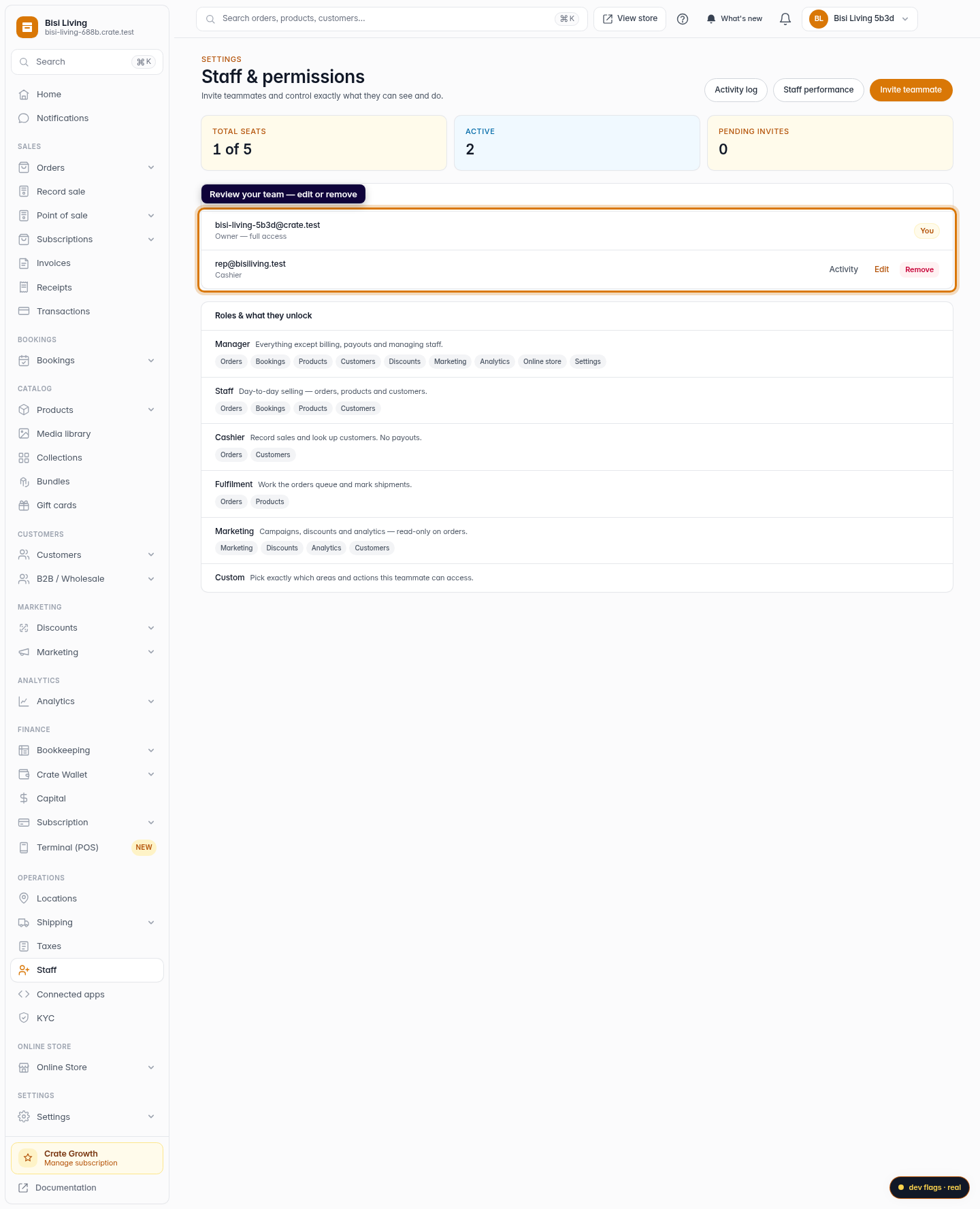
Review your team
The Team list shows the owner (you, with full access) plus every teammate and their role. Use Edit to change a teammate's role or permissions, or Remove to revoke their access entirely.
Web -
4
See what each role unlocks
The Roles & what they unlock panel spells out exactly which areas each role grants — so you can pick the right level of access before you invite someone.
Web 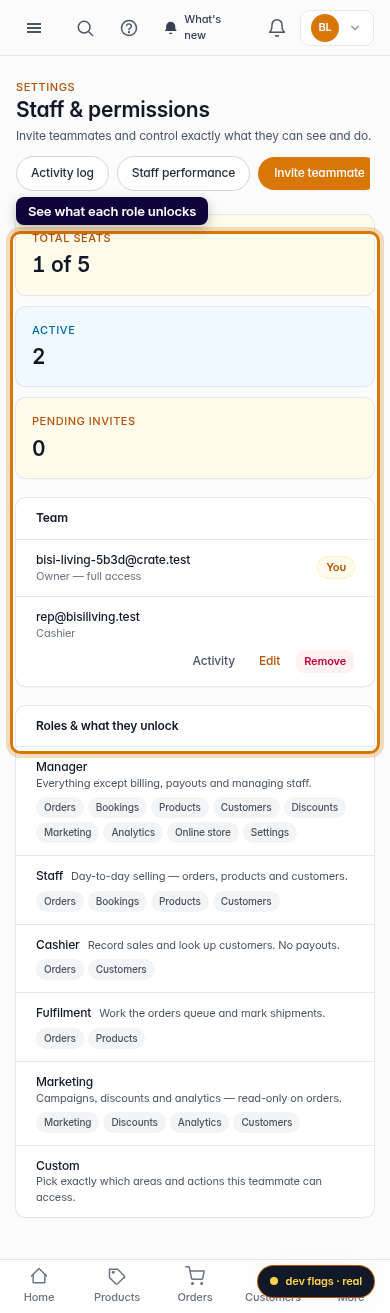
Mobile