Add the Facebook Pixel to your store
Drop your Meta (Facebook) Pixel ID into Crate and we inject it into your storefront automatically — so you can measure ad performance, build audiences, and track purchases without touching any code.
The Meta (Facebook) Pixel measures what shoppers do on your store — which pages they view, what they add to cart, and when they buy. With that data you can prove your ads are working, retarget people who didn't check out, and build lookalike audiences to find more buyers.
Crate handles the technical part for you. You don't paste a code snippet into a template or hire a developer — you give Crate the Pixel ID and we inject the Pixel into every storefront page automatically.
Where to find your Pixel ID
Your Pixel ID lives in Meta Events Manager. Open Events Manager, select your data source, and copy the ID shown under the data source name — it's a 15- or 16-digit number. Crate wants just that number, not the surrounding <script> code.
What gets tracked
Once the Pixel is live, Crate fires standard events for you — page views across the storefront and the purchase event on a completed order — so your Meta reporting and conversion tracking work without extra setup. For anything beyond the standard events, you can drop your own snippet into the Custom code section on the same Preferences page.
Tip: Pair the Pixel with Google Analytics — both sit side by side in the Analytics section, and together they give you the full picture of where buyers come from and what they do.
-
1
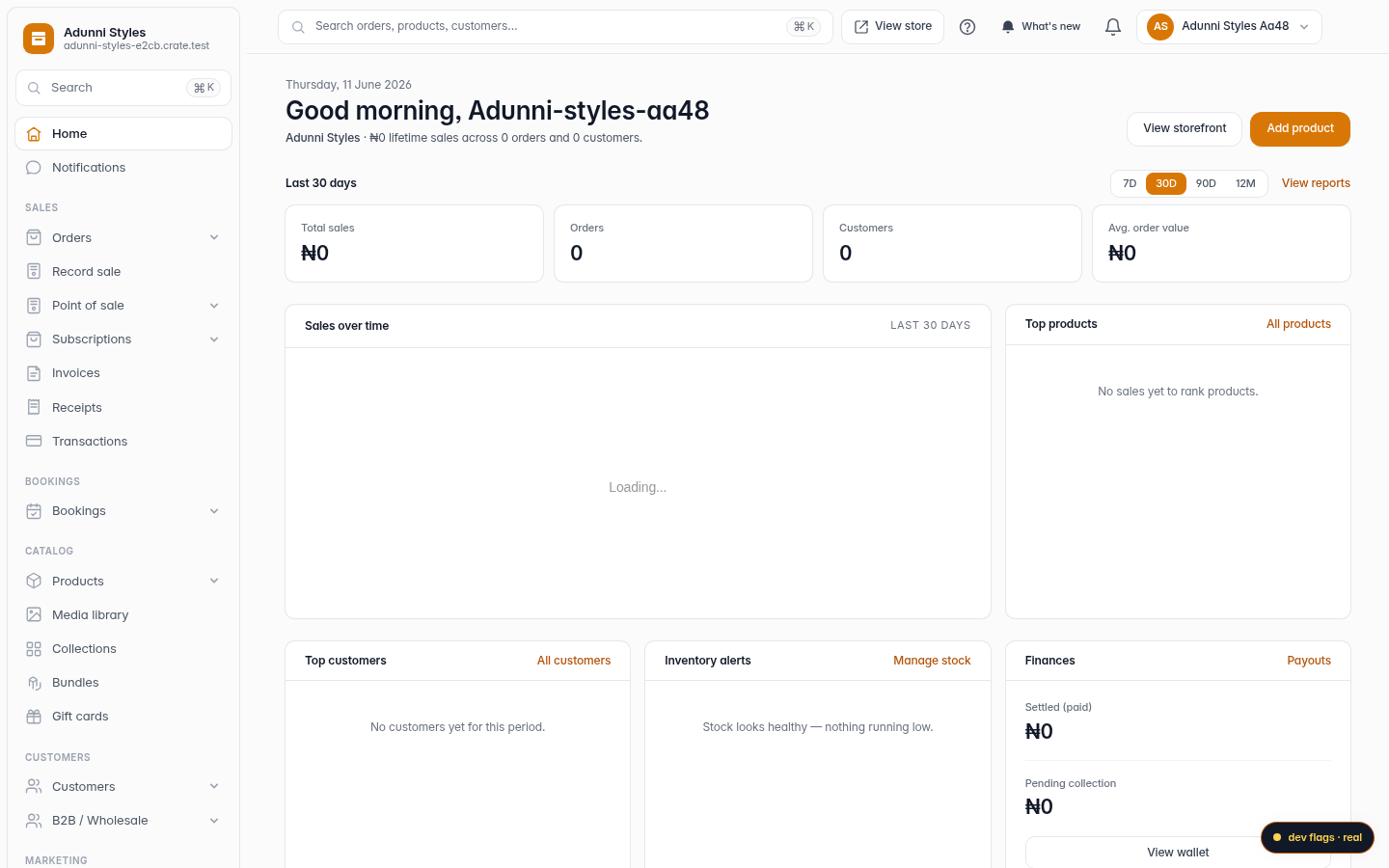
Open Online Store
From your Crate dashboard, open Online Store in the sidebar. This is the home for everything buyers see.
Web -
2
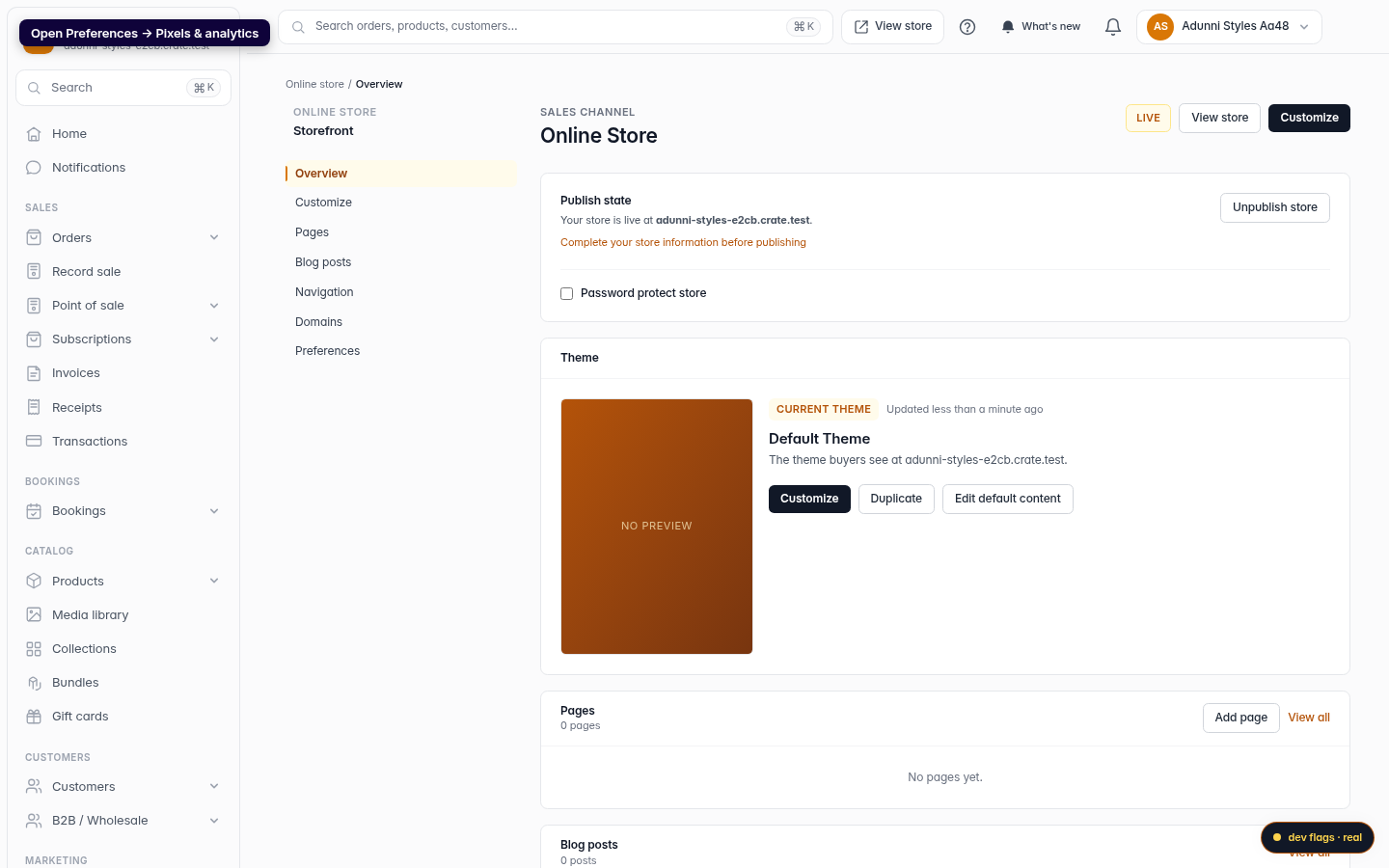
Open Preferences → Pixels & analytics
Scroll to the Preferences card and click Edit next to Pixels & analytics. That opens the storefront Preferences page on the Analytics section.
Web -
3
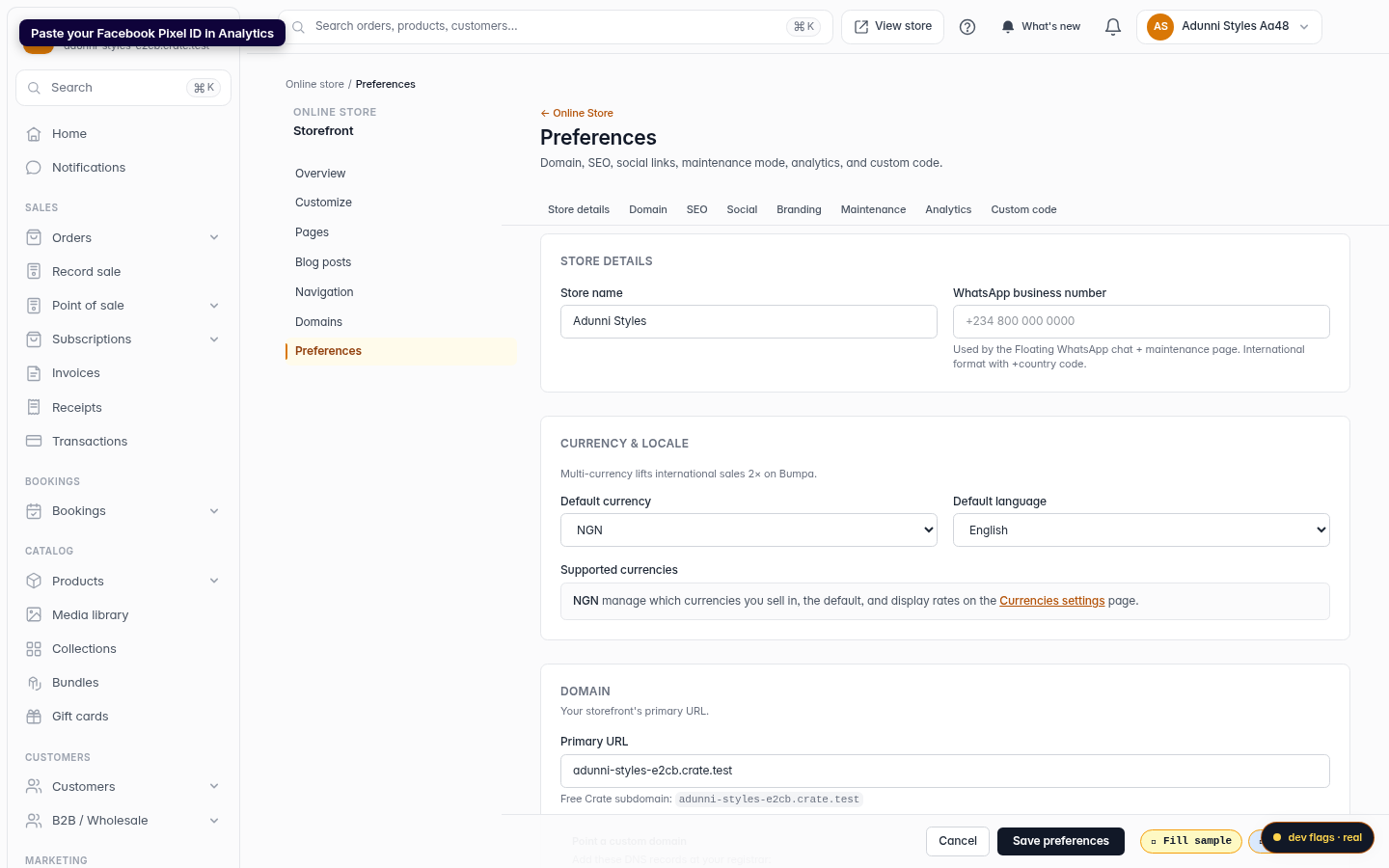
Paste your Facebook Pixel ID
In the Analytics section, paste your Pixel ID into Facebook Pixel ID — it's the 15-or-16-digit number from Meta Events Manager (not the whole code snippet).
Web -
4
Save preferences
Click Save preferences. Crate stores the ID and injects the Pixel into your storefront's
<head>on every page — page views and purchases start flowing to Meta right away.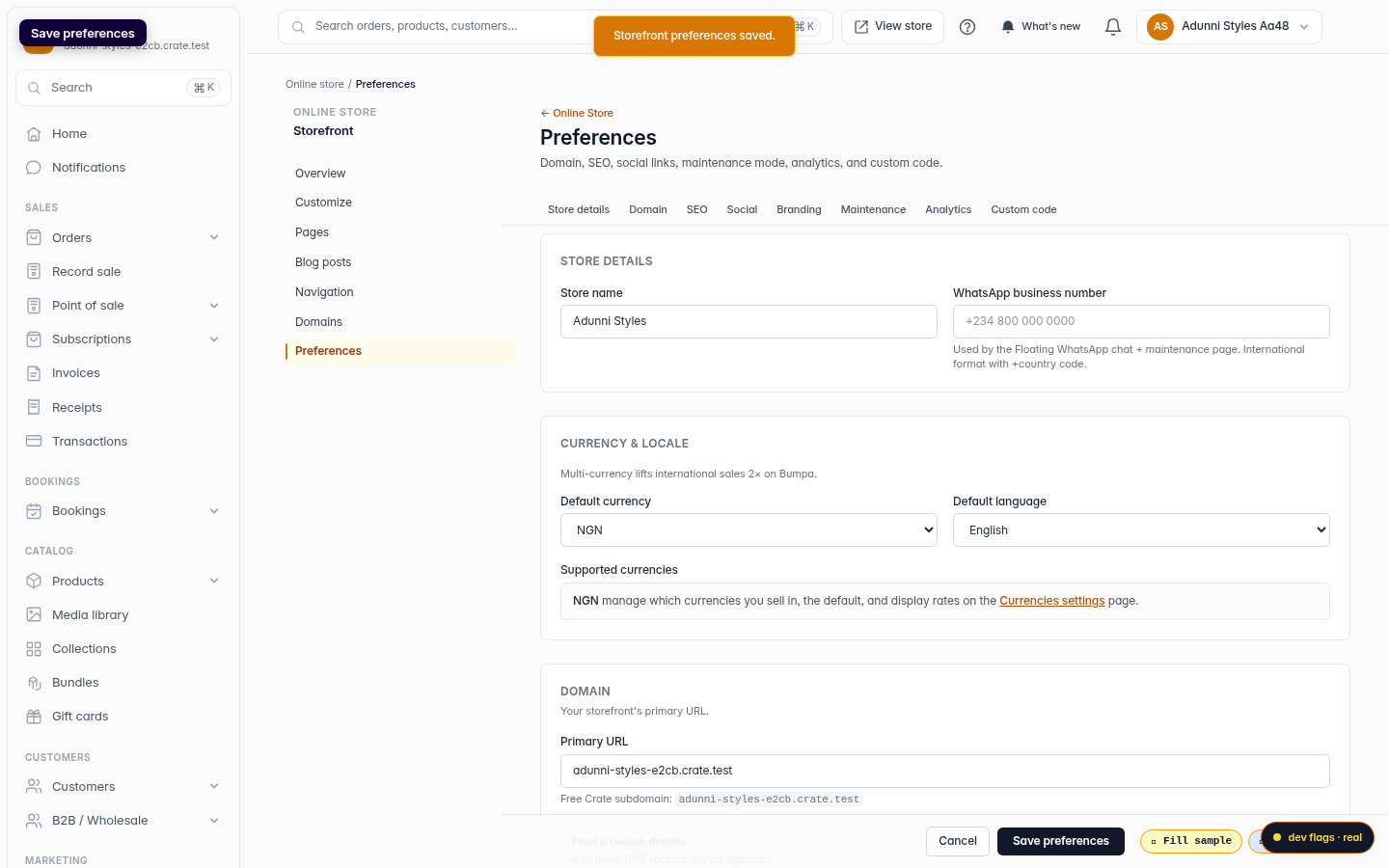
Web