Upload your favicon
Swap the default icon in shoppers' browser tabs for your own. Crate keeps the favicon with your branding, so it's one upload alongside your logo and colours.
The favicon is the tiny icon that sits in a browser tab next to your store's name. Out of the box, stores show a generic icon — uploading your own logo mark there makes every open tab unmistakably yours, and it's one of those small touches that makes a store feel finished.
In Crate, the favicon lives with the rest of your branding rather than on a separate page. That keeps everything that defines your brand — logo, favicon, colours, fonts — in one place under Settings → Branding.
Pick the right image
A favicon is shown very small, so detail is lost. A few pointers:
- Use a square image — Crate sizes it to roughly 32×32 for the tab.
- A PNG or ICO works best; transparency is fine.
- Favour a simple logo mark over your full wordmark — text rarely survives at tab size.
Why it might not change right away
Browsers cache favicons hard, so after saving you may still see the old icon (or none) in your own tab. That's the cache, not Crate — do a hard refresh (Cmd/Ctrl + Shift + R) on your storefront, or open it in a private window, and your new favicon appears.
The favicon you upload here is the same icon Crate writes into your storefront's page <head>, so visitors see it the moment your DNS serves the page — no separate publish step.-
1
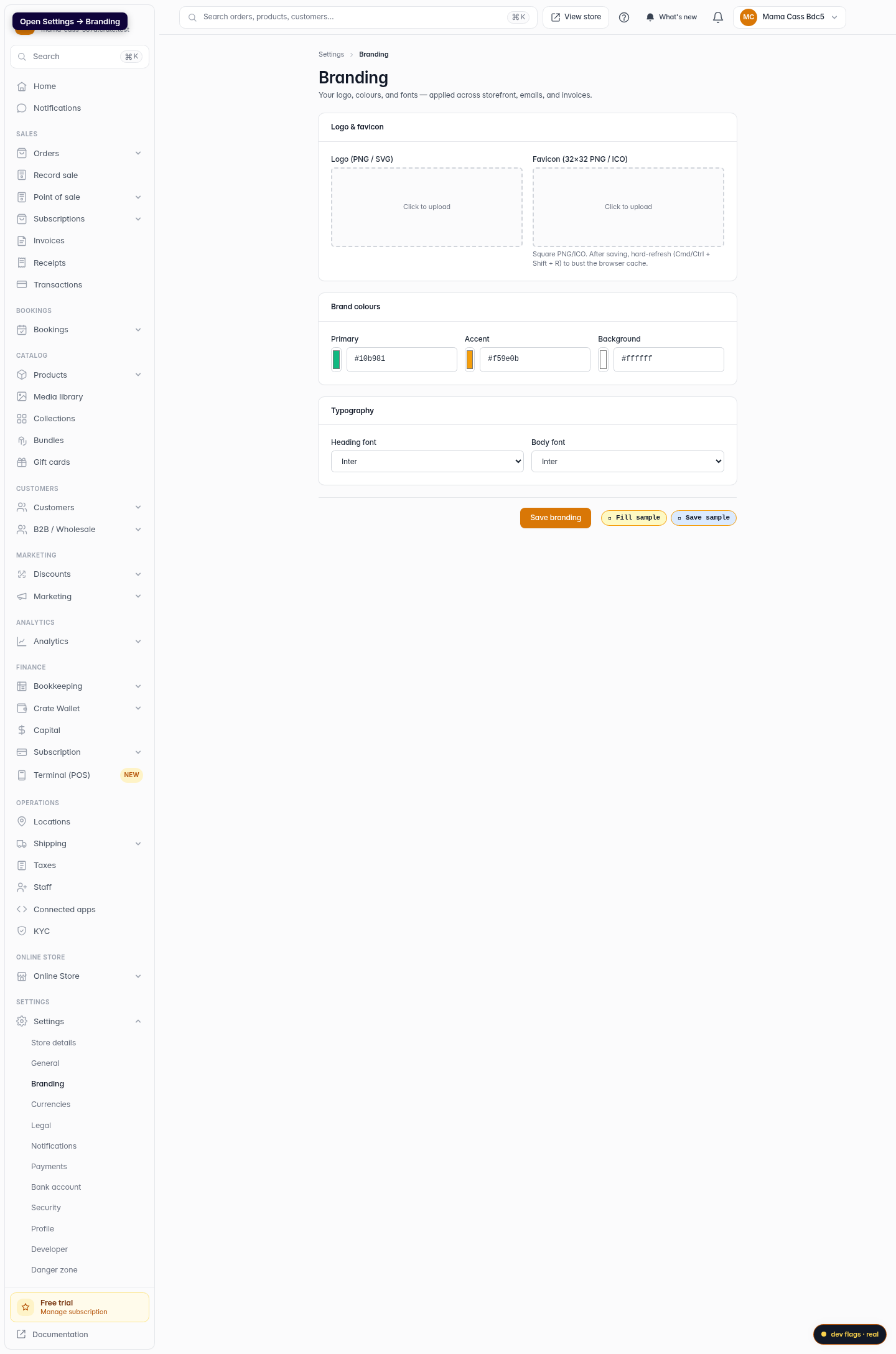
Open Branding settings
From your Crate dashboard, go to Settings → Branding. Your logo, favicon, colours and fonts all live together here — they're applied across your storefront, emails and invoices.
Web 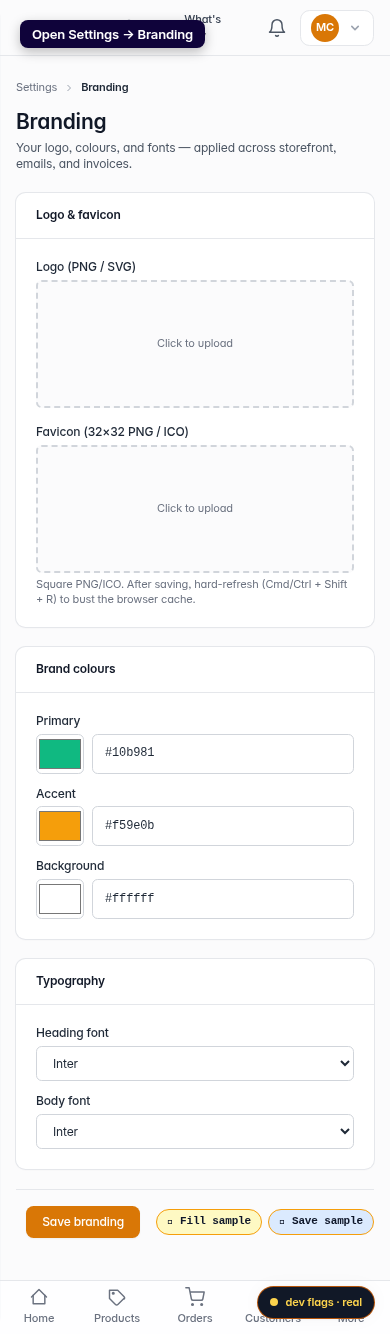
Mobile -
2
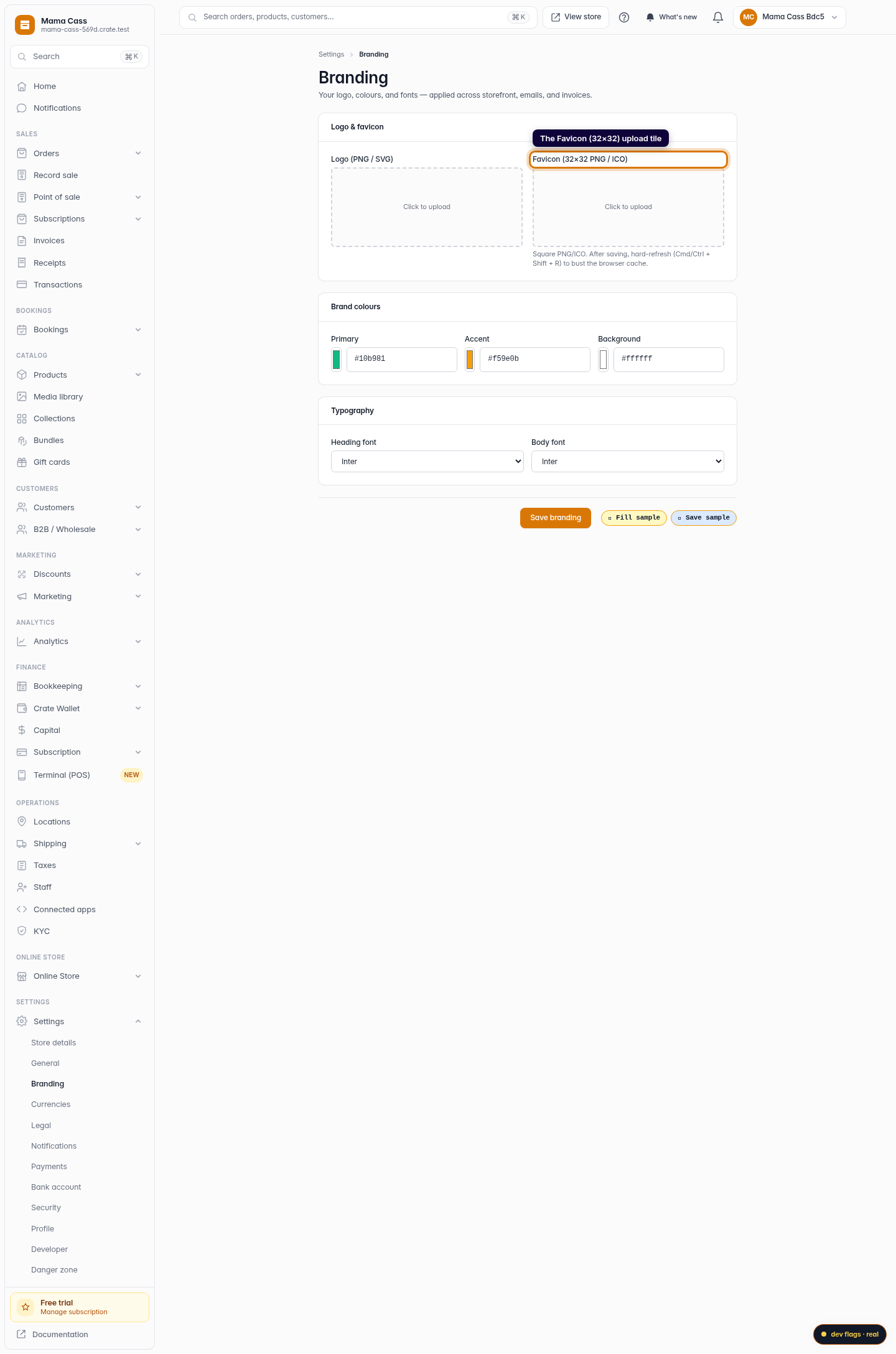
Find the favicon upload
In the Logo & favicon card, look for the Favicon (32×32) tile next to your logo. The favicon is the small icon that shows in the browser tab when someone visits your store.
Web -
3
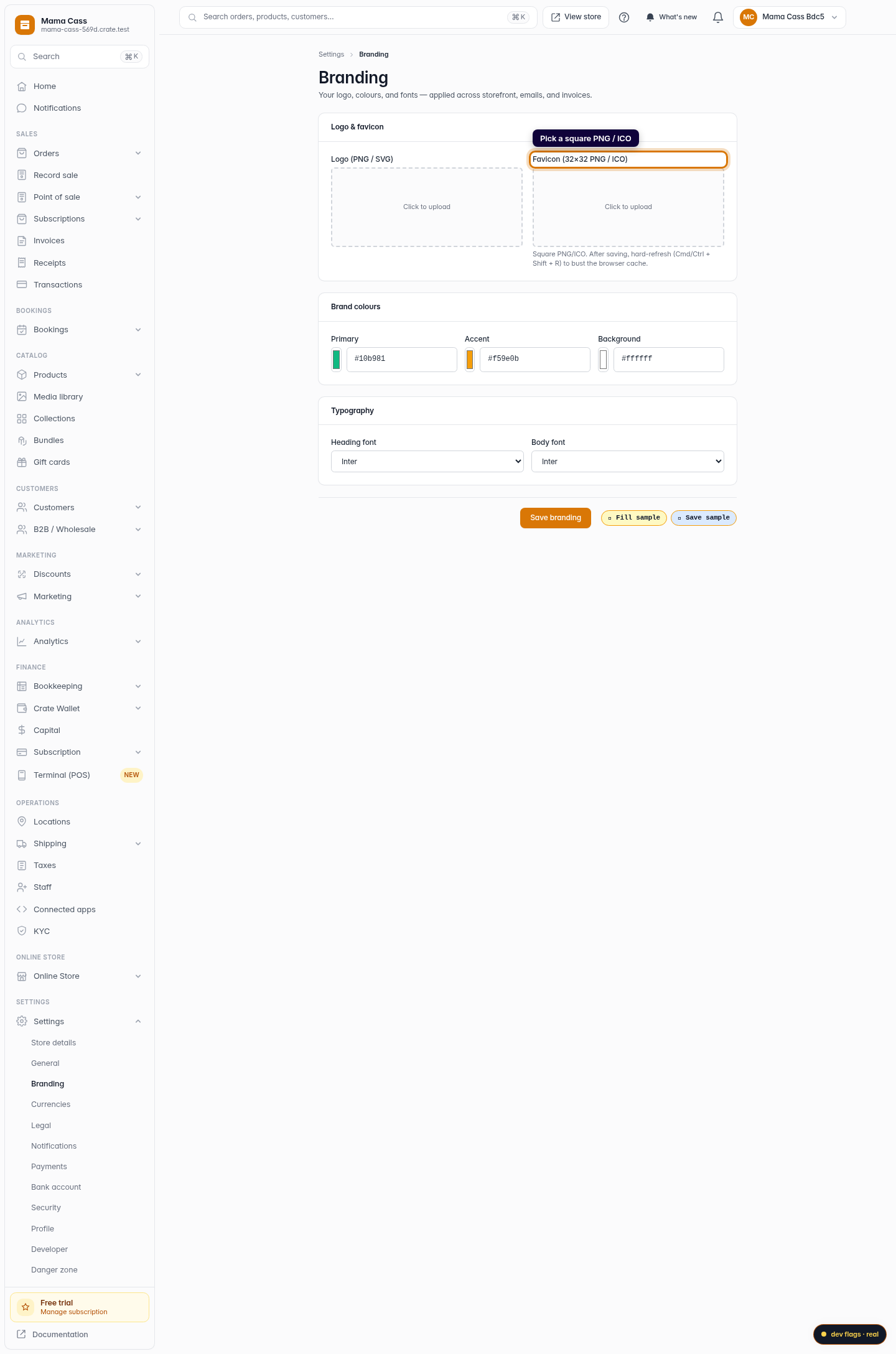
Choose your image
Click the favicon tile and pick an image from your computer. Use a square PNG or ICO — a simple logo mark reads best at tab size (around 32×32). Anything taller or wider than square will look squashed.
Web -
4
Save your branding
Click Save branding. Crate stores the favicon with the rest of your brand and starts serving it in the
<head>of your storefront.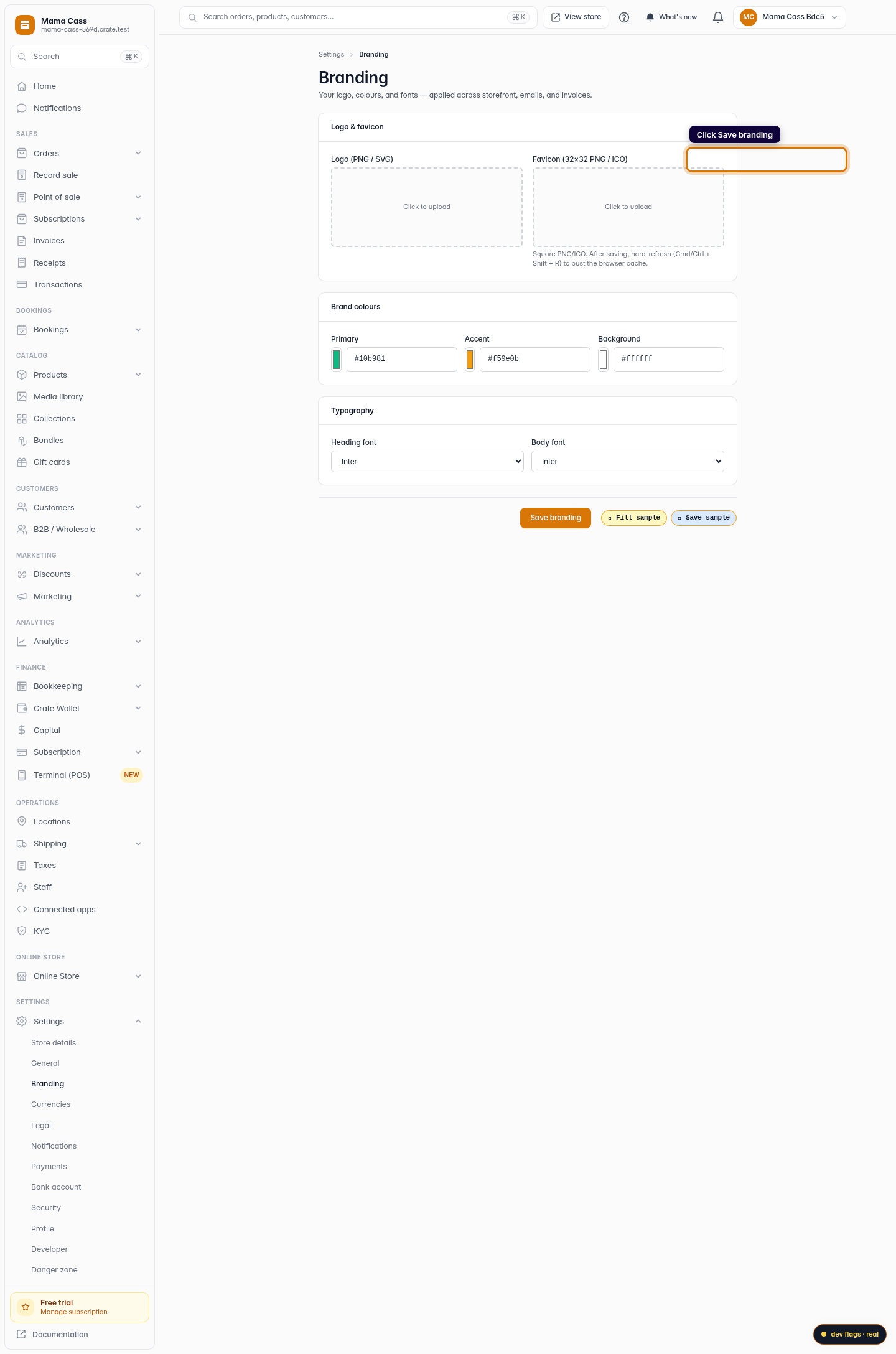
Web 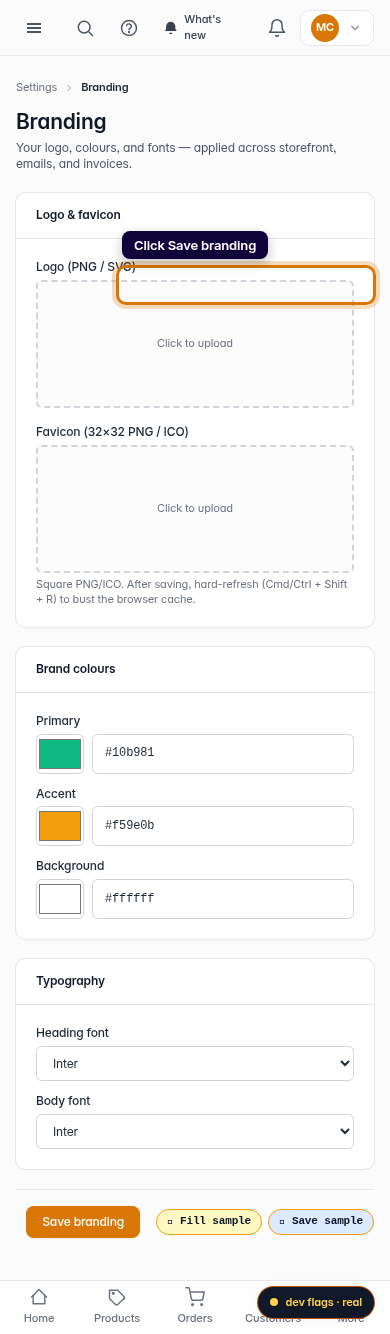
Mobile -
5
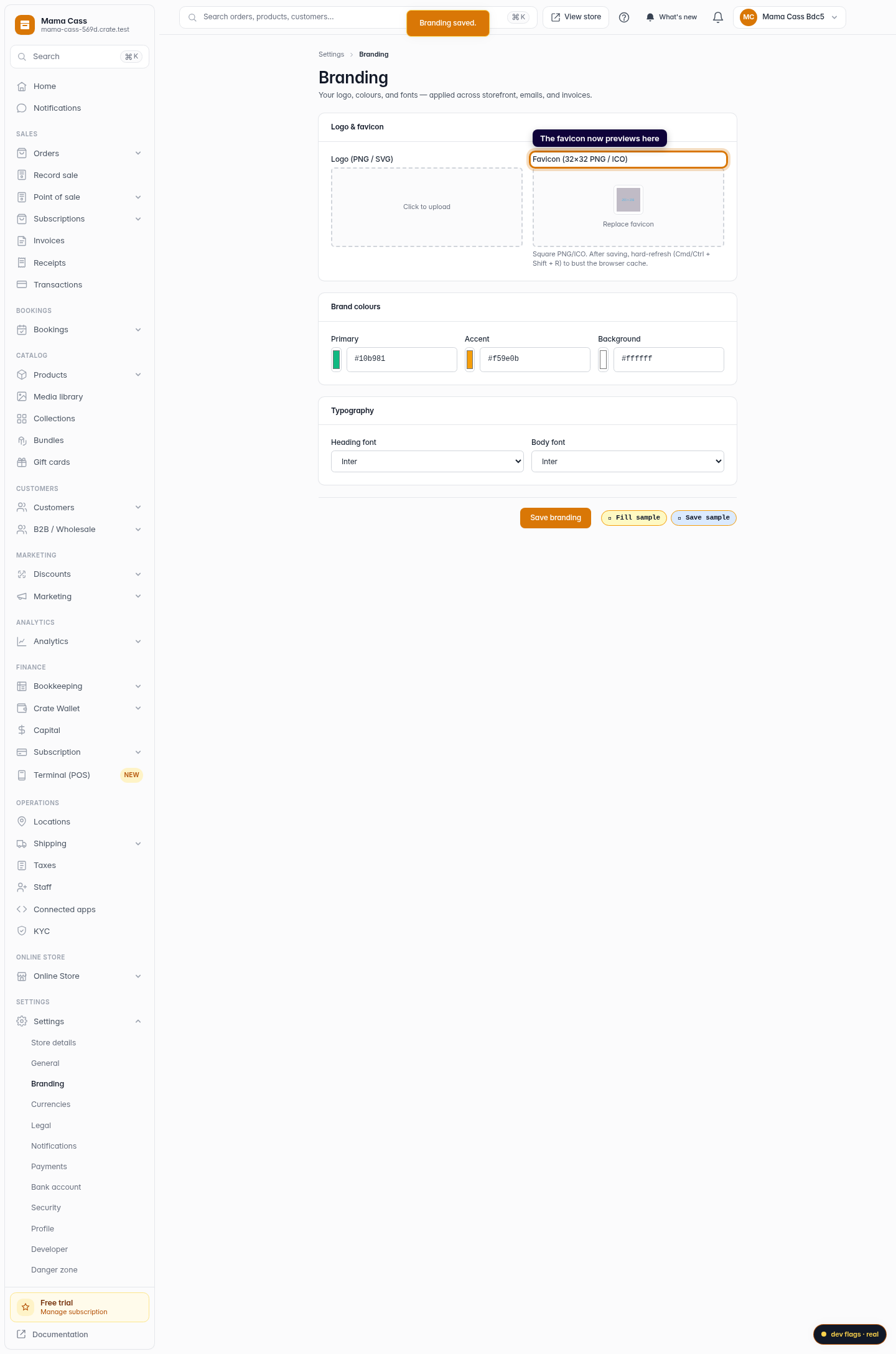
Confirm it's live
Back on the Branding page, your favicon now previews in the tile instead of Click to upload. If you don't see it change in your own browser tab yet, hard-refresh the store (Cmd/Ctrl + Shift + R) — browsers cache favicons aggressively.
Web