Add a DNS record to your custom domain
Point your custom domain at Crate — or set up email and verification — by adding A, CNAME, TXT and other DNS records from the Domains area.
DNS records are the signposts that tell the internet where your domain points. You'll add them to connect a domain to your Crate store, to verify that you own it, or to route email. Crate gives you a simple form for each one so you don't have to wrestle with a registrar's control panel.
You manage records per domain, under Online Store → Domains. Each record has a type, a host, and a value — get those three right and you're done.
The record types, plainly
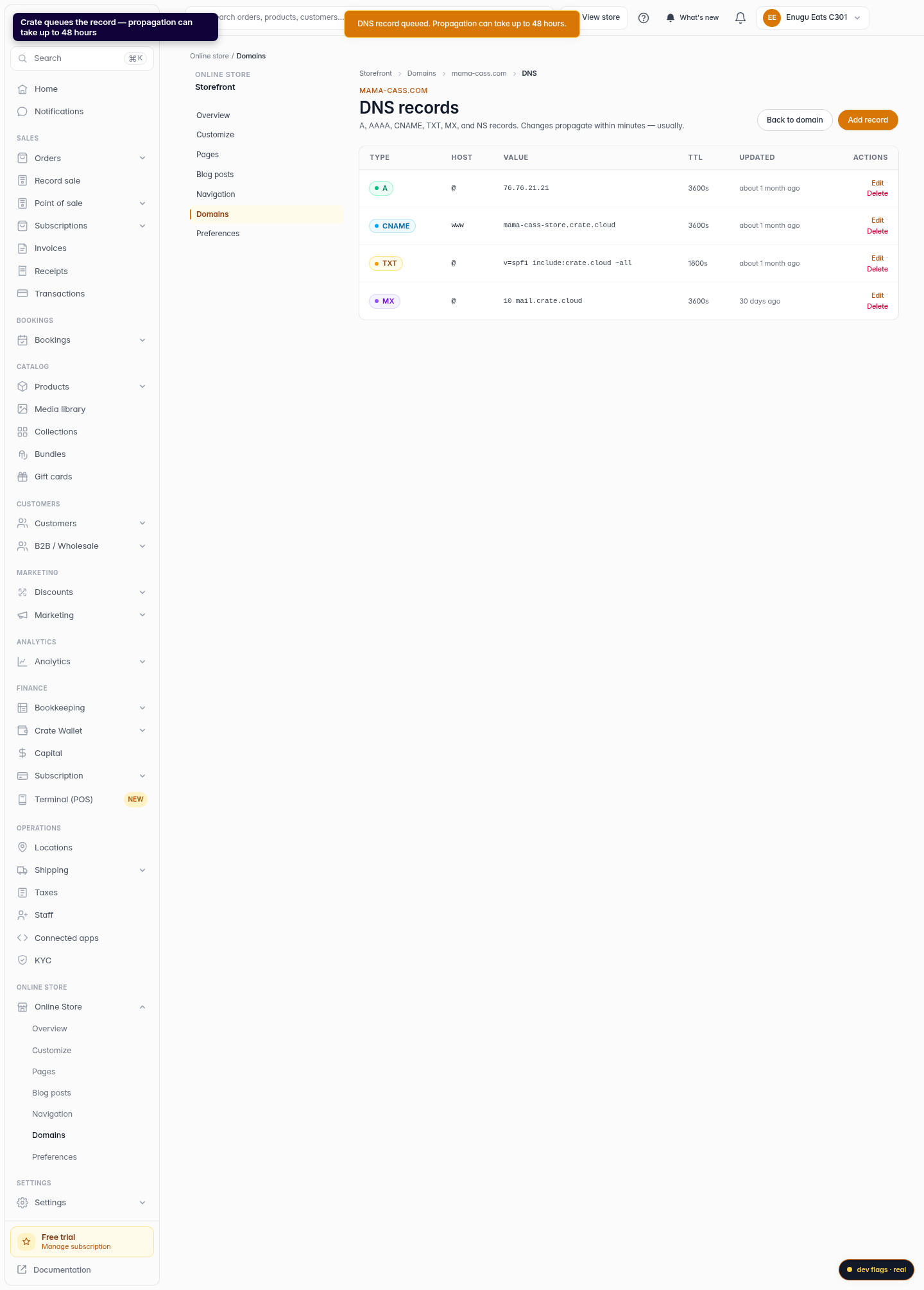
- A → points a host at an IPv4 address (the usual way to point your root domain at Crate).
- AAAA → the same, for an IPv6 address.
- CNAME → points a host at another hostname (commonly used for www).
- TXT → holds text — used to verify ownership and to improve email deliverability.
- MX → routes email for your domain.
- NS → delegates a subdomain to other nameservers.
Host and value
The host is which part of your domain the record applies to — @ for the root, or a subdomain like www or shop. The value is where it points: an IP for A/AAAA, a hostname for CNAME, or the text string for TXT.
Tip: Changes don't always appear instantly. DNS can take up to 48 hours to propagate worldwide, though most records resolve in minutes. If something doesn't work right away, give it time before changing it again.
-
1
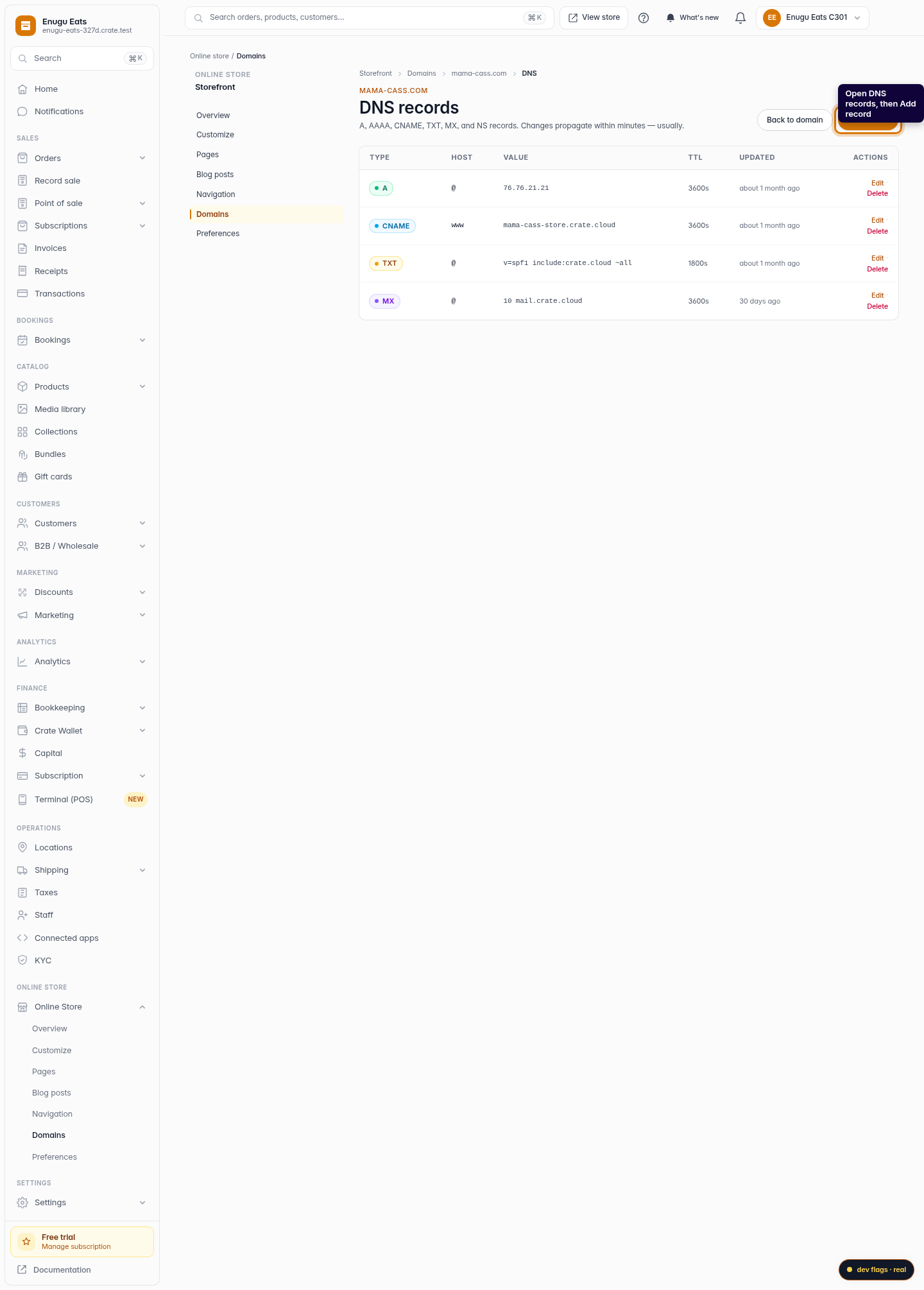
Open your domain's DNS records
From Online Store → Domains, open a domain and go to its DNS records. Then click Add record.
Web 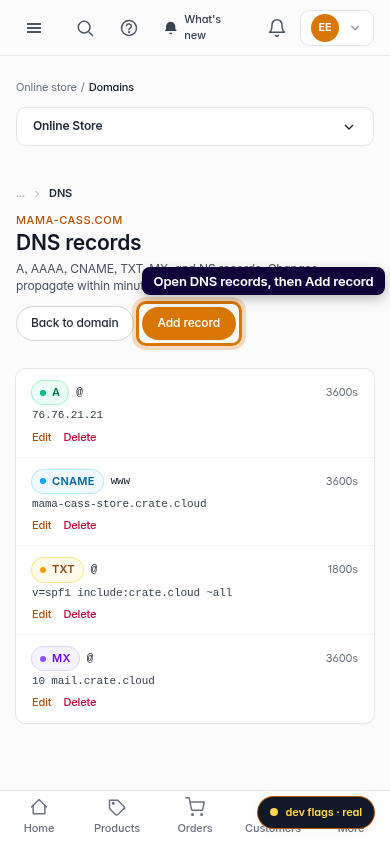
Mobile -
2
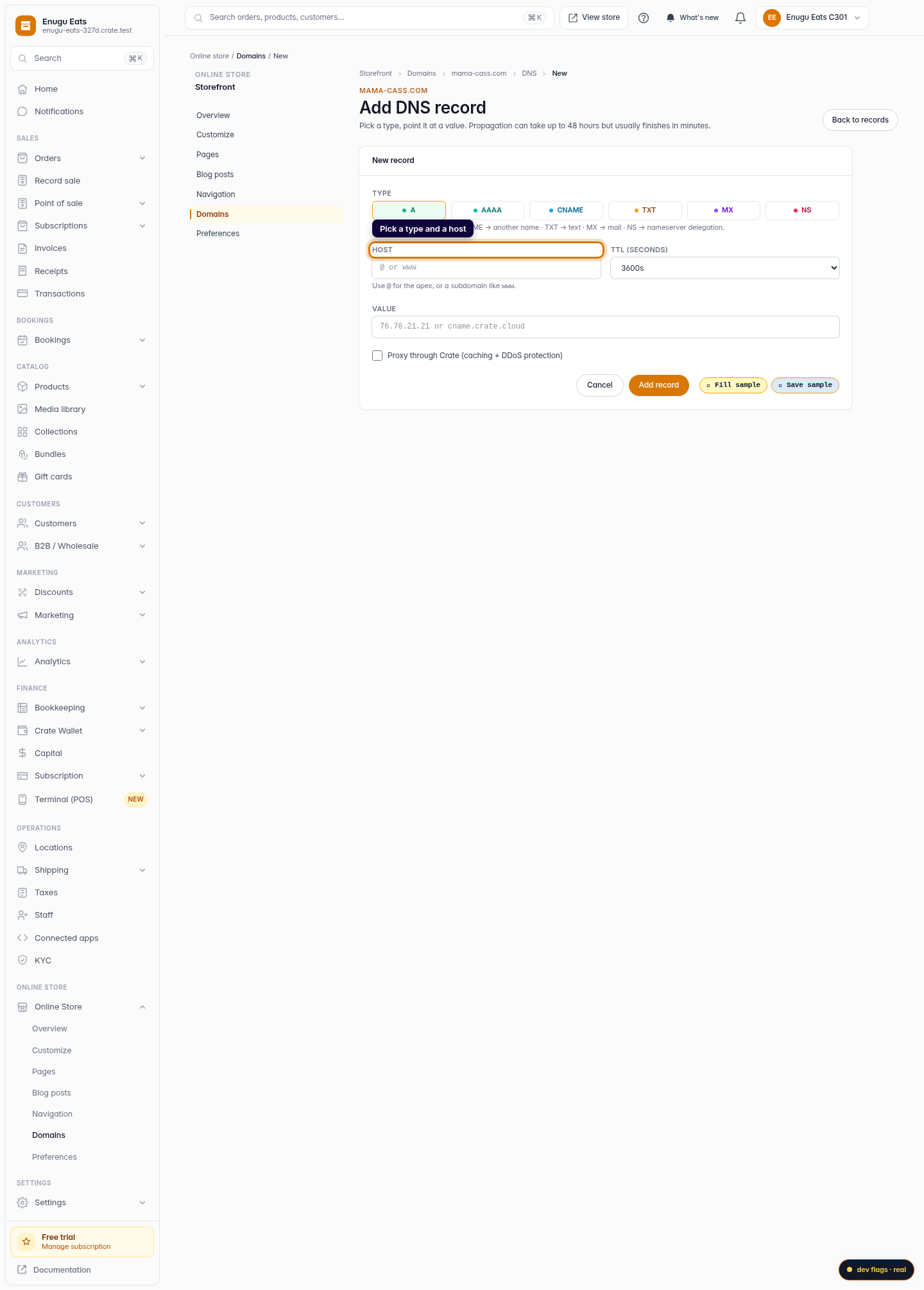
Pick a type and a host
Choose the record type (A, AAAA, CNAME, TXT, MX or NS) and the host — use @ for the root domain or a subdomain like www or shop.
Web -
3
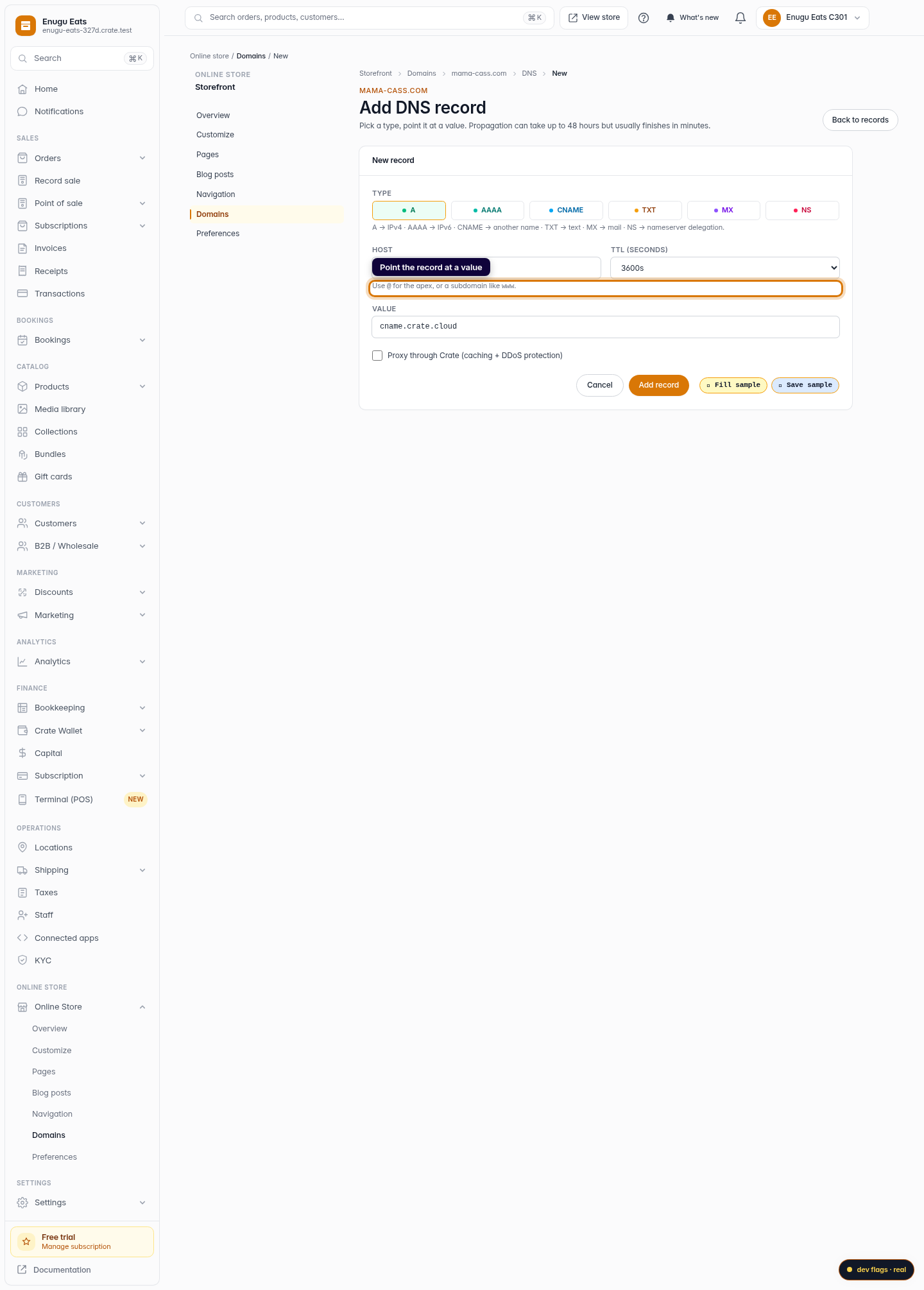
Point it at a value
Enter the value the record points to — an IP address for an A record, another hostname for a CNAME, or text for a TXT record. Set a TTL if you need to.
Web -
5
Save the record
Click Add record. Crate queues the change — DNS propagation can take up to 48 hours but usually finishes within minutes.
Web 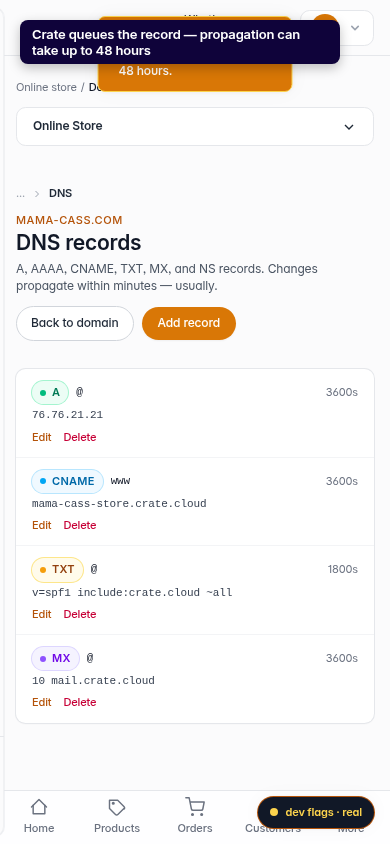
Mobile