Add a store banner
Run a site-wide announcement bar across the top of your storefront — a sale, a shipping promise, a launch. Write the message, add an optional button, and it saves live as you type.
A banner is the first thing shoppers see when they land on your store, which makes it the best place to announce a sale, a shipping offer, or a new drop. On Crate the banner is the Announcement bar — a built-in storefront section you edit in the Customize builder, with a live preview so you always know how it looks.
There's nothing to switch on and nothing to save manually: each edit writes to your draft automatically and the Saved pill in the toolbar confirms it. When you're happy, publish your changes and the bar goes live across every page.
Message, button, alignment
The banner has three parts, all optional except the message:
- The message is the rich-text body — keep it to one short, punchy line.
- The button turns the banner into a link. Add button text and a link (a collection, a page, or any URL) to send shoppers somewhere; leave the button text empty to show plain text.
- Alignment sets whether the text sits left, centre, or right.
Tip: A banner earns its space when it's doing a job — a live promo, a deadline, a launch. Once the moment passes, update the message or hide the section so the top of your store stays clean.
Making it live
The Announcement bar is part of your storefront draft. Edits save as you go, but shoppers only see them after you Publish your changes from the builder — the same as any other section.
-
1
Open the Customize builder
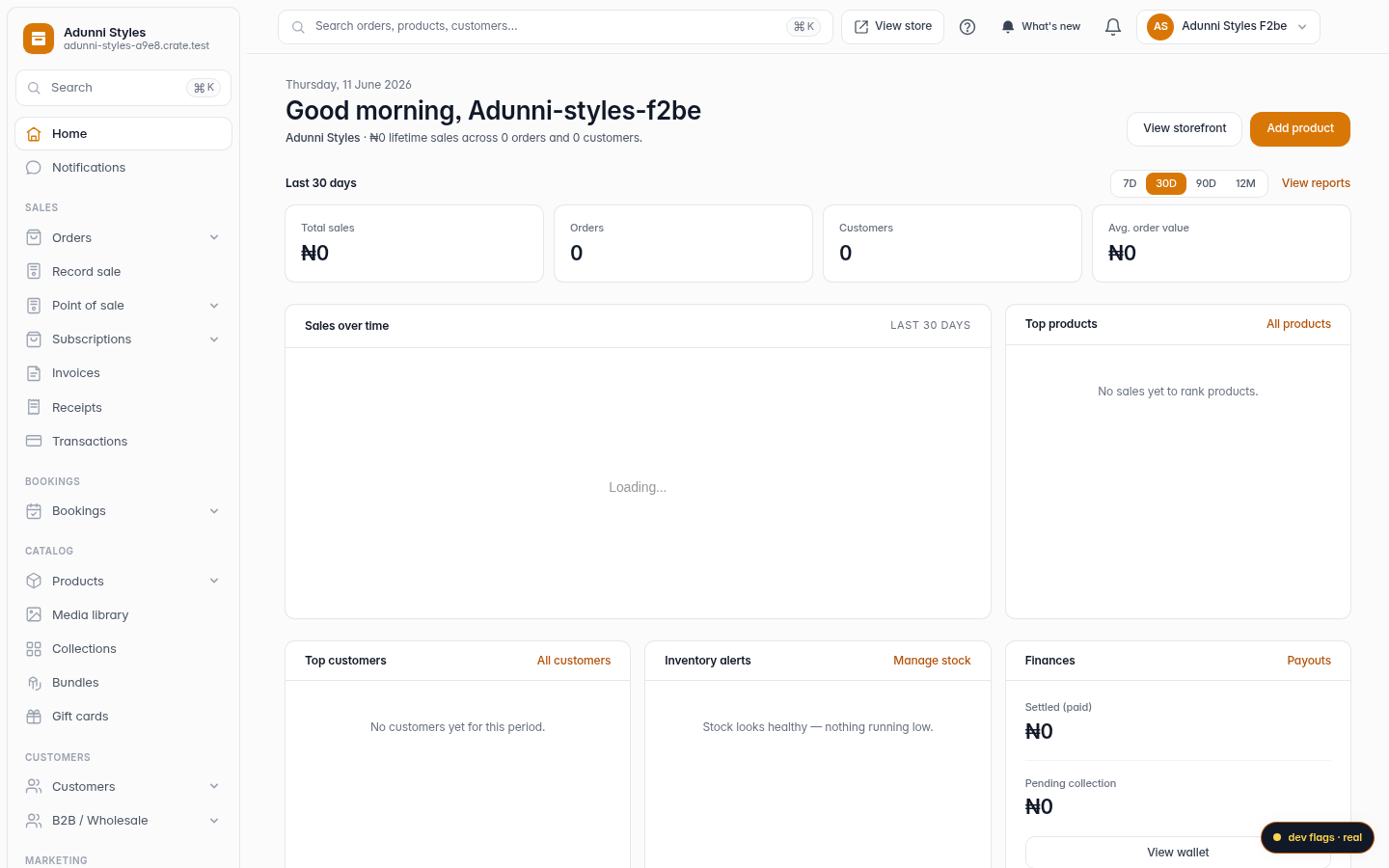
From your Crate dashboard, open Online Store in the sidebar, then click Customize to open the storefront builder.
Web -
2
Open the Announcement bar
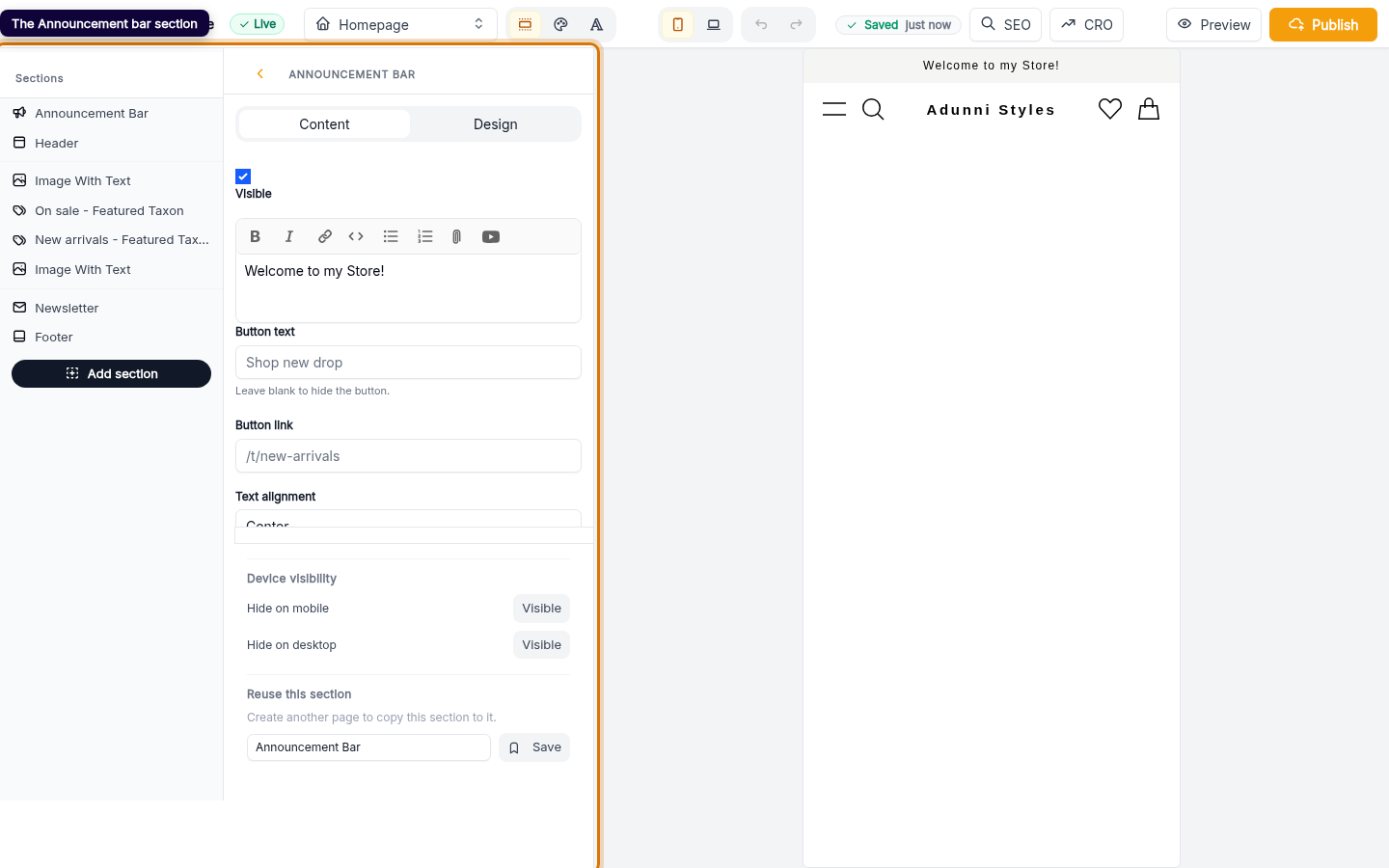
The builder opens straight on the Announcement bar — the slim message strip that runs across the very top of every page on your store.
Web -
3
Write your message
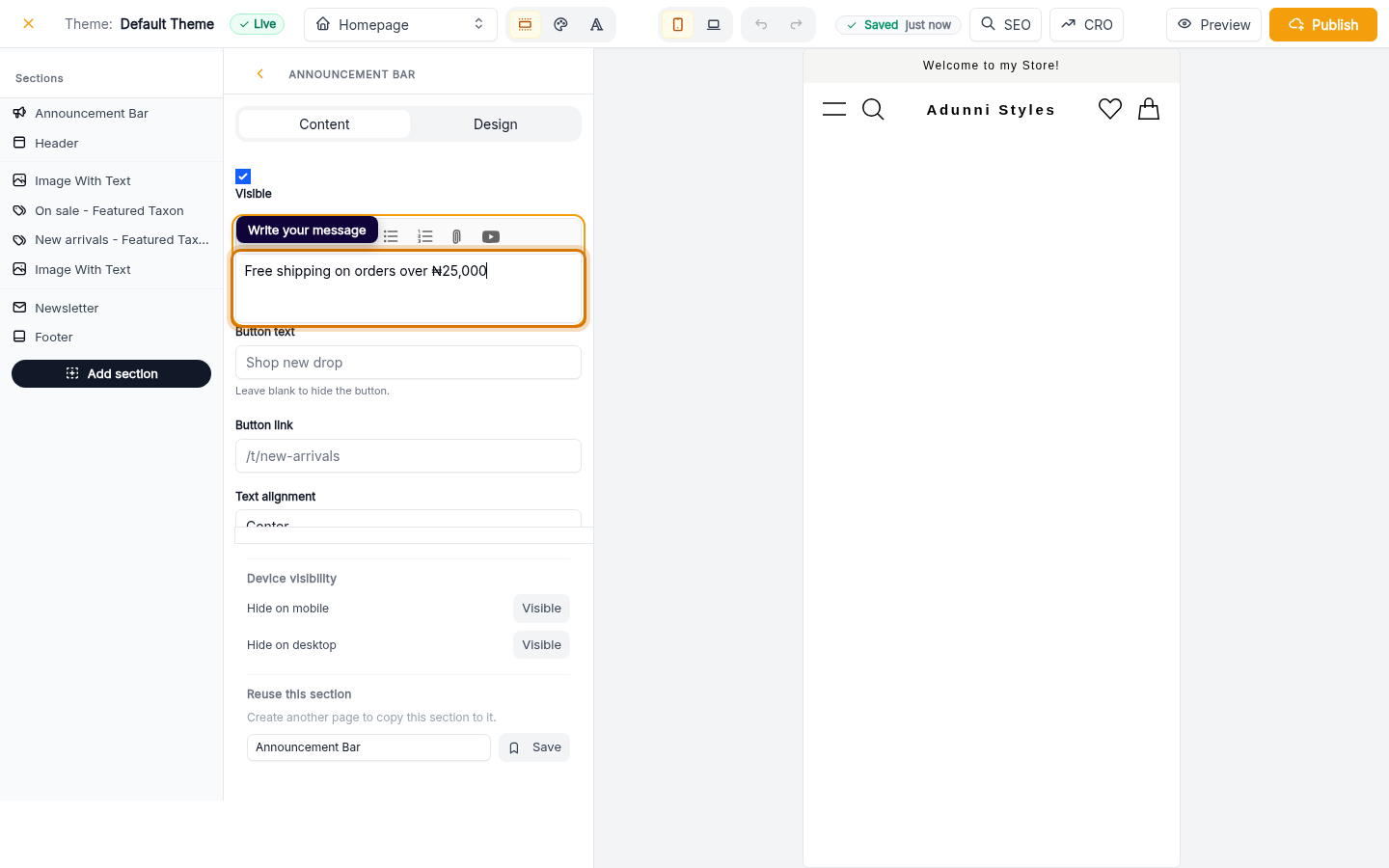
Type your announcement into the message box — a discount, a free-shipping threshold, a new-collection teaser. The preview beside you updates as you type.
Web -
4
Add a button (optional)
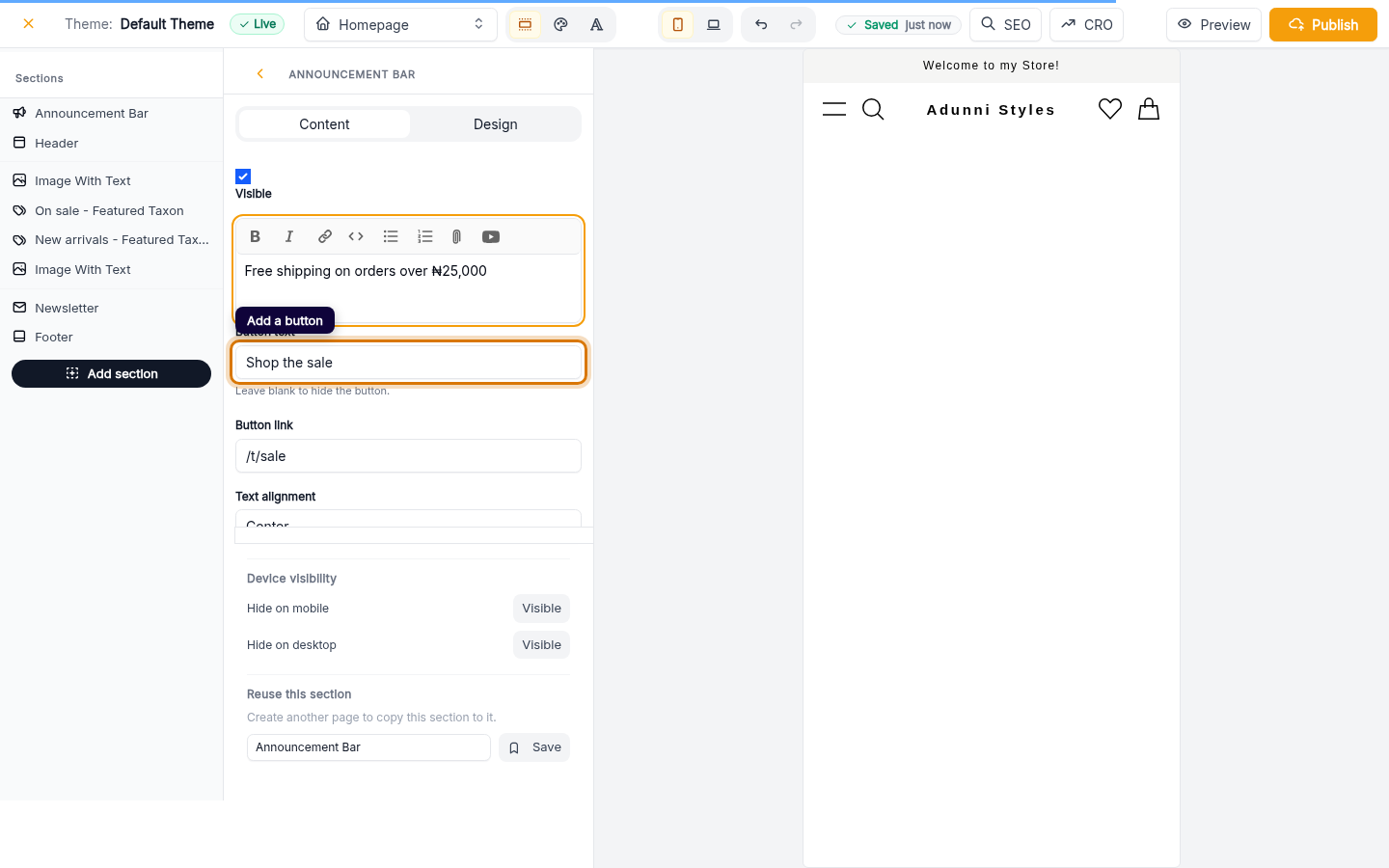
Give the banner a call to action with Button text and Button link — for example Shop the sale linking to a collection. Leave the button text blank to show the message on its own.
Web -
5
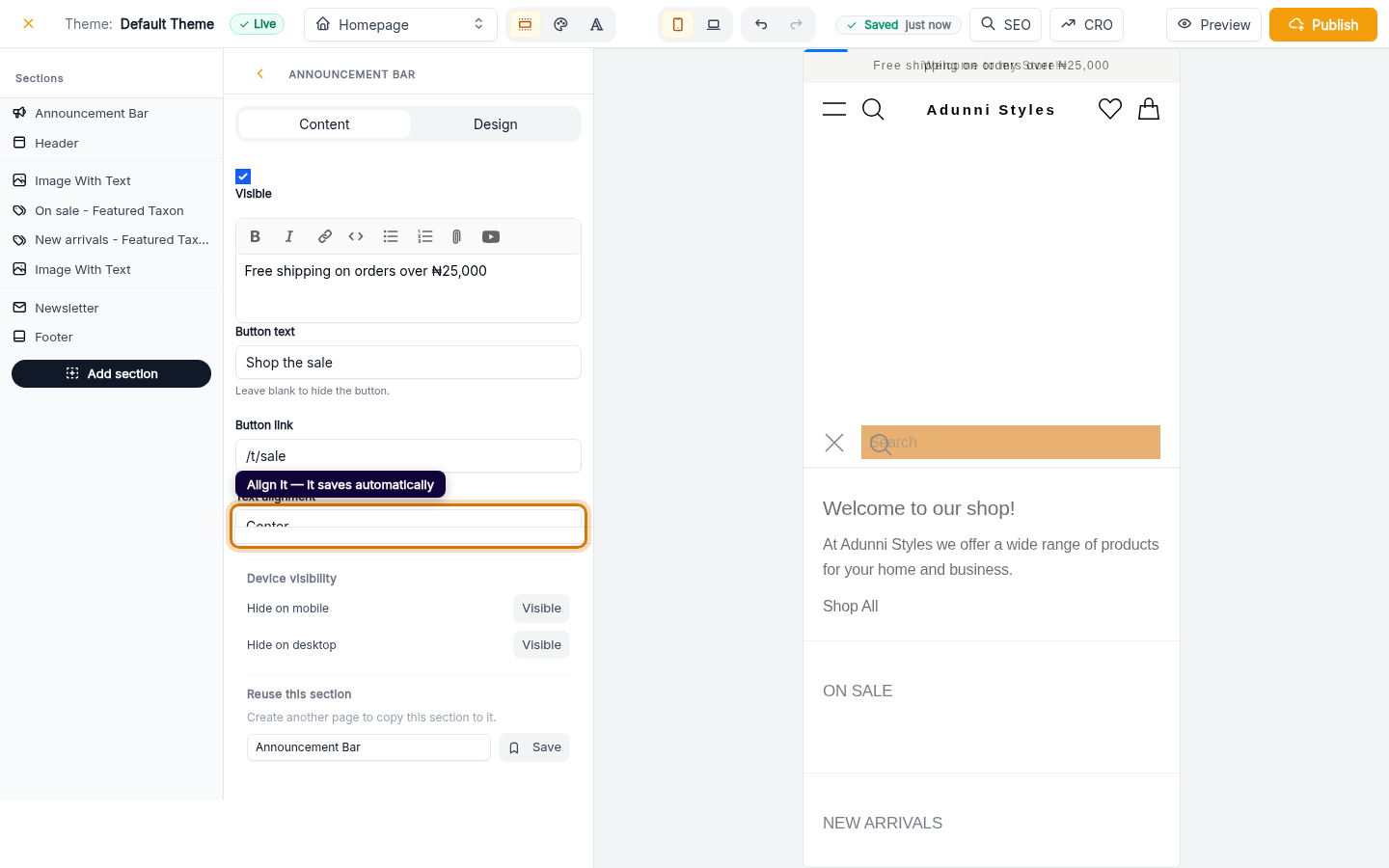
Align it and you're done
Choose how the banner text sits with Text alignment. Every change saves automatically — the Saved indicator in the toolbar confirms it, and the bar is live the moment your store is published.
Web