Customise your website
Crate's storefront builder lets you shape your homepage and every page with drag-and-drop sections, live preview, and one-click publish — no code, no separate app to learn.
Your storefront is your shop window, and Crate's builder lets you arrange it exactly how you want — visually, with a live preview, and without writing a line of code. Everything you change is staged in a draft, so you can experiment freely and only go live when it looks right.
A live, section-based builder
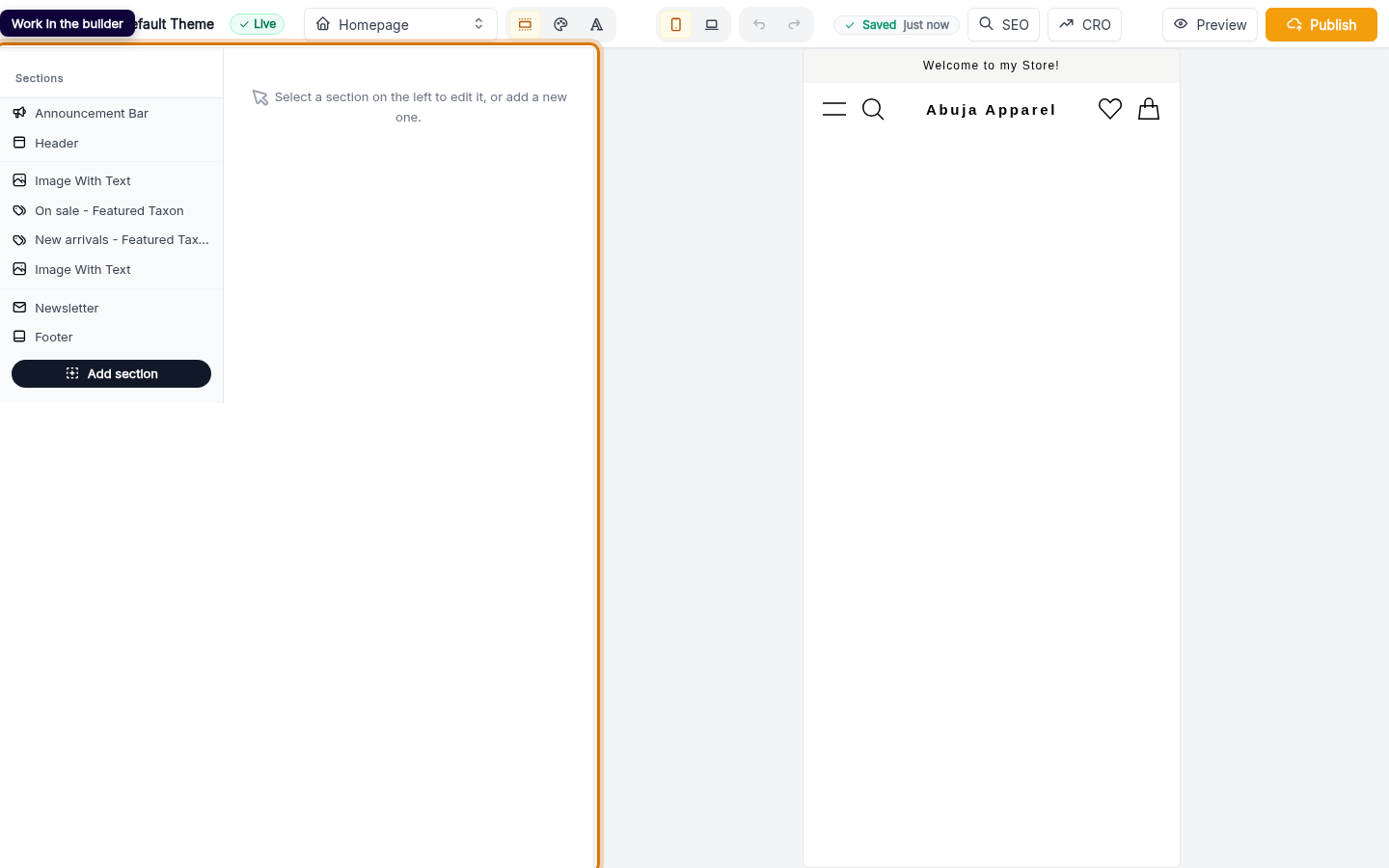
Open Customize from the Online Store overview and you land in the editor: a sections rail on the left, a live storefront preview in the centre. Each page is built from sections — a hero banner, a featured-products row, testimonials, a newsletter sign-up, and more. Click a section in the preview to select it; its settings open in the rail where you can edit text, swap images, and tune its layout.
Tip: Click directly on anything in the preview to jump straight to its settings. The builder highlights what you're hovering, so you always know which section you're editing.
Beyond sections: colours, fonts, and pages
The same editor holds your Colors and Fonts panels — see Change your theme colour for the palette. Use the page switcher to customise more than the homepage: your product pages, cart, and any custom pages all open in the same builder.
Drafts and publishing
Nothing you do in the editor touches your live storefront until you Publish. That means you can rearrange your whole homepage, preview it on desktop and mobile, and walk away — your draft waits for you. When you publish, the entire refreshed layout goes live at once, and you can always roll back from your theme's Versions.
-
1
Open Online Store
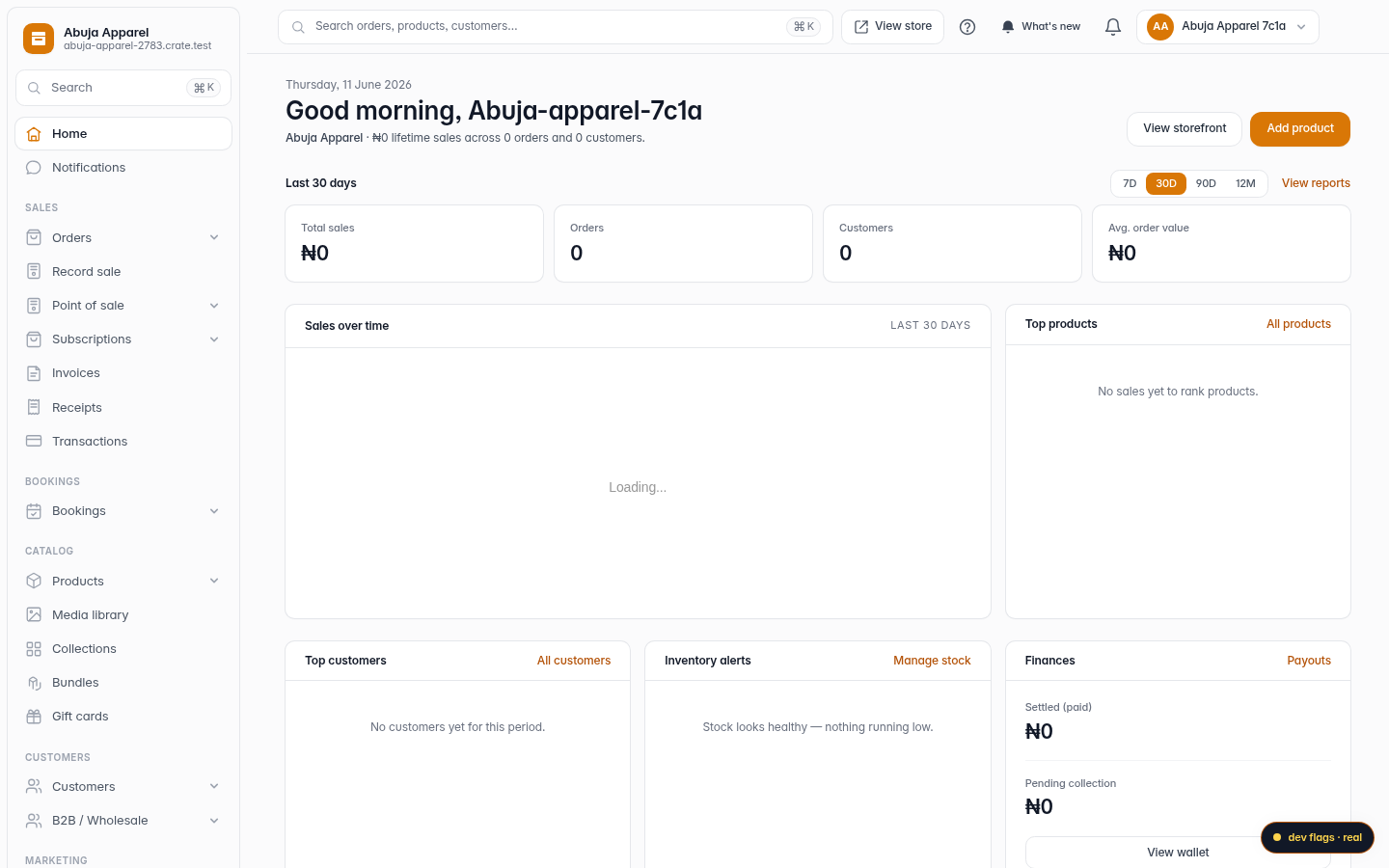
From your Crate dashboard, open Online Store in the sidebar. The overview shows your live theme and everything you can shape.
Web 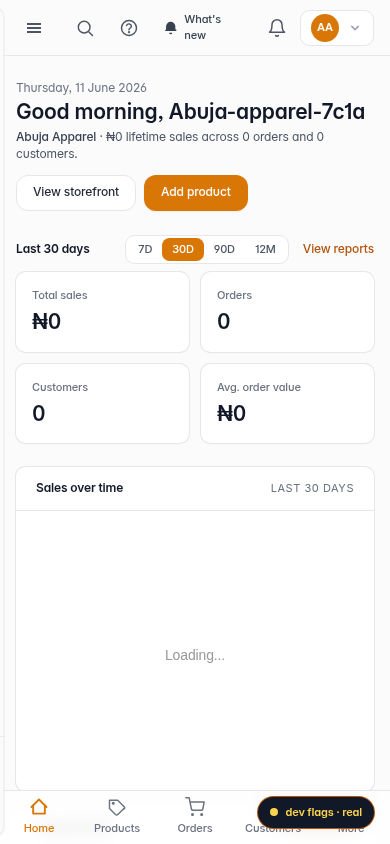
Mobile -
2
Click Customize
On the overview, click Customize. This opens the storefront editor — a live, side-by-side builder showing exactly what buyers will see.

Web -
3
Work in the builder
The left rail lists your page Sections, with Colors and Fonts panels alongside. The centre is a live preview; select any section to edit it, reorder it, or add a new one.
Web -
4
Add and arrange sections
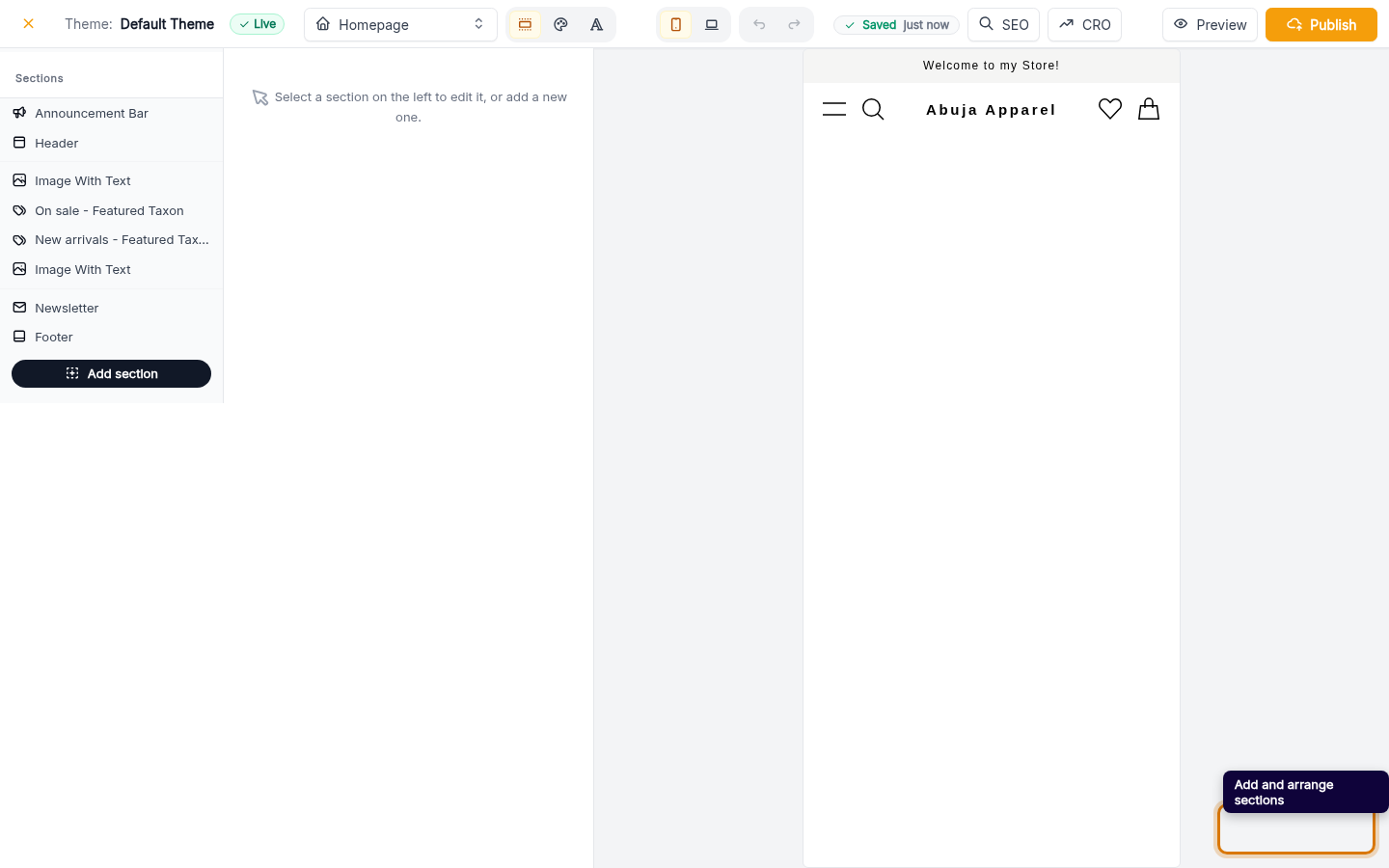
Use Add Section to drop in new blocks — a hero, featured products, testimonials and more. Drag to reorder, duplicate, hide or delete from the section toolbar.
Web -
5
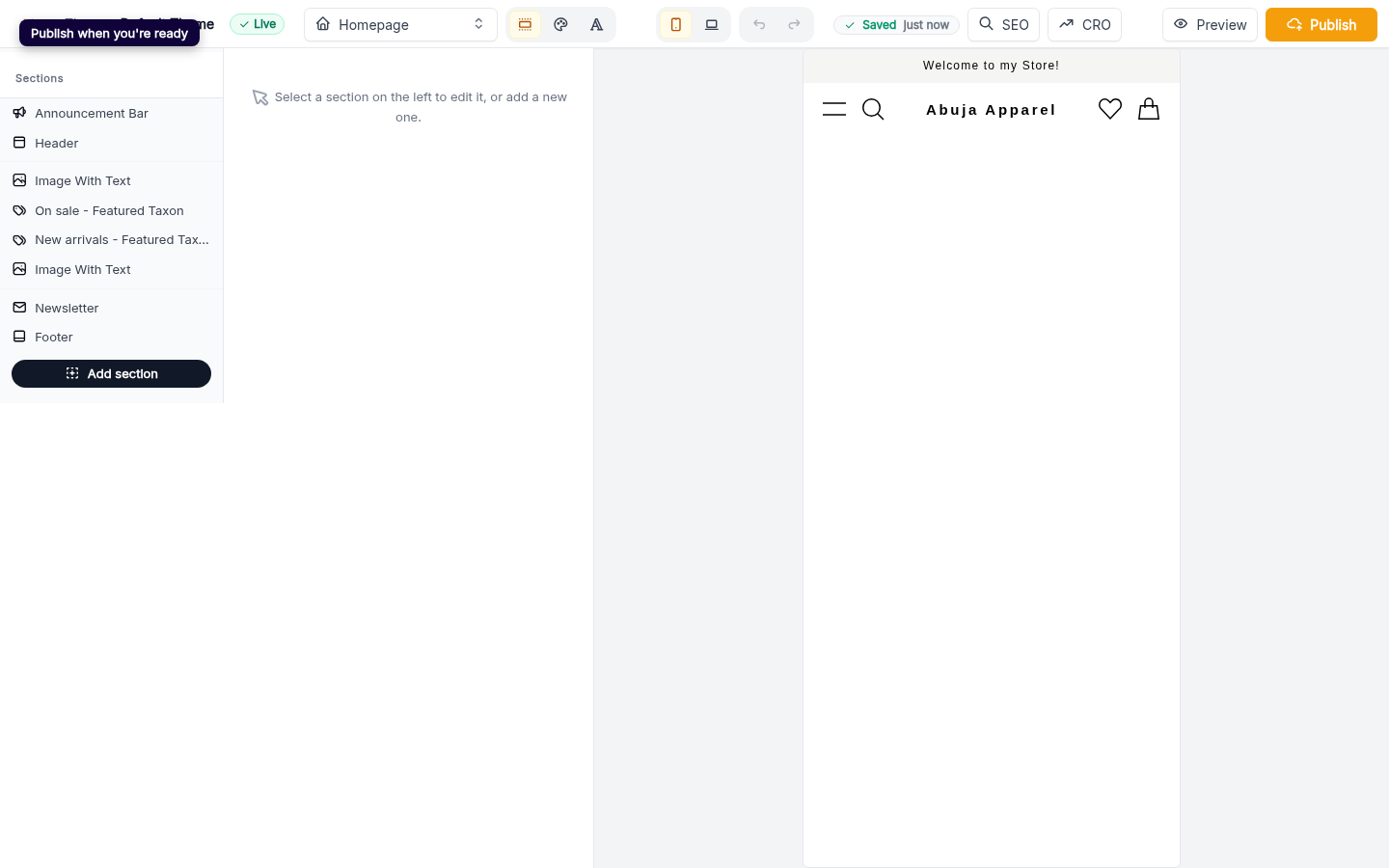
Publish when you're ready
Your edits stay in a draft until you click Publish in the editor header. Then your refreshed storefront goes live for everyone.
Web