Connect Nomba to your store
Offer Card, Transfer, USSD and QR checkout with Nomba — pay-in rates from 1.3%. Follow Crate's three-step setup to link your Nomba account and start taking payments.
Want to give shoppers more ways to pay — and confirm those payments faster? Connecting Nomba adds Card, Transfer, USSD and QR-code checkout to your store, with pay-in rates starting at 1.3% and sales recorded automatically in your Crate dashboard.
Crate walks you through the connection in three short steps, then hands you off to the settings form where you paste your credentials.
Before you start
You'll need a Nomba merchant account. If you don't have one yet, Step 1 of the setup links you straight to nomba.com to create one. Have your Nomba dashboard open in another tab so you can copy your Account ID, Client ID and Client secret when Crate asks for them.
Tip: Your Client secret is stored encrypted and never shown again after you save. Keep a copy somewhere safe in case you need it for other integrations.
What happens after you connect
When you save valid credentials, Crate verifies them with Nomba and enables Nomba as a checkout option on your storefront. From then on, shoppers can pay by card, bank transfer, USSD or QR, and every successful payment is matched to its order in your dashboard automatically. You can revisit Payments → Nomba any time to rotate your secret or turn the method off.
-
1
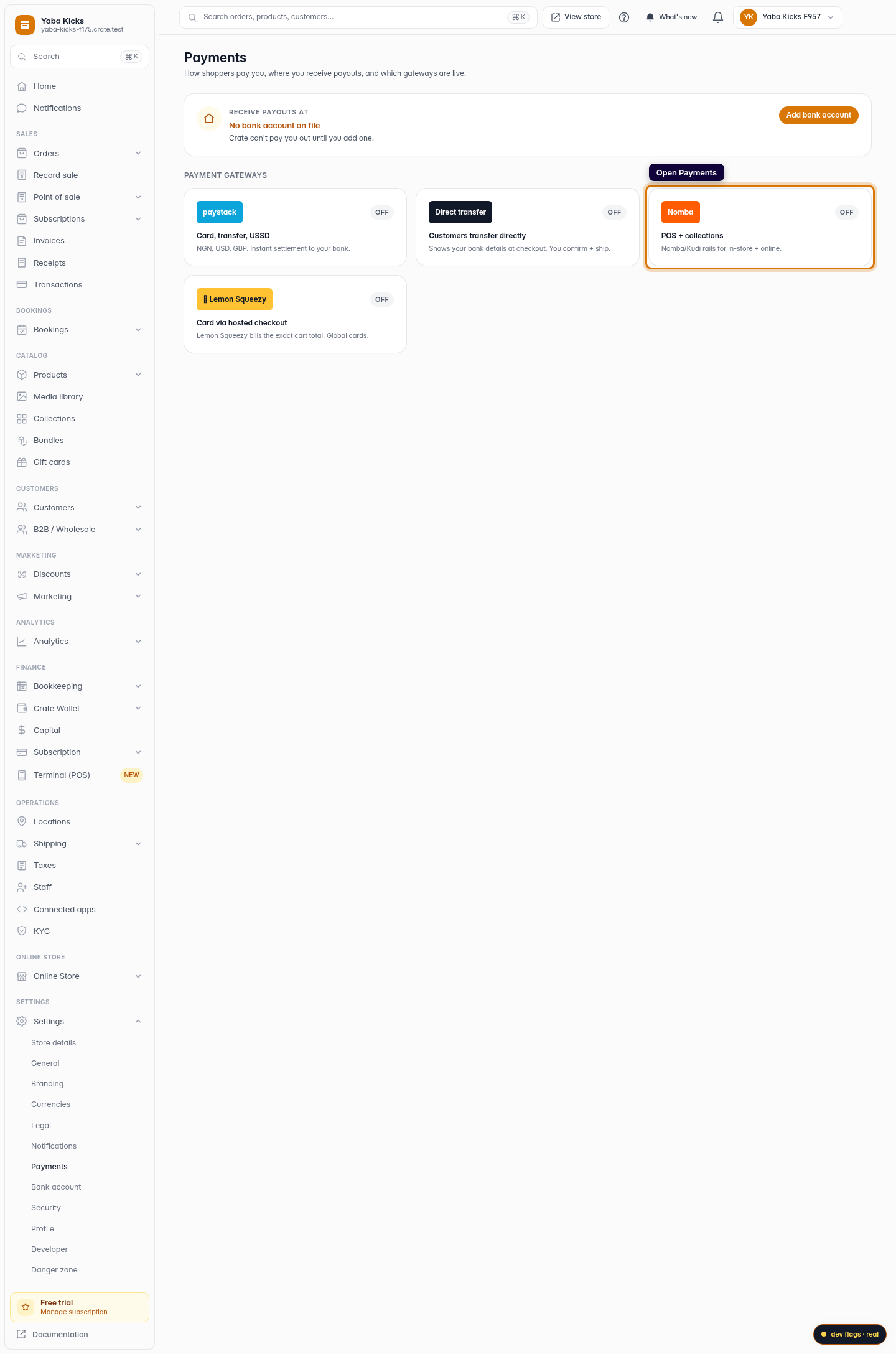
Open Payments
From the dashboard sidebar, open Payments. This is where every payment method on your store lives.
Web -
2
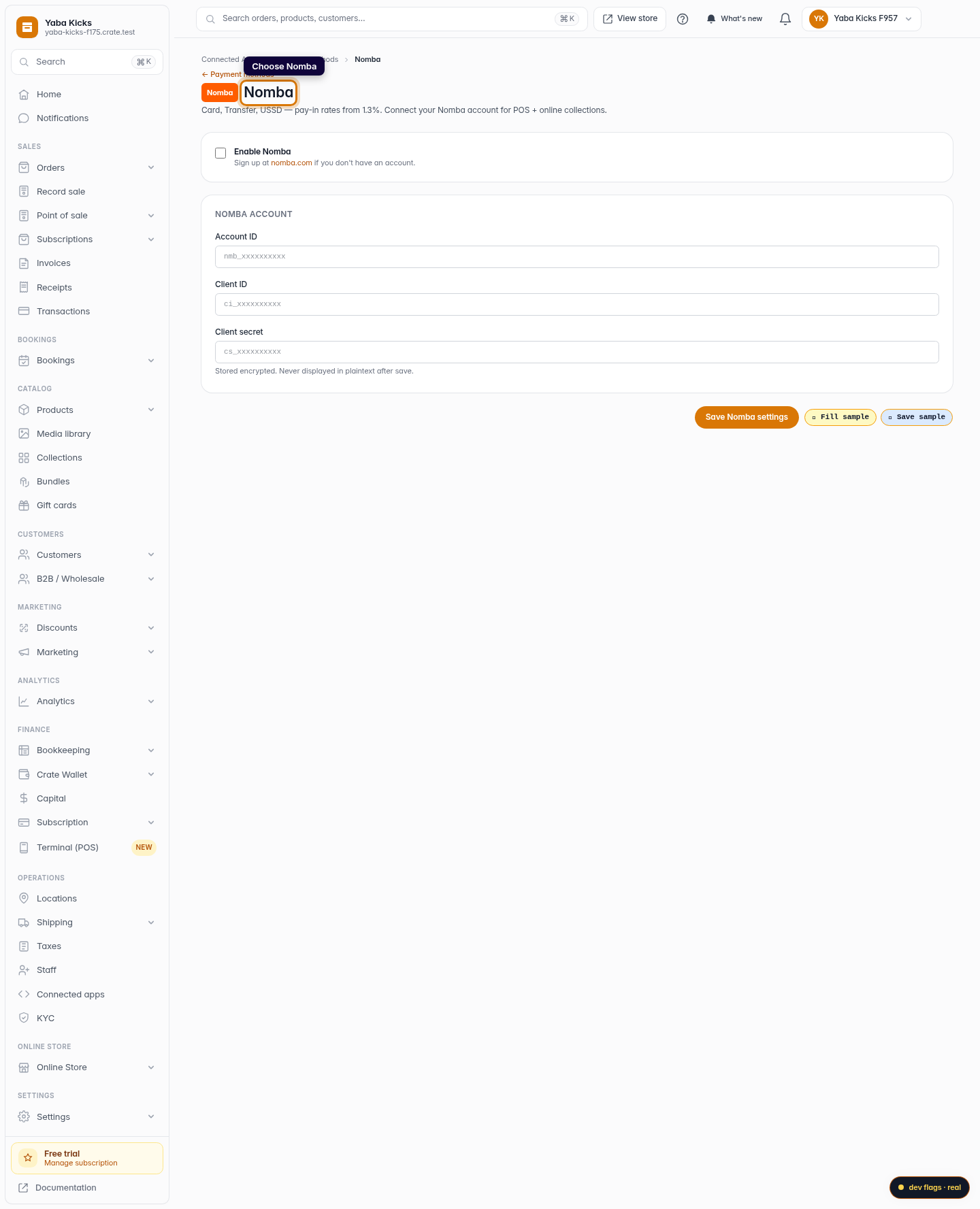
Choose Nomba
On the Payments overview, click the Nomba card to open its settings.
Web 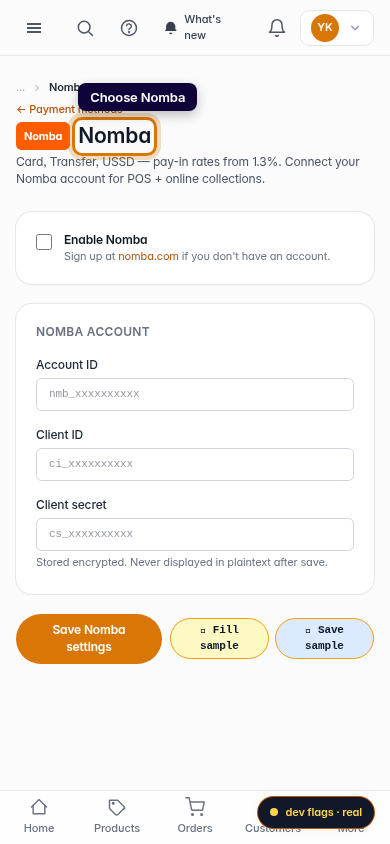
Mobile -
3
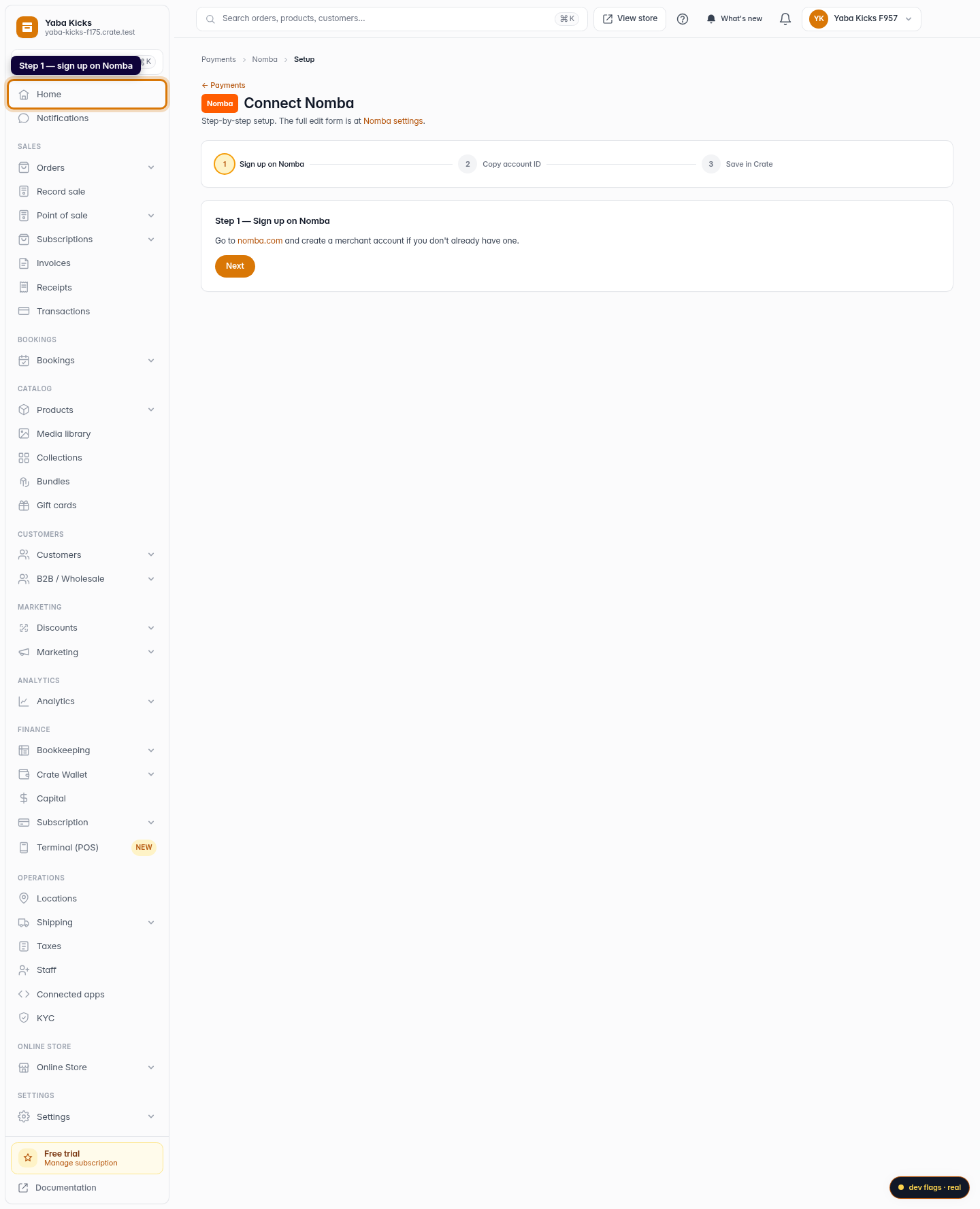
Step 1 — sign up on Nomba
Crate's guided setup opens on Sign up on Nomba. If you don't already have a Nomba merchant account, create one at nomba.com, then click Next.
Web -
4
Step 2 — copy your Account ID
From your Nomba dashboard, open Settings → API & Integrations and copy your Account ID (it starts with
nmb_). Click Next when you have it.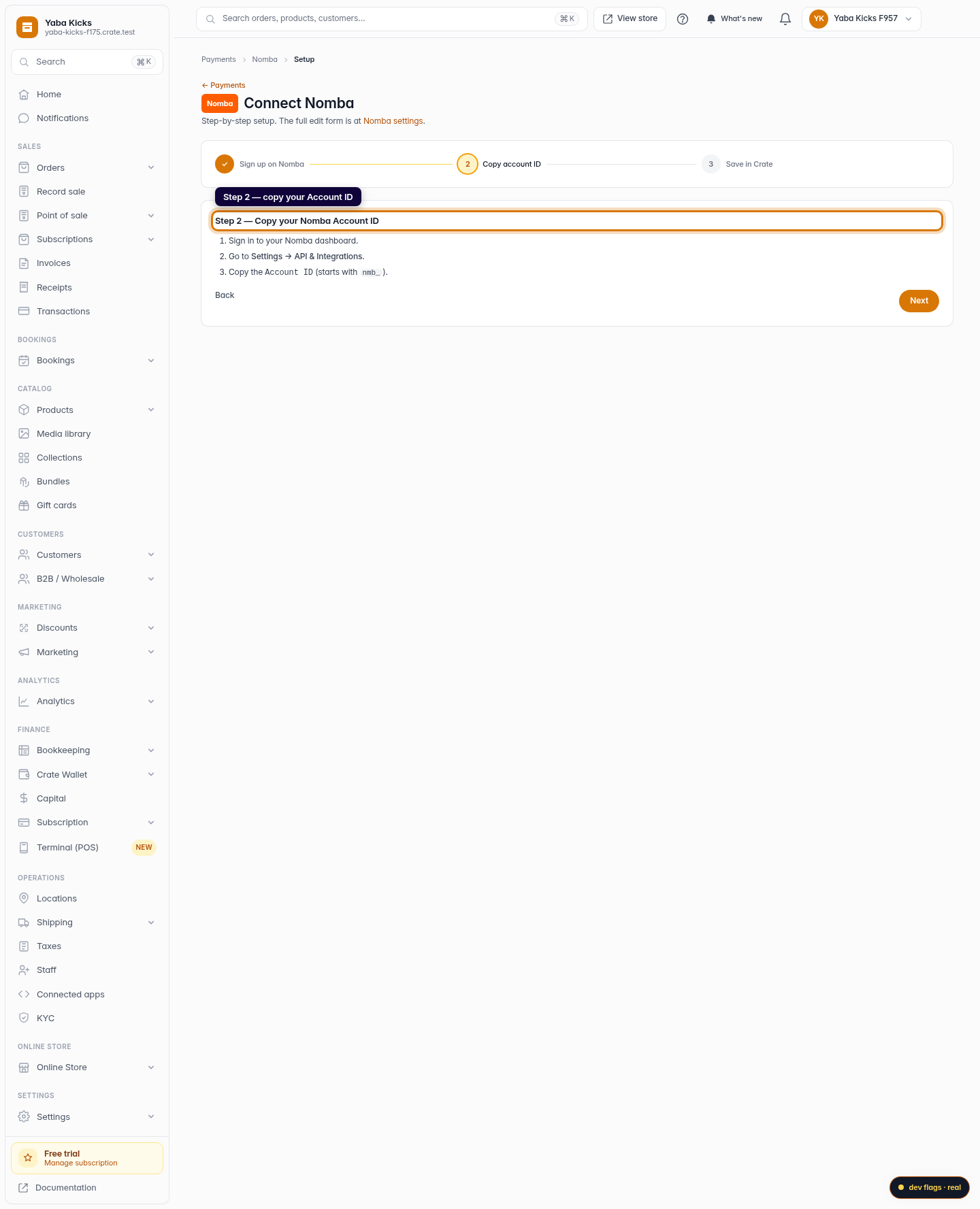
Web -
5
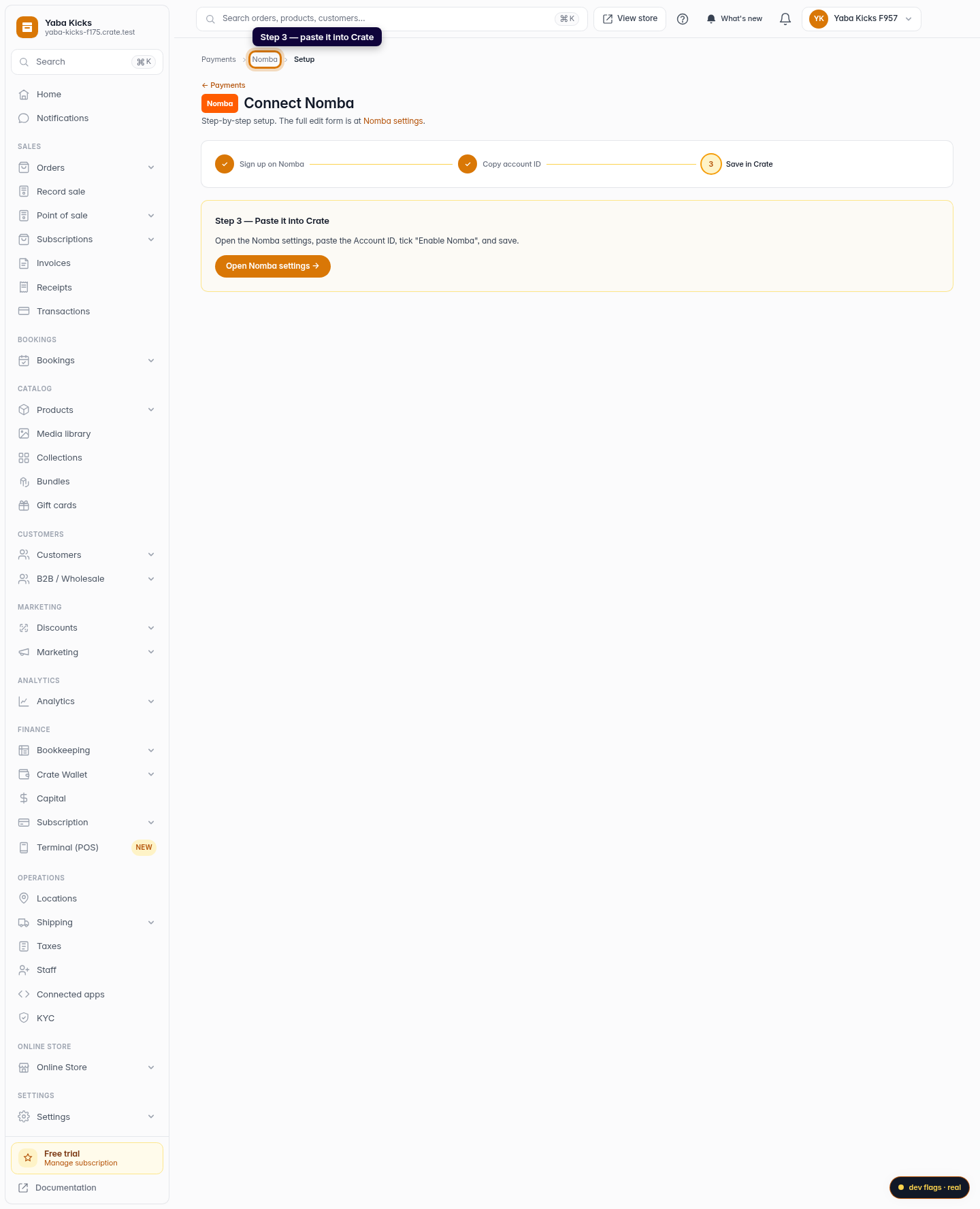
Step 3 — paste it into Crate
Click Open Nomba settings, paste your Account ID, Client ID and Client secret, tick Enable Nomba, and save. Your store now accepts Nomba at checkout.
Web 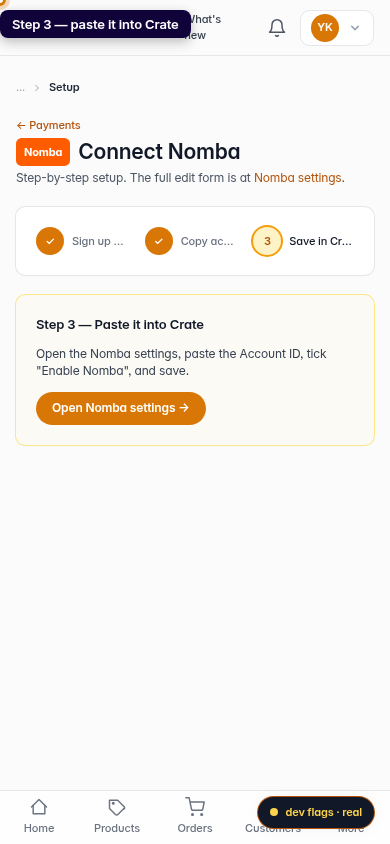
Mobile