View your Terminal transactions
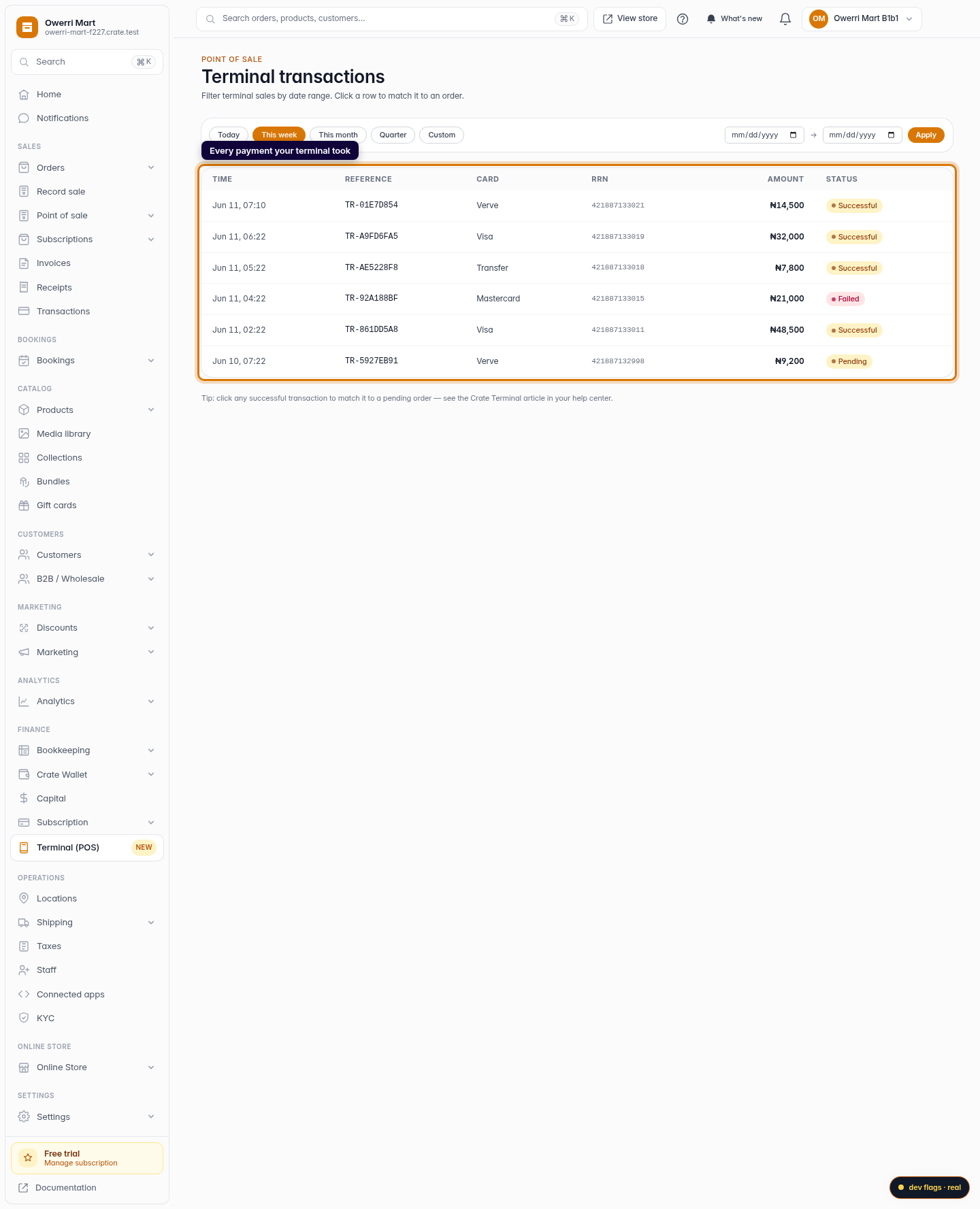
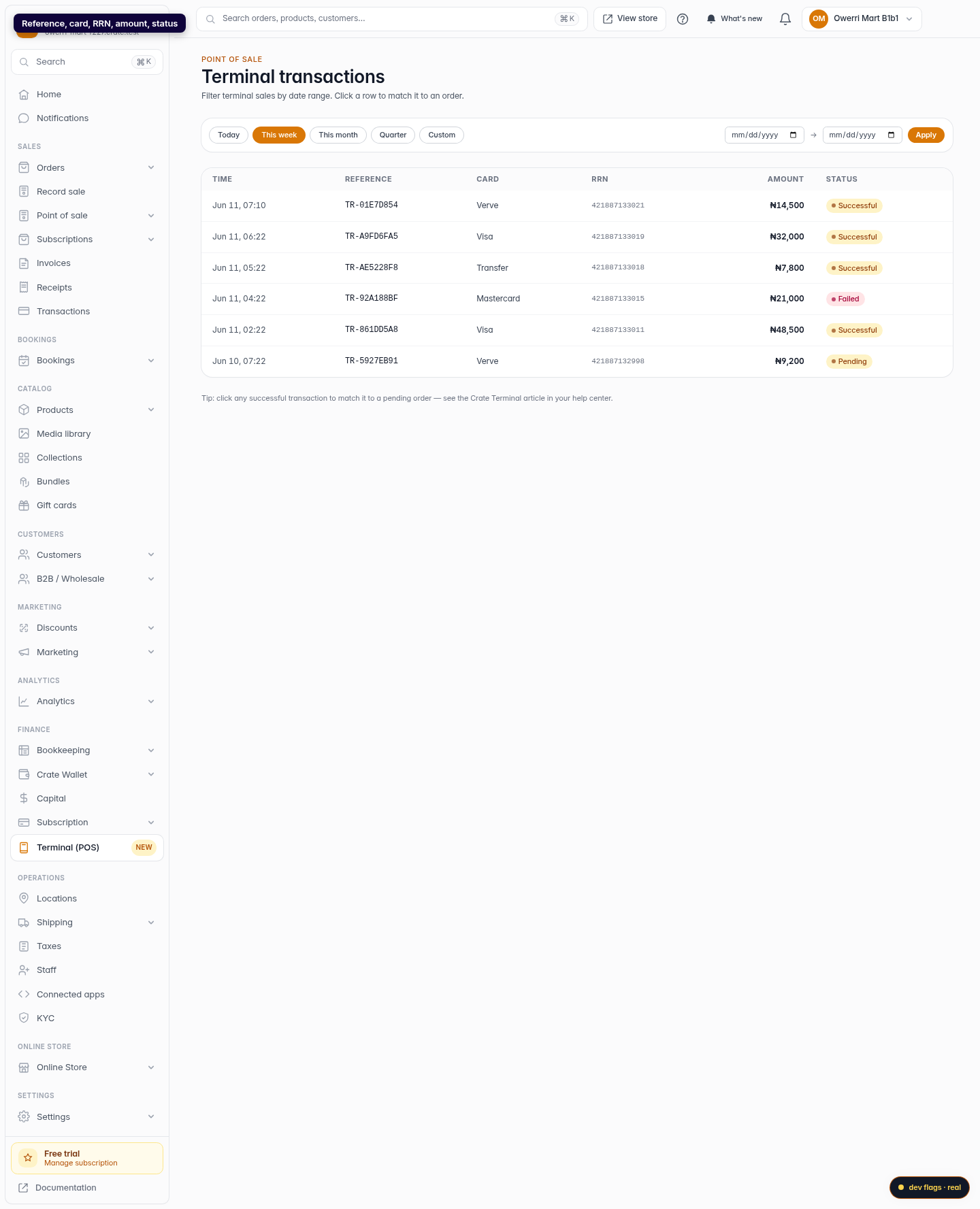
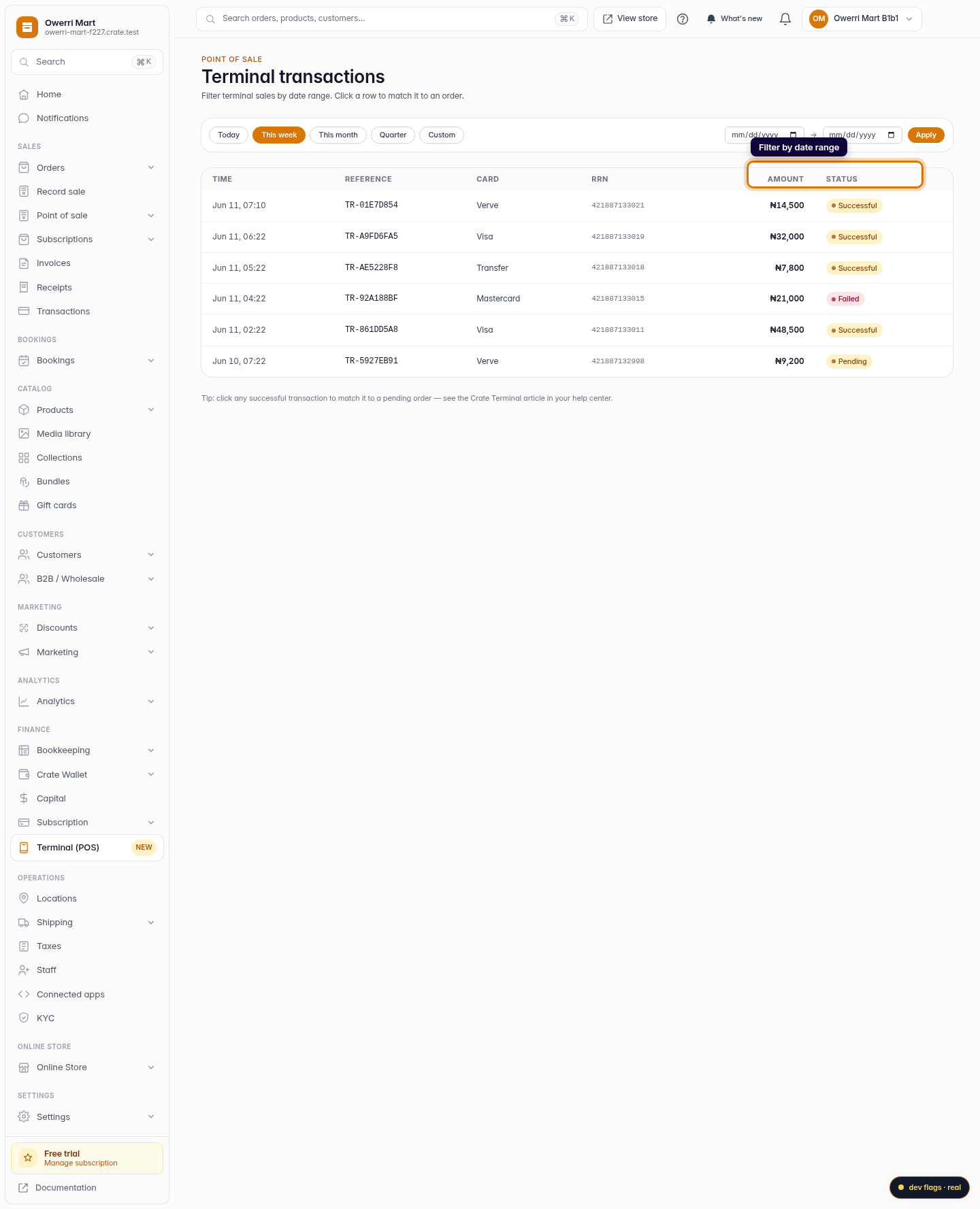
Every card and transfer your Crate Terminal takes shows up here in real time — reference, card type, RRN, amount and status — and you can filter it by date to find any sale fast.
Where settlements show what hit your bank, Transactions show every individual sale your Crate Terminal processed — successful, pending or failed. It's the page you open when a customer says "I paid" and you need to confirm it landed.
What each transaction tells you
- Time — when the payment was attempted.
- Reference — Crate's unique ID for the sale.
- Card — Verve, Visa, Mastercard, or a bank Transfer.
- RRN — the bank's Retrieval Reference Number, useful if you ever raise a dispute.
- Amount — what the customer was charged.
- Status — Successful is money taken; Pending is still confirming; Failed means nothing was charged.
Finding a specific sale
Use the date chips to jump to Today or This week, or set a precise From / To range and click Apply — for example to pull every sale between the 1st and the 9th. Clear the range to go back to the full list.
Tip: a successful transaction can be matched to a pending order to mark it paid. Open the transaction and link it to the order it belongs to.
-
1
Open Terminal
From your dashboard, open Terminal (POS) in the sidebar.
Web 
Mobile -
2
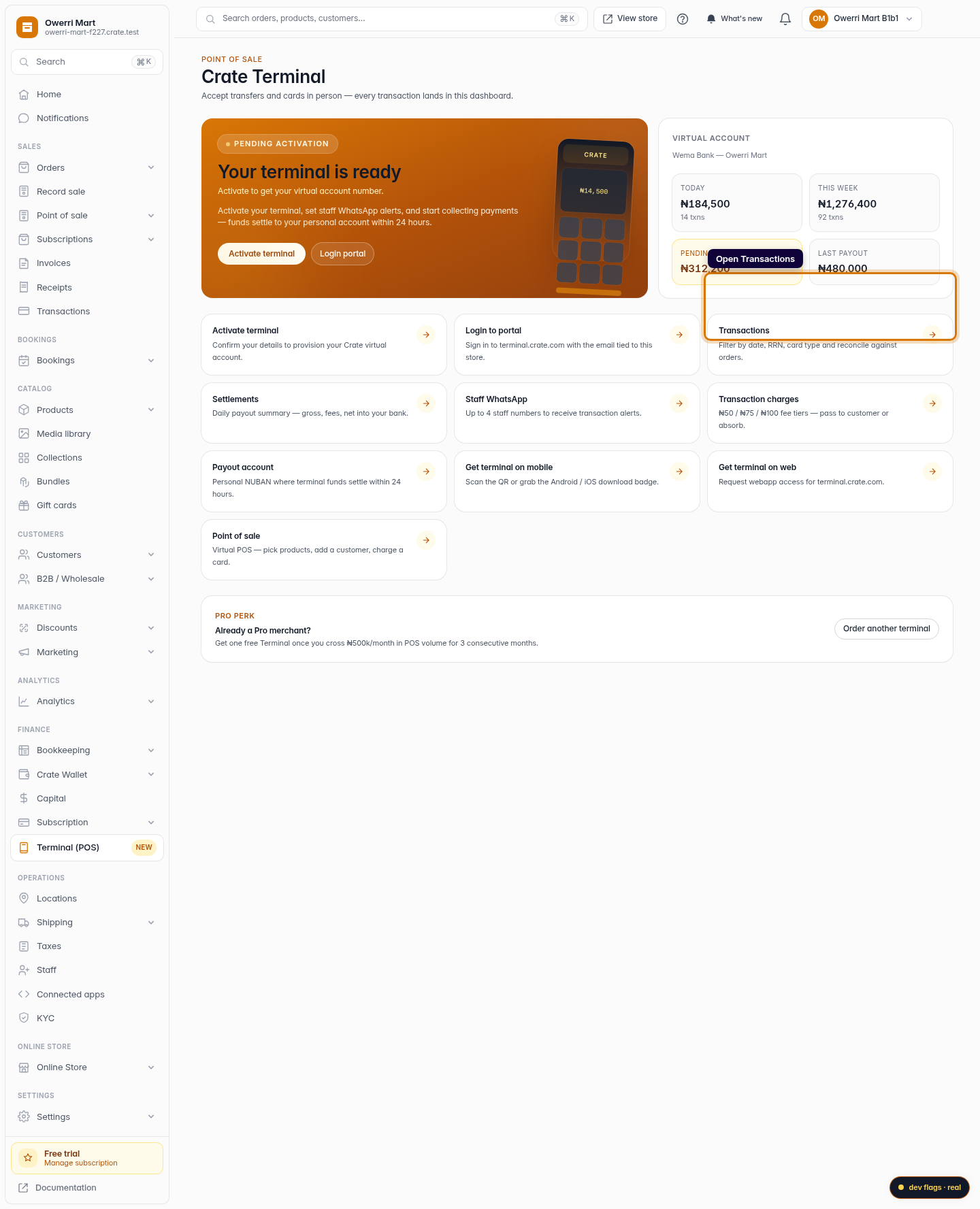
Open Transactions
On the Terminal hub, choose Transactions to see every payment your terminal has taken.
Web -
3
Read a transaction
Each row shows the time, a unique reference, the card type, the bank RRN, the amount, and whether it was successful, pending or failed.
Web 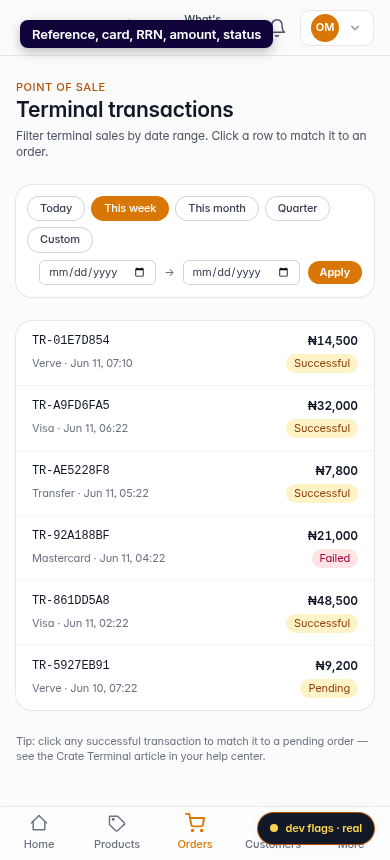
Mobile -
4
Filter by date
Switch between Today, This week, This month or Quarter, or pick a custom From / To range and click Apply to see only sales in that window.
Web