Link a barcode to an existing product
Already printed labels? Bind an existing barcode to any product or variant in Crate so it scans straight through at the point of sale.
If your products already have manufacturer or pre-printed barcodes, you don't need Crate to mint new ones — you can link the existing code to a product so it scans correctly at the point of sale. Do it once per product (or per variant) and every future scan resolves instantly.
When to use this
Reach for linking — rather than generating a fresh barcode — whenever the physical label already exists: stock that came with manufacturer barcodes, items you've labelled in a previous system, or a single variant that carries its own code.
Whole product or a single variant?
If a product comes in one form, link the barcode to the product (its master). If it comes in sizes or colours and each has its own printed label, link the code to the matching variant instead, so the till knows exactly which version was scanned and tracks its stock correctly.
What happens after you link
Crate binds the code to the product or variant you chose and confirms it. From then on, scanning that barcode — at the register, in a new order, or during a stock count — pulls up the right item every time. Need to re-label something? Open Link barcode again and bind a new code; it replaces the old one.
-
1
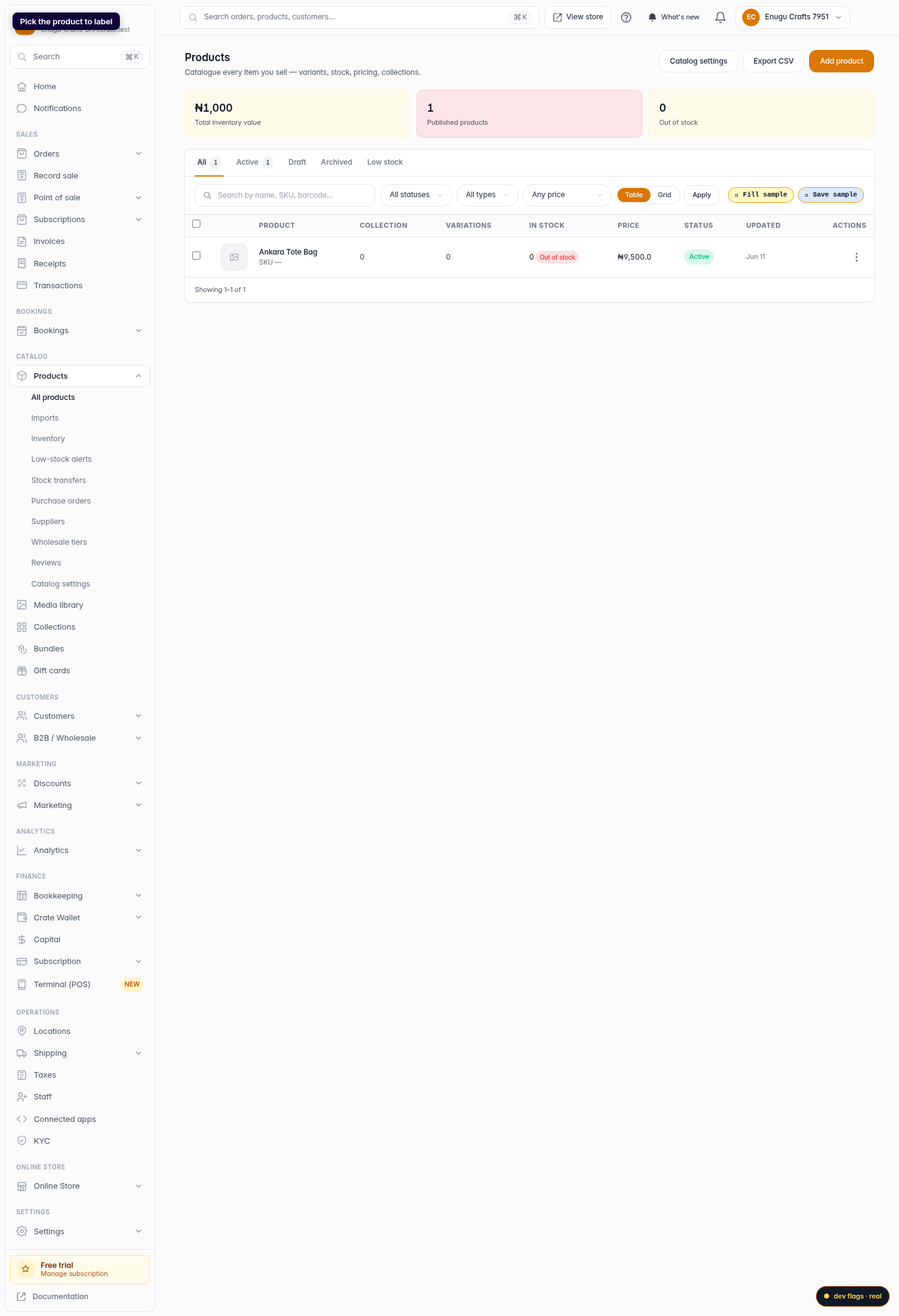
Open Products
From your dashboard, open Products in the sidebar and pick the product you want to give a barcode.
Web 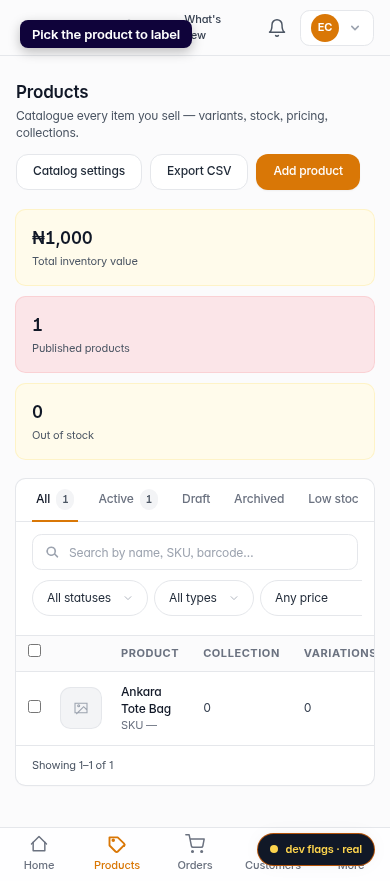
Mobile -
2
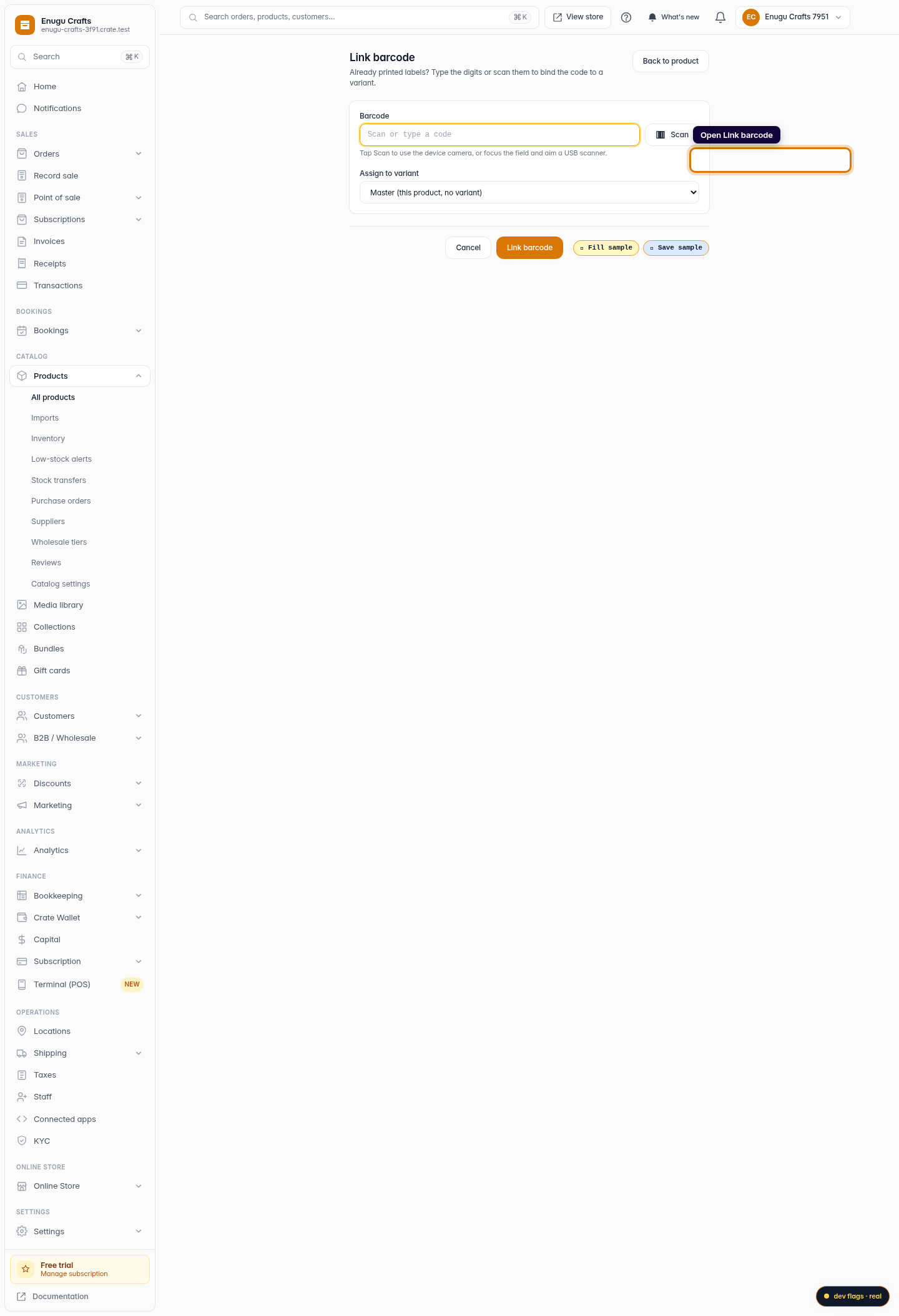
Open Link barcode
Go to the product's Link barcode screen. This is where you bind a code you've already printed to this product.
Web -
3
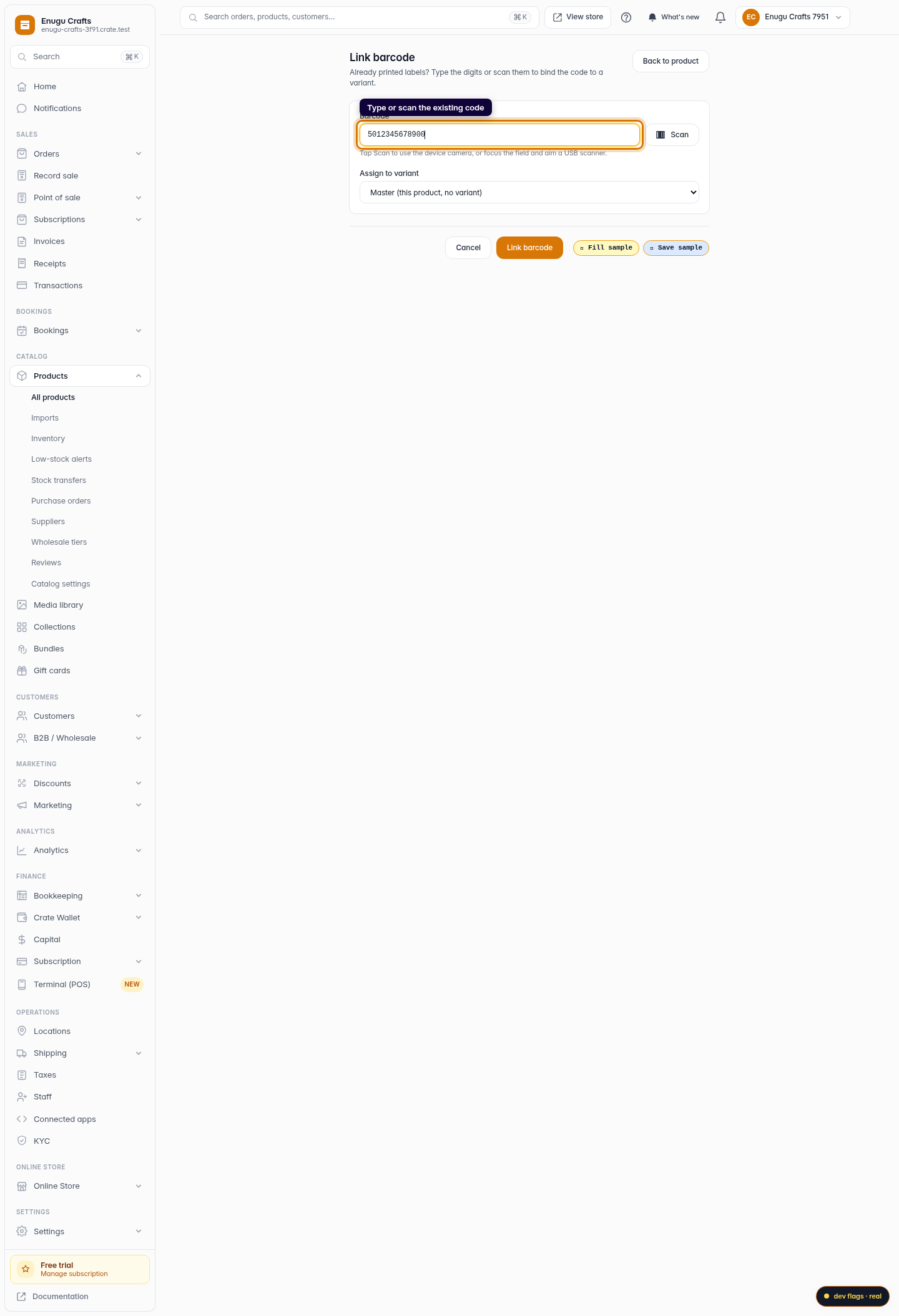
Enter or scan the code
Type the barcode digits, or tap Scan to read it with your camera or a USB scanner. Focus the field first if you're scanning.
Web 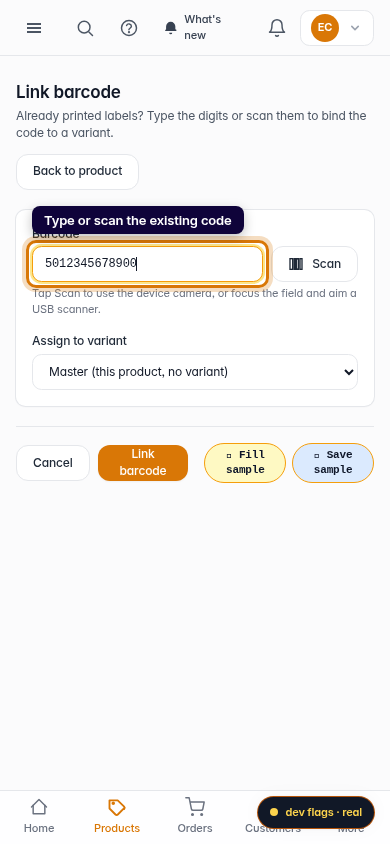
Mobile -
4
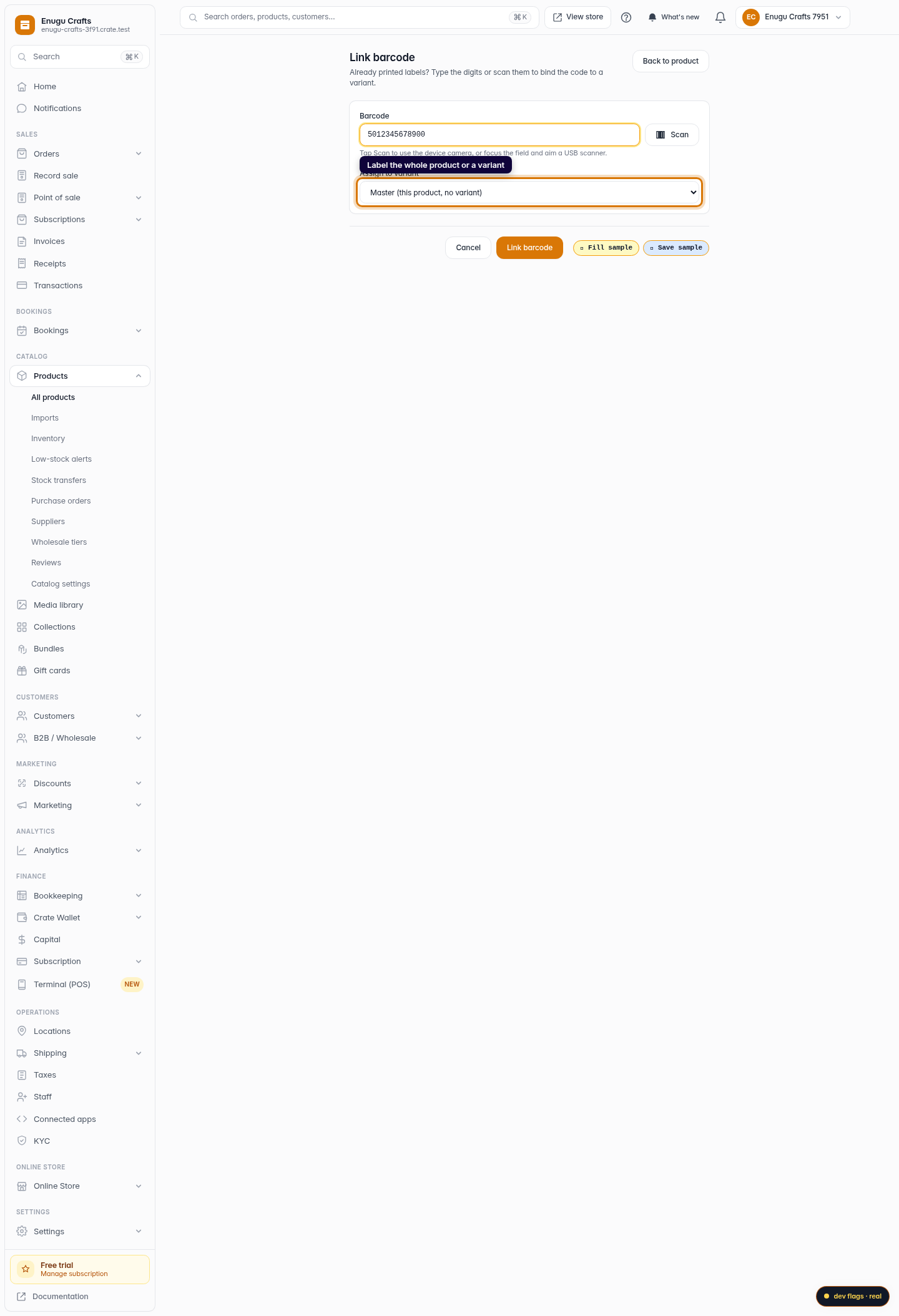
Choose what it labels
Pick whether the code applies to the whole product or to a specific variant (a size or colour). Pick the variant if only one version carries that label.
Web -
5
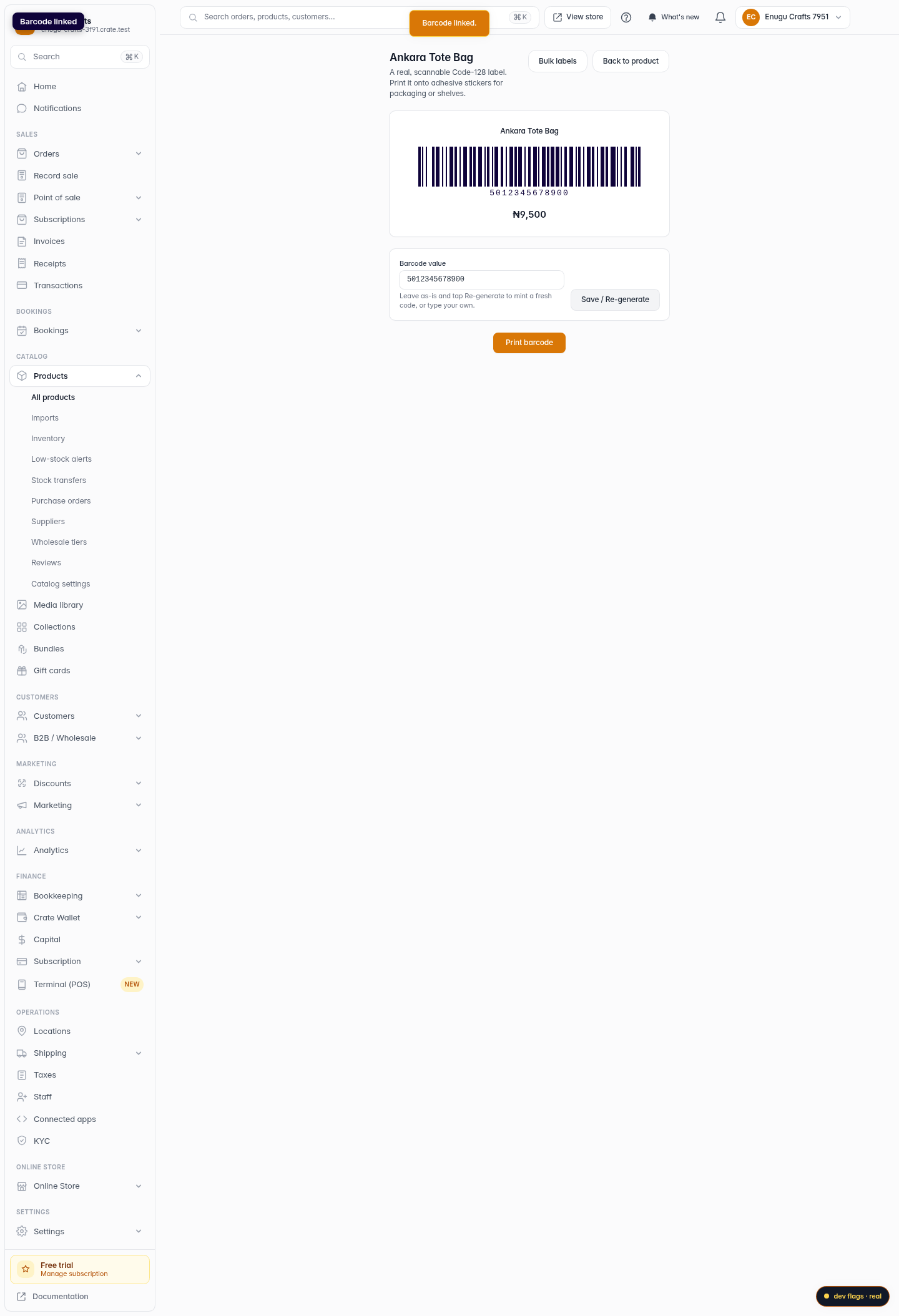
Link it
Click Link barcode. Crate binds the code and from now on scanning it at the till pulls up this exact product.
Web 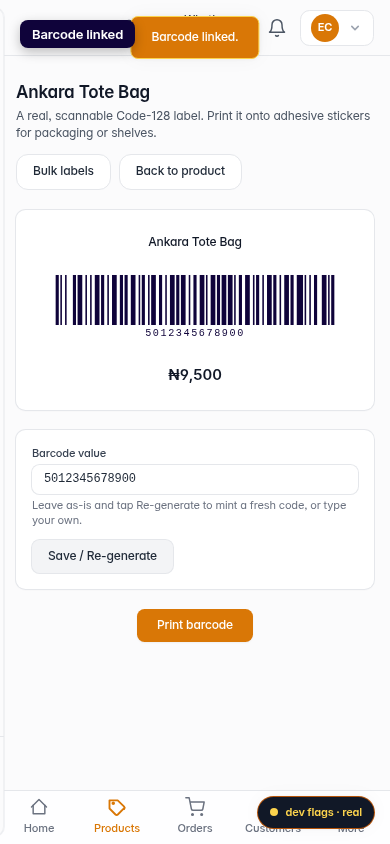
Mobile