Sell in USD and GBP with Stripe
Open your store to international buyers. Connect Stripe to collect card payments in USD, GBP, or EUR, choose your settlement currency, and let Crate route overseas checkouts through Stripe automatically.
Selling beyond Nigeria means accepting the currencies your buyers actually hold. With Stripe connected, Crate can take card payments in USD, GBP, or EUR at checkout, so an international shopper pays in their own currency and you settle in yours.
This guide covers connecting Stripe and choosing your settlement currency. Your local Naira gateways (Paystack, Nomba, direct bank) keep working exactly as before — Stripe sits alongside them for overseas orders.
What you'll need
- A Stripe account. Create one free at stripe.com if you don't have one yet.
- Your Stripe API keys — the publishable key (
pk_…) and the secret key (sk_…), both found in your Stripe dashboard under Developers → API keys. - Your preferred settlement currency for international payouts.
How charges and chargebacks work
Stripe applies a processing fee to international card payments. You can choose whether you absorb that fee or pass it to the customer — set that under Payments → Transaction charges. Disputes raised by overseas buyers come through as chargebacks; see Stripe chargebacks for how those are handled.
After you save
Crate stores your secret key encrypted and flips the gateway to Live. From then on, when a shopper checks out in a Stripe-supported currency, Crate routes them to Stripe automatically — there's nothing else to switch on per order.
-
1
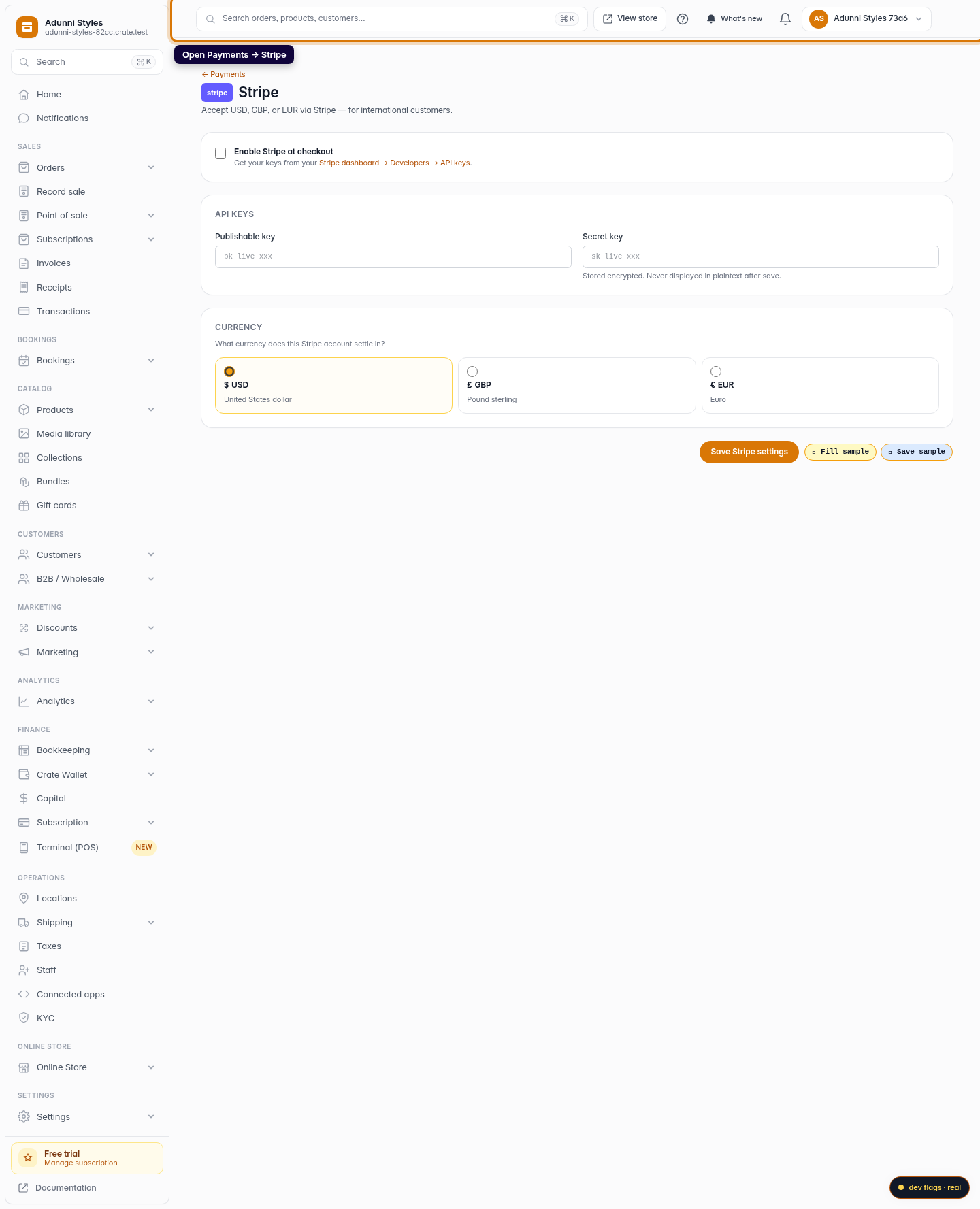
Open the Stripe gateway
From the dashboard, go to Payments → Stripe. This is where you connect a Stripe account so overseas shoppers can pay you in their own currency.
Web -
2
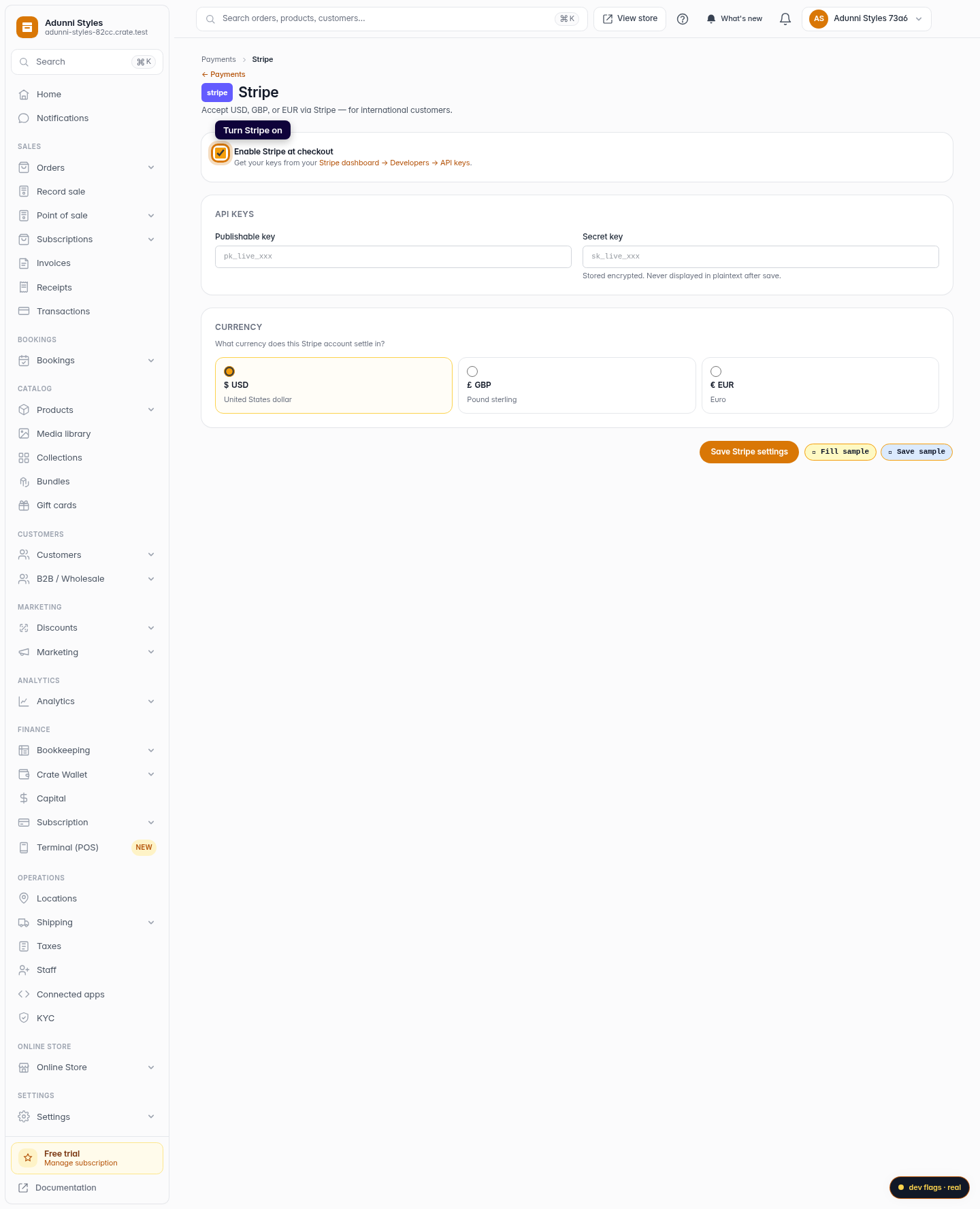
Turn Stripe on
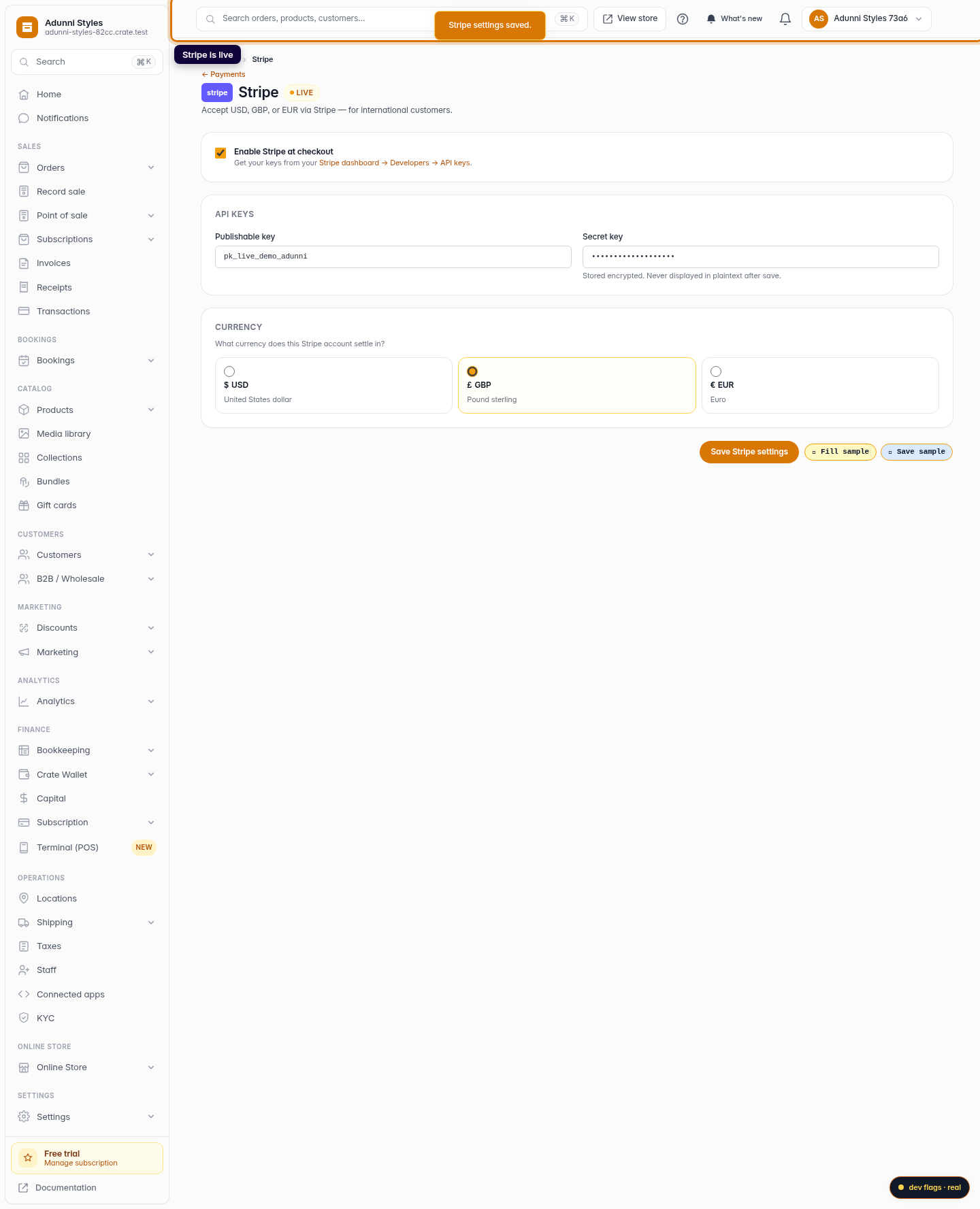
Tick Enable Stripe at checkout. Once your keys are saved, this is the switch that makes Stripe available to international buyers.
Web -
3
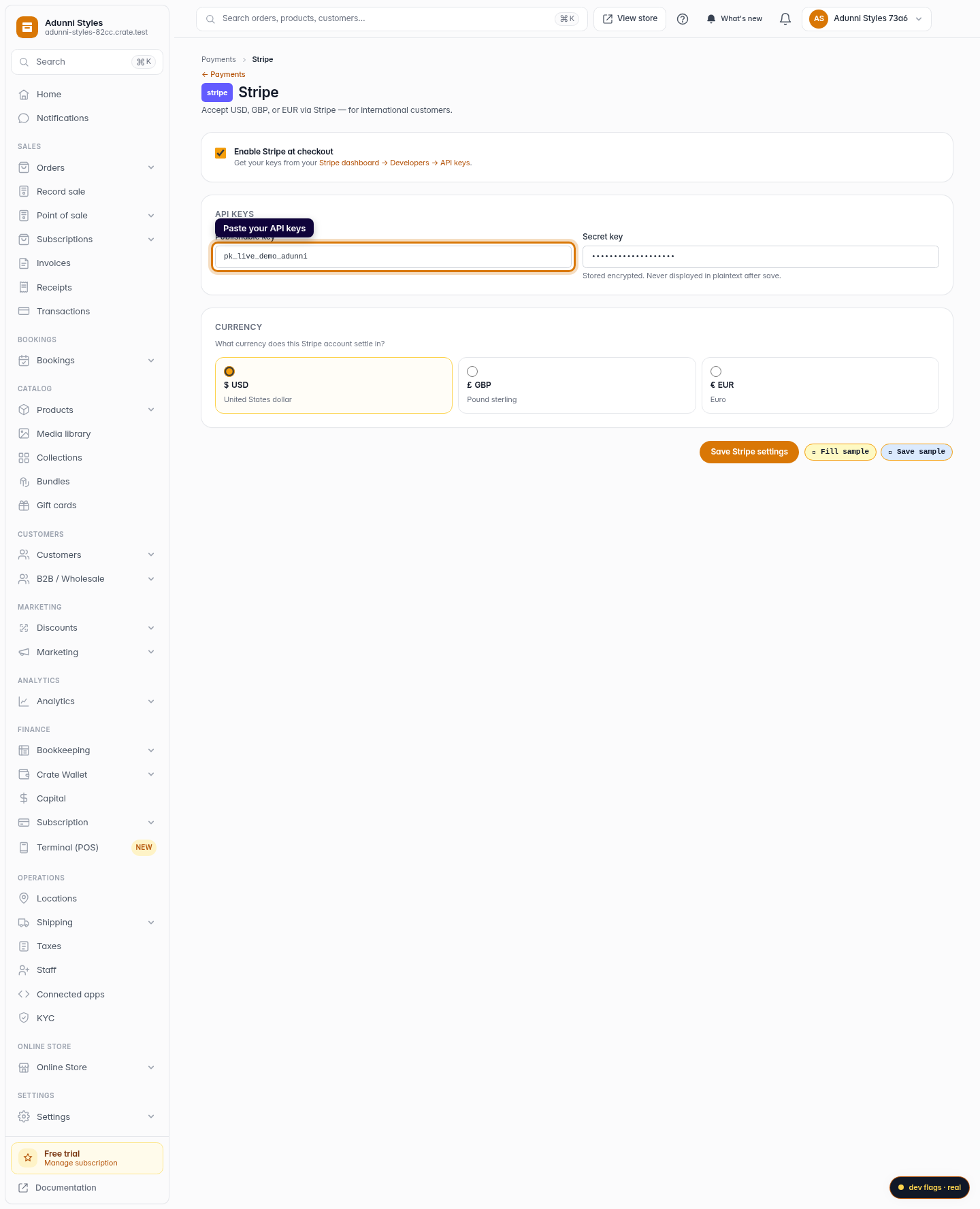
Paste your API keys
Copy your Publishable key and Secret key from your Stripe dashboard under Developers → API keys, and paste them here. The secret key is stored encrypted and never shown again after you save.
Web -
4
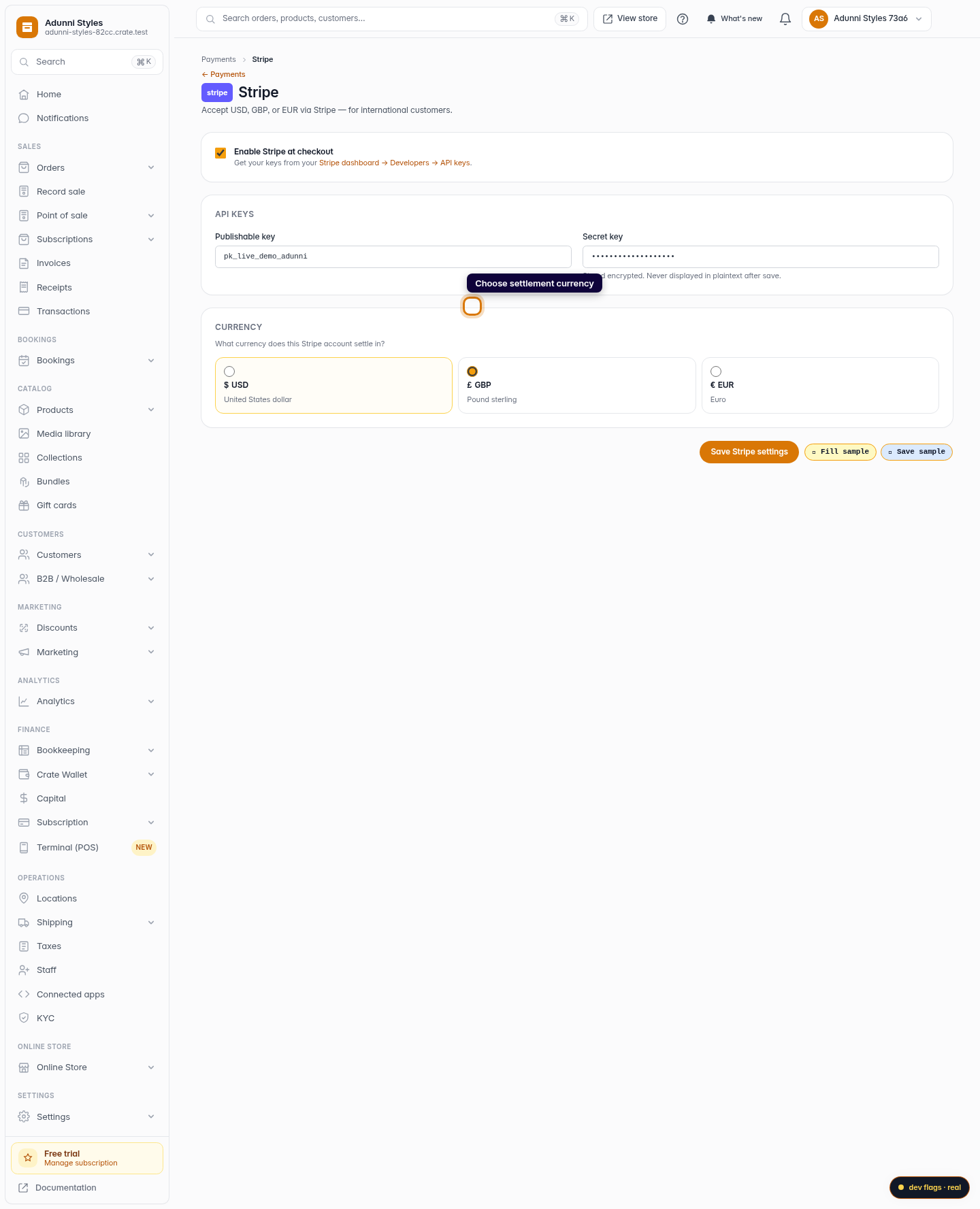
Choose your settlement currency
Pick the currency this Stripe account settles in — USD, GBP, or EUR. This is the currency your international payouts arrive in.
Web -
5
Save your Stripe settings
Click Save Stripe settings. Crate confirms the gateway is live and starts routing eligible international checkouts through Stripe.
Web