Update your Paystack charge option
Decide who covers Paystack's processing fee — you or your customer — for each payment channel. Set it once per channel and Crate applies it at checkout.
Paystack is a fast, reliable way to collect card, bank-transfer, and USSD payments on Crate. Every Paystack transaction carries a small processing fee, and Crate lets you decide who covers it — you or your customer — for each channel independently.
This matters because the fee differs by channel: a card payment is charged differently from a bank transfer or a USSD payment. Setting the bearer per channel lets you absorb the cheap fees yourself while passing on the pricier ones, or any mix that suits your margins.
Absorb it or pass it on
- Crate absorbs — the fee comes out of your settlement. The customer pays exactly the product price, and you receive the amount minus the fee. Cleaner checkout, slightly lower payout.
- Customer pays — the fee is added to the customer's total at checkout. You receive the full product price, and the customer covers the processing cost.
Tip: Passing the fee to customers keeps your margins intact, but a higher total at checkout can nudge cart abandonment. Many merchants absorb the small transfer and USSD fees and only pass on card fees. There's no wrong answer — match it to your business.
What happens after you save
Your choice takes effect on the next Paystack payment. There's no change to existing transactions, and you can come back and adjust any channel at any time — the setting is per channel, so changing one never touches the others.
-
1
Open Payments settings
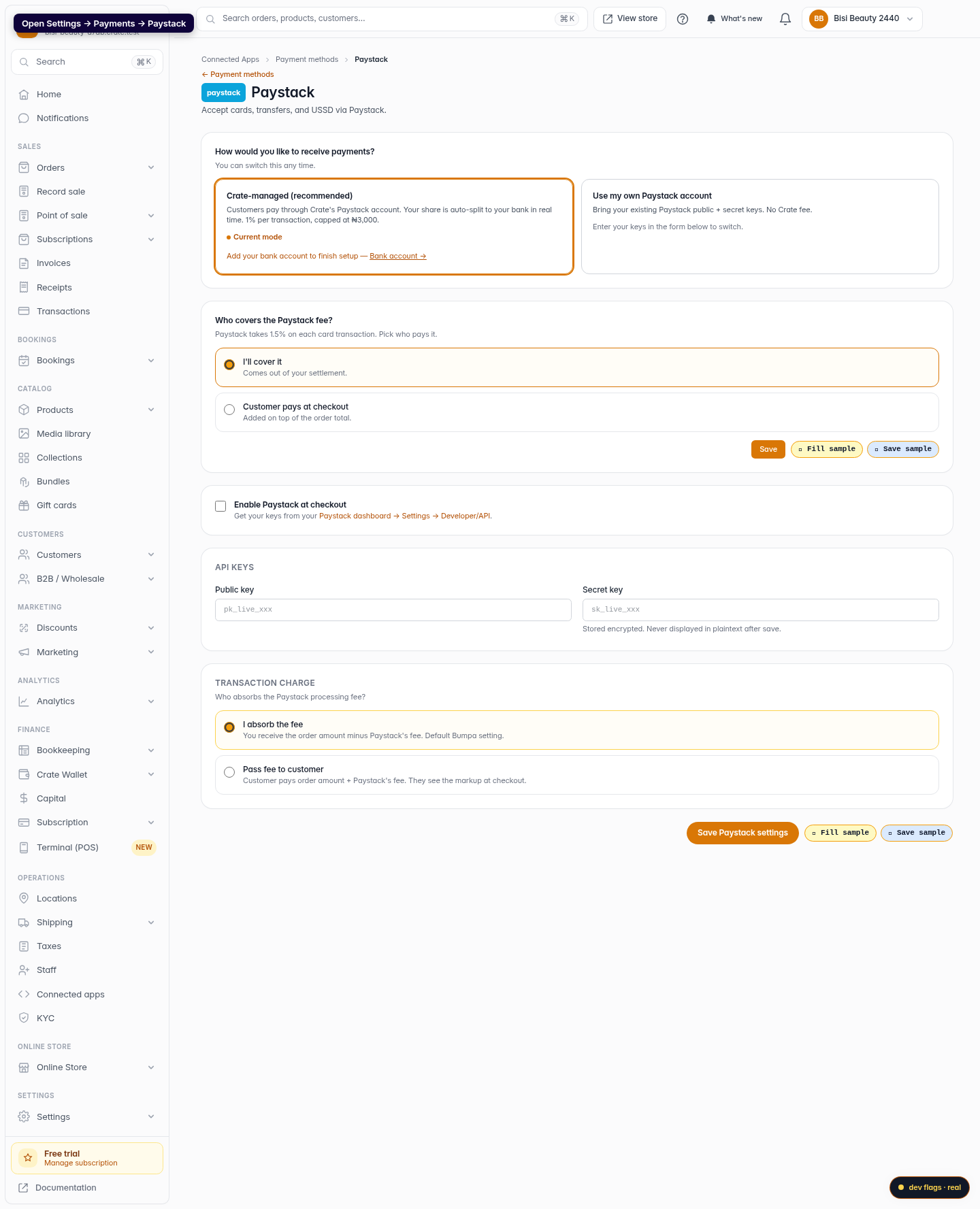
From your Crate dashboard, open Settings → Payments and select Paystack. This is where your Paystack gateway is configured.
Web -
2
Go to charge options
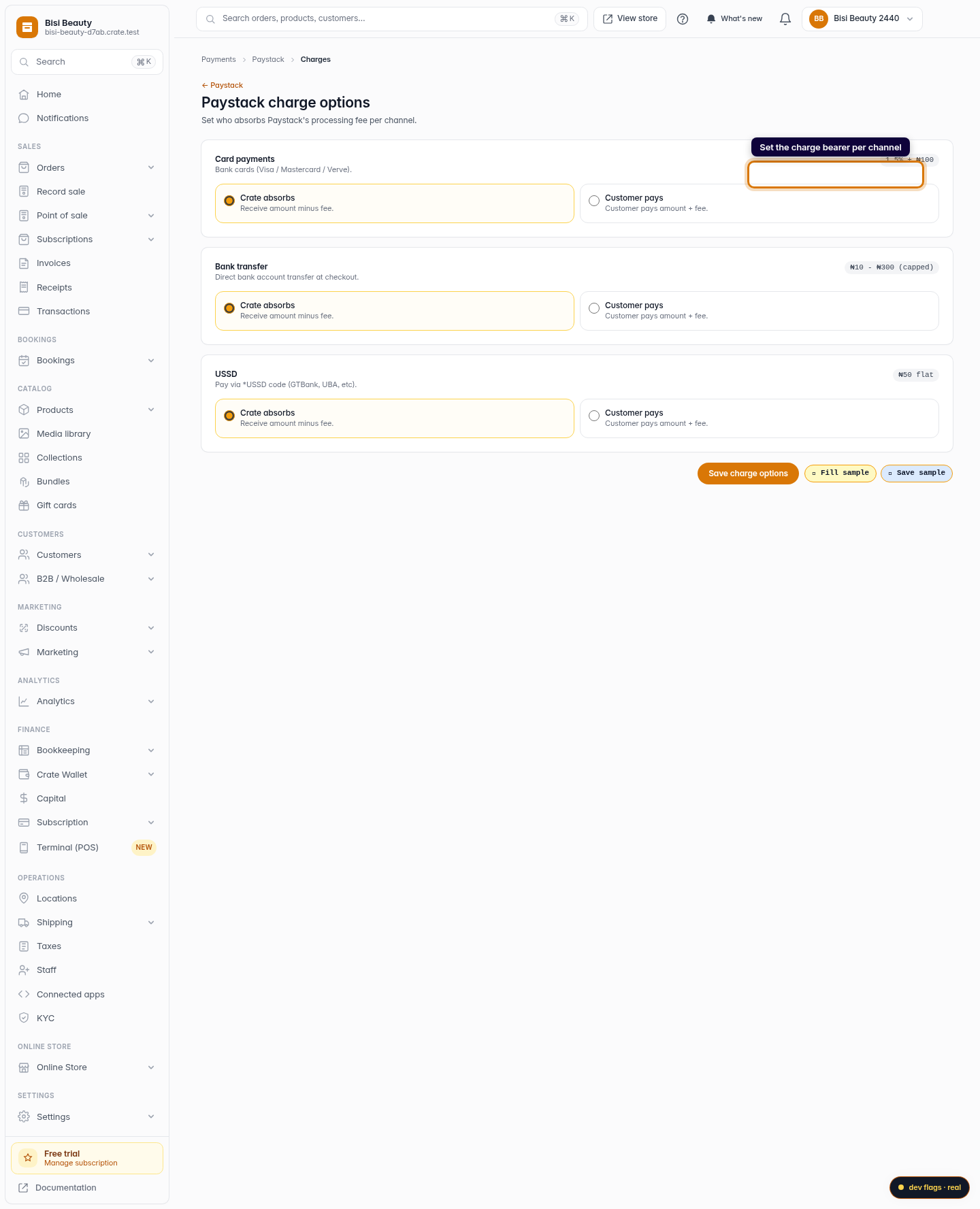
Open the Paystack charge options screen. Crate lets you set the charge bearer separately for each payment channel — card, bank transfer, and USSD.
Web 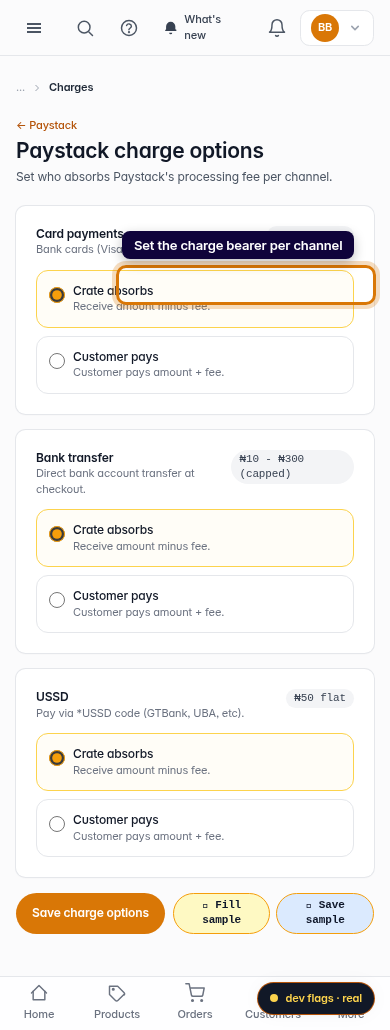
Mobile -
3
Choose who pays the fee
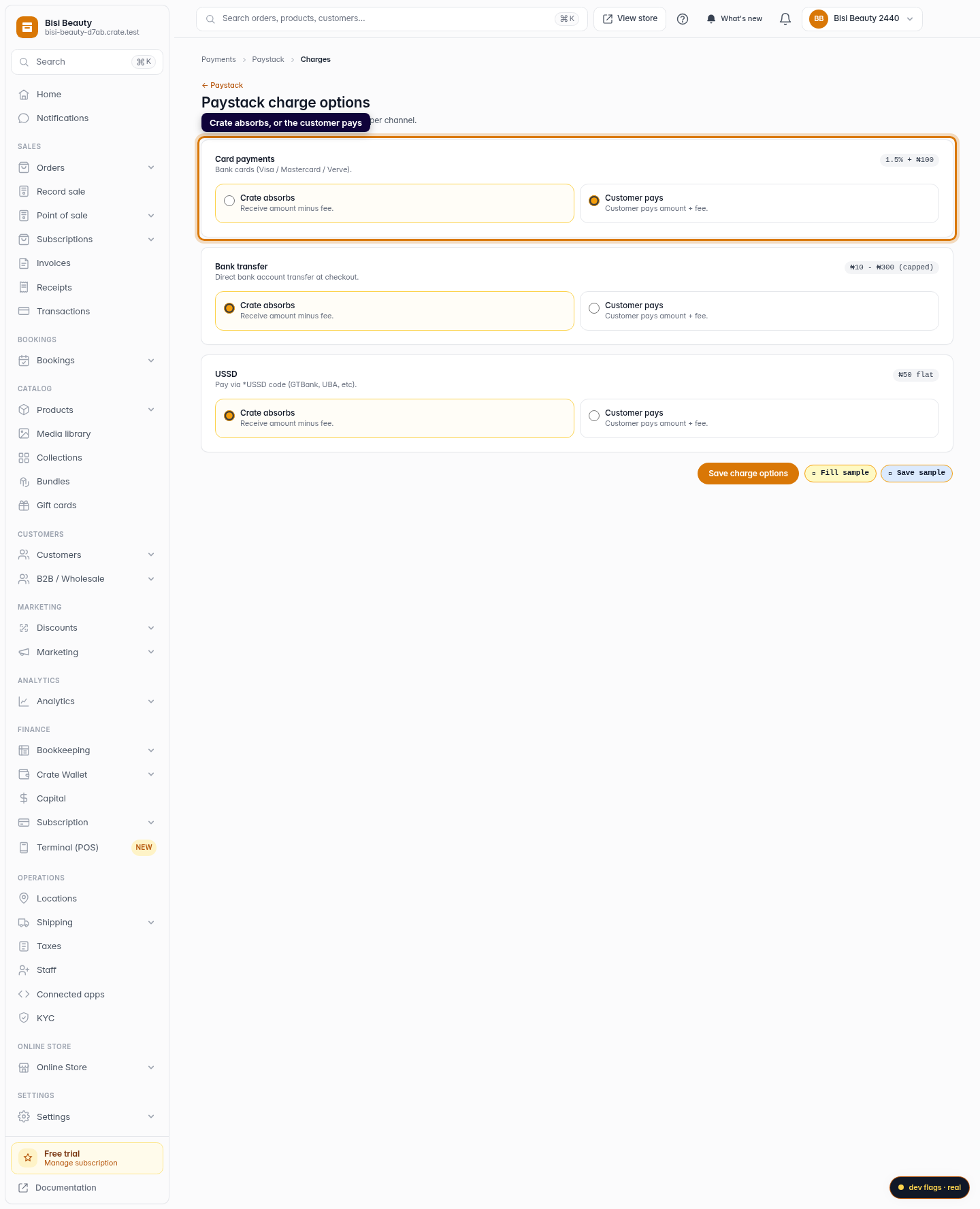
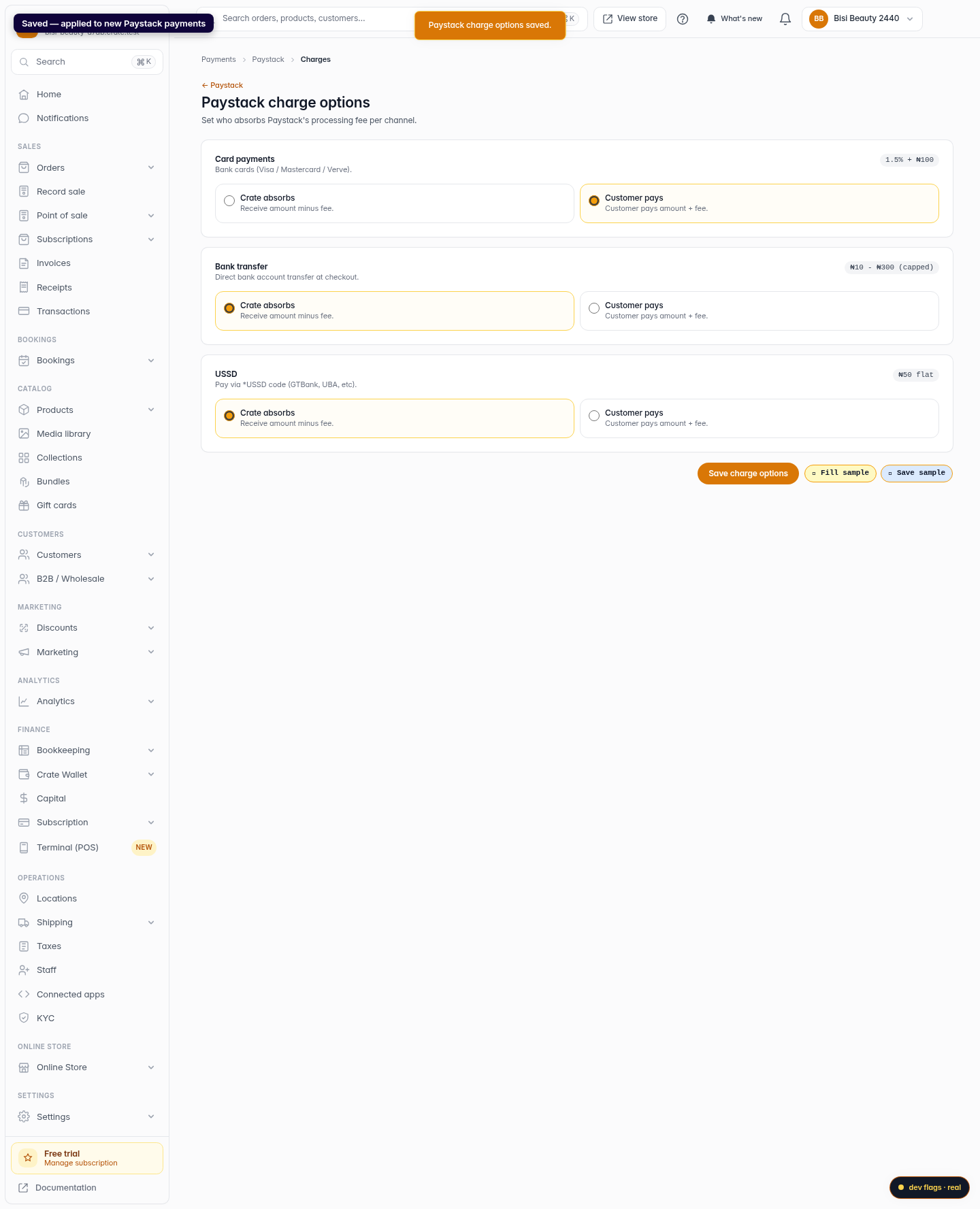
For each channel, pick Crate absorbs (you receive the amount minus the fee) or Customer pays (the fee is added to the customer's total at checkout). The fee for each channel is shown on the right so you know what you're trading off.
Web -
4
Save your charge options
Click Save charge options. Crate confirms with Paystack charge options saved and applies your choice to every new Paystack payment.
Web