Add a product
Create your first product in Crate — give it a name, a price, stock and a photo, and it's instantly ready to sell across your storefront, Instagram and WhatsApp.
Every sale on Crate starts with a product. Adding one takes under a minute, and once it's saved it's ready to sell across your online store, your Instagram and WhatsApp channels, and at the point of sale — no extra setup.
This guide walks through adding a simple product. If your product comes in different sizes or colours, see Add product variations once you've created the base product.
Before you start
You only need three things to publish a product: a name, a price, and some stock. Everything else — descriptions, collections, SEO, multiple photos — you can add later from the product's edit page. Crate is happy to let you ship fast and refine afterwards.
Tip: Products are published the moment you save them. If you'd rather hide a product until you're ready, set its status to Draft from the product page — it stays in your catalogue but never shows to buyers.
What happens after you save
When you save, Crate creates the product, attaches your photo, and sets the price you entered as its default price in your store currency. You land on the product's edit page, where you can add a description, assign it to a collection, or add variations. The product is already live on your storefront — there's nothing else to switch on.
-
1
Open Products
From your Crate dashboard, open Products in the left sidebar. This is the home for everything you sell.
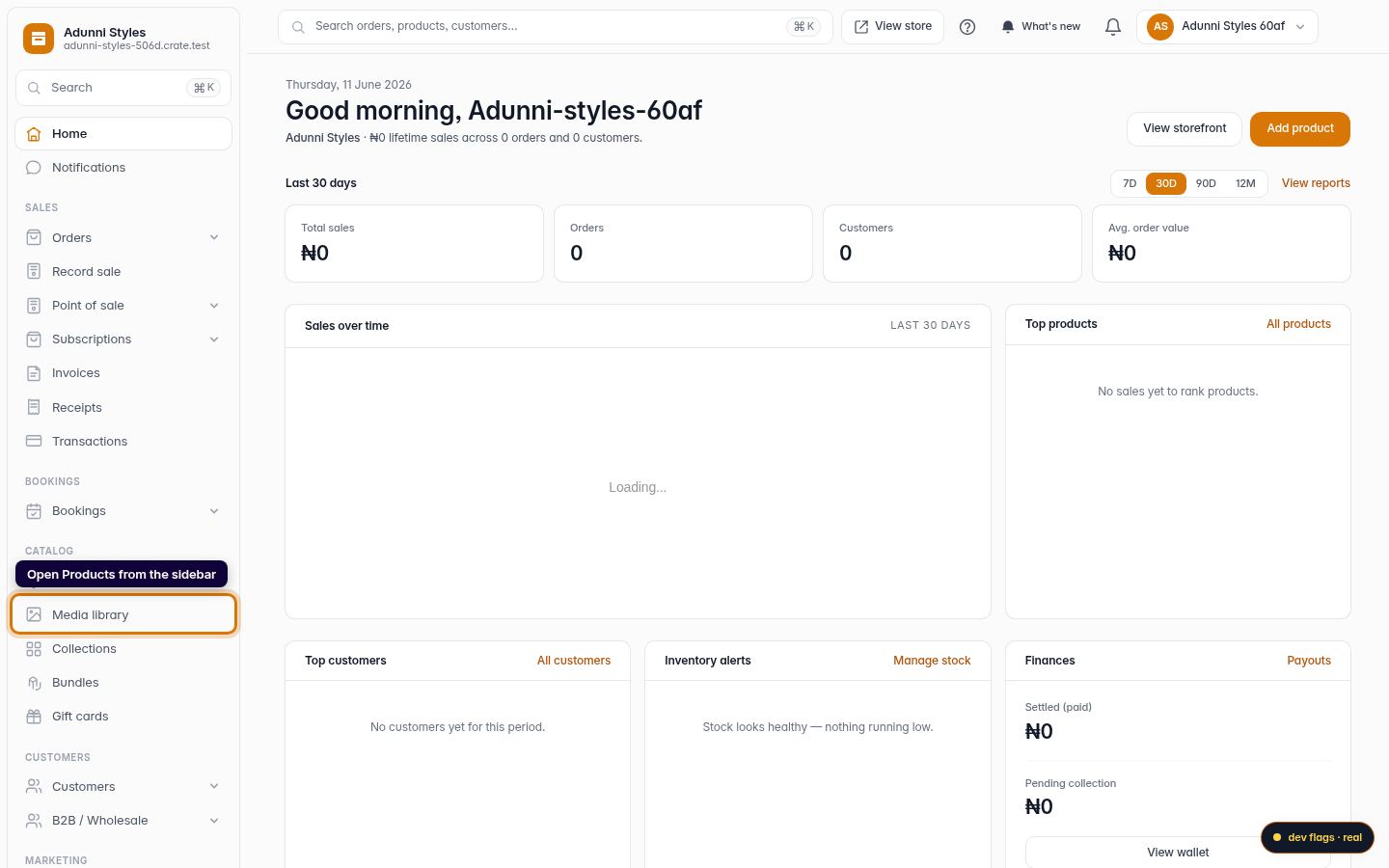
Web 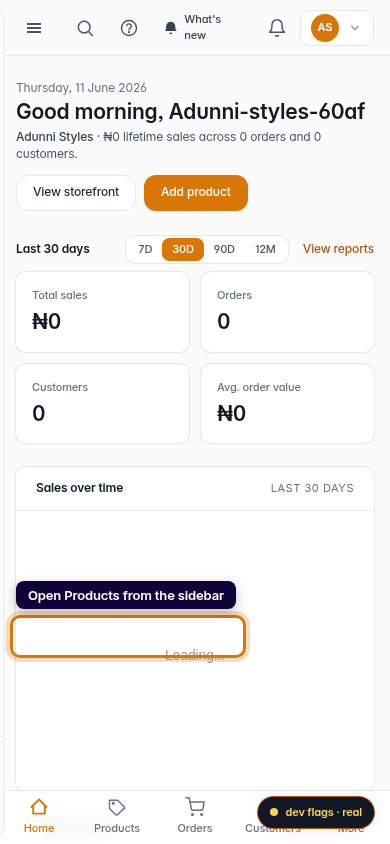
Mobile -
2
Start a new product
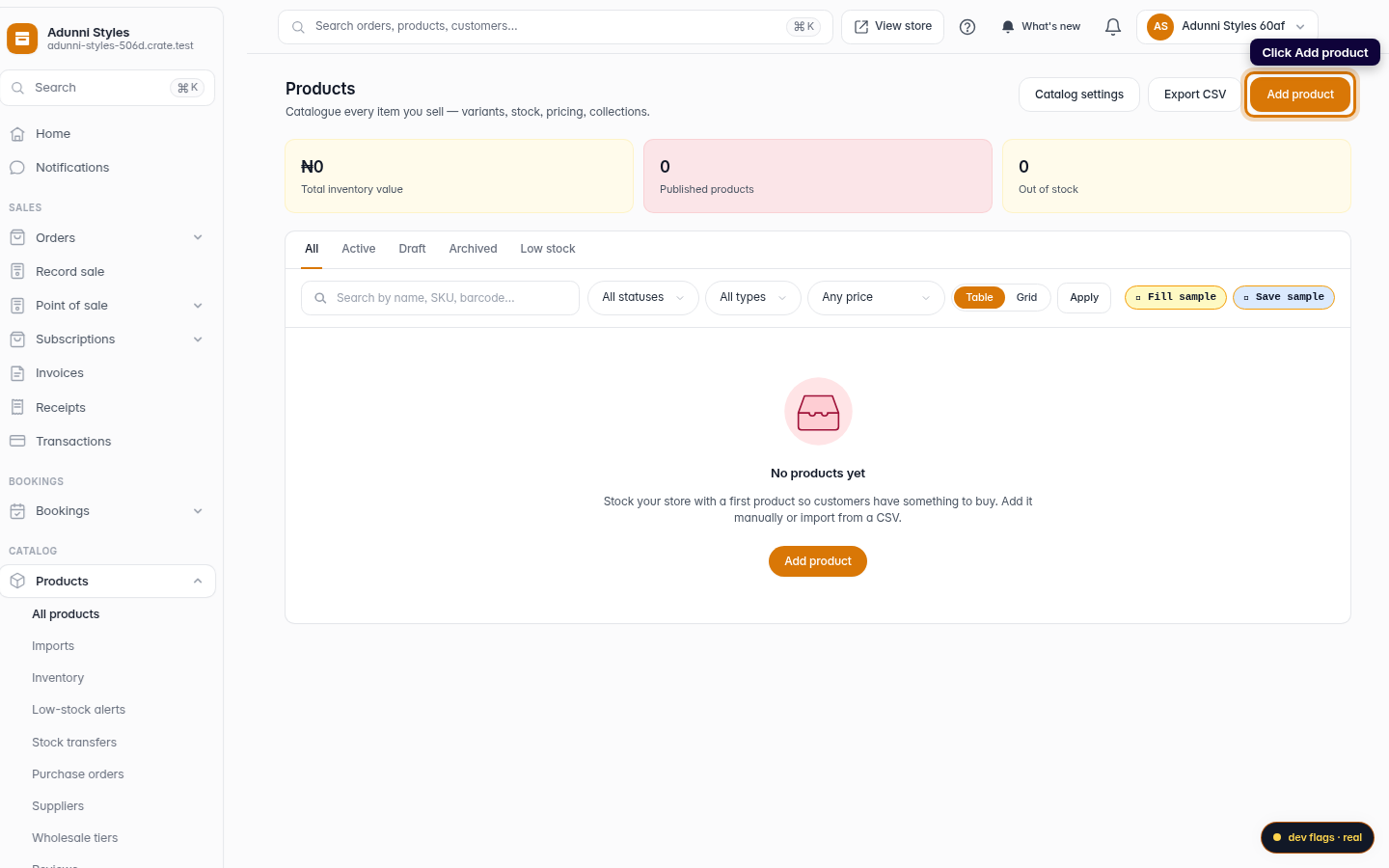
On the Products page, click Add product in the top-right corner.
Web -
3
Name your product
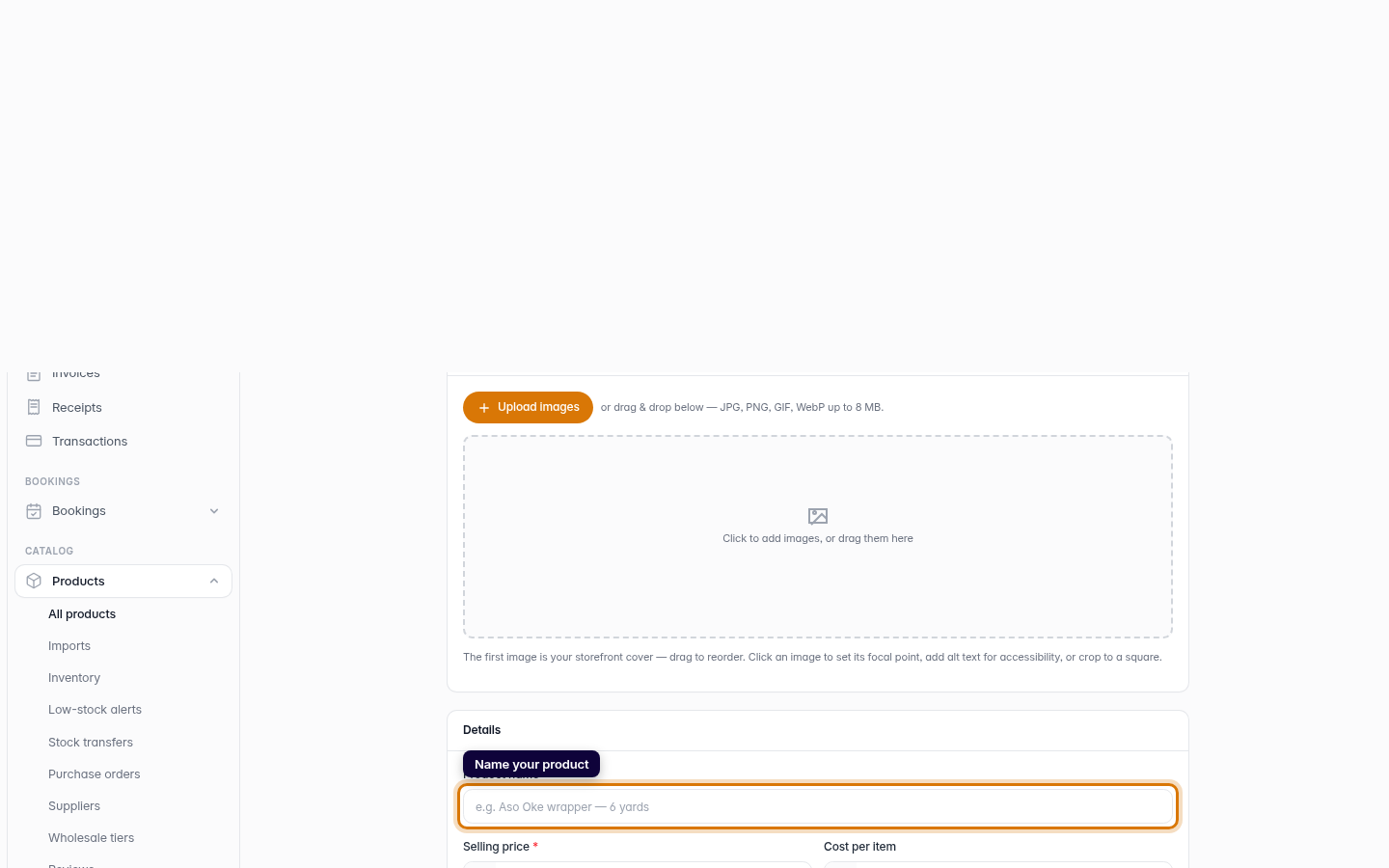
Give the product a clear name buyers will recognise — for example Adire Tunic Dress. The name is the first thing shoppers see, so keep it specific.
Web 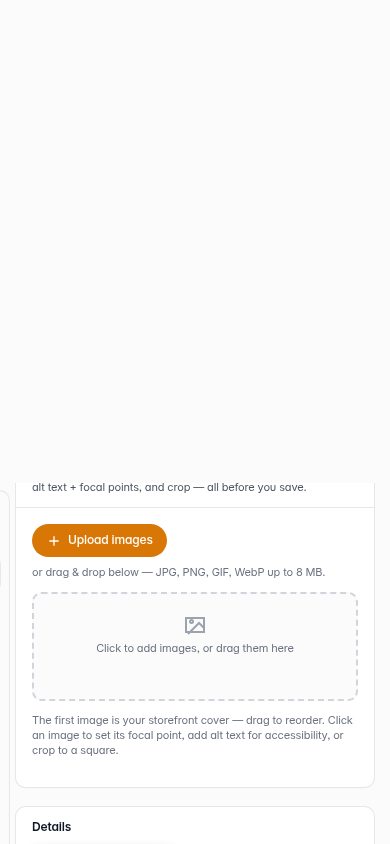
Mobile -
4
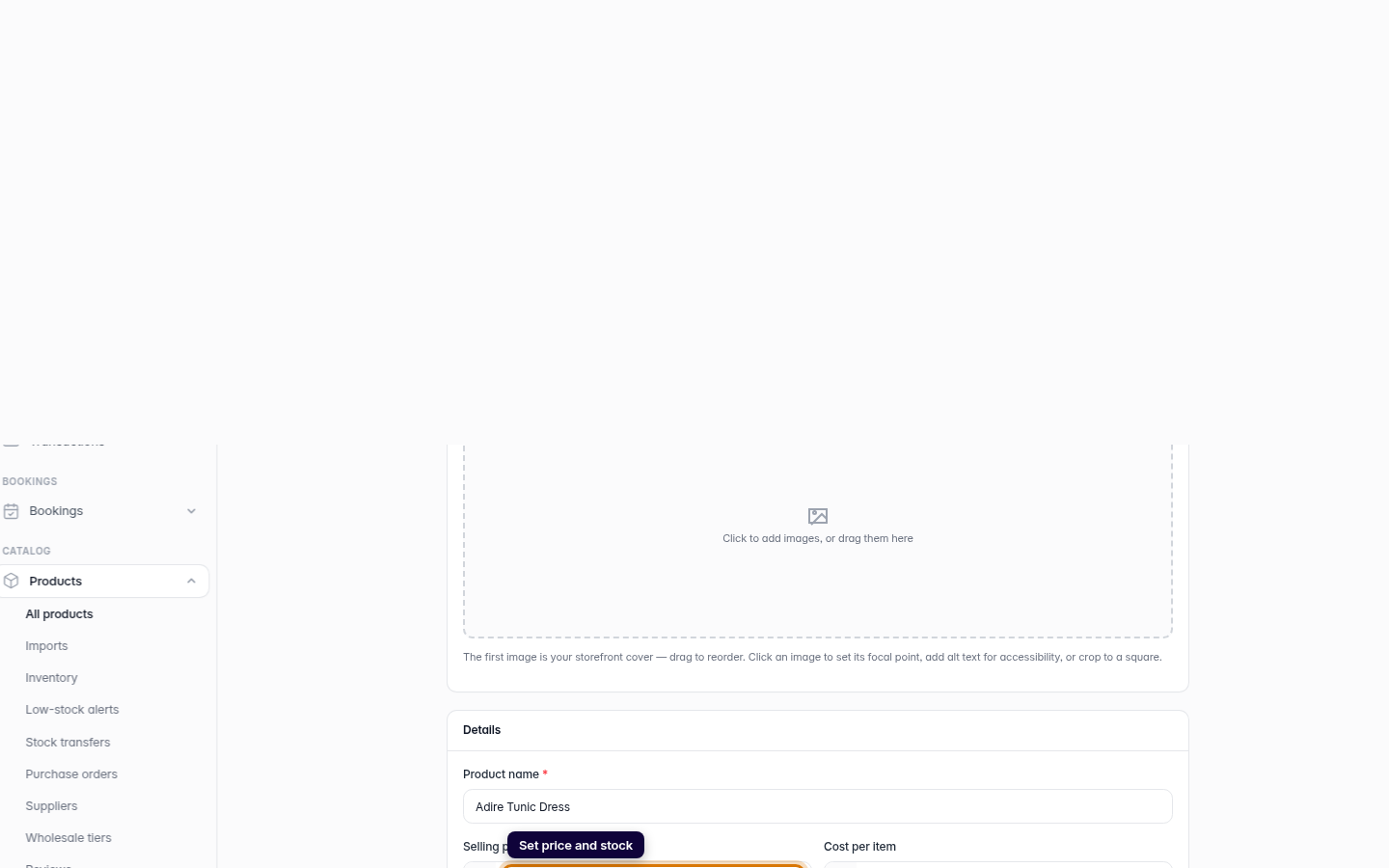
Set the price and stock
Enter the price you want to charge and how many units you have in stock. Crate tracks stock automatically and warns you before you sell out.
Web -
5
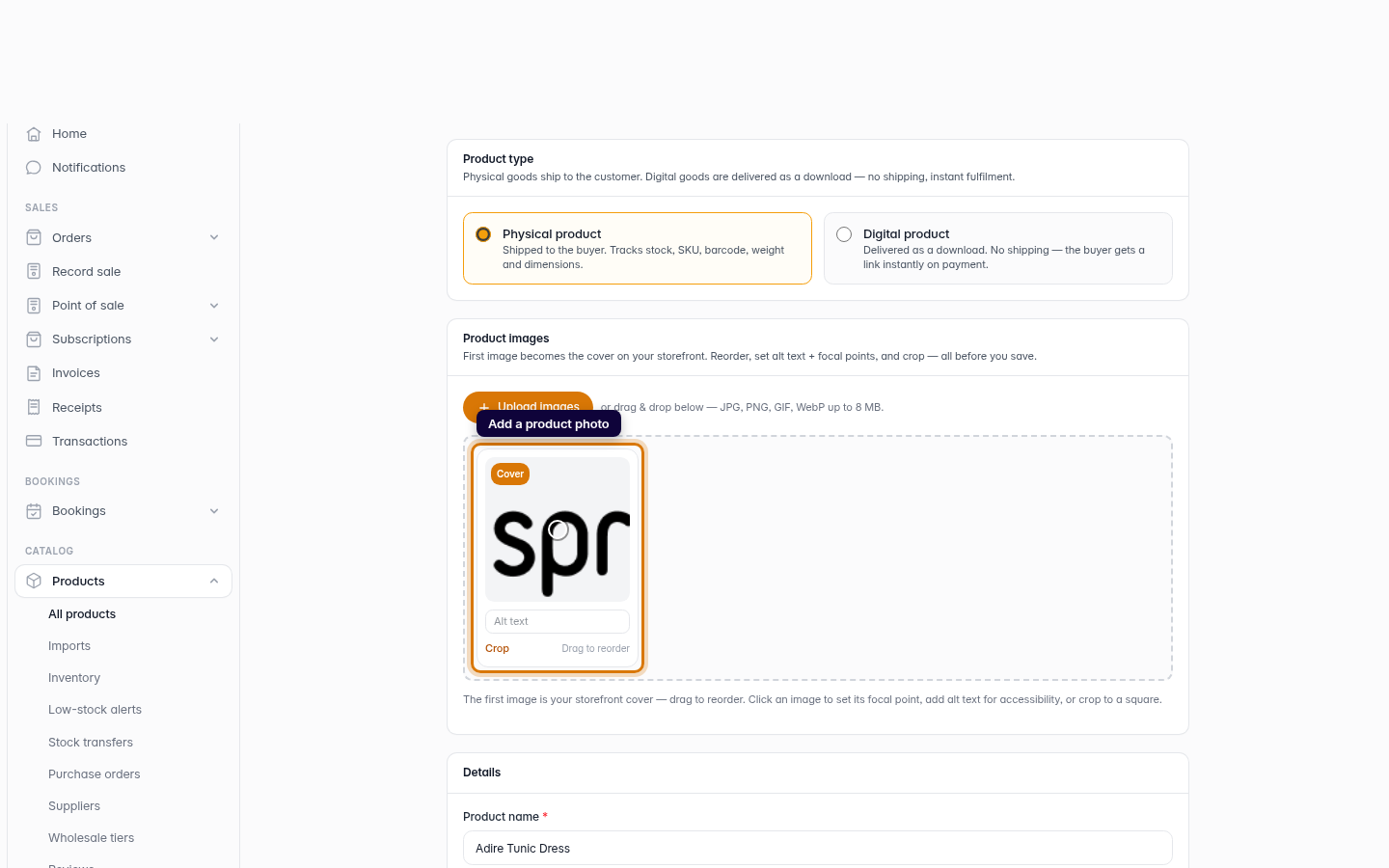
Add a photo
Upload a product photo. Clear, well-lit images sell — a product with a photo converts far better than one without.
Web -
7
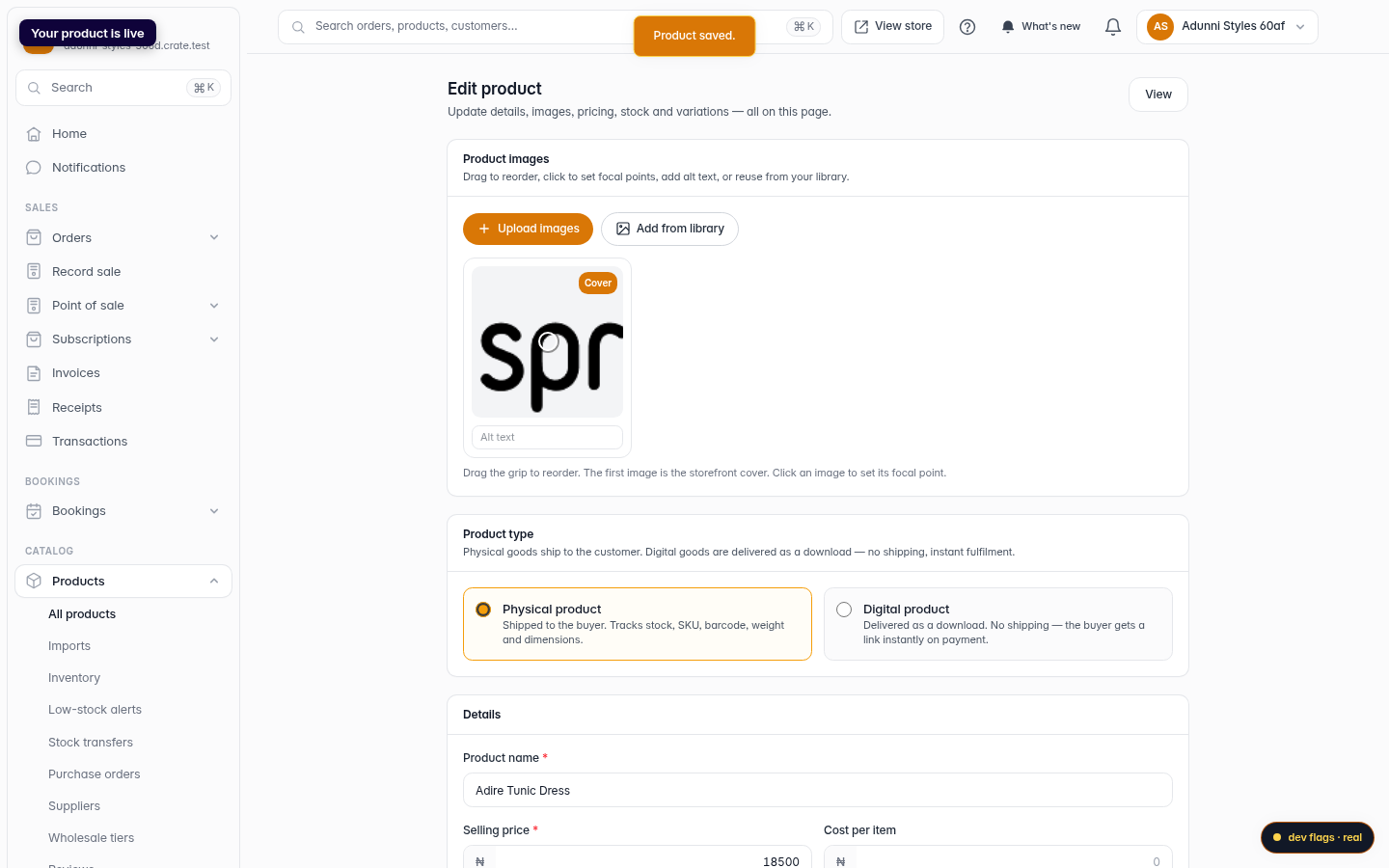
Save — your product is live
Click Save product. Crate confirms with Product saved and your product is immediately available everywhere you sell.
Web 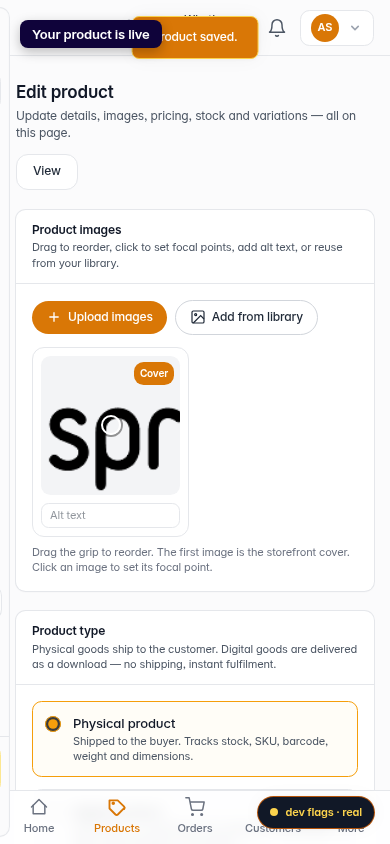
Mobile