Edit and delete products
Update a product's details whenever they change, and archive ones you no longer sell. Editing keeps everything in one place; archiving hides a product from buyers while keeping your records intact.
Your catalogue is never finished — prices shift, stock arrives, descriptions improve, and some products are eventually retired. Crate keeps editing and removing products quick, and makes sure removing one never loses the history behind it.
Editing: everything on one page
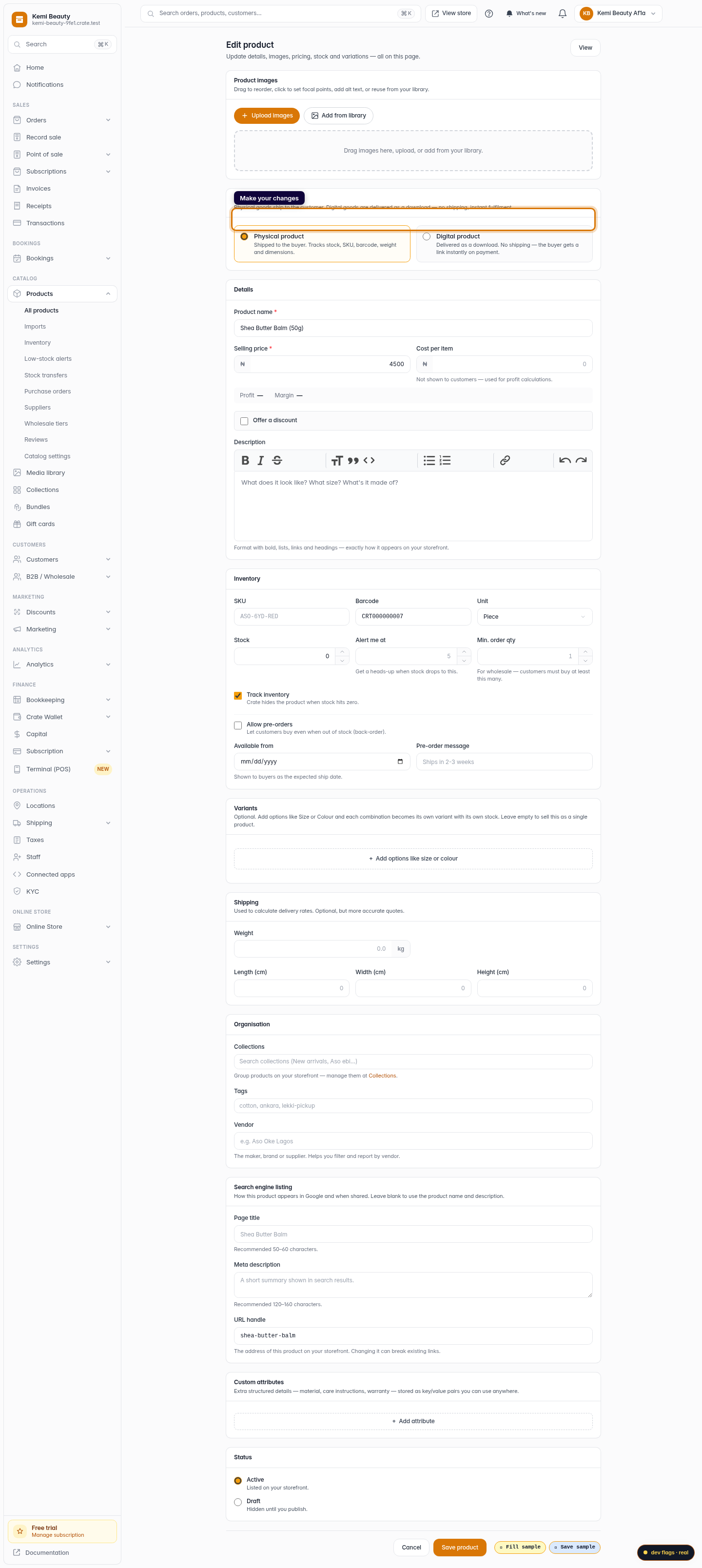
A product's edit page holds all of it — name, description, price, stock, photos and variations — so you make every change in one place and save once. Changes go live on your storefront the moment you save, so there's nothing extra to publish.
Tip: Need to hide a product temporarily rather than change it? Use Unpublish from the actions menu. It pulls the product from your storefront but keeps it in your catalogue, ready to publish again after a restock.
Deleting is really archiving
When you remove a product in Crate, it's archived, not erased. The product leaves your storefront immediately but is kept under the Archived tab, so your past orders, receipts and reports stay accurate and complete.
If you archived something by mistake — or want to bring a seasonal item back — open the Archived tab and choose Restore as draft. The product returns as a hidden draft, ready for you to review and publish again.
Edit, unpublish, archive — which to use
- Edit when the product stays for sale but its details change.
- Unpublish to hide it for now and bring it back later unchanged.
- Archive when you've stopped selling it for good but want to keep the records.
-
1
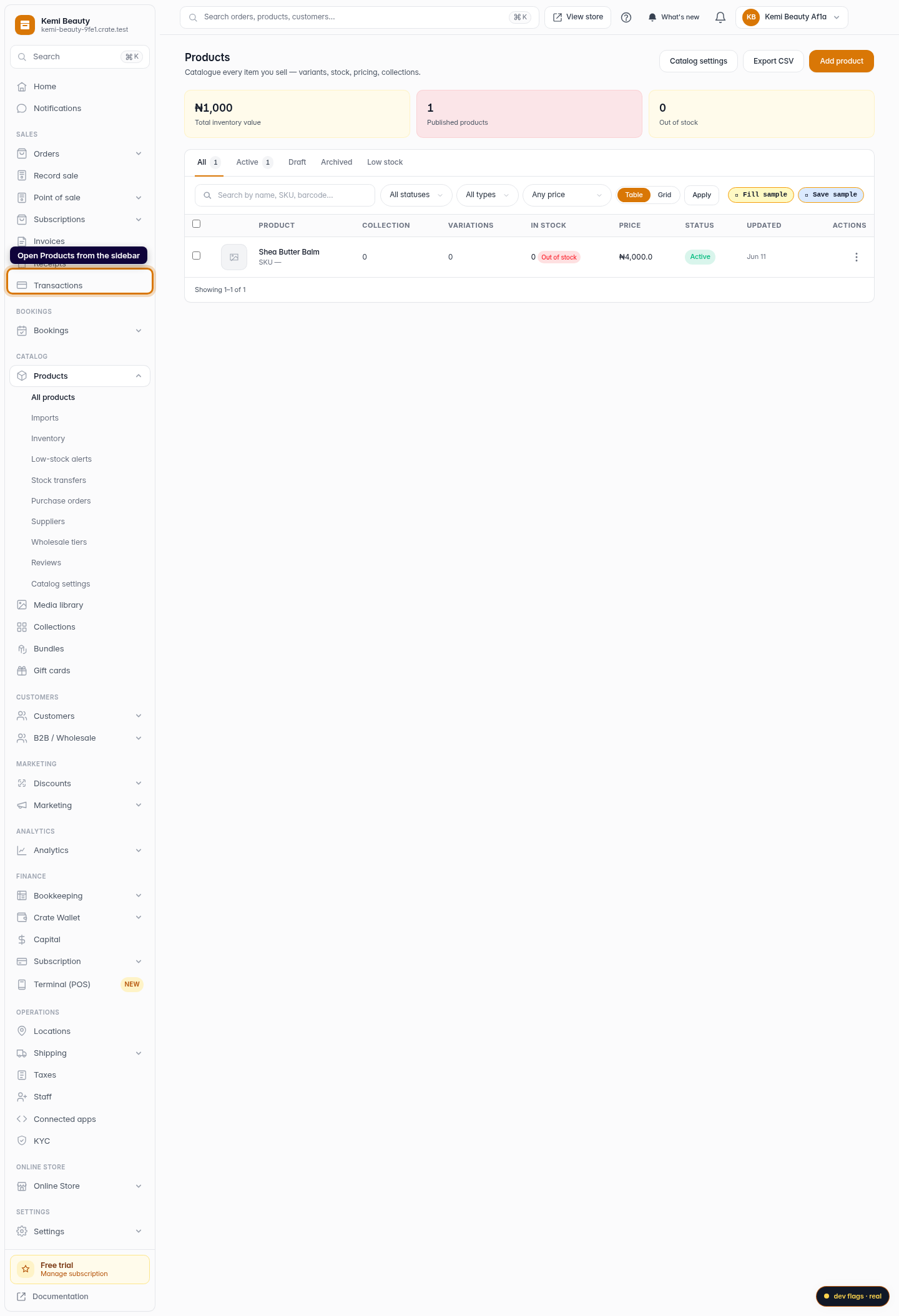
Open Products
From your Crate dashboard, open Products in the left sidebar.
Web 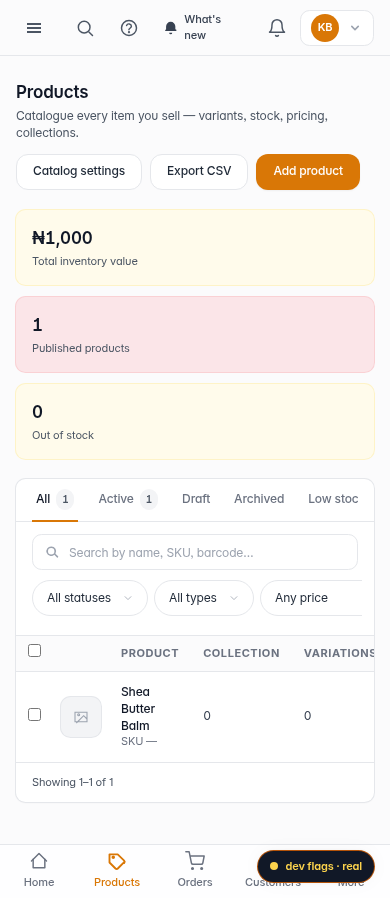
Mobile -
2
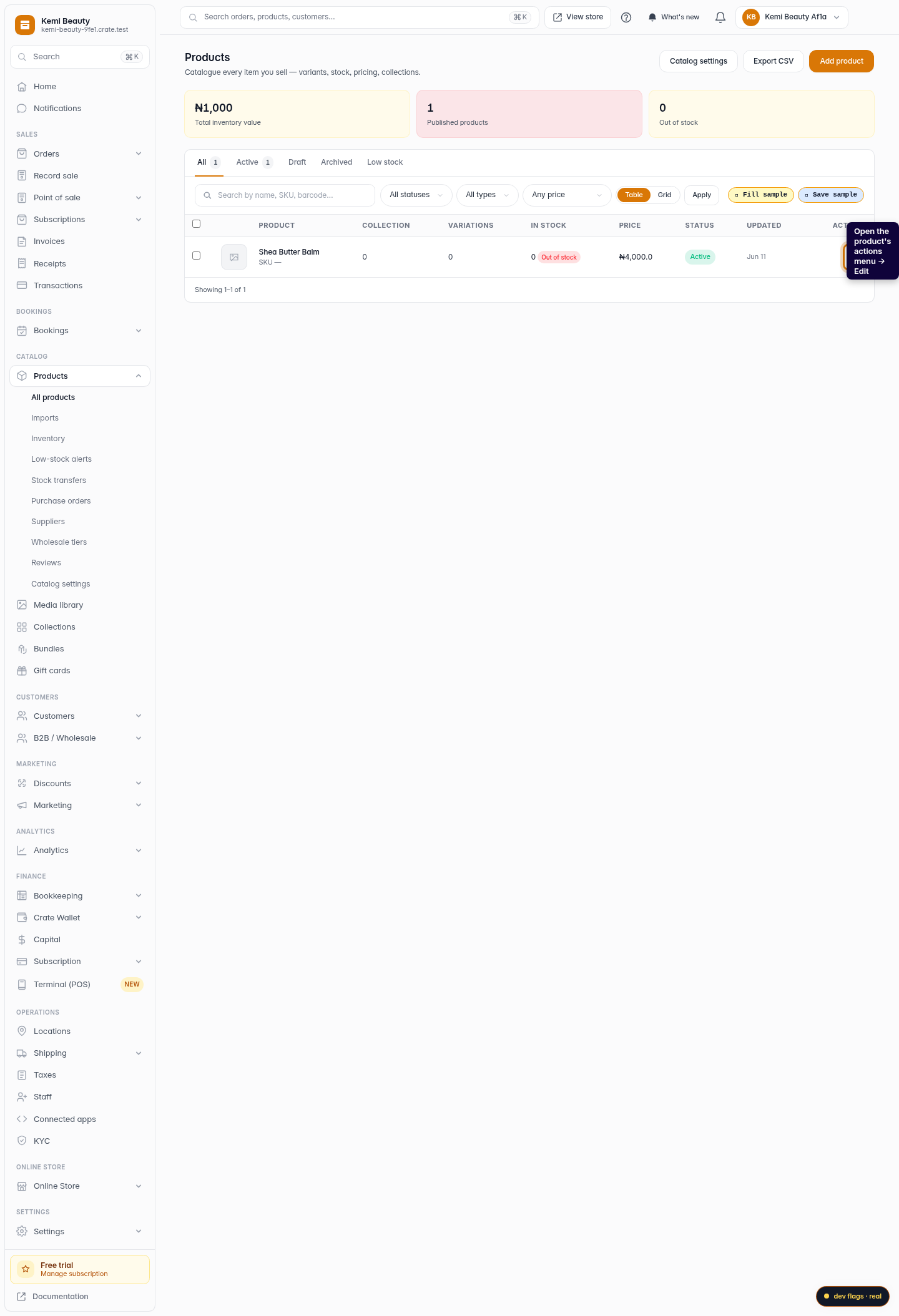
Open a product to edit
Open the product's actions menu (the ⋮ button on its row) and choose Edit to open its edit page.
Web -
3
Make your changes
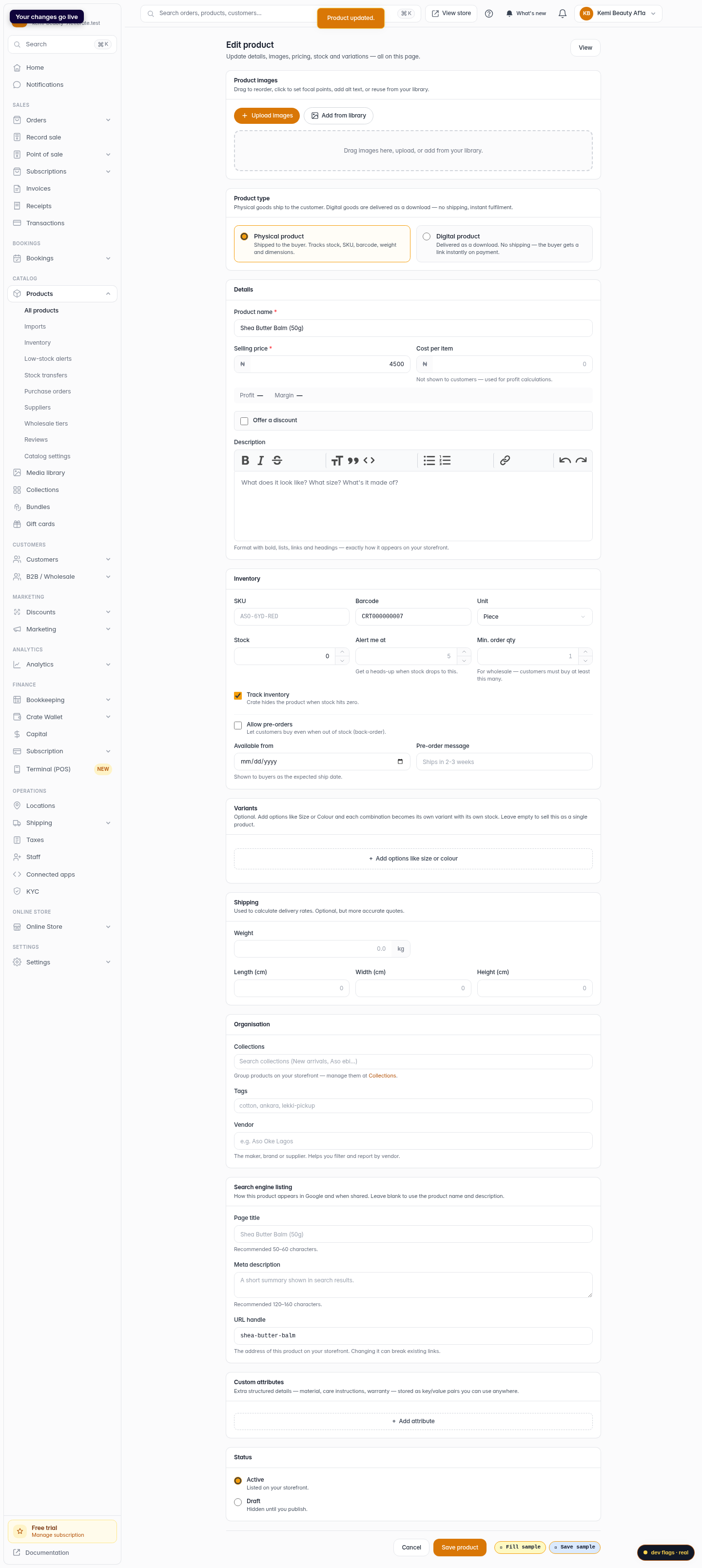
Update the name, description, price, stock, photos or variations — it's all on one page. Crate validates your changes as you type.
Web -
4
Save the product
Click Save product. Crate confirms with Product updated and your changes go live on your storefront immediately.
Web -
5
Archive a product you no longer sell
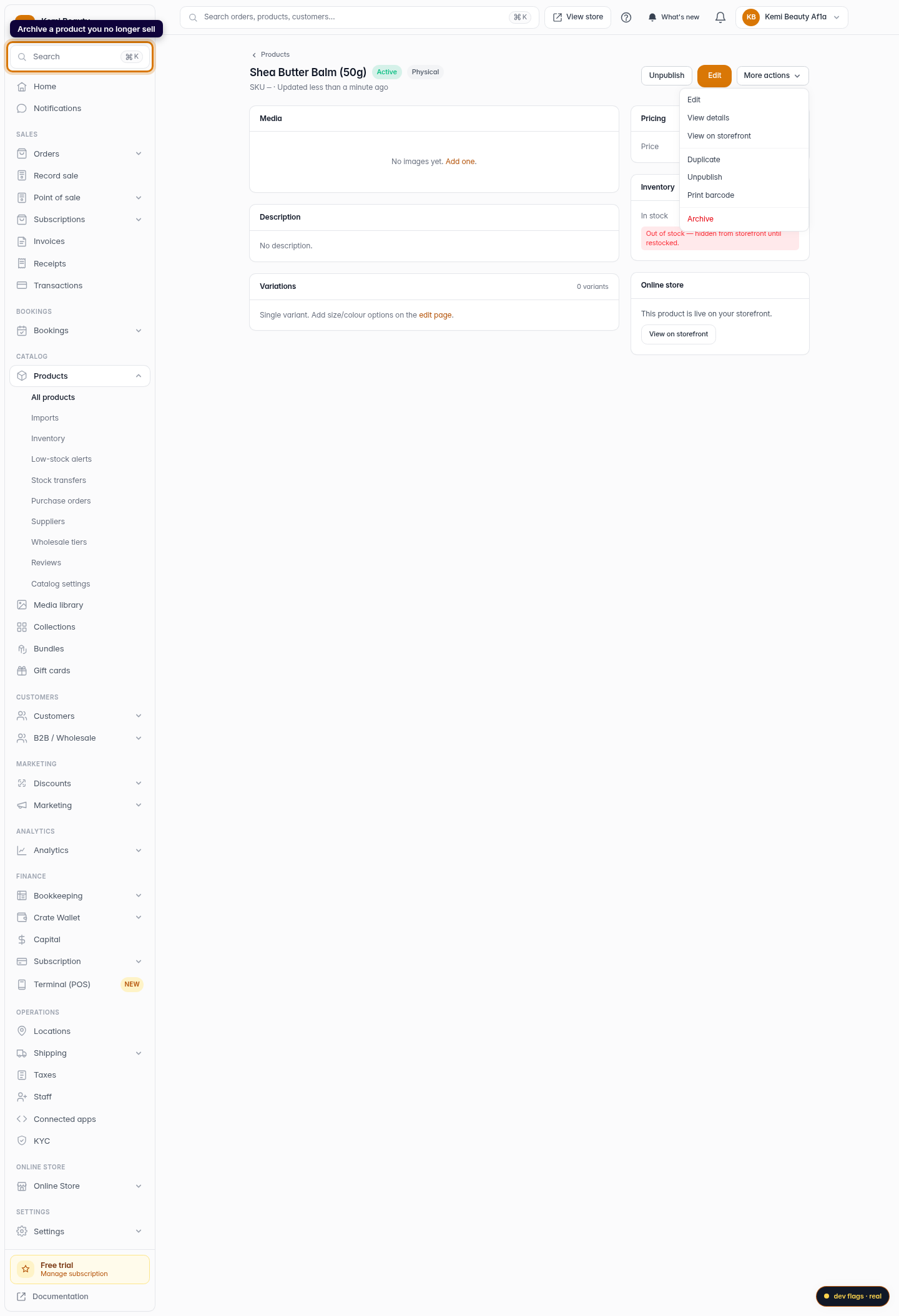
To remove a product from your store, open its actions menu and choose Archive, then confirm. It disappears from your storefront but stays in your records under the Archived tab.
Web