Order optimisation and edit history
The Order optimisation view surfaces abandoned carts and attention orders to recover, while every order's timeline keeps a dated history of edits, payments and fulfilment.
Orders aren't just a list to fulfil — some of them are revenue waiting to be recovered, and others need a quick decision before they hold up your stock. Crate's Order optimisation view puts that work in one place, and every order keeps its own history so nothing happens silently.
Recover and clear
The optimisation view leads with two things worth your attention:
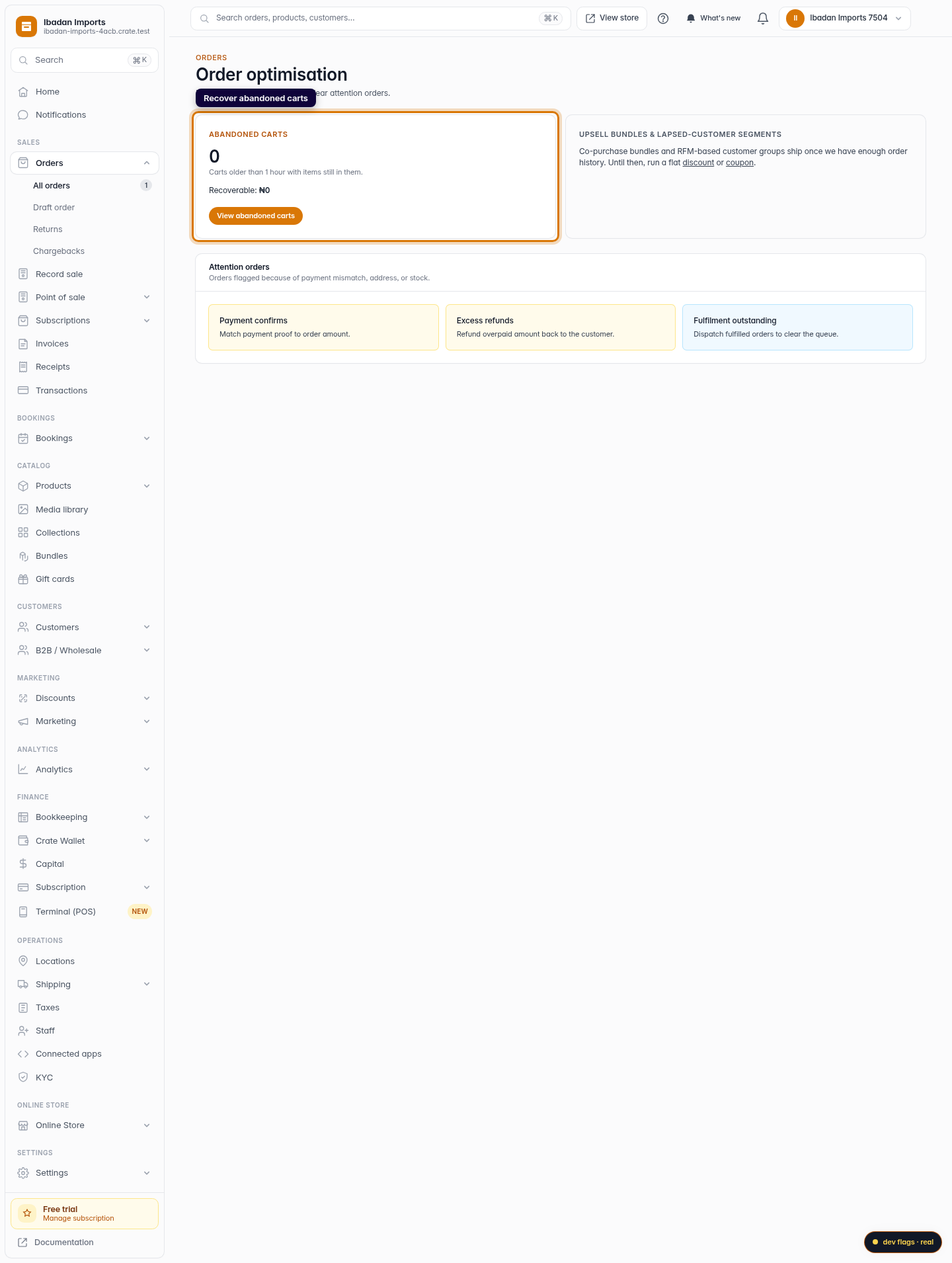
- Abandoned carts — the number of carts customers filled but didn't complete, and the revenue you could win back by recovering them.
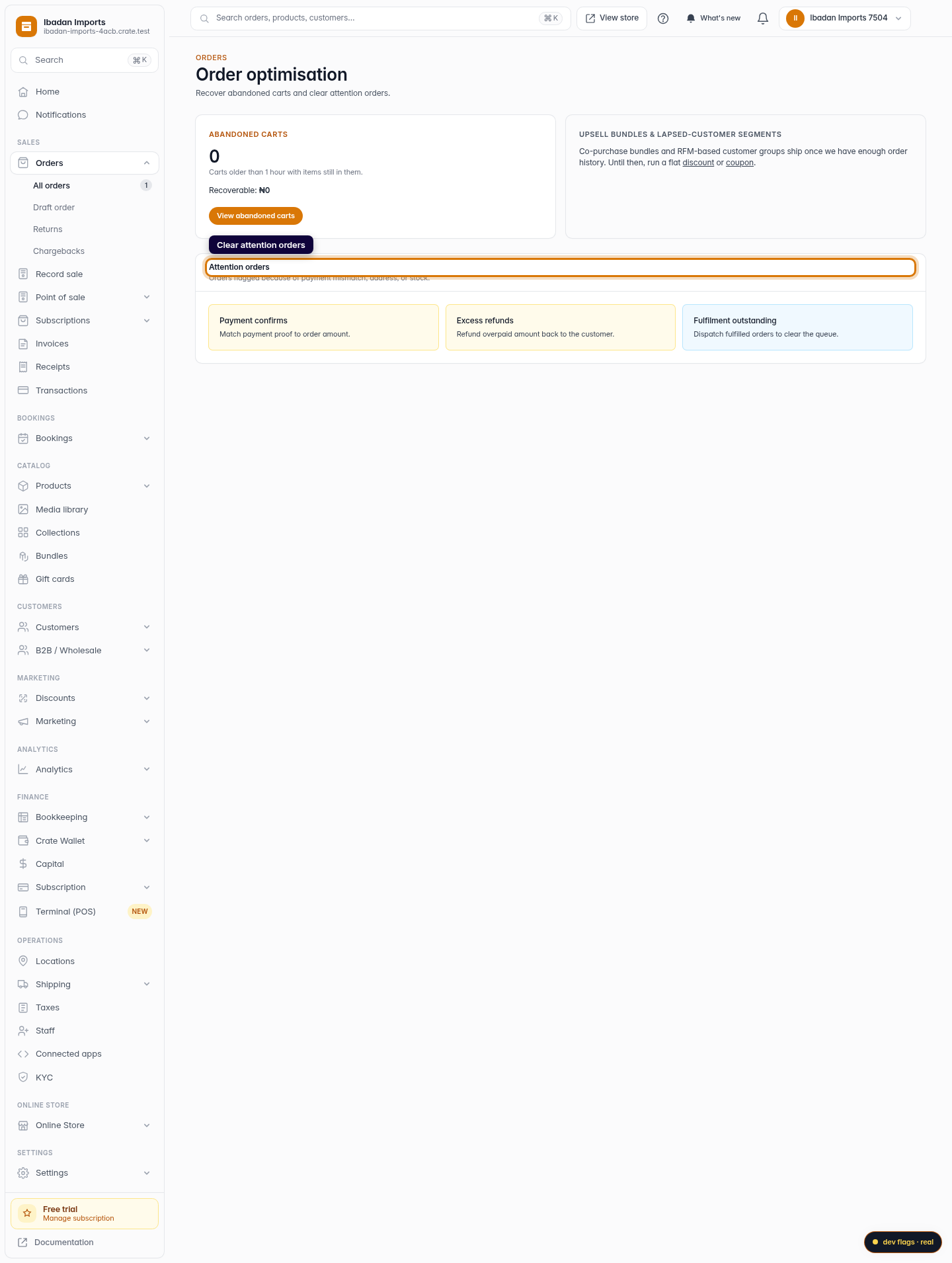
- Attention orders — orders flagged because something doesn't line up: a payment to confirm against the order amount, an excess quantity to refund, or fulfilment still outstanding.
Each card links straight to where you act, so you're never more than a click from clearing the queue.
Edit history on every order
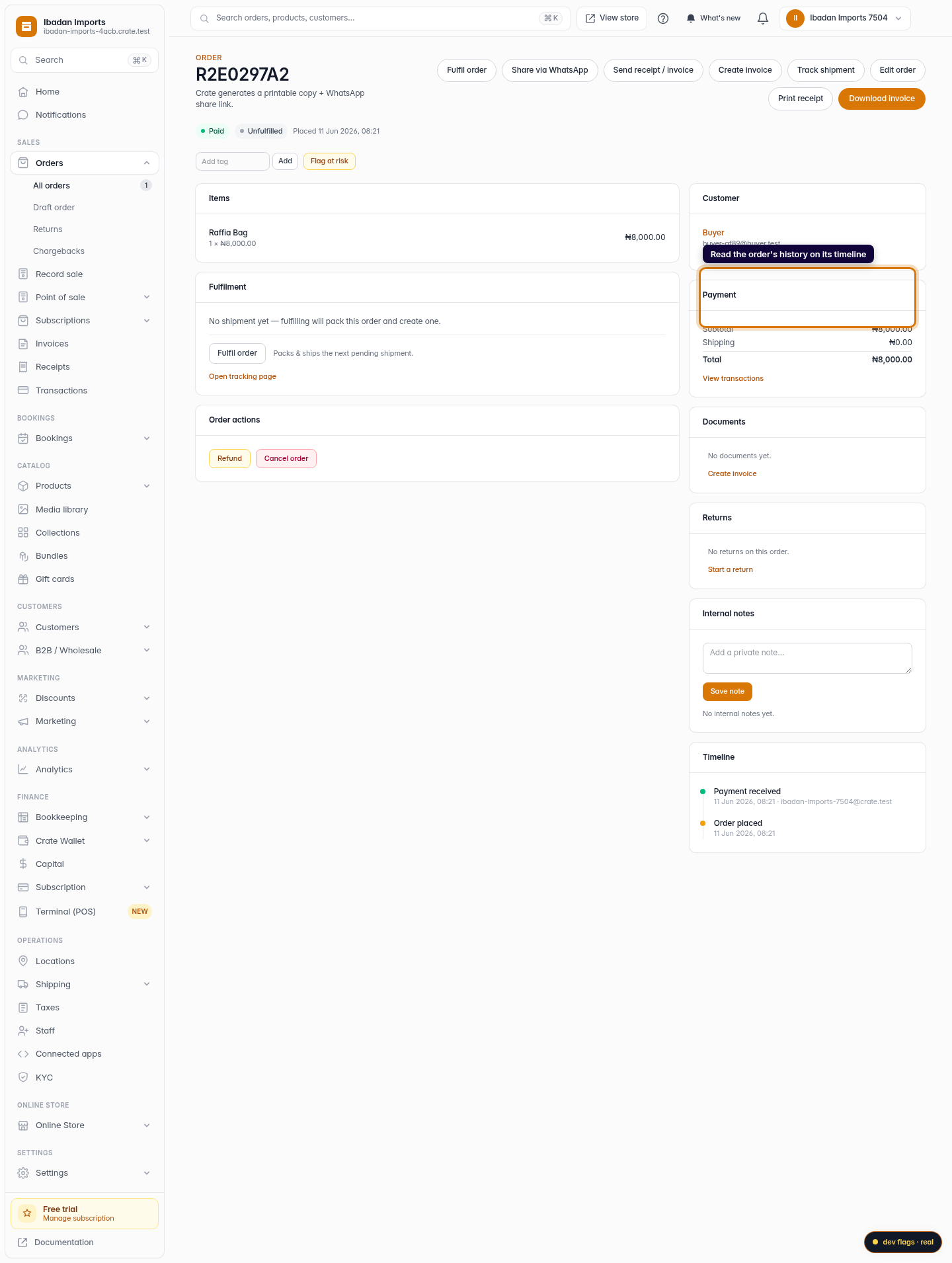
When you edit an order — add an item, change a quantity, record a payment, fulfil or refund — Crate writes it to that order's timeline. The timeline reads newest-first and anchors on Order placed, so you can always see what changed, when, and who changed it.
Tip: The timeline is your audit trail. If a customer disputes what they ordered or paid, the timeline shows exactly what happened and when — no need to reconstruct it from memory.
This works the same on your phone as on a laptop: open an order, scroll to the Timeline card, and the full history is there.
-
1
Open Order optimisation
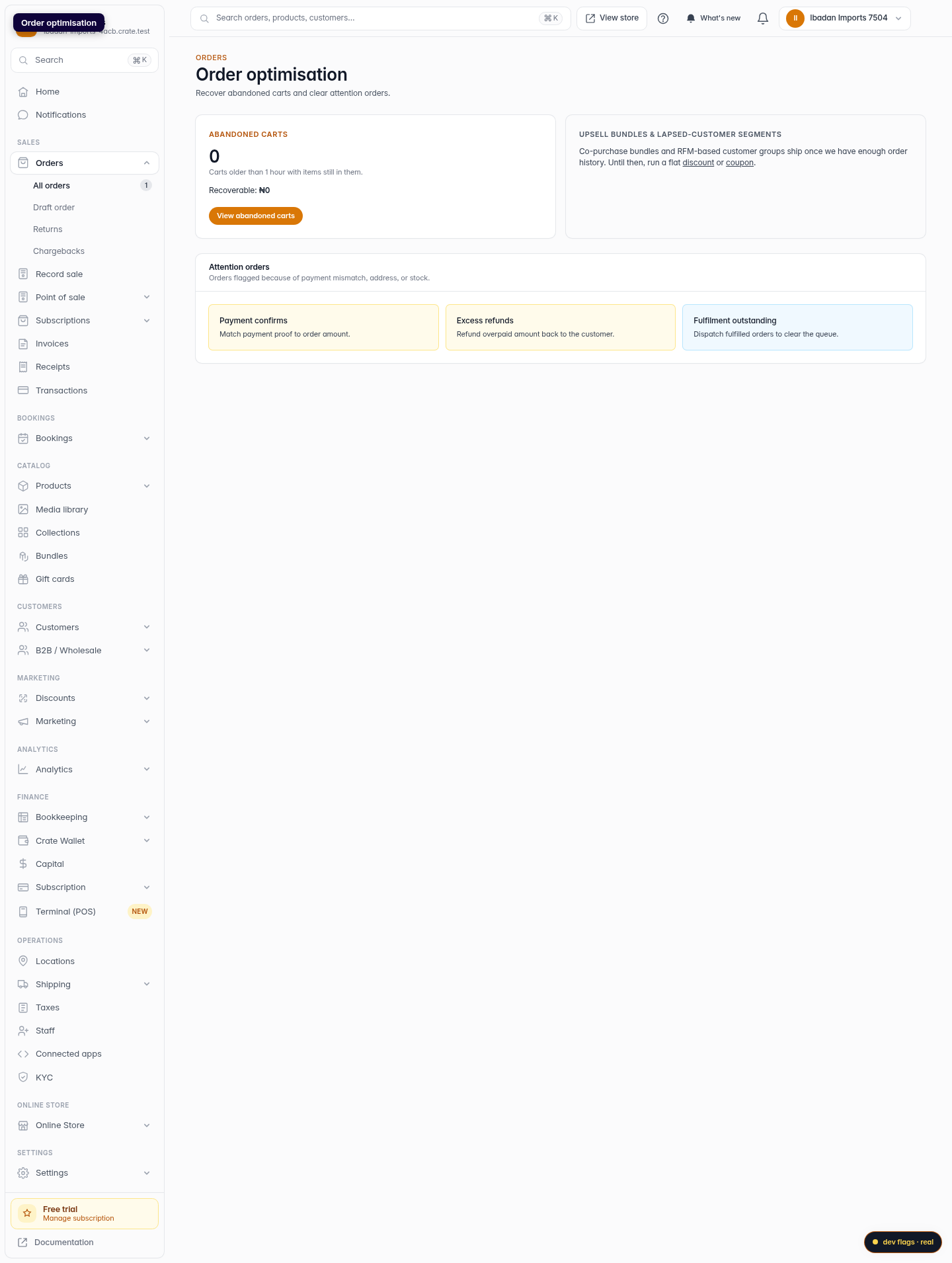
Crate's Order optimisation view collects the work that recovers revenue — abandoned carts you can chase and attention orders to clear.
Web 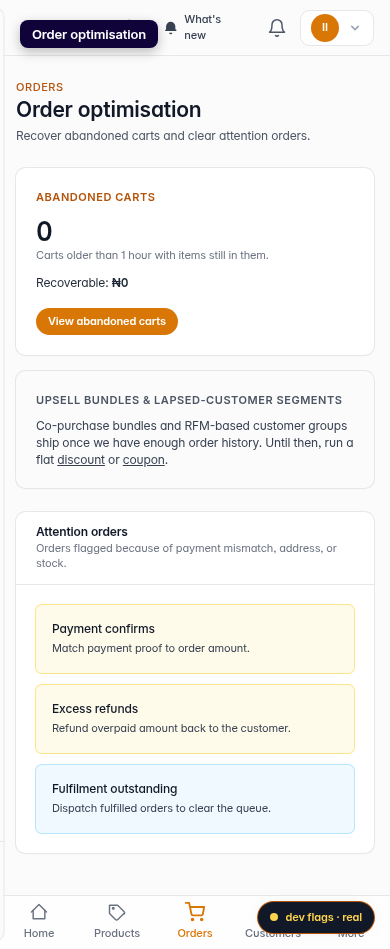
Mobile -
2
Recover abandoned carts
The Abandoned carts card counts carts left with items in them and the revenue they represent, with a link straight to the recovery list.
Web -
3
Clear attention orders
The Attention orders panel groups orders that need a decision — a payment to match, an excess to refund, or a fulfilment to dispatch.
Web -
4
Read an order's history on its timeline
Every order keeps a timeline — a dated record of when it was placed, edited, paid, fulfilled or refunded, and who did it. Open any order to read its full history.
Web 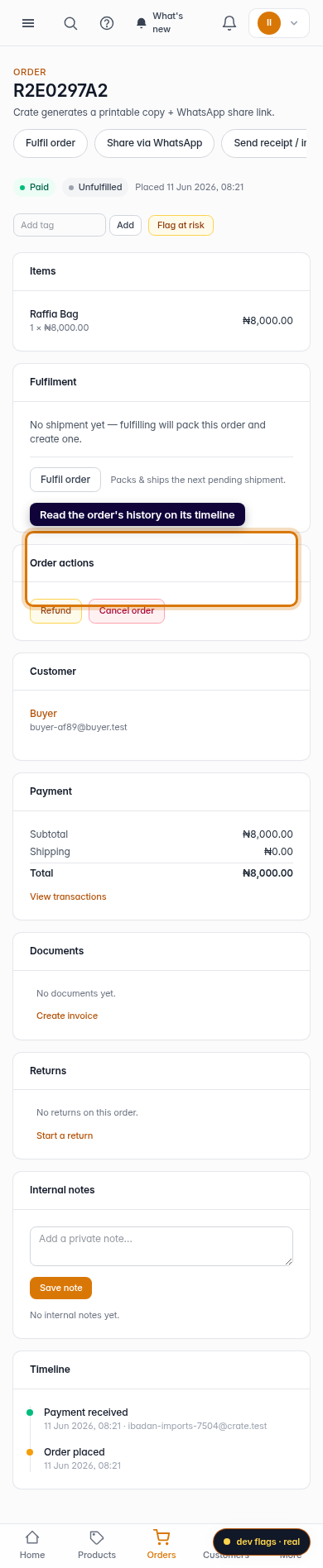
Mobile