Import products from a CSV
Migrate your whole catalogue into Crate in one upload. Bring a Shopify product export or any CSV, map the columns, and Crate creates products, variants and images in the background.
Switching to Crate from another platform shouldn't mean retyping your catalogue. The product importer takes a CSV — including a raw Shopify product export — and turns it into real Crate products, variants and images, all without you touching the form once.
The importer does the tedious parts for you: it groups rows that share a Handle into a single product, auto-maps the columns it recognises, and runs the heavy work in the background so a large catalogue never ties up your browser.
Before you upload
A clean file imports cleanly. A few habits that pay off:
- Use a Shopify export as-is if you're migrating from Shopify — Crate reads that format natively.
- Keep one product per Handle, with extra rows for each variant and image.
- Sanity-check prices and quantities before uploading — it's faster to fix a spreadsheet than to undo a bad import.
Tip: Not sure of the format? Export your current Crate products to CSV first and use that file as your template — the columns line up exactly.
While it runs
Once you start the import, Crate enqueues a background job and drops you on a live progress view. You'll see the percentage complete plus running counts of products created, updated, skipped and failed. If any rows can't be imported, download the error report — it lists the row, the product handle and what went wrong — fix those rows, and re-upload just them.
Large catalogues take a few minutes. If the status looks stuck, give it a moment and refresh — the job keeps running even after you navigate away.
-
1
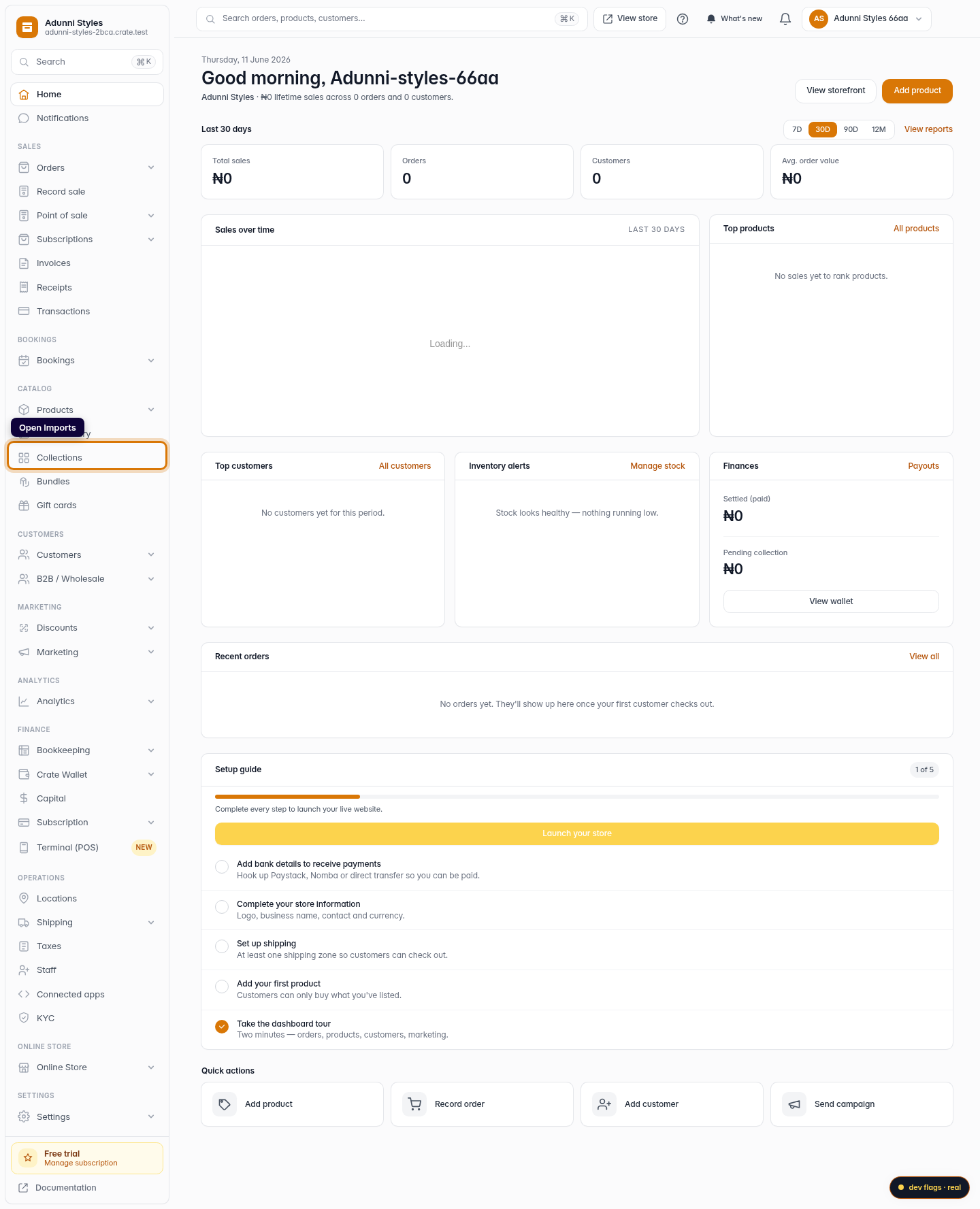
Open Imports
From your Crate dashboard, expand Products in the left sidebar and choose Imports. This is the home for bringing an existing catalogue into Crate.
Web 
Mobile -
2
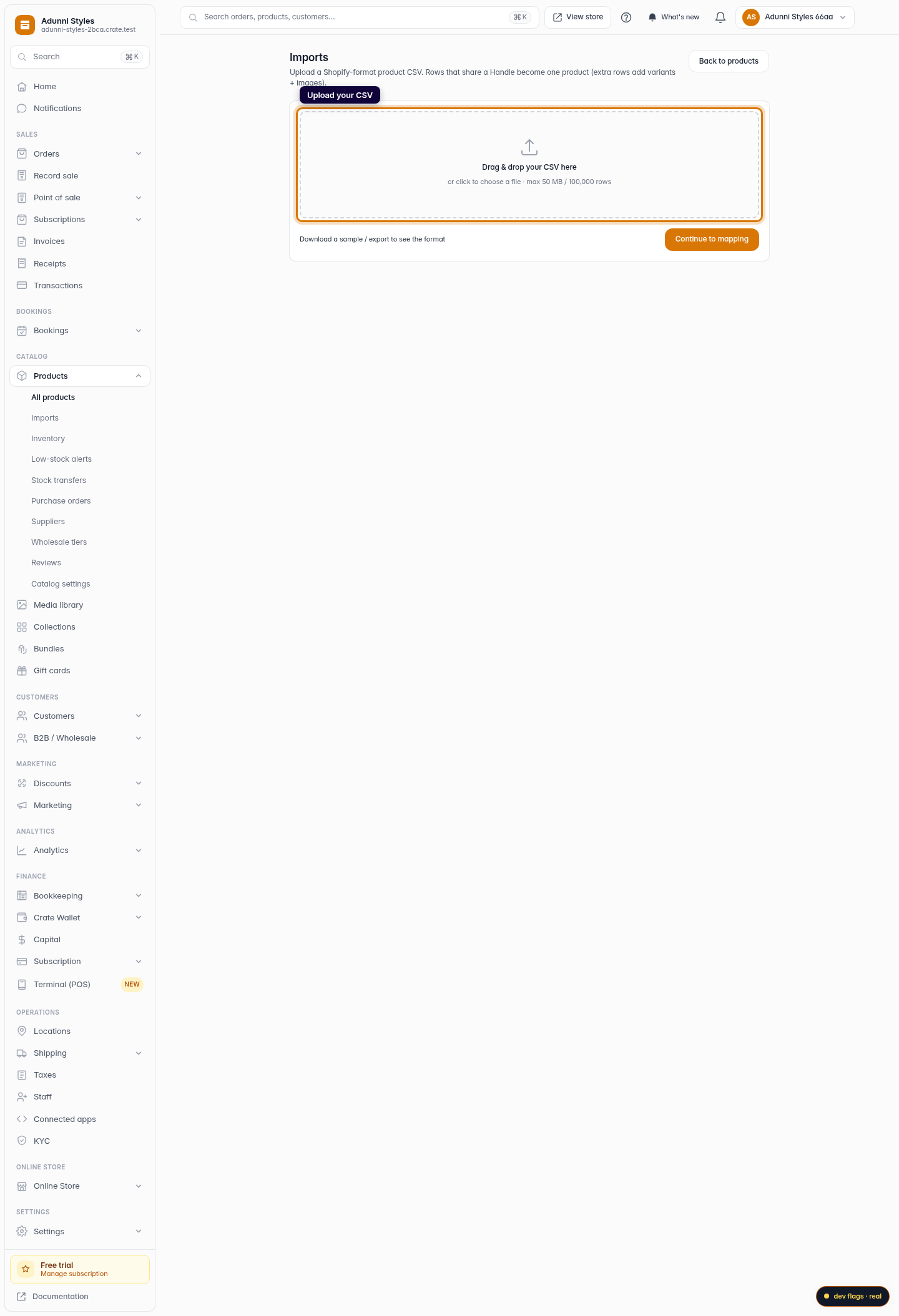
Upload your CSV
Drag your CSV onto the dropzone, or click to choose a file. Crate accepts a Shopify product export directly — rows that share a Handle become one product, with extra rows adding variants and images. Files up to 50 MB / 100,000 rows are supported.
Web -
3
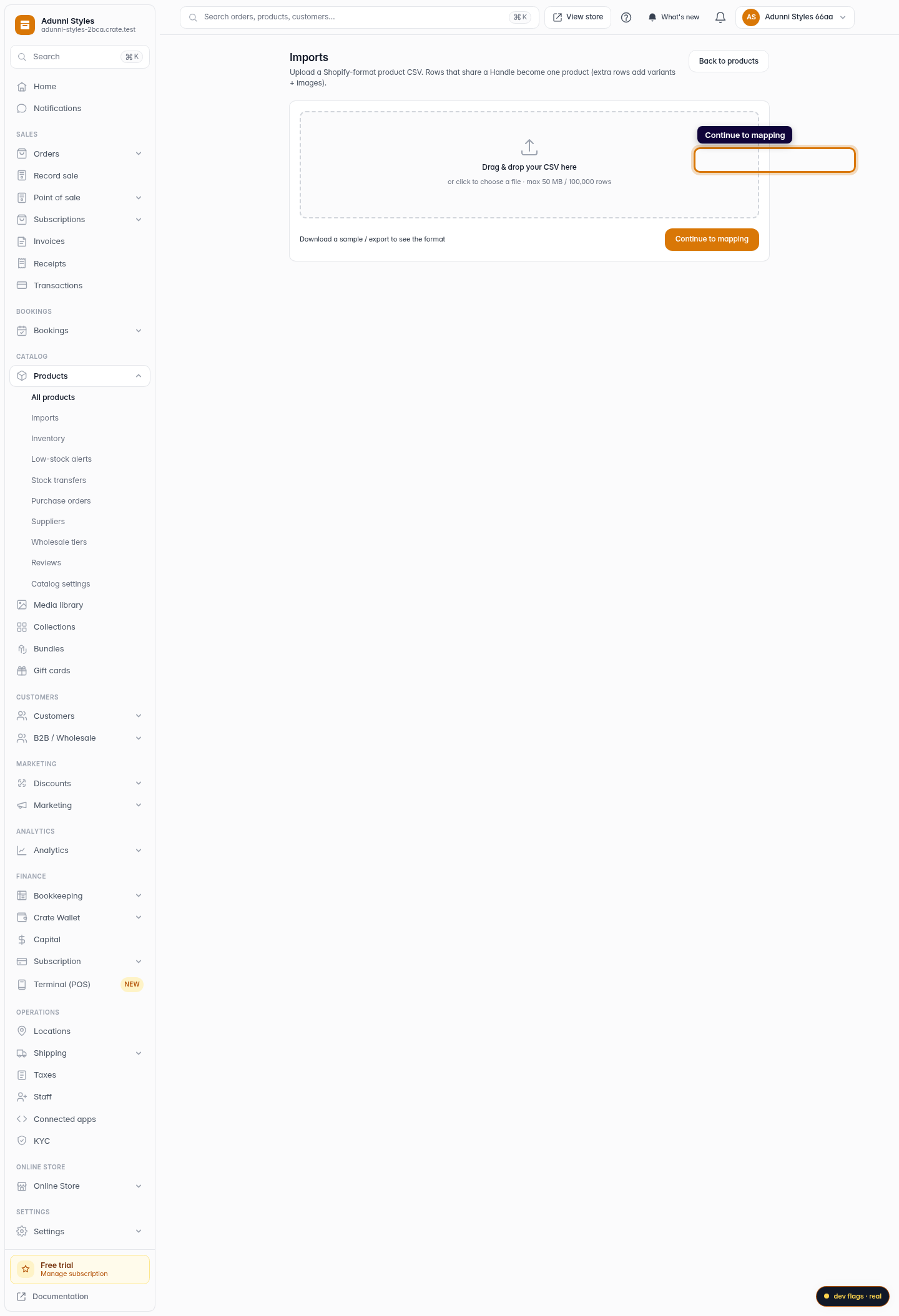
Continue to mapping
Click Continue to mapping. Crate streams the top of your file and shows a preview, so you confirm you uploaded the right one before anything is created.
Web -
4
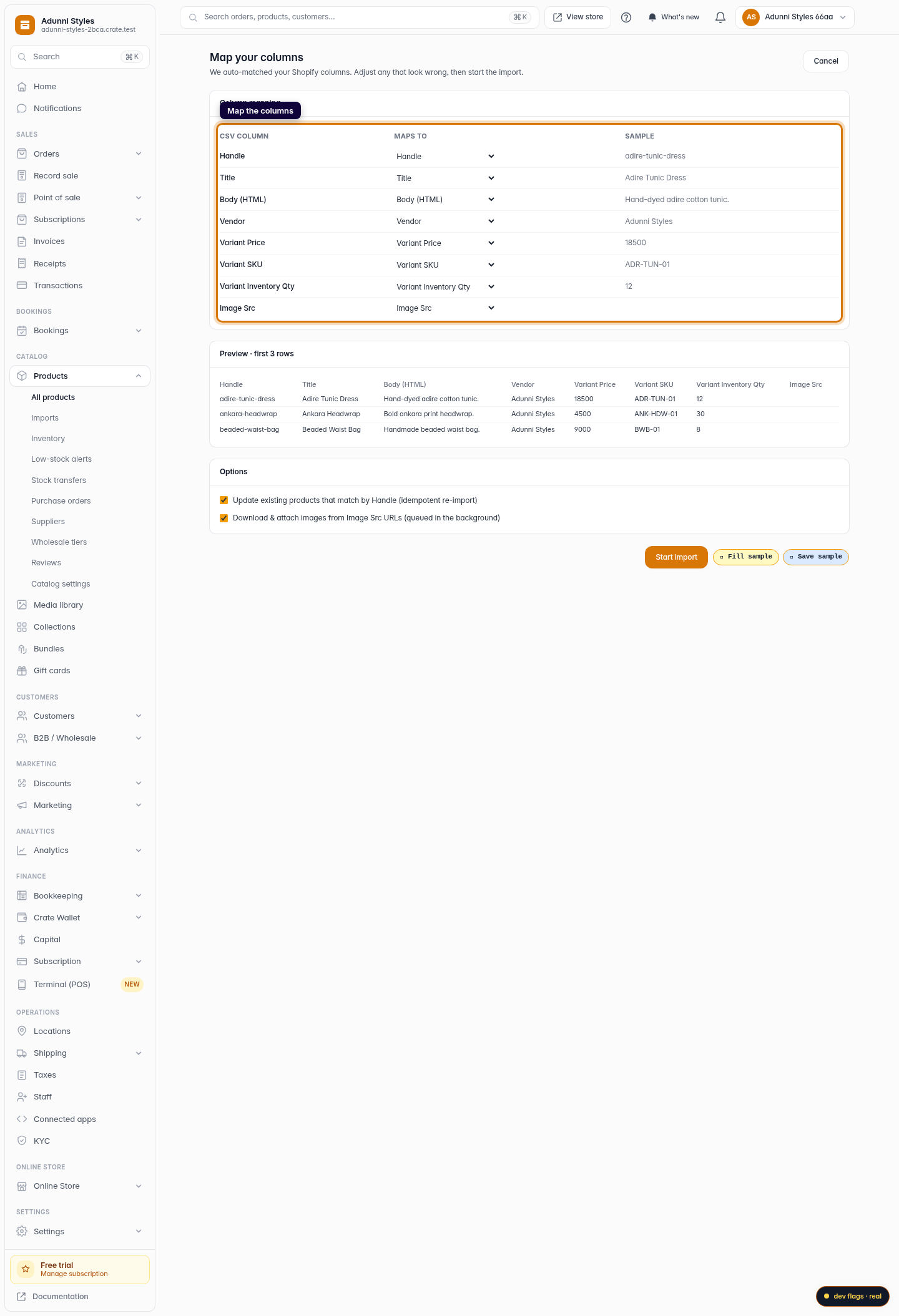
Map the columns
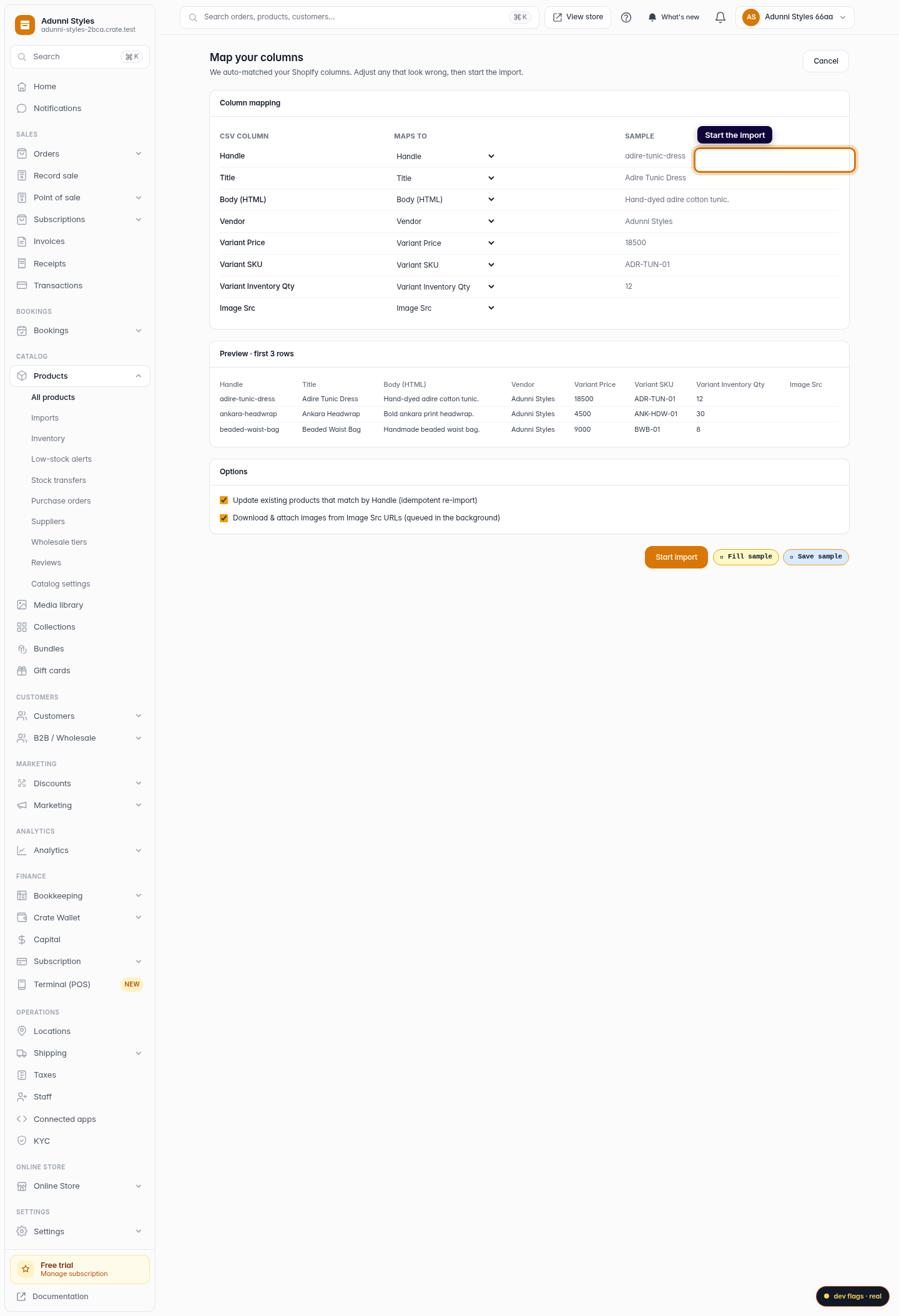
Crate auto-matches the common Shopify columns (Title, Price, Inventory, Image and so on) to Crate fields. Review the matches and remap anything that looks off. You can also choose to overwrite existing products and whether to attach images.
Web -
5
Start the import
Confirm the mapping to start the import. Crate processes your file in the background, so you can keep working. A live progress bar shows rows created, updated and skipped, with a downloadable error report for any rows that need attention.
Web