Delete a tax rate
Retiring a VAT or tax rate you no longer charge? Remove it in two clicks so it stops being applied at checkout. Existing orders and receipts keep their original totals.
Tax rules change — a rate is replaced, a category becomes exempt, or you simply set one up by mistake. When a tax rate no longer applies to your store, remove it so it stops being added to new orders.
Where tax rates live
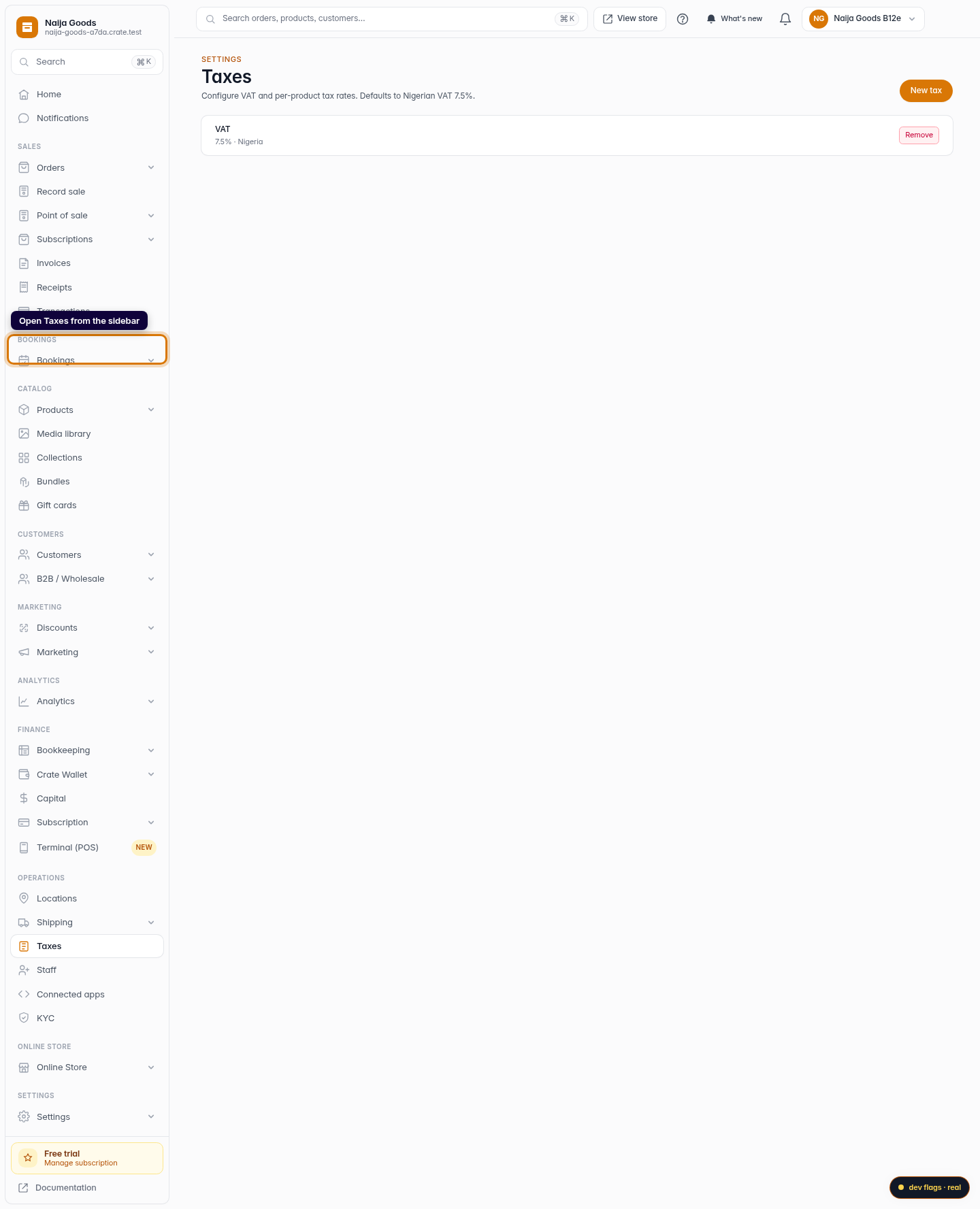
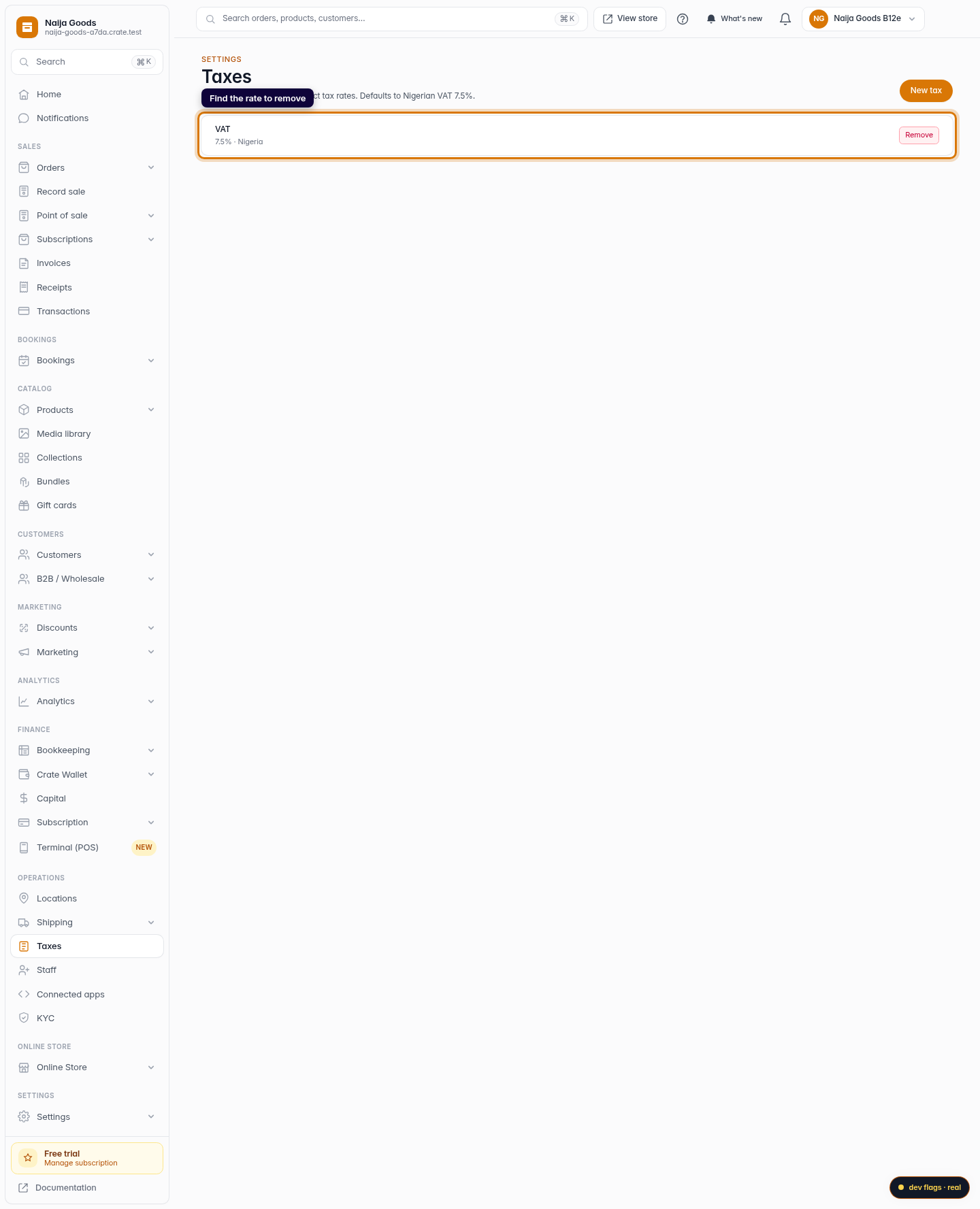
Your tax rates sit on the Taxes page in the sidebar. Each row shows the rate's name and its percentage (for example VAT — 7.5%). Removing one takes a single click plus a confirmation.
What happens to existing orders
Deleting a rate only affects checkouts from now on. Orders already placed keep the tax that was charged at the time, and their receipts and invoices stay accurate. You're never rewriting history — you're just stopping the rate from being applied going forward.
Tip: If you only need to change a rate's percentage, you don't have to delete and recreate it — but removing and re-adding is perfectly safe when a rate is genuinely retired.
After you delete
Your storefront immediately stops adding the removed rate to new carts. If you deleted it by accident, just add it again from the same Taxes page — it takes about a minute.
-
1
Open Taxes
From your Crate dashboard, open Taxes from the sidebar. This lists every tax rate you've set up.
Web 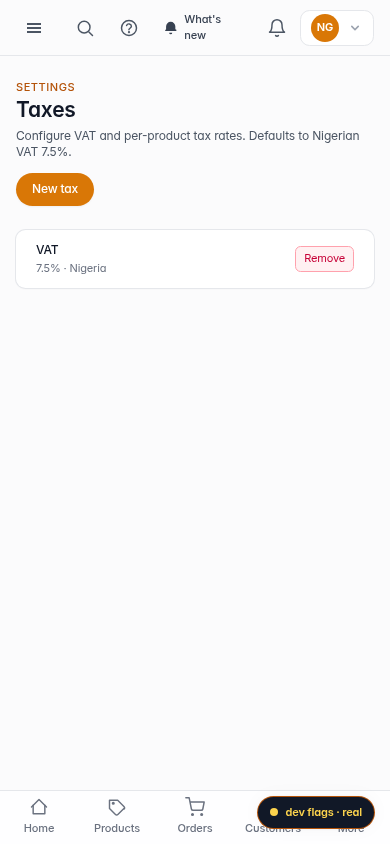
Mobile -
2
Find the rate to remove
Locate the tax rate you want to delete in the list — each row shows its name and percentage.
Web -
3
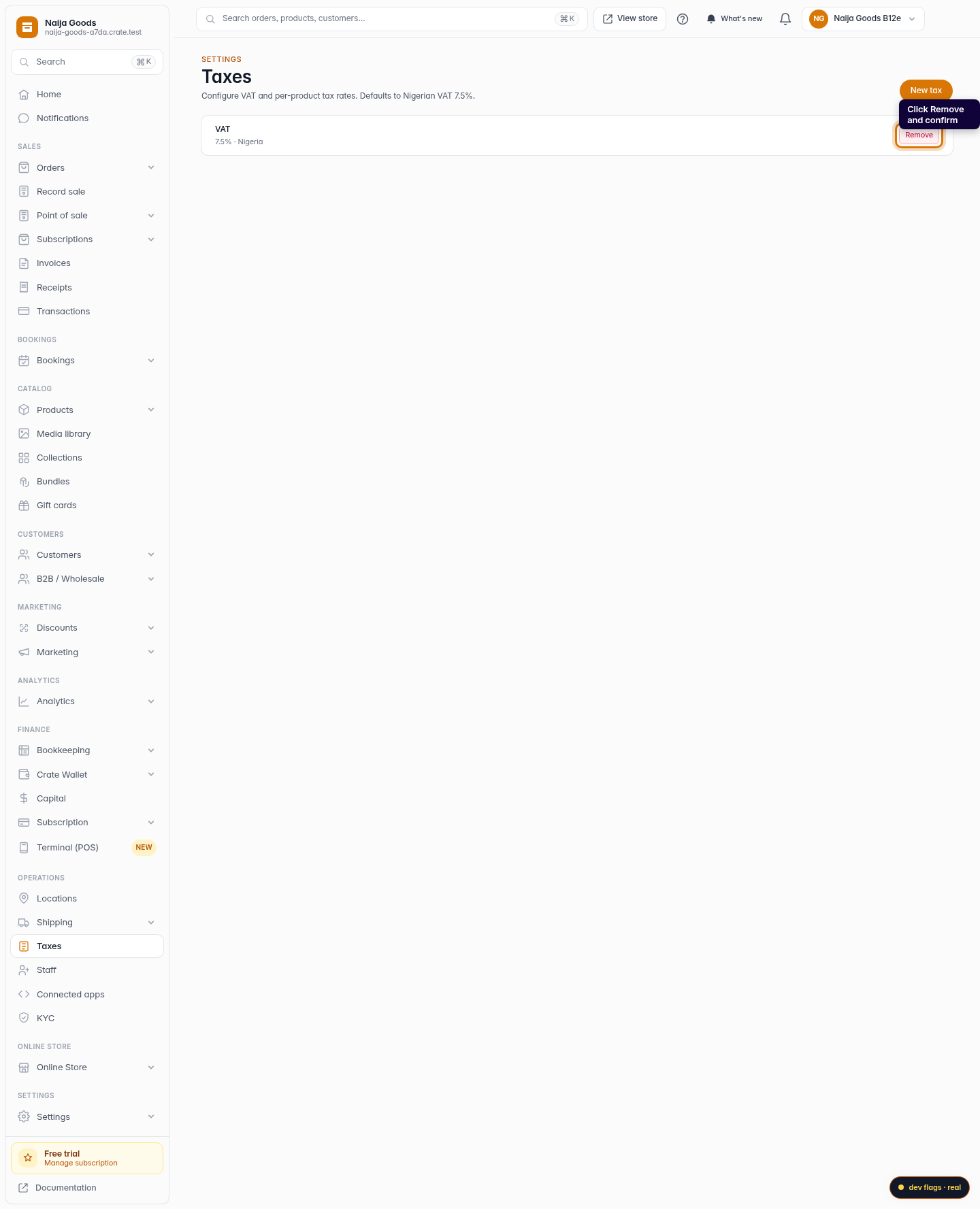
Remove it
Click Remove on that row and confirm. The rate is deleted and stops applying to new checkouts straight away.
Web