Delete a product variation
Dropped a size or sold out of a colour for good? Remove a single variation from a product without touching the rest. The product and its remaining variants stay live.
Catalogues change. A size stops selling, a colour is discontinued, or you added a variant you no longer want. Crate lets you remove a single variation from a product while leaving everything else exactly as it is.
Where deletion happens
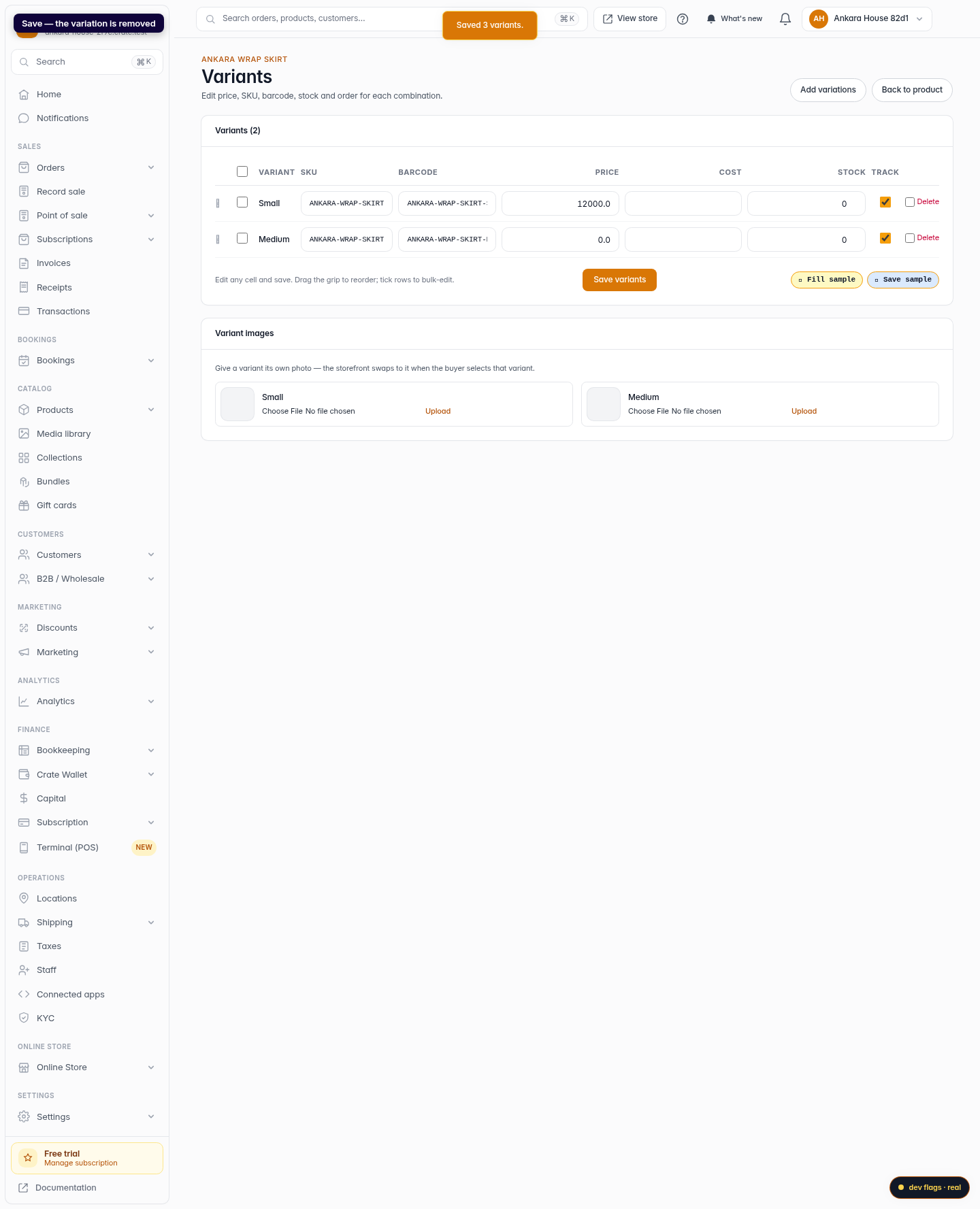
Variations are managed on a product's Variants page as an editable table — one row per combination, with its own price, SKU, barcode and stock. Deleting works the same way as every other change there: you mark the row and save. That means you can delete a variation in the same pass as editing prices or stock — one Save variants applies it all.
Staged, not instant
Ticking Delete doesn't remove the variation on the spot — it stages it. Nothing changes until you click Save variants, so you're free to tick, untick and review before committing.
Tip: Want to keep a variation but stop selling it for now? Instead of deleting, set its stock to 0 — it stays on the product but shows as out of stock to buyers.
What's left behind
Removing a variation never touches the rest of the product. Its other variants, photos, description and price all stay live on your storefront. If you delete every variation, the product simply falls back to its single default version.
-
1
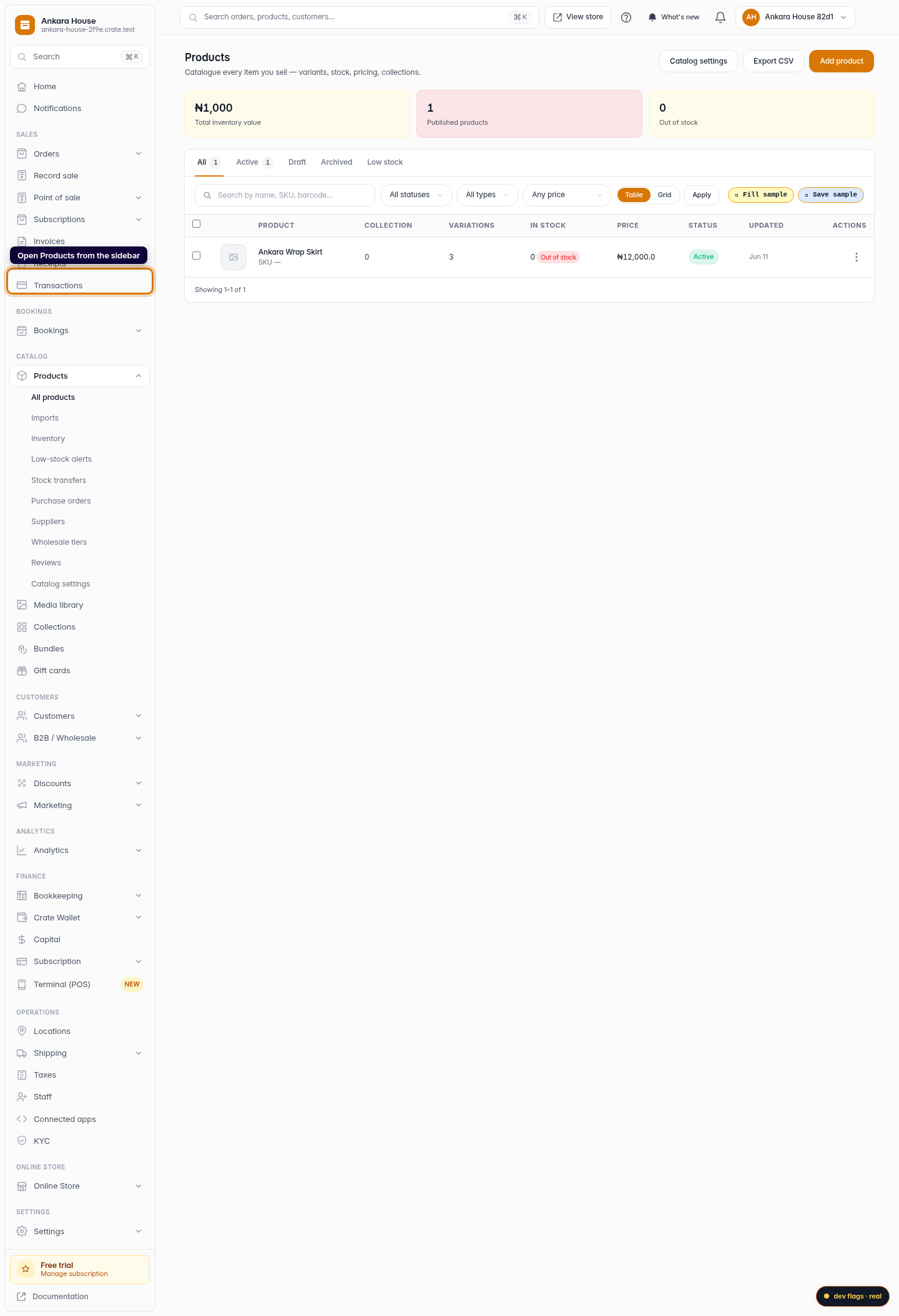
Open Products
From your Crate dashboard, open Products in the left sidebar.
Web 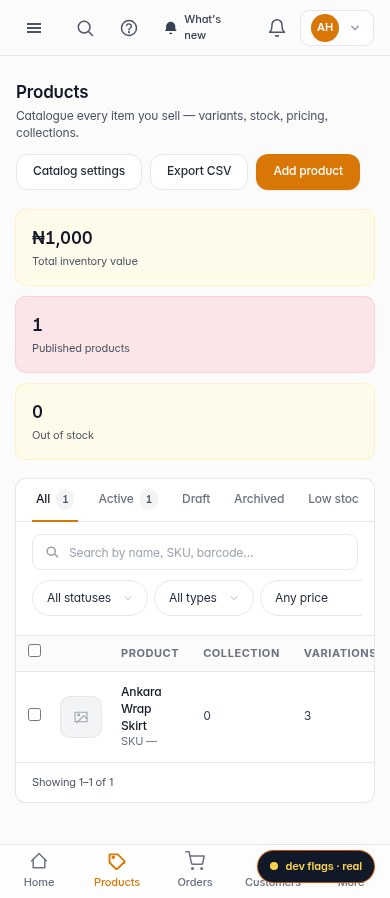
Mobile -
2
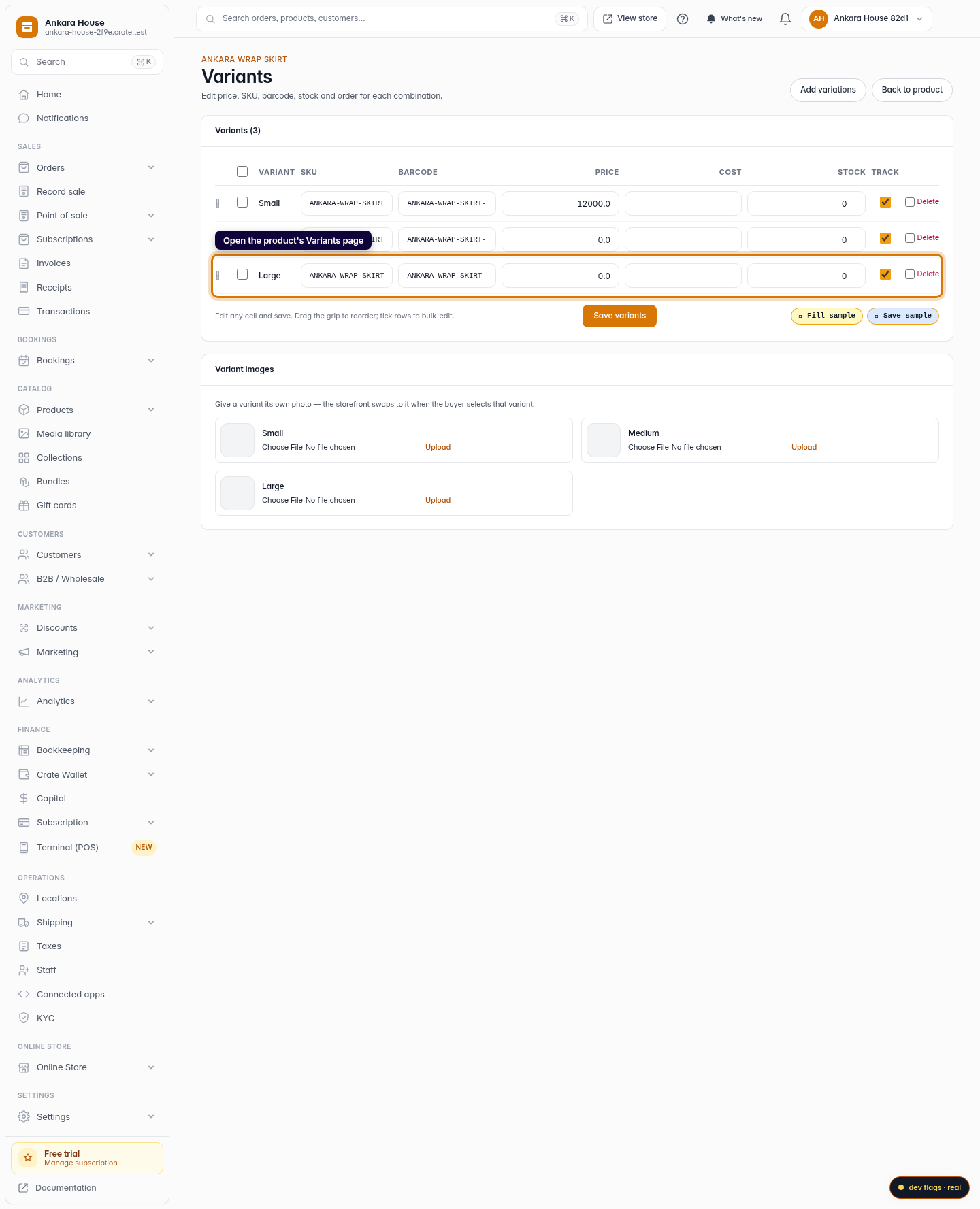
Open the product's variants
Open the product you want to change, then go to its Variants page. This lists every size/colour combination, each with its own row.
Web -
3
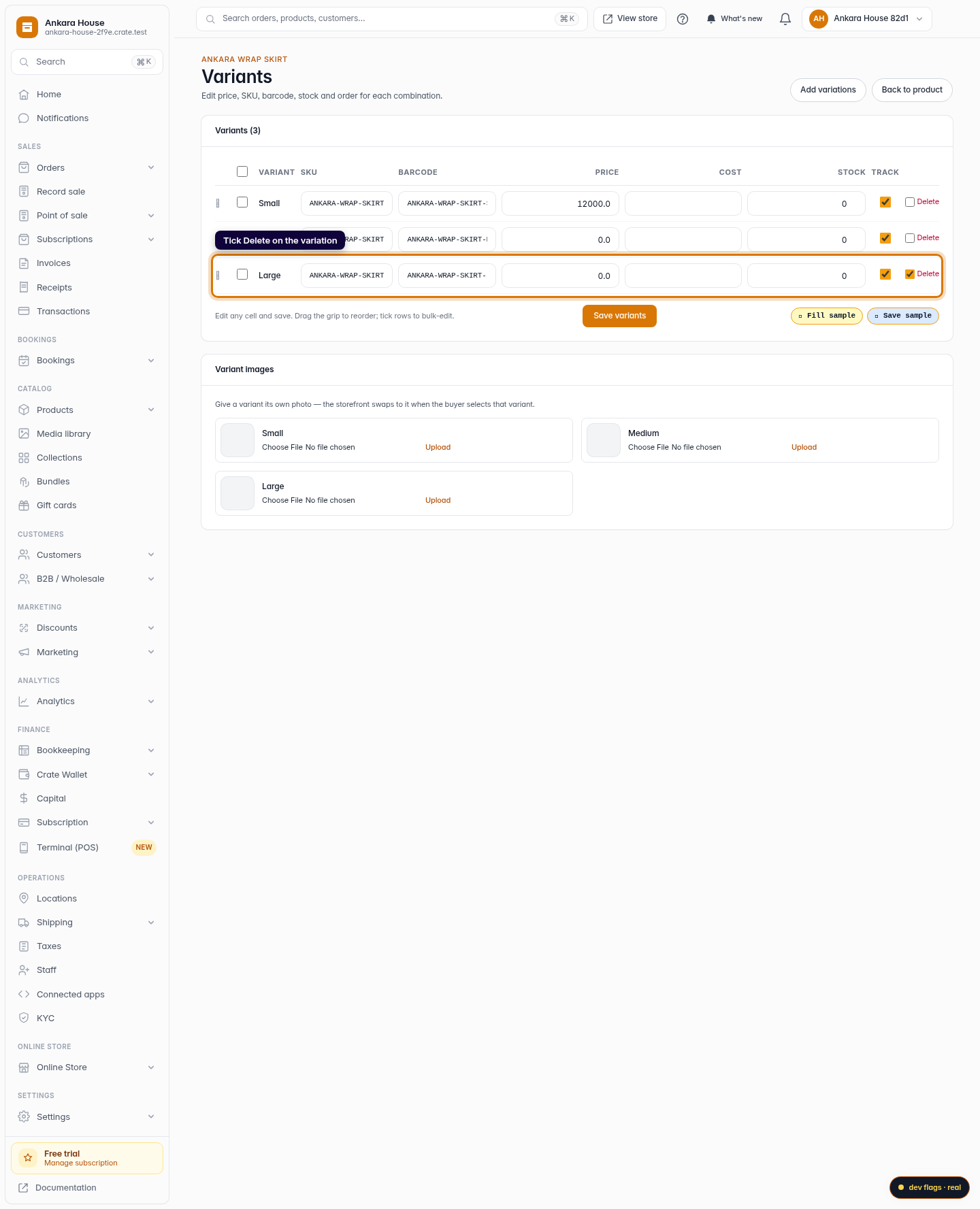
Mark the variation for deletion
Find the variation's row and tick its Delete checkbox at the far right. Crate stages it for removal — the row isn't gone yet, so you can change your mind before saving.
Web -
4
Save your changes
Click Save variants. The ticked variation is removed and the product keeps every variant you left untouched.
Web