How to change a tax rate
Tax rates in Crate are deliberately simple — to change one, remove the old rate and add a corrected one. This keeps every order's tax history accurate and auditable.
Crate keeps tax intentionally lightweight: a short list of named rates (for most Nigerian stores, just VAT at 7.5%) that checkout applies automatically. There's no separate "edit" screen for a rate — and that's by design.
Why you replace rather than edit
A tax rate isn't only a setting; it's stamped onto every order it touched. If we let you silently change a rate's percentage, the tax recorded on past orders and receipts would no longer match what the customer actually paid. So instead of editing a rate in place, Crate has you remove the outdated rate and add a corrected one. Past orders keep the rate they were charged, and new orders use the new one — your records stay clean and auditable.
To change a rate
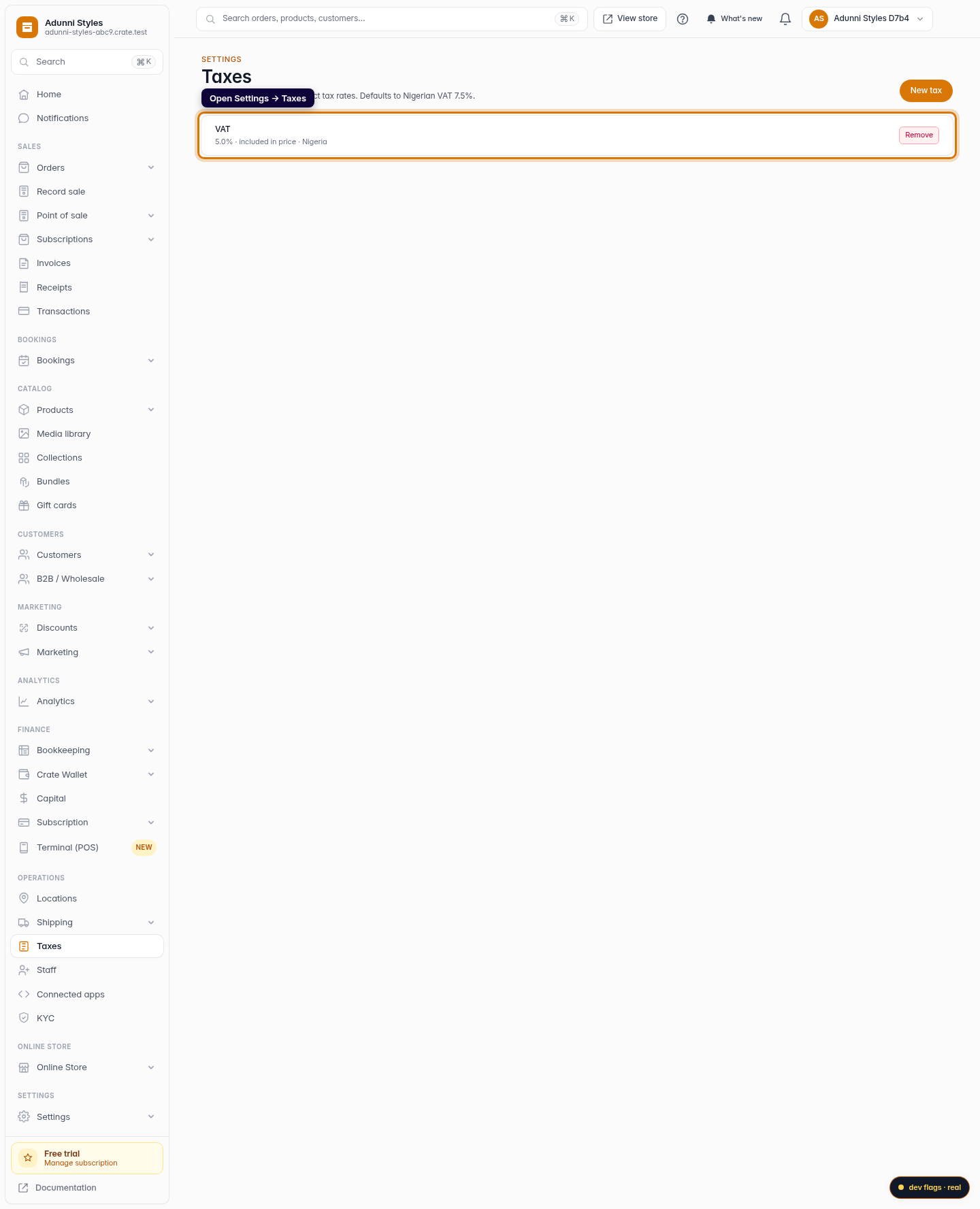
- Open Settings → Taxes.
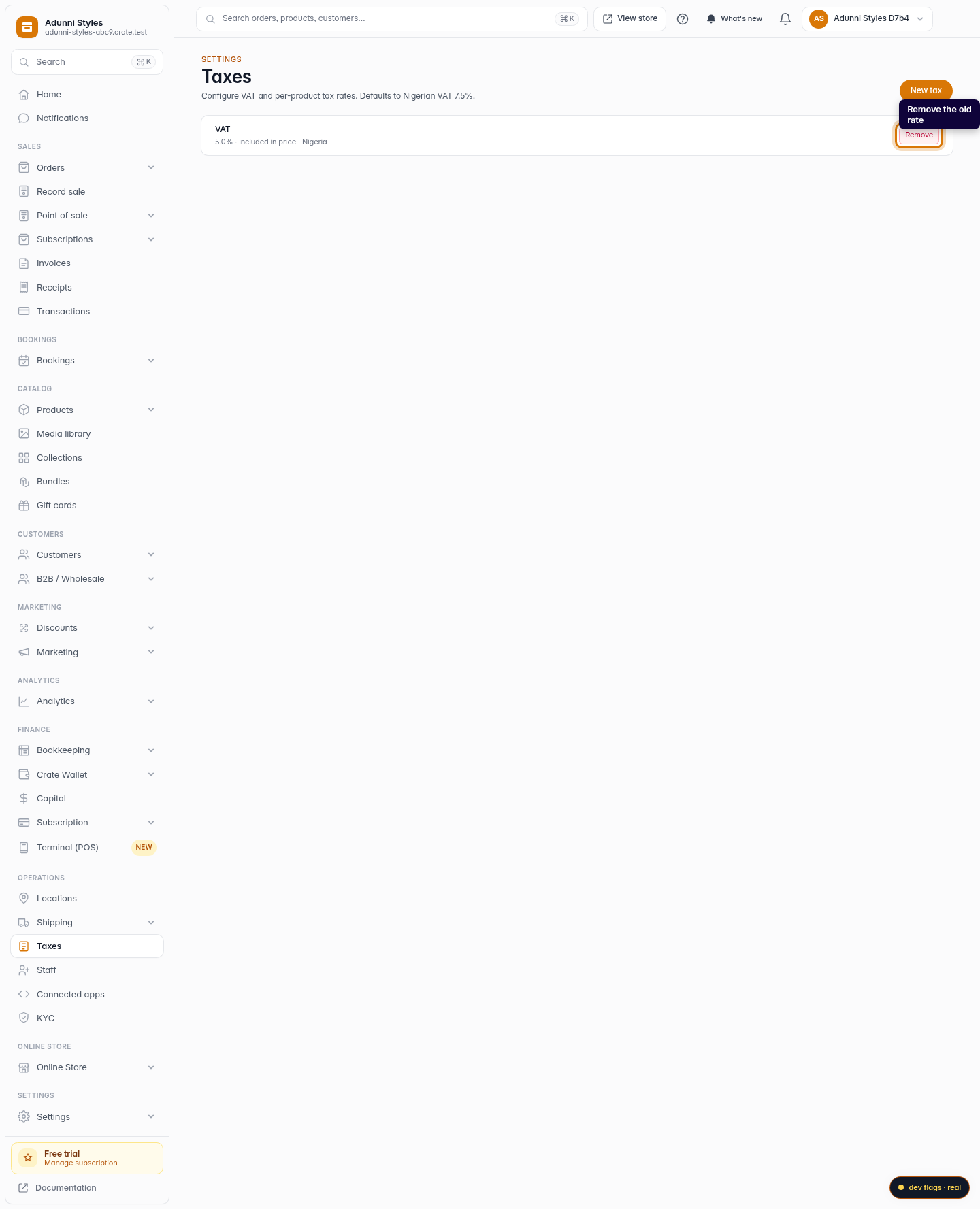
- Remove the rate that's no longer correct.
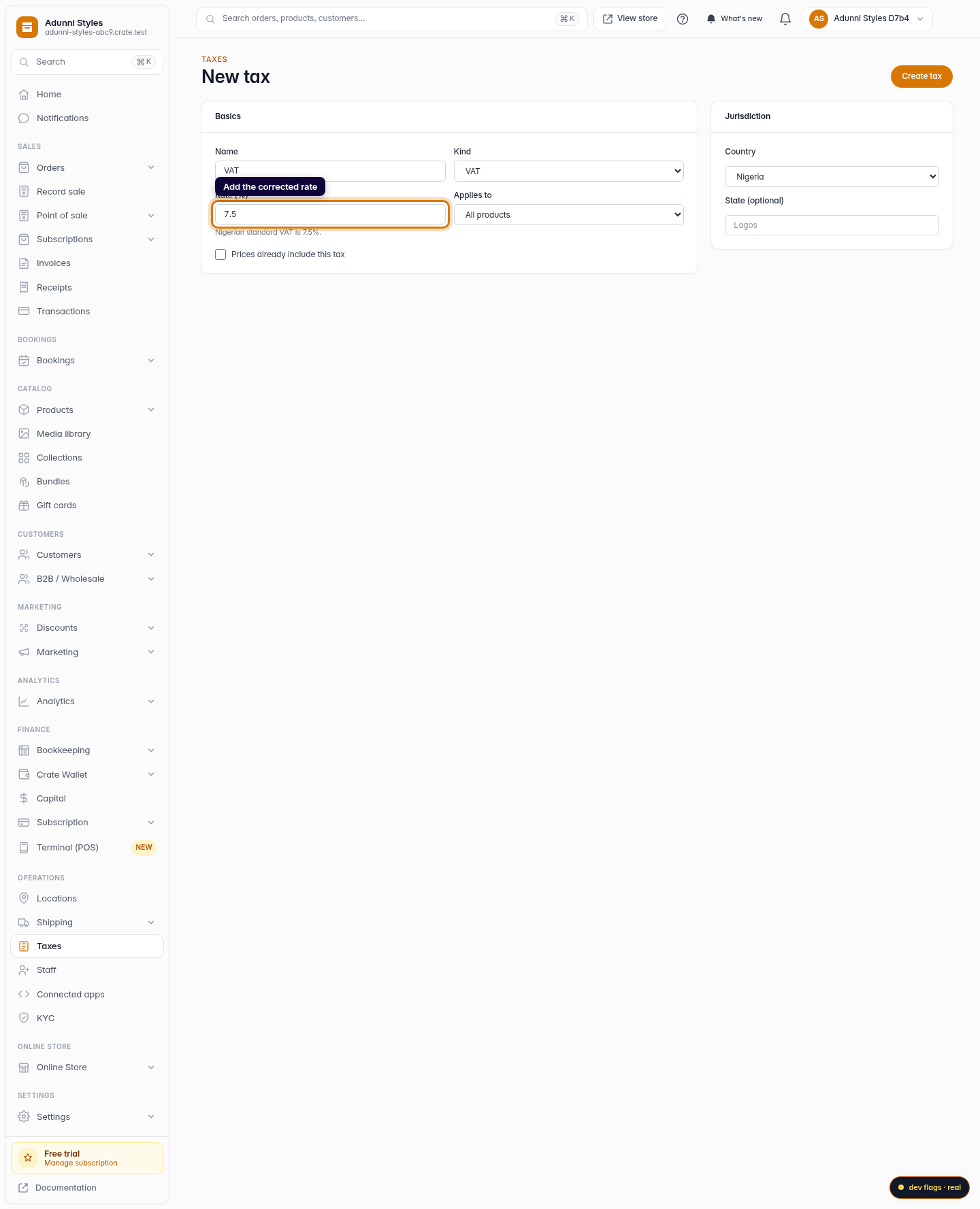
- Click New tax and add the corrected name and percentage.
That's it. The corrected rate takes effect immediately for new checkouts.
Tip: If you're only renaming a rate (not changing the percentage), the same approach applies — remove and re-add with the new name. It takes about a minute.
-
1
Open Taxes
From the dashboard sidebar, open Settings → Taxes. You'll see every tax rate configured for your store.
Web -
2
Find the rate to change
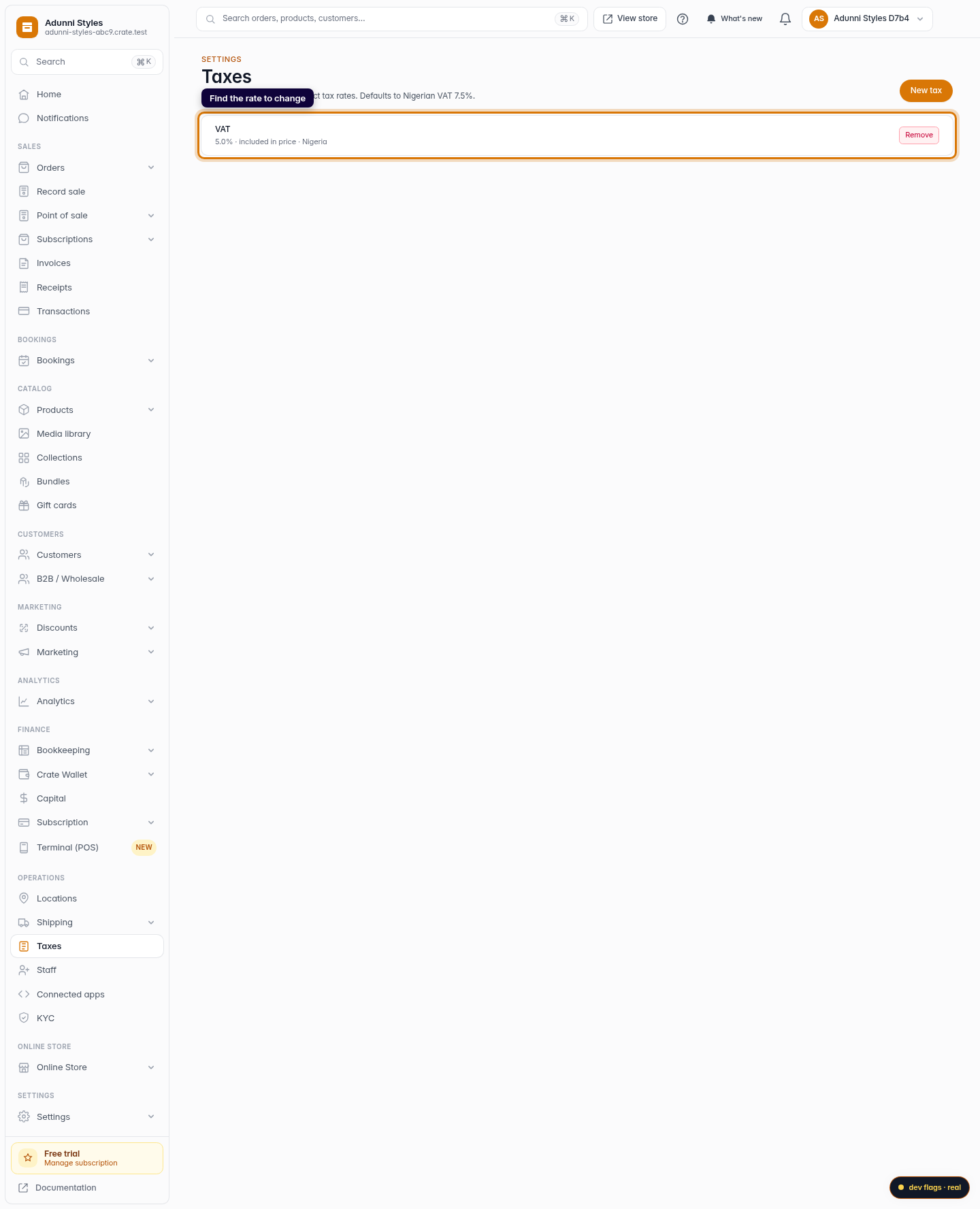
Locate the tax rate you want to correct in the list — each row shows its name and percentage.
Web -
3
Remove the old rate
Click Remove on that rate and confirm. Crate retires the rate but keeps it on past orders, so historical receipts stay correct.
Web -
4
Add the corrected rate
Click New tax, enter the corrected name and percentage, and save. The new rate applies to every order placed from now on.
Web