Deleting an order
Permanently remove an unpaid order — a test entry, a duplicate, or one created in error. Deleting wipes the order for good, so Crate only allows it for orders that never took payment.
Deleting an order removes it from your records completely — there's no undo. Use it to clear out a test order, a duplicate, or something created by mistake. Because it's permanent, Crate only lets you delete an order that has never taken payment.
Delete is not cancel
It's worth being clear on the difference:
- Cancel keeps the order on file and pulls it out of your sales. You can always look back at why it was cancelled. See Cancelling an order.
- Delete erases the order entirely. Nothing is left to look back on.
If money has already changed hands, you can't delete — Crate will point you to cancel instead, so your books always reflect the payment that happened.
The safety check
Before an order is deleted Crate asks you to:
- Pick a reason (optional, but useful if you work with a team).
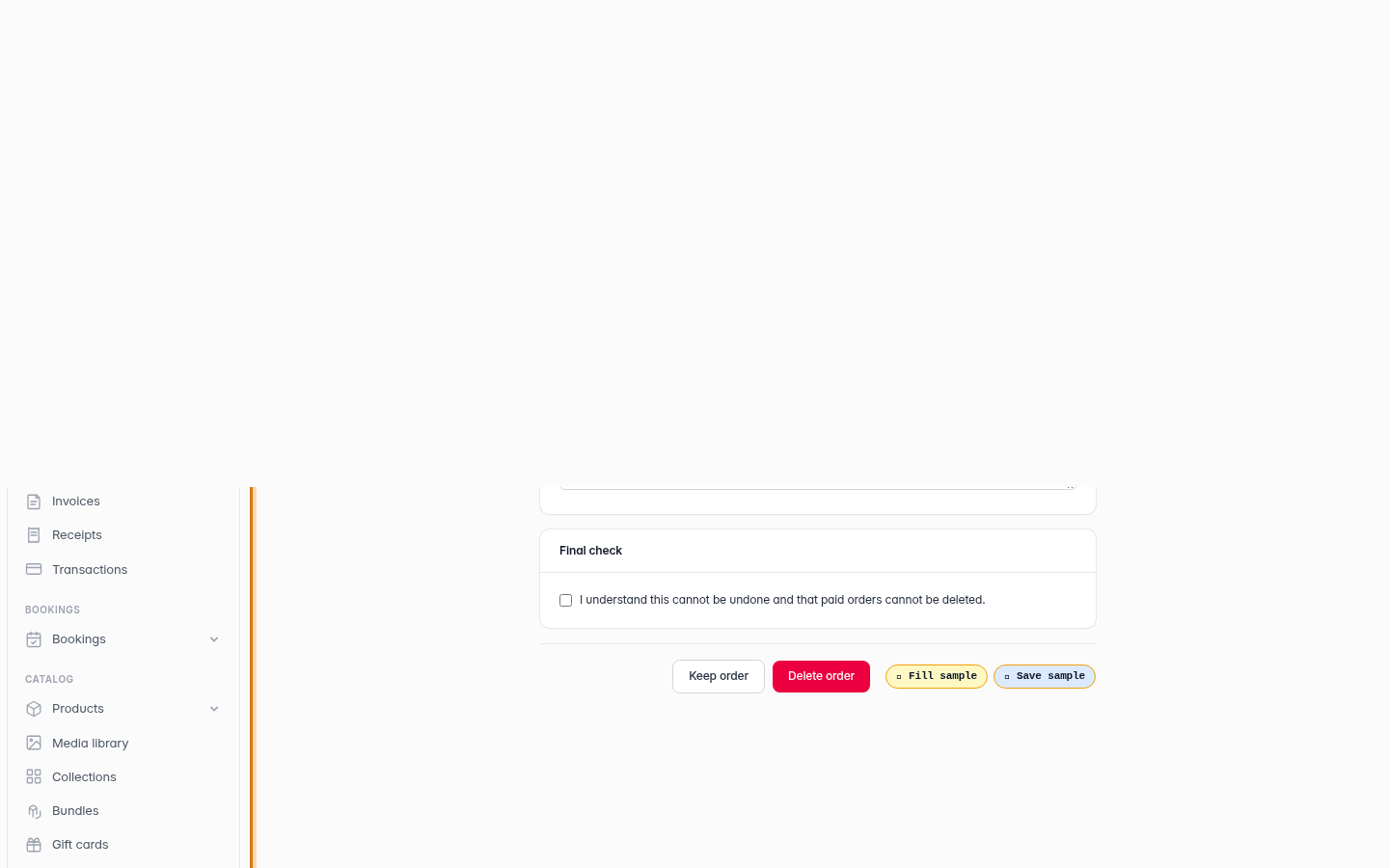
- Tick a box confirming you understand the delete can't be undone and that paid orders are protected.
Only then does the Delete order button activate. If the order is paid, the button stays disabled — that's by design.
Tip: Cleaning up after testing? Delete the test orders, but cancel anything a real customer placed, even if it fell through — that way your history stays honest.
-
1
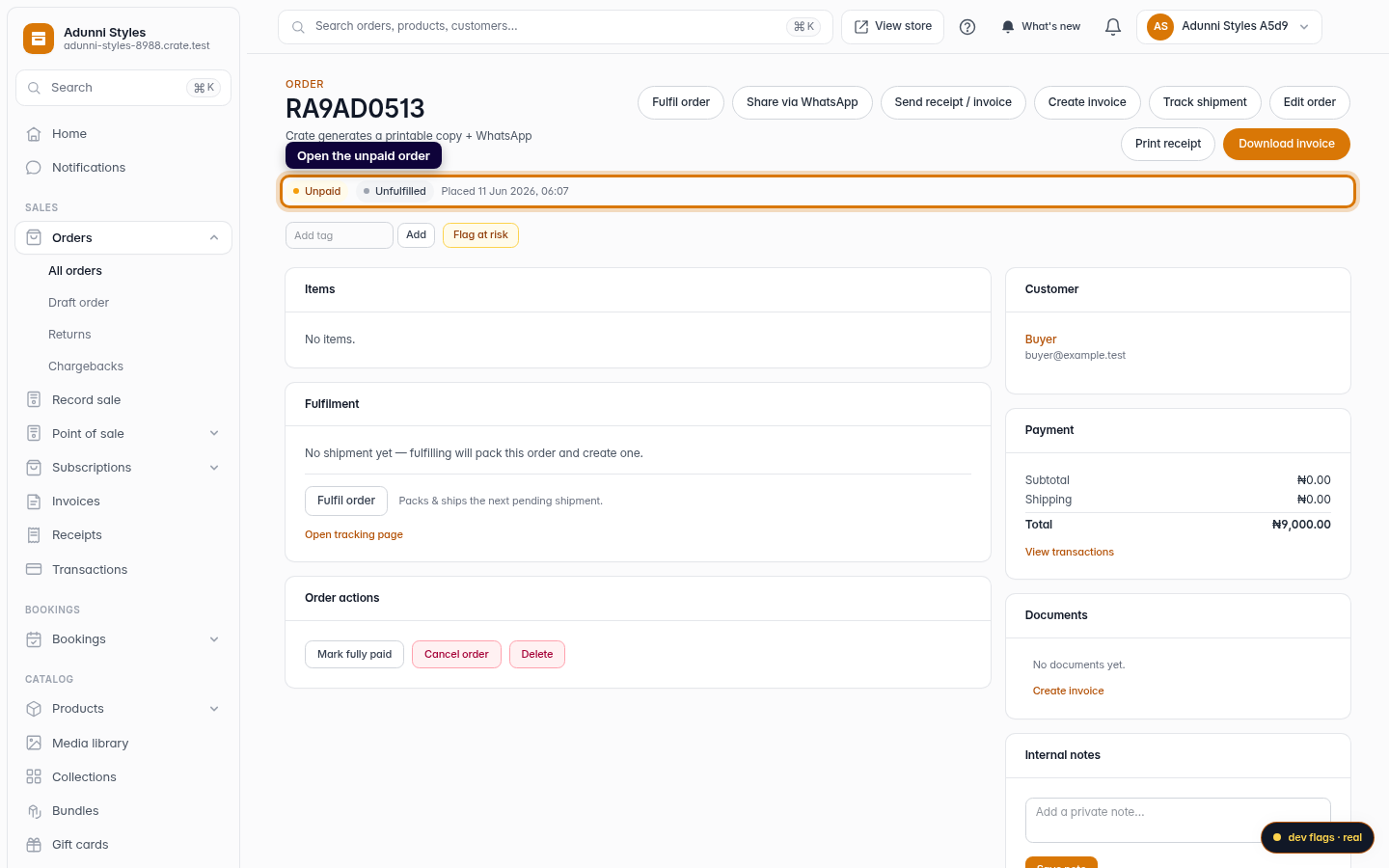
Open the unpaid order
From Orders, open the order you want to delete. Deleting is only available for unpaid orders.
Web -
2
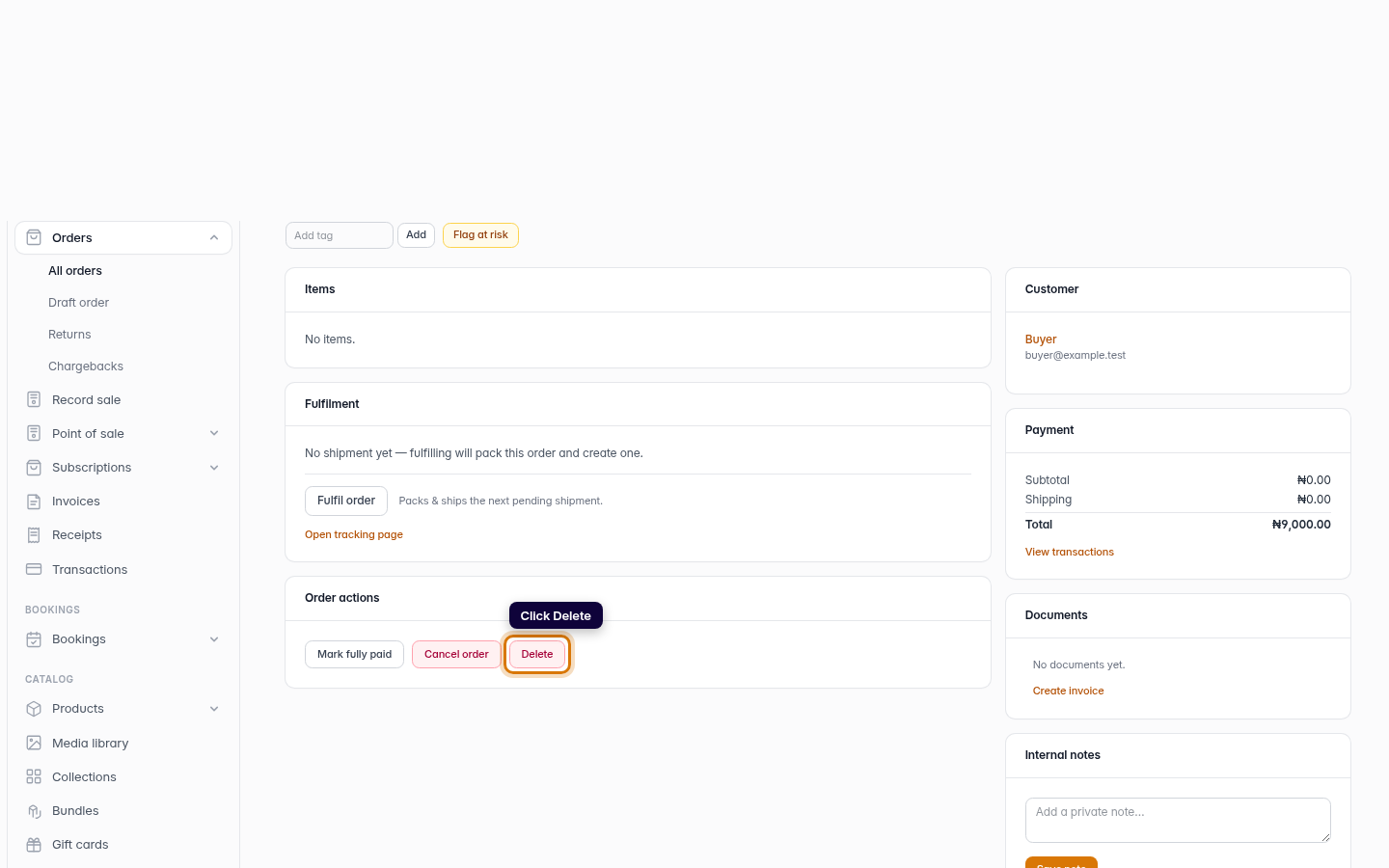
Click Delete
In the Order actions card, click Delete. This is permanent — different from cancel, which keeps the record.
Web -
3
Read the warning
Crate explains that deleting wipes the order with no undo, and that paid orders can't be deleted. Pick a reason if you'd like one on record.
Web -
4
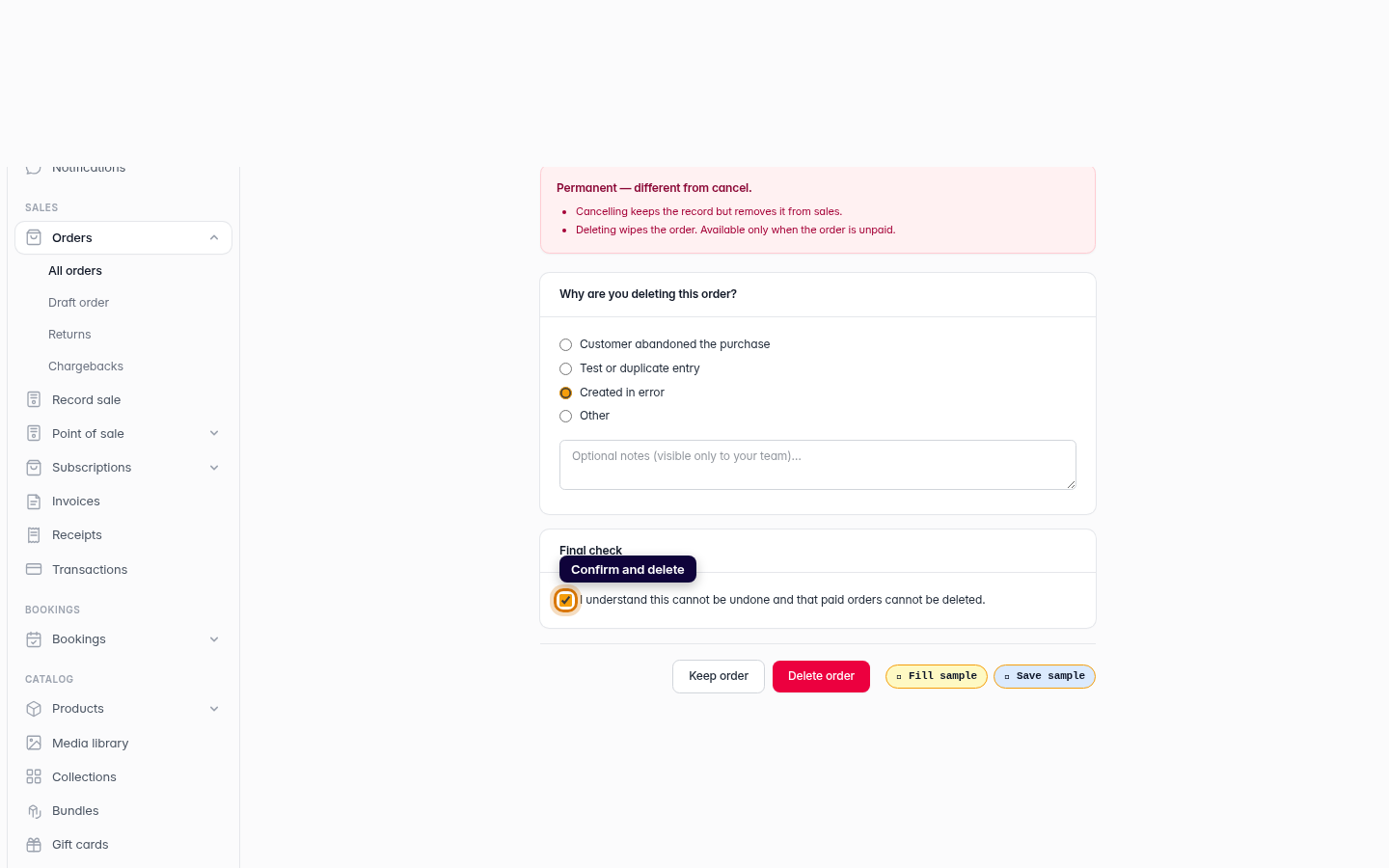
Confirm and delete
Tick the acknowledgement, then click Delete order.
Web -
5
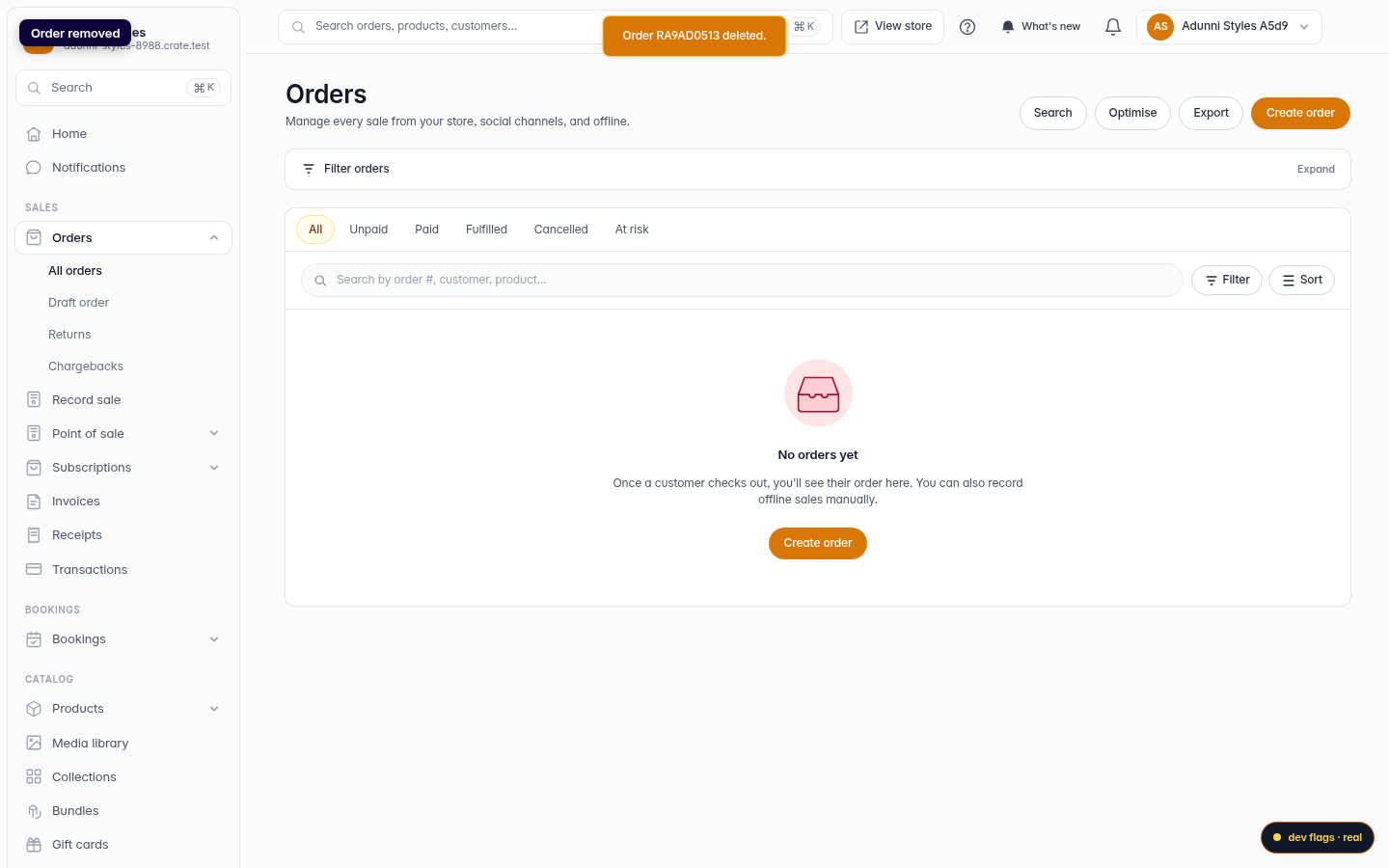
Order removed
Crate confirms the order is deleted and returns you to your Orders list.
Web