Review orders that need attention
When an order looks risky — a payment that didn't add up, a buyer worth a second look — Crate flags it "At risk" so you can verify before you fulfil. Here's how to find, review and clear flagged orders.
Most orders are exactly what they look like. A few aren't — a payment that verifies for the wrong amount, a buyer placing an unusually large first order, a delivery address that doesn't match the card. Crate marks those At risk so you get a chance to check before you spend money packing and shipping.
A flagged order isn't blocked — it's paused for a human. You stay in control: verify the buyer, then either clear the flag and carry on, or hold the order and reach out. Either way, you never have to find out about a bad order after the parcel has gone.
Where flagged orders live
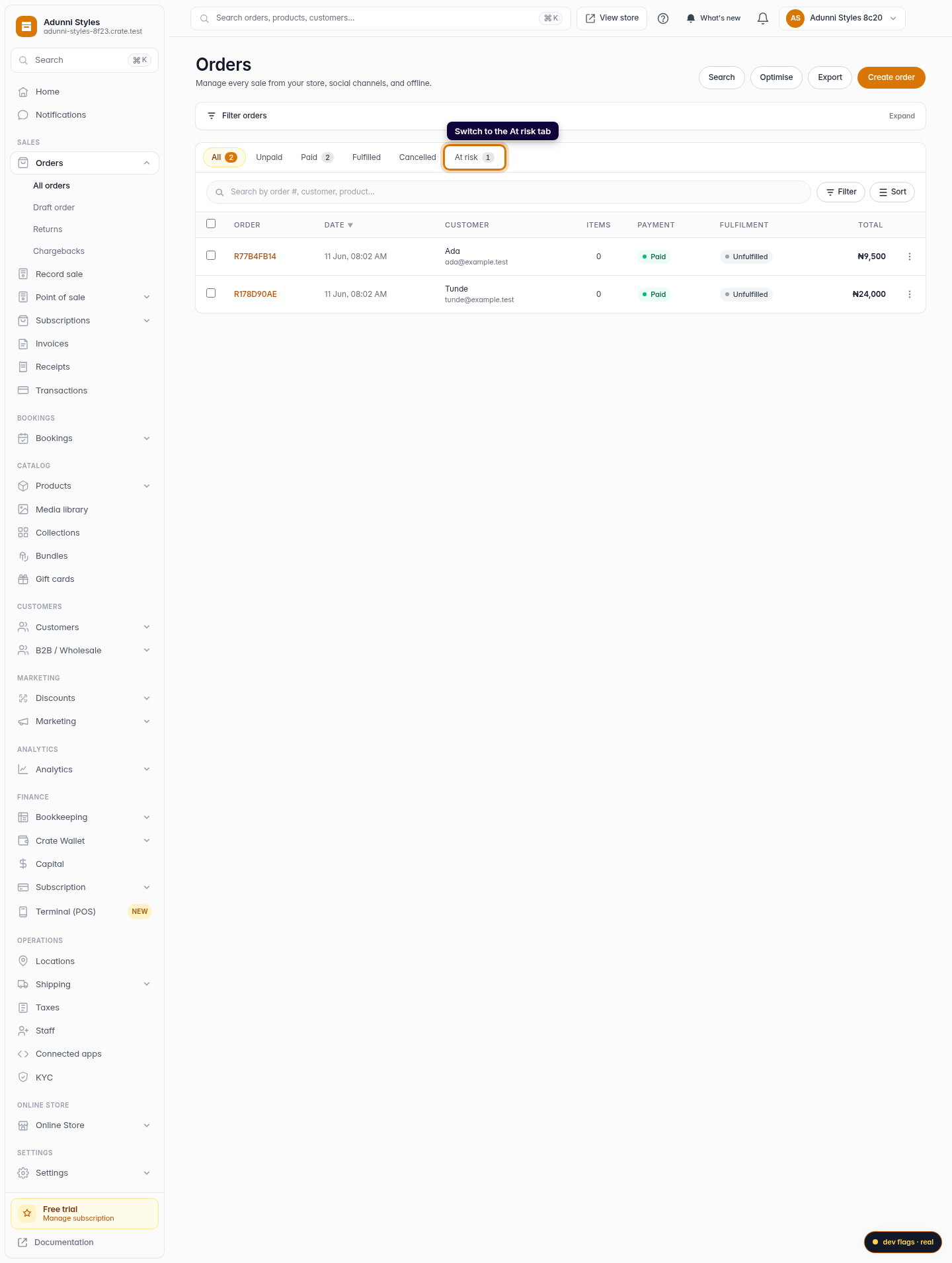
The At risk tab on your Orders page is the single place to triage them. Every flagged order — whether Crate raised the flag automatically on a payment mismatch, or you raised it by hand — shows up there. Working that tab to empty is a quick daily habit that keeps fraud and mistakes from reaching dispatch.
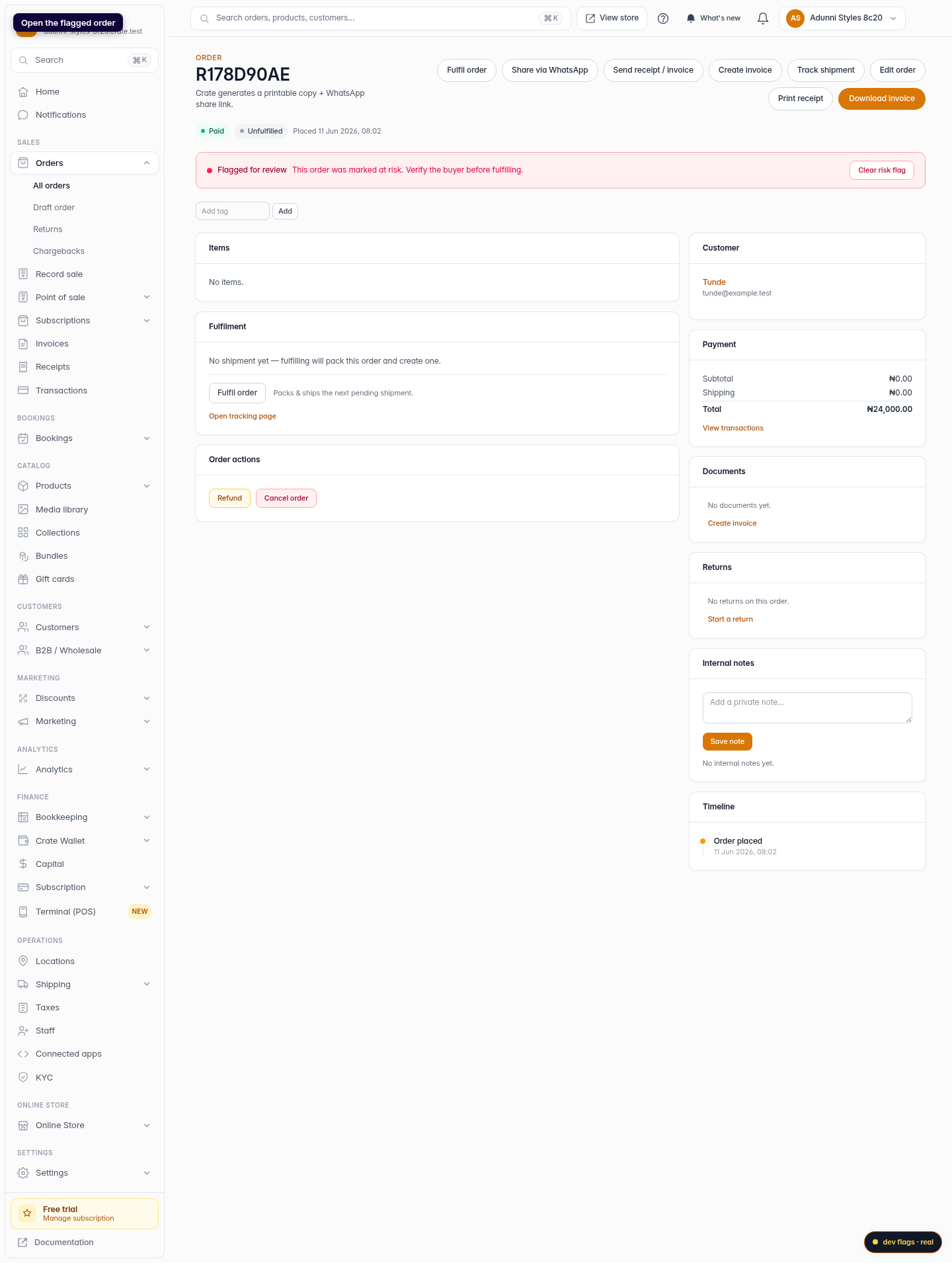
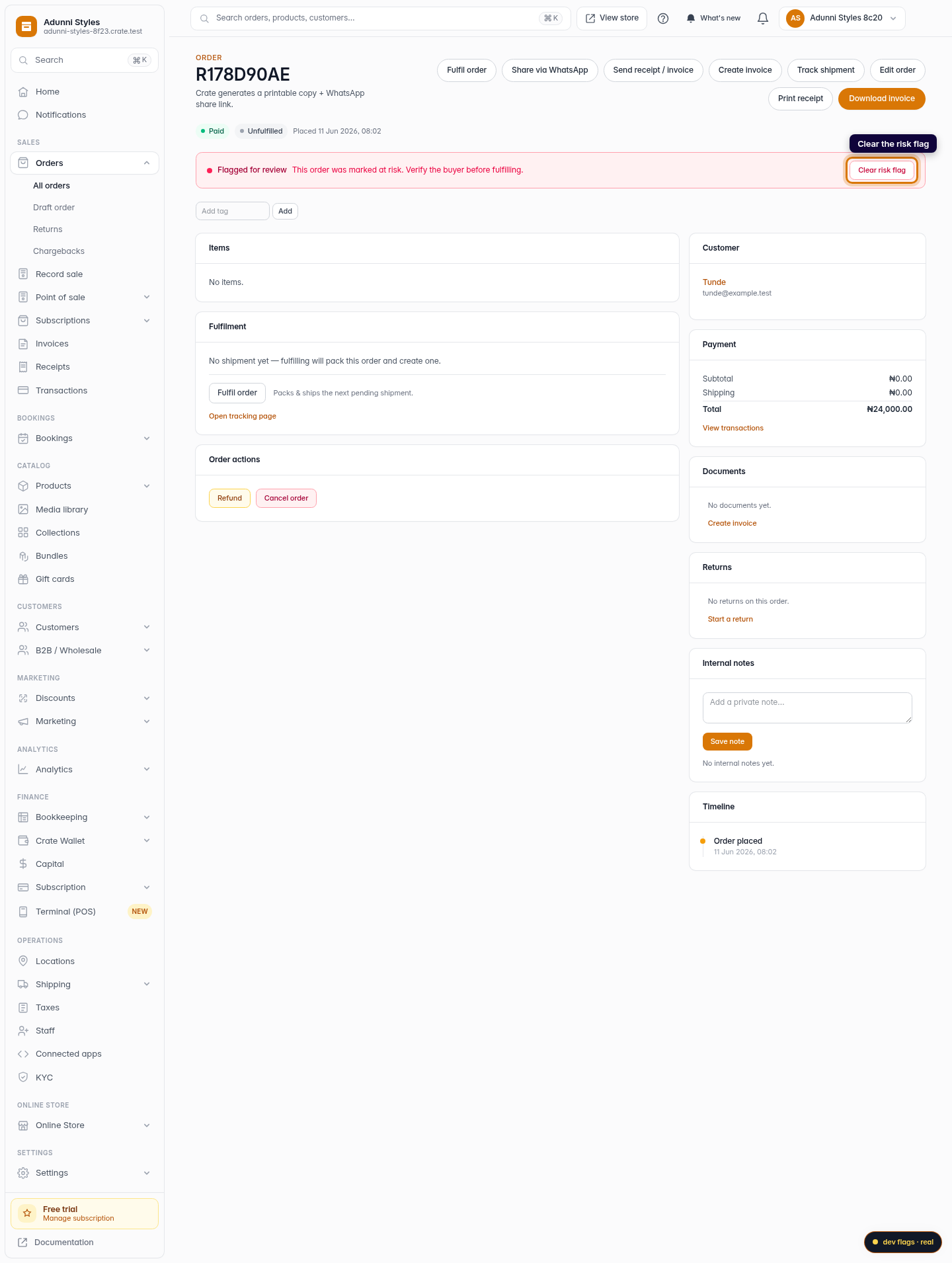
When you open a flagged order, a red Flagged for review banner makes the status impossible to miss, with a one-click Clear risk flag action right beside it.
Clearing vs. holding
- Clear the flag once you've confirmed the payment landed correctly and the buyer checks out. The order rejoins your normal queue.
- Hold it if anything looks wrong. Contact the customer, ask for confirmation, and only fulfil once you're satisfied — or cancel and refund if it's bad.
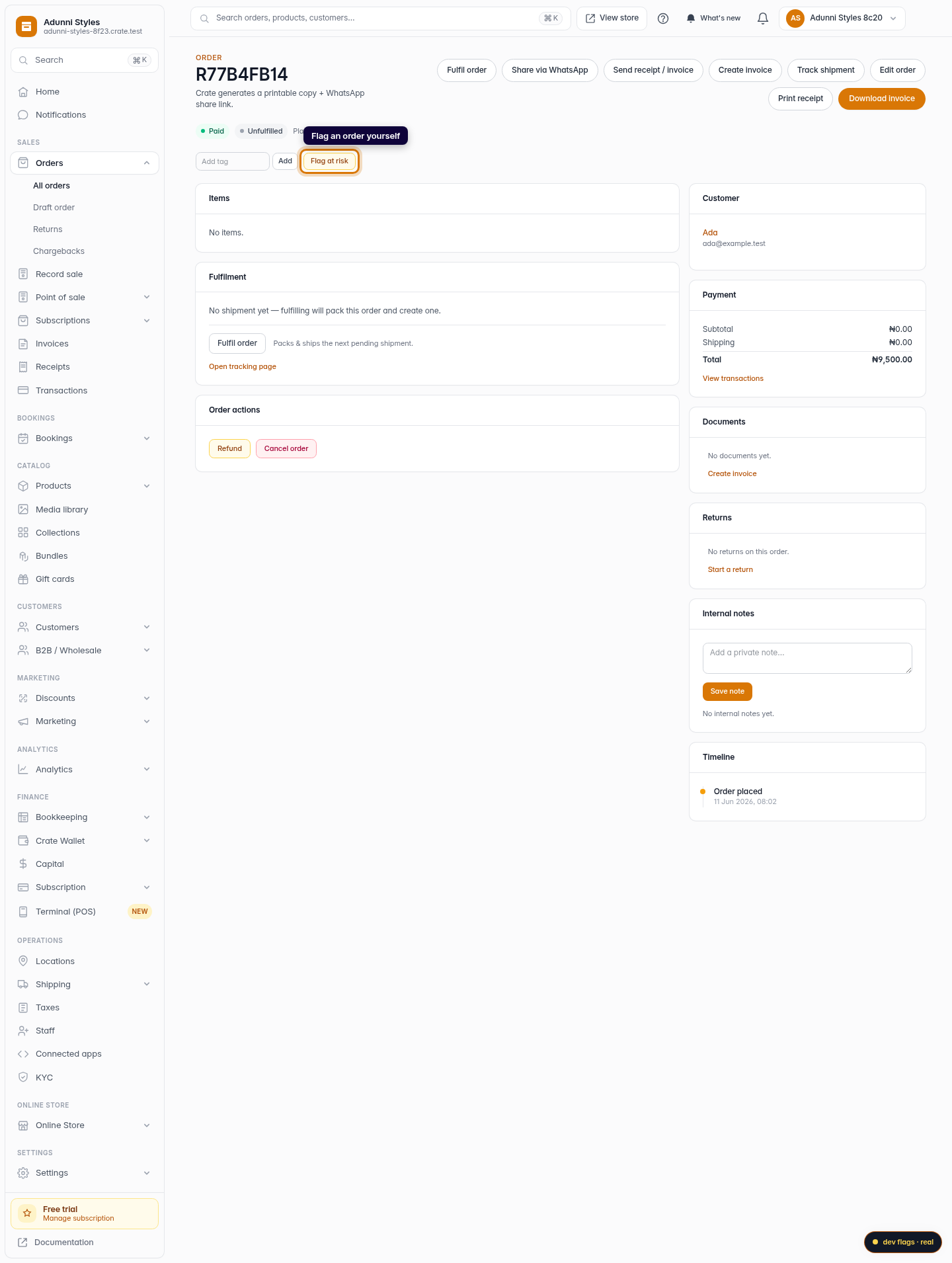
Tip: You don't have to wait for Crate to flag something. Spotted a buyer you're unsure about? Open the order and click Flag at risk to park it for review yourself.
-
1
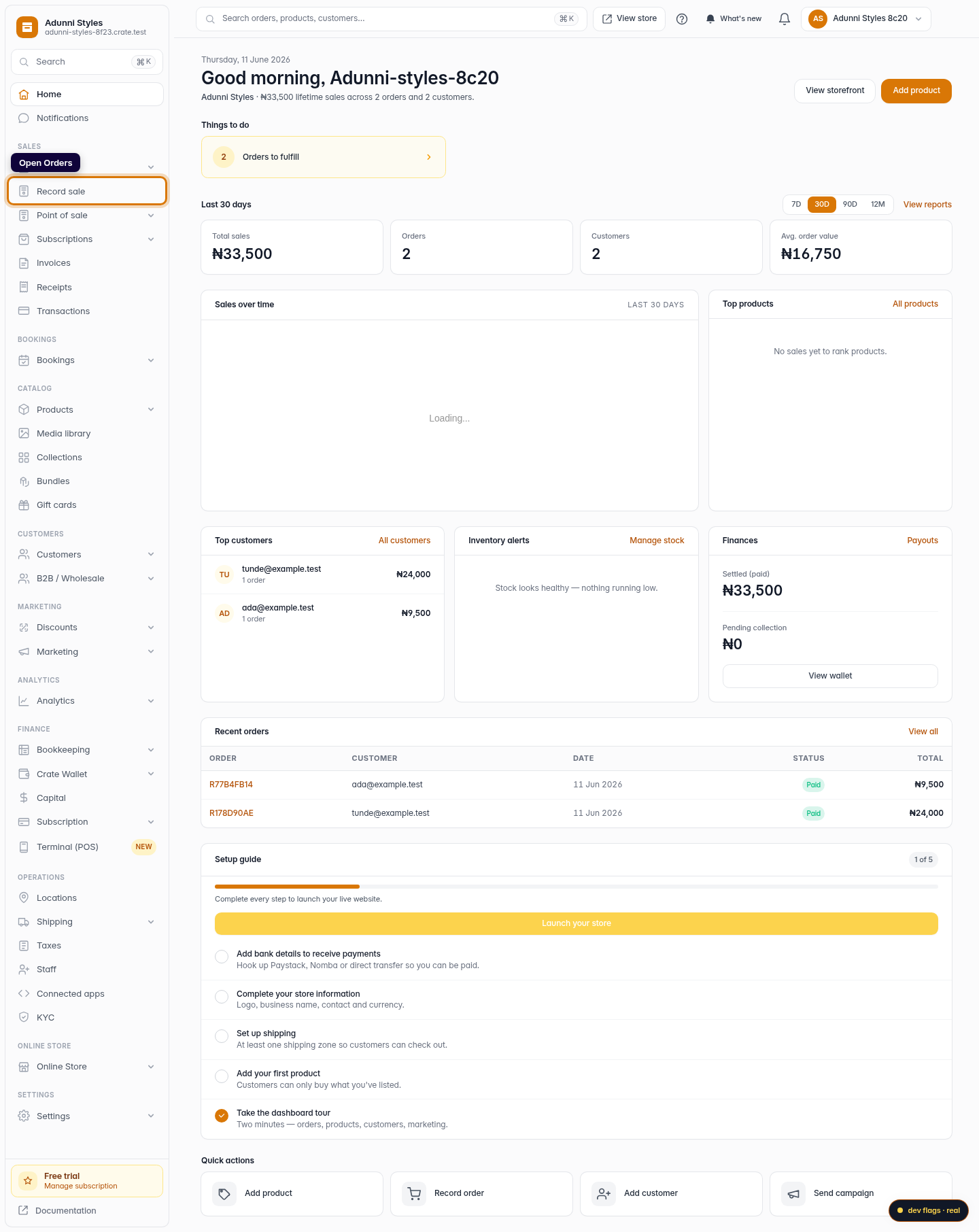
Open Orders
From your Crate dashboard, open Orders under the Sales group in the left sidebar.
Web 
Mobile -
2
Switch to the At risk tab
Above the orders table, click the At risk tab. It collects every order Crate (or you) has flagged for review, so nothing risky slips through to fulfilment.
Web -
3
Open the flagged order
Click into a flagged order. A red Flagged for review banner sits at the top of the order, reminding you to verify the buyer before you ship.
Web 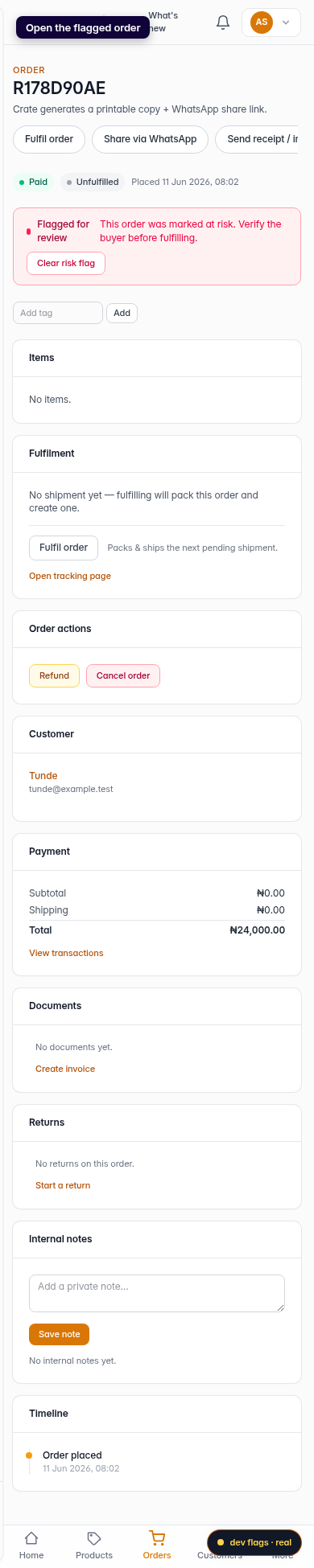
Mobile -
4
Verify, then clear or hold
Confirm the payment and the buyer look legitimate — check the payment status, the amount, and the customer details. If all is well, click Clear risk flag to move the order back into your normal flow. If something's off, leave it flagged and follow up before fulfilling.
Web -
5
Flag an order yourself
You can flag any order manually too. On an order, click Flag at risk to hold it for review — useful when a buyer's details don't sit right or a delivery address looks suspicious.
Web